Skip to content
| Marketplace
Sign in
Visual Studio Code>Data Science>Notebook CellHopNew to Visual Studio Code? Get it now.
Notebook CellHop

Notebook CellHop

jdliao

|
1 install
| (0) | Free
Mark Jupyter notebook cells and jump between them instantly with persistent, notebook-local navigation.
Installation
Launch VS Code Quick Open (Ctrl+P), paste the following command, and press enter.
Copied to clipboard
More Info

Notebook CellHop

Mark the Jupyter notebook cells you are actively working on and jump back to them instantly. Every notebook has its own small, ordered CellHop list, so your navigation stays focused on the notebook in front of you.

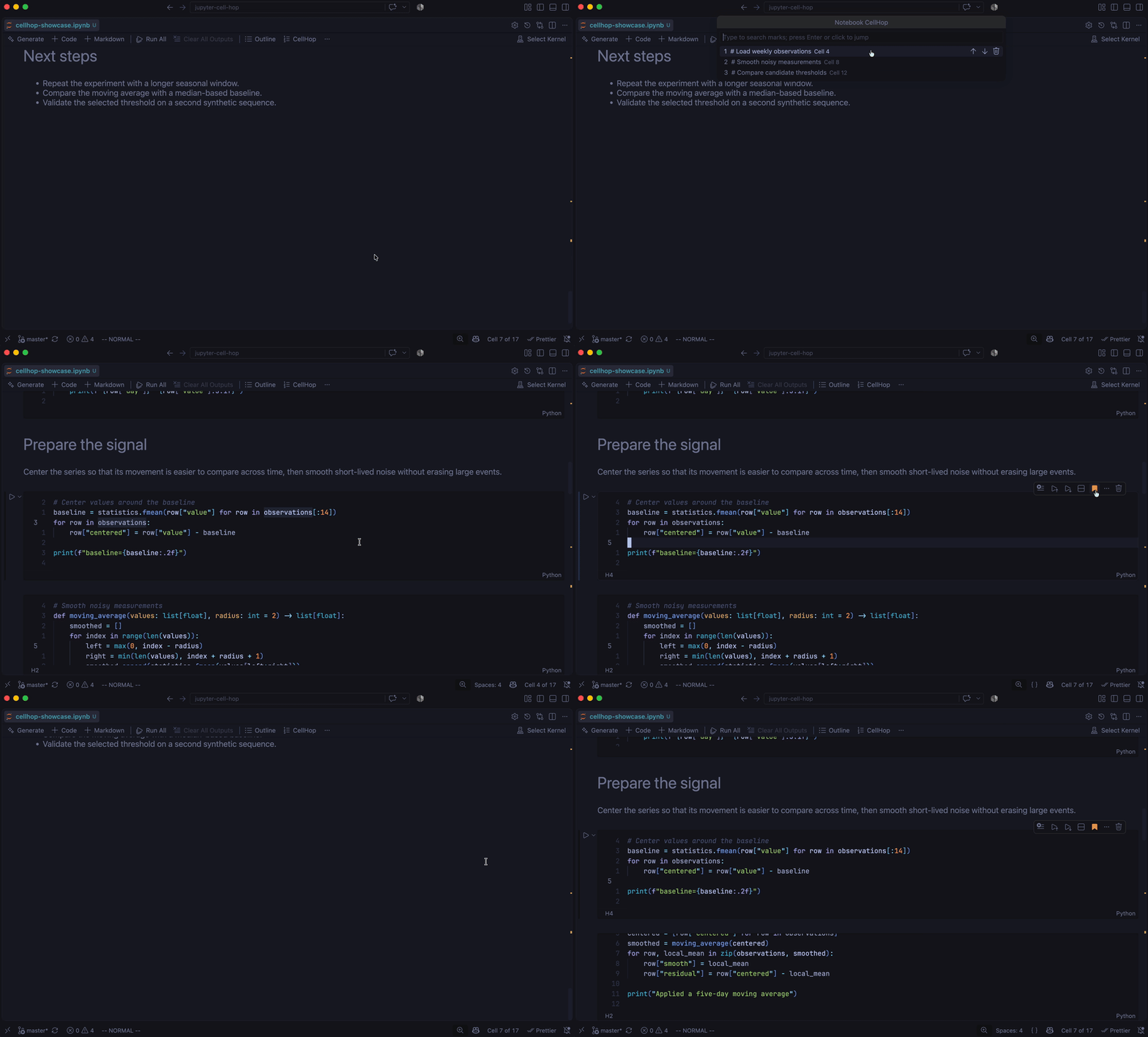
Notebook CellHop demo showing a marked-cell search and instant notebook jump

Highlights

  • Notebook-local marks — marks from one .ipynb file never appear in another.
  • Fast navigation — use a searchable navigator, a docked marks panel, previous/next commands, or direct slots 1–9.
  • Resilient cell tracking — marks follow cells when surrounding cells are inserted, deleted, moved, or edited.
  • Persistent without notebook changes — marks live in VS Code extension storage, not notebook metadata, so marking a cell does not dirty the file.
  • Visible but minimal — marked cells show H1, H2, … in the cell status bar and a filled bookmark in the cell toolbar.

Quick start

  1. Open a Jupyter .ipynb notebook in VS Code.
  2. Select a cell and click the bookmark button in its top-edge toolbar, or run Notebook CellHop: Toggle Cell in CellHop.
  3. Press Cmd+K H on macOS or Ctrl+K H on Windows/Linux.
  4. Search for a marked cell and press Enter—or click it—to jump there.

The same actions are available from Notebook CellHop in the cell toolbar's ... menu and in the cell context menu.

Navigator and marks panel

Open CellHop Navigator opens the floating, searchable mark list. Each row has buttons to move the mark up, move it down, or remove it. Reordering a mark changes its slot number.

Open Marks Panel opens the persistent CellHop Marks view. Click a row to jump to that cell, or use its inline trash action to remove it. When a marked cell is selected or reached with previous/next navigation, the corresponding panel row is selected as well.

The notebook toolbar has a CellHop list button immediately after Outline that opens this panel. VS Code does not let an extension choose the Secondary Sidebar as a view's initial location; drag CellHop Marks there once and VS Code will remember the placement.

Commands and keyboard shortcuts

All user-facing commands appear in the Command Palette under Notebook CellHop:

  • Toggle Cell in CellHop
  • Open CellHop Navigator
  • Open Marks Panel
  • Go to Mark 1 through Go to Mark 9
  • Previous Mark and Next Mark
  • Remove Cell from CellHop
  • Clear Marks

CellHop contributes one default shortcut:

Action macOS Windows/Linux
Open CellHop Navigator Cmd+K H Ctrl+K H

All other commands are intentionally left available for custom keybindings. For example:

[
  { "key": "alt+h", "command": "jupyterCellHop.toggleCurrentCell", "when": "notebookEditorFocused" },
  { "key": "alt+j", "command": "jupyterCellHop.previousMark", "when": "notebookEditorFocused" },
  { "key": "alt+k", "command": "jupyterCellHop.nextMark", "when": "notebookEditorFocused" },
  { "key": "alt+1", "command": "jupyterCellHop.goToMark1", "when": "notebookEditorFocused" },
  { "key": "alt+2", "command": "jupyterCellHop.goToMark2", "when": "notebookEditorFocused" },
  { "key": "alt+3", "command": "jupyterCellHop.goToMark3", "when": "notebookEditorFocused" }
]

Appearance

Set Notebook CellHop: Marked Button Color to Orange, Yellow, Red, Green, Blue, or Purple. Orange is the default.

Cell identity and persistence

While a notebook is open, CellHop binds a mark to the notebook cell document itself. For recovery after reopening, it stores the Jupyter cell ID when available, a normalized content fingerprint, the approximate position, and neighboring-cell fingerprints. Editing the contents of a marked cell while the notebook is open refreshes that recovery record.

This state is stored externally by VS Code. CellHop never writes marks into the .ipynb file.

Requirements

  • VS Code 1.90 or newer
  • A Jupyter .ipynb notebook opened in a notebook editor

Development

npm install
npm test

Press F5 in VS Code to compile the extension and launch an Extension Development Host.

Notebook CellHop is inspired by ThePrimeagen's Harpoon for Neovim.

License

MIT

  • Contact us
  • Jobs
  • Privacy
  • Manage cookies
  • Terms of use
  • Trademarks
© 2026 Microsoft