
Skip to content
| Marketplace
Sign in
Visual Studio Code>Other>Code RehabNew to Visual Studio Code? Get it now.
Code Rehab

Code Rehab

Ethan CH Lin

|
3 installs
| (0) | Free
| Sponsor
Track your manual coding tokens and get nagged into using AI. Your daily intervention for hand-written boilerplate.
Installation
Launch VS Code Quick Open (Ctrl+P), paste the following command, and press enter.
Copied to clipboard
More Info

Code Rehab

Stop typing. Let AI do it. 🤖

The VSCode extension that tracks how much code you manually type — and won't stop nagging you once you've hit your daily limit.

Because if you're still hand-writing boilerplate in 2026, you deserve to be interrupted.


Features

  • Daily manual token tracking — counts every character you type by hand (AI completions don't count)
  • Smart AI detection — large insertions from Copilot, Cursor, Claude Code and other AI tools are tracked separately as estimated AI tokens
  • Persistent daily limit — set your own limit; the counter resets every day at midnight
  • Escalating notifications — friendly reminder → passive-aggressive nudge → full modal that blocks your screen
  • Status bar — live token count always visible, turns red when you've gone too far
  • Stats view — 14-day bar chart, streak counter, AI ratio, and more
  • Pause tracking — need to refactor manually? Pause for 1 hour without losing your streak

How It Works

Every keystroke is analysed. Small insertions (≤ 5 characters) are counted as manual tokens. Large insertions are attributed to AI. Once your daily manual token limit is reached:

  1. A warning notification pops up with a "Show Stats" or "Pause 1h" option
  2. Every additional 50 tokens triggers another notification (with increasing urgency)
  3. After the 3rd notification, a modal dialog appears — you have to dismiss it to continue typing
  4. The editor background turns red to remind you what you're doing

Stats View

Click the status bar item or run Code Rehab: Show Token Stats to open the stats panel.
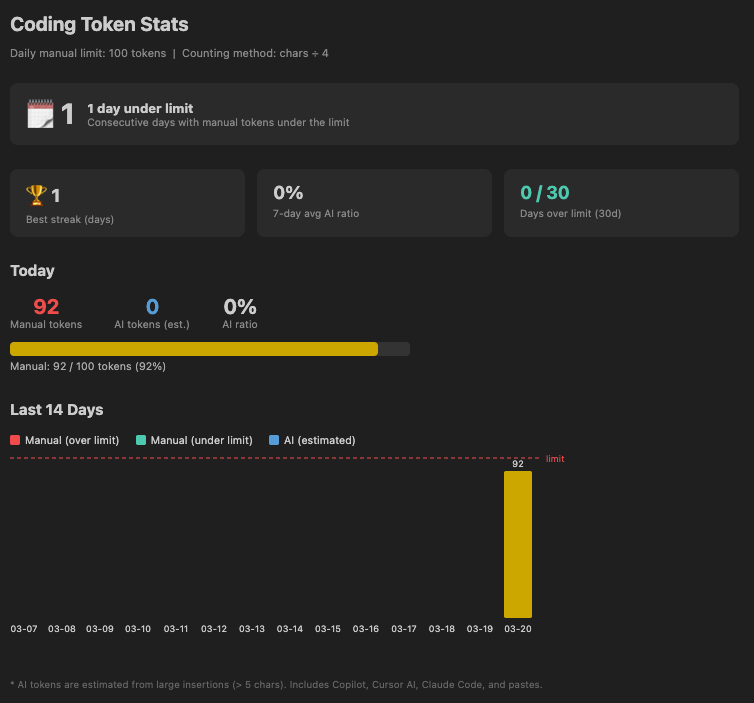
Stats View

The panel shows:

Metric Description
🗓️ Current streak Consecutive days under your manual limit
🏆 Best streak Your all-time record
7-day avg AI ratio How much of your code is AI-assisted this week
Days over limit (30d) Accountability for the past month
14-day bar chart Manual vs AI tokens per day

Configuration

Open Settings (Cmd+,) and search for vcCodeRehab:

Setting Default Description
dailyTokenLimit 1000 Max manual tokens per day before warnings start
tokensPerExtraNotification 50 How many tokens over the limit before the next warning
manualTypingMaxChunkSize 5 Insertions larger than this are treated as AI/paste
showStatusBar true Show/hide the status bar item

Commands

Open the Command Palette (Cmd+Shift+P) and search for Code Rehab:

  • Show Token Stats — open the stats panel
  • Reset Today's Count — clear today's token count
  • Pause Tracking (1 hour) — snooze tracking for 60 minutes
  • Resume Tracking — resume immediately after a pause

FAQ

Does it track AI-generated code accurately?

No — and it says so. The extension uses a heuristic: insertions larger than 5 characters are estimated as AI tokens. This captures Copilot, Cursor AI, Claude Code, and most completions reliably, but also includes manual pastes. The number is labelled "estimated" for this reason.

Does it work in Cursor?

Yes. Cursor is a VSCode fork and runs VSCode extensions natively.

Does my data leave my machine?

Never. All token counts are stored locally in VSCode's workspace state.

Why does it reset on reload?

The token count persists across reloads. Only the red background decoration resets — it only reappears when you hit the limit again in the current session. This is intentional so reloading VSCode doesn't immediately block your screen.


License

MIT — see LICENSE

  • Contact us
  • Jobs
  • Privacy
  • Manage cookies
  • Terms of use
  • Trademarks
© 2026 Microsoft