Codagrams
Codagrams renders Mermaid code blocks directly inside your editor, so diagrams stay next to the text you write.
Why Codagrams
- Works in your normal writing flow without switching to a separate preview.
- Automatically renders Mermaid blocks when you open, switch to, or save a file.
- Reuses cached diagrams for fast updates.
- Shows a clear inline hint if a Mermaid block cannot be rendered.
Mermaid Example
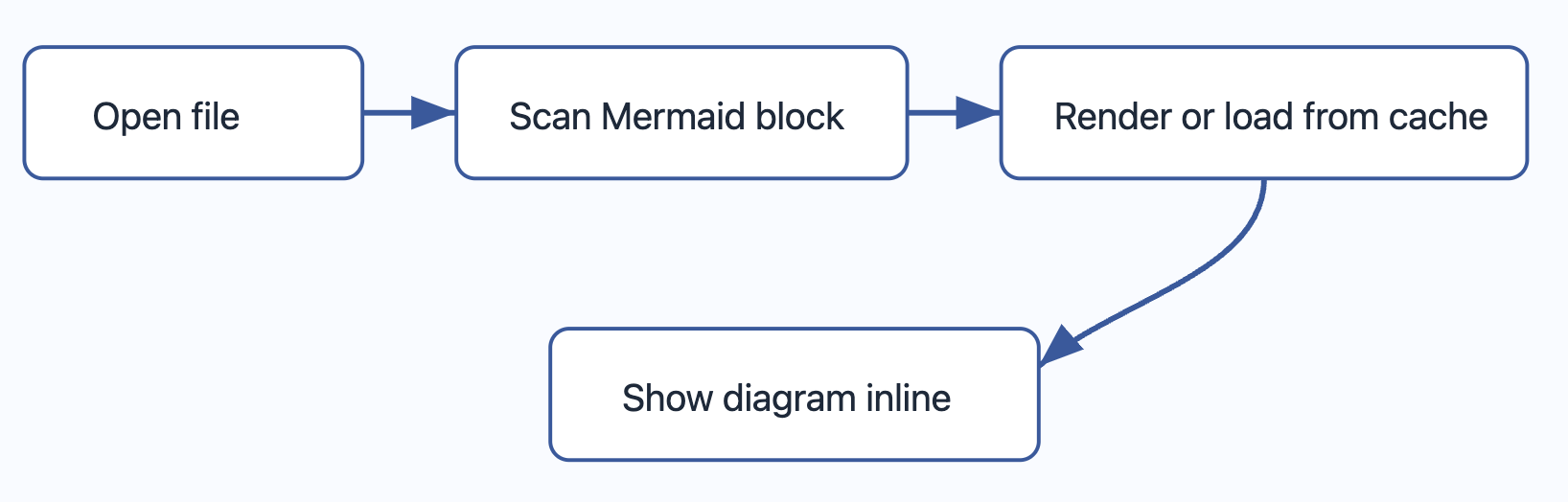
```mermaid
graph TD
  A[Open file] --> B[Scan Mermaid block]
  B --> C[Render or load from cache]
  C --> D[Show diagram inline]
```
Rendered result (example)
Quick Start
- Install Codagrams.
- Open any text-based file (for example JavaScript, Python or Markdown).
- Add a Mermaid fenced block.
- Save the file.
- The diagram appears inline below the block.
Display Options
codagrams.showDiagrams: Show or hide inline diagrams.
codagrams.renderFormat: Select svg or png rendering.
codagrams.imageWidth: Configure inline diagram width in pixels.
codagrams.debugLogs: Enable detailed diagnostic logs (off by default).
Quick toggle in status bar: click Codagrams (eye / eye-closed) to show or hide all inline diagrams.
Hover any rendered diagram and click Open rendered diagram in split pane to open it in a separate tab with image controls (zoom, etc.).
Codagrams: Toggle Diagrams
Codagrams: Show Diagrams
Codagrams: Hide Diagrams
Notes for Users
- Rendering happens locally on your machine.
- If a Mermaid block is invalid, Codagrams shows an inline warning with a link to Mermaid syntax docs.
| |

