MD Writer Studio
MD Writer Studio is a Markdown editor for VS Code. It offers two views: plain source text, or a live preview you type into directly. A toolbar in the manner of Word sits above the text, and right-clicking opens a short menu with quick formats. It also includes an outline, themes, PlantUML diagrams, printing to PDF and HTML export.
The user interface is in English. If VS Code is set to German, menus, commands, settings and messages appear in German.
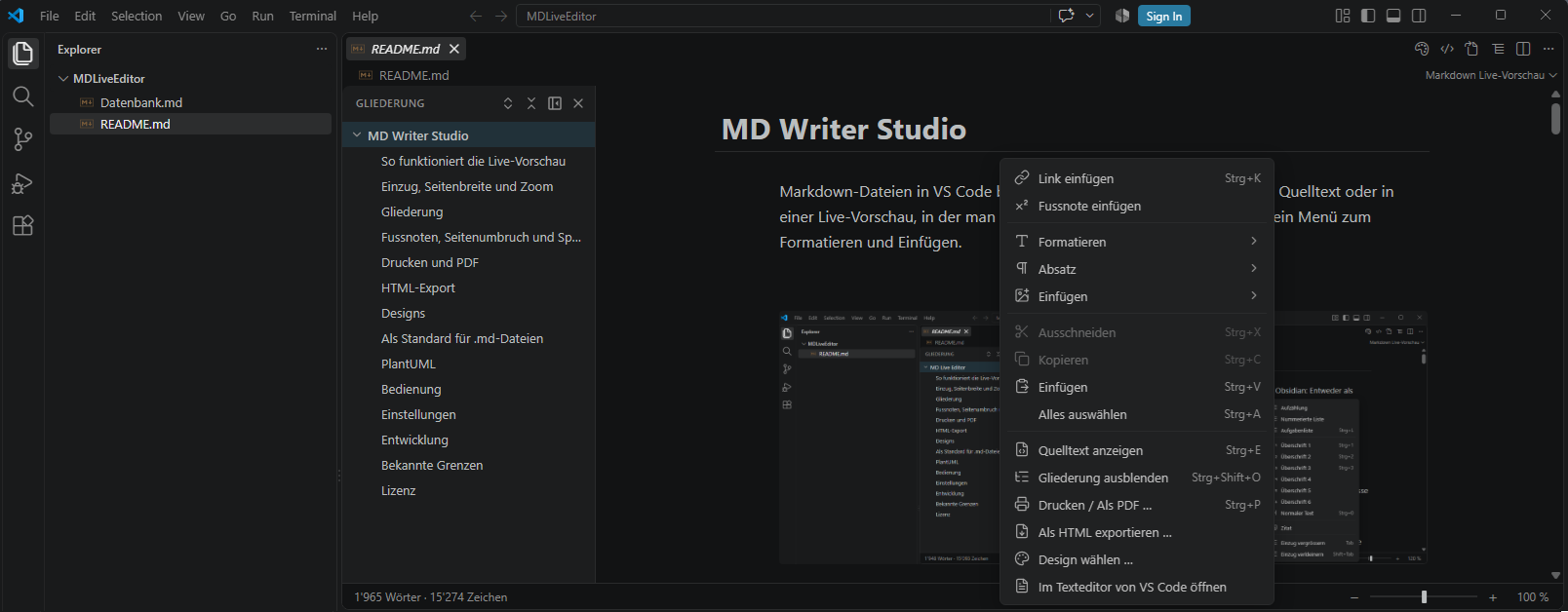
Live preview
The file always stays plain Markdown text. MD Writer Studio only hides the Markdown characters: **bold** appears as bold, # Title as a large heading, - [ ] as a checkbox. Wherever the cursor is, the characters become visible again and can be edited.
Because nothing is converted, the text stays exactly as it is, character for character. Tables are not reformatted, and _ does not turn into \_.
Press Ctrl+E or use the button at the top right of the title bar to switch between live preview and source.
Rendered elements:
- Headings, bold, italic, ~~strikethrough~~,
==highlight== and inline code
- Links and images with relative paths
- Bullet lists, numbered lists and tasks with clickable checkboxes
- Quotes and callouts such as
> [!note], > [!tip], > [!warning], > [!danger], with a title (Note, Tip, Warning, Danger …)
- Code blocks with syntax highlighting, horizontal rules and YAML front matter
- Footnotes as a superscript number; the note text appears on hover
- Page breaks as a dashed line, columns side by side
- Formulas with KaTeX and PlantUML diagrams
- Wiki links
[[Page]] and a table of contents with [toc]
Links: Ctrl+click opens a link. Web addresses open in the browser, linked files open in VS Code. If the file does not exist, a message appears.
Above the text sits a toolbar in the manner of Word: buttons in groups, with line icons that follow light, dark and high-contrast themes. A click on it never takes the focus out of the text, so the selection stays where it was.
| Group |
Contents |
| View |
Live and Source switch between the live preview and the source text |
| Format |
List of block styles, each drawn the way it will look: normal text, heading 1–6, quote, code block. The button carries the name of the block the cursor is in |
| Characters |
Bold, italic, strikethrough, highlight, inline code, remove formatting |
| Paragraph |
Bulleted list, numbered list, task list, quote, decrease / increase indent |
| Insert |
Link, image, table from a grid, horizontal rule, and a list with code block, inline formula, math block, table of contents, footnote, page break, the five callouts and the seven column layouts |
| Table |
Only while the cursor is in a table, see "Tables" |
| Right |
Outline, find, print / save as PDF, and a list with HTML export, theme and the VS Code text editor |
The buttons show what is in force at the cursor: bold stays pressed inside a bold passage, the list buttons on a list line, and the Format button names the block.
Table from a grid: the table button opens a grid of ten by eight cells. Move the pointer over it to choose the size — the first row of the grid becomes the header row — and click to insert the table.
Dropdown panels open and close on a click; Escape closes them. md-writer-studio.showToolbar hides the toolbar.
Tables
Tables are edited directly in the rendered view: click a cell and type.
- Tab / Shift+Tab moves to the next / previous cell.
- Enter moves down one row. In the last row, a new row is added.
- Arrow keys move between cells, Escape leaves the table.
- Ctrl+B, Ctrl+I and Ctrl+` format the text in the cell.
While the cursor is in a table, a coloured Table group appears in the toolbar, like Word's table tabs: insert a row above or below, insert a column to the left or right, align the column left, center or right (the alignment in force is marked), tidy up the whole table, and delete a row or column. The group also appears when a cell of the rendered table is clicked. The same commands are in the right-click menu inside a table.
Bold, italic and the rest apply inside a rendered cell, whether from the toolbar, the quick formats or with Ctrl+B, Ctrl+I and Ctrl+`.
Right-click opens a short menu with a row of quick formats above it, the way Word shows its mini toolbar: bold, italic, strikethrough, highlight, code, remove formatting, the three list kinds, quote and link. Each one is marked when it is in force at the cursor.
The menu itself keeps what belongs to the spot under the pointer: cut, copy, paste, paste as table, insert link, insert footnote, the table commands inside a table, select all, source or live preview, and print / save as PDF. Everything else is in the toolbar.
Lists: Tab and Shift+Tab indent and outdent a list item. Sub-items move along and the numbering adjusts. Ctrl+L turns a line into a task, then into a completed task, and back into an open one.
Images: Insert → Image lets you pick a file, which is linked relative to the Markdown file. Images from the clipboard (e.g. screenshots) are saved as a file in the images folder next to the Markdown file, and the link is inserted. The folder is set with md-writer-studio.imageFolder.
Slash commands: Type / at the start of a line or after a space. A list of blocks opens: headings, lists, table, code block, formulas, PlantUML diagram, table of contents, image, footnote, page break, columns and callouts. Keep typing to filter (e.g. /tab), then press Enter. English names work in every language.
Completion: After ]( the list shows images and Markdown files in the workspace, after ](# the headings of the document, after [[ the pages for a wiki link.
Smart paste:
- An address pasted over selected text becomes a link:
[text](https://…).
- Cells copied from Excel, LibreOffice or Google Sheets become a Markdown table, as do lines separated by tabs, semicolons or commas (CSV). With semicolons and commas this happens automatically only if the lines look like data; right-click → Paste as table converts them in any case.
- Content from web pages, Word or Outlook becomes Markdown (headings, bold, lists, links, tables).
- Ctrl+Shift+V pastes plain text without conversion. Nothing is converted inside code blocks.
Drag and drop: Images dragged from the desktop are copied into the image folder and embedded. Files dragged from the VS Code Explorer are linked relative to the document; VS Code requires holding Shift while dropping.
Find and replace with Ctrl+F, including match case, whole word and regular expressions.
Footnotes, page breaks and columns
Footnotes: Right-click → Insert footnote puts [^1] at the cursor position and adds [^1]: for the note text at the end of the document. The number is counted up automatically.
Page break: Ctrl+Enter or Insert → Page break inserts this line:
<div style="page-break-after: always;"></div>
When printing, a new page starts there. This is the common way to write page breaks in Markdown. Wherever the document is not printed, the line stays invisible. <!-- pagebreak --> is recognized as well.
Columns: Insert → Columns offers the layouts 50/50, 40/60, 60/40, 33/67, 67/33, 33/33/33 and 25/50/25. Markdown itself has no columns, so HTML is inserted with regular Markdown in between:
<div class="md-columns" style="display: flex; gap: 2em;">
<div class="md-column" style="flex: 40;">

Left column with **Markdown**

</div>
<div class="md-column" style="flex: 60;">

Right column

</div>
</div>
The blank lines matter: without them, the Markdown in between is not rendered. flex: 40 and flex: 60 split the width in a 40 : 60 ratio. In the live preview, the columns are shown side by side. Clicking into a column shows the columns one below the other for editing, labeled and color-coded. When the cursor leaves the columns, they are shown side by side again. When printing and in the HTML export, the columns are side by side as well. Applications without HTML support show them one below the other, but the content is fully preserved.
Formulas, wiki links and table of contents
Formulas are written in LaTeX and rendered with KaTeX: $E = mc^2$ in the text, or as a block:
$$
\sum_{i=1}^{n} i = \frac{n(n+1)}{2}
$$
Amounts like "costs $5 and $6" stay text: the opening $ must not be followed by a space, the closing one must not be preceded by a space or followed by a digit. Clicking a formula shows its source.
Wiki links as in Obsidian: [[Page]], [[Page|shown text]], [[Page#Heading]] and ![[image.png]] to embed an image. Ctrl+click looks for the page next to the document first, then anywhere in the workspace. If it does not exist, MD Writer Studio offers to create it. When printing and in the HTML export, wiki links become normal links to Page.md.
Table of contents: [toc] on its own line (as in Typora) shows all headings as a clickable list that updates itself. When printing and in the HTML export, it becomes a list of links to the headings.
Outline
On the left side of the editor, the outline shows all headings (H1–H6) as a tree.
- Clicking a heading scrolls to it.
- The arrow in front of a heading expands and collapses its sub-items; the two buttons at the top expand or collapse everything.
- While scrolling, the section currently at the top is highlighted.
- The list updates as you type. Headings in front matter, quotes, lists and code blocks are not listed.
- Keyboard: arrow keys move between entries, right / left expands and collapses, Enter jumps to the heading, Escape returns to the text.
Show and hide: Ctrl+Shift+O, the button in the title bar, right-click → Hide outline or the × in the outline. This applies to all open files and is kept after a restart. With md-writer-studio.outline.show = false, the outline is hidden by default.
Narrow bar: The Narrow outline button turns the outline into a narrow bar with icons: H1 as an icon, lower headings as "h2" … "h6". Hovering shows the heading text, clicking jumps to it. Widen outline shows the texts again.
Width: Drag the right edge of the outline; double-click to reset it. Collapsed items stay collapsed as long as the file is open.
Page width, indentation and zoom
Page width: With readableLineLength, the text is centered and its width is limited. In windows narrower than 1200 px, it is at most pageMaxWidth wide (default 900 px); from 1200 px on, it takes up pageWidthPercent of the window (default 75 %).
Indentation: Body text and headings are indented in steps: text 60 px, H1 0 px, H2 15 px, H3 30 px, H4 35 px, H5 60 px, H6 75 px. The values are in the settings under "MD Writer Studio › Page Layout and Indentation". With md-writer-studio.indent.mode = design, the theme's indentation applies; with none, there is no indentation. The indentation also applies when printing.
Zoom: Ctrl + mouse wheel or the zoom bar at the bottom right (50–300 %, 100 % in the middle). Clicking the percentage resets it to 100 %. Font, indentation, page width and images scale along. The last zoom level is used again the next time you open a file.
Footer: Shows the number of words and characters; with a selection, "x of y words".
Printing and PDF
Ctrl+P, right-click → Print / Save as PDF …, the "…" menu at the top right, or right-click the file in the Explorer.
MD Writer Studio creates a print page in the current theme and opens it in the default browser. The print dialog opens automatically. To get a PDF, choose "Save as PDF" as the printer.
- The print page includes formulas, PlantUML diagrams, tables, callouts, footnotes, page breaks, columns, the table of contents and indentation.
- The sheet is always white, even with dark themes or themes with a tinted background.
- Font size:
md-writer-studio.print.fontSize (default 11) sets the body text size in pt, as in Word. The text is as large as Calibri at that size, whatever font the theme uses, so every theme prints the same size. Headings, code and tables keep the theme's proportions. 0 = as in the theme.
- Print pages are stored in the temp folder (
md-writer-studio-print) and deleted after one day.
HTML export
Right-click → Export as HTML …, the "…" menu at the top right, or right-click the file in the Explorer.
By default, only the content is saved, without <html>, <head> and <body>, e.g. for pasting into a web page or a CMS. With md-writer-studio.exportHtml.fullDocument = true, you get a standalone page with a title and the CSS of the current theme. PlantUML diagrams are embedded as images; other images stay linked relative to the Markdown file.
Formulas: the complete page contains the KaTeX styles and fonts; the content-only export uses MathML, which browsers display without extra styles.
Themes
Change the look with the color palette button at the top right, right-click → Choose theme …, or the command MD Writer Studio: Choose Theme …. While browsing with the arrow keys, each theme is shown immediately; Enter applies it.
Included:
| Theme |
Description |
| VS Code |
Colors of the active VS Code color theme |
| GitHub |
Looks like Markdown on github.com, light or dark to match VS Code |
| Cyber Green |
Black with neon green, by @it-m-h (github.com/it-m-h/CyberGreen, AGPL-3.0) |
Custom themes are added in the settings (JSON):
"md-writer-studio.themes": [
  { "name": "Cyber Green (GitHub)", "source": "https://github.com/it-m-h/CyberGreen" },
  { "name": "School", "source": "C:/Themes/school.css", "type": "css" },
  { "name": "My Vault", "source": "D:/Vault/.obsidian/themes/Minimal/theme.css" }
]
source: local path (absolute or relative to the workspace), https address or GitHub repository. For a repository, theme.css in the root folder is loaded.type: obsidian for Obsidian themes or css for your own CSS. If omitted, theme.css files and GitHub repositories are treated as Obsidian themes.- Obsidian themes in
.obsidian/themes/*/theme.css in the open workspace appear in the list automatically.
- Themes loaded from the web are cached and keep working offline.
Obsidian themes can mostly be used unchanged. MD Writer Studio provides the classes and variables these themes expect (theme-dark/theme-light, HyperMD-header-1, cm-header-1, HyperMD-codeblock, cm-keyword, --background-primary, --text-normal etc.). Themes that mainly style the interface outside the editor may only partly take effect.
Custom CSS: In a css theme, you can override the editor variables on body, e.g. --md-bg, --md-fg, --md-h1 … --md-h6, --md-link, --md-code-bg, --md-border, --md-accent, --md-table-head-bg.
PlantUML
Code blocks marked ```plantuml, puml or uml are shown as diagrams. Clicking a diagram opens its code, and the preview below it updates as you type.
By default, a PlantUML server renders the diagrams (md-writer-studio.plantuml.render = server). Nothing needs to be installed, but the diagram code is sent to the server (setting md-writer-studio.plantuml.server).
With md-writer-studio.plantuml.render = local, diagrams are rendered locally, so the content never leaves your computer. This requires:
- Java (
java on the PATH or md-writer-studio.plantuml.java)
plantuml.jar: taken automatically from the "PlantUML" extension (jebbs.plantuml) or set with md-writer-studio.plantuml.jar- Graphviz for some diagram types (
dot on the PATH or md-writer-studio.plantuml.graphvizDot)
With off, PlantUML blocks are shown as code only.
Default editor for .md files
VS Code has its own Markdown preview, which may take over when you open .md files. On first start, MD Writer Studio therefore asks whether Markdown files should always open in it. To set this manually, add the following to the settings (JSON):
"workbench.editorAssociations": {
  "*.md": "md-writer-studio.editor"
}
Any file can still be opened in the regular text editor: with the Open in Text Editor button in the title bar, the right-click menu or Open With…. The other way round, right-click a Markdown file in the Explorer → Open with MD Writer Studio.
Keyboard shortcuts
| Action |
Shortcut |
| Source ↔ live preview |
Ctrl+E |
| Slash commands |
/ at the start of a line |
| Paste as plain text |
Ctrl+Shift+V |
| Bold / italic |
Ctrl+B / Ctrl+I |
| Strikethrough / highlight |
Ctrl+Shift+X / Ctrl+Shift+H |
| Inline code |
Ctrl+` |
| Insert link |
Ctrl+K |
| Toggle task |
Ctrl+L |
| Heading 1–6 / normal text |
Ctrl+1 … Ctrl+6 / Ctrl+0 |
| Indent / outdent list item |
Tab / Shift+Tab |
| Page break |
Ctrl+Enter |
| Find and replace |
Ctrl+F |
| Undo / redo |
Ctrl+Z / Ctrl+Y |
| Show / hide outline |
Ctrl+Shift+O |
| Print / save as PDF |
Ctrl+P |
| Zoom |
Ctrl + mouse wheel |
On macOS, use ⌘ instead of Ctrl. Saving, undo and redo are handled by VS Code, just like for any other file.
Settings
All settings are under "MD Writer Studio", in the groups General, Page Layout and Indentation, Theme and PlantUML.
| Setting |
Default |
Description |
md-writer-studio.defaultMode |
live |
View when opening a file: live or source |
md-writer-studio.outline.show |
true |
Show the outline on the left side of the editor |
md-writer-studio.showToolbar |
true |
Show the toolbar with the formatting commands above the text |
md-writer-studio.showStatusBar |
true |
Show the footer with word count and zoom |
md-writer-studio.imageFolder |
images |
Target folder for inserted images, relative to the file (empty = same folder) |
md-writer-studio.exportHtml.fullDocument |
false |
Export HTML as a complete page with theme |
md-writer-studio.print.fontSize |
11 |
Body text size when printing in pt, as large as Calibri in Word (0 = as in the theme) |
md-writer-studio.readableLineLength |
true |
Limit and center the text width |
md-writer-studio.pageMaxWidth |
900 |
Maximum width in px for windows narrower than 1200 px |
md-writer-studio.pageWidthPercent |
75 |
Width in % for windows from 1200 px (0 = always pageMaxWidth) |
md-writer-studio.indent.mode |
custom |
custom (values below), design (as in the theme) or none |
md-writer-studio.indent.text |
60 |
Indentation of text, lists, tables and code in px |
md-writer-studio.indent.h1 … h6 |
0, 15, 30, 35, 60, 75 |
Indentation of headings in px |
md-writer-studio.theme |
vscode |
Active theme: vscode, github, cyber-green or custom:<name> |
md-writer-studio.themes |
[] |
Custom themes (see "Themes") |
md-writer-studio.cursorColor |
#ffb000 |
Cursor color; empty = color of the color theme |
md-writer-studio.plantuml.render |
server |
server, local or off |
md-writer-studio.plantuml.server |
https://www.plantuml.com/plantuml |
Server for server mode |
md-writer-studio.plantuml.jar |
empty |
Path to plantuml.jar (empty = automatic) |
md-writer-studio.plantuml.java |
empty |
Path to Java (empty = PATH) |
md-writer-studio.plantuml.graphvizDot |
empty |
Path to Graphviz dot |
VS Code for the Web
MD Writer Studio also runs in the browser, e.g. on vscode.dev or github.dev. Editing, live preview, formulas, wiki links, completion, smart paste and the HTML export work as on the desktop. Not available in the browser:
- Printing / Save as PDF (use Export as HTML instead)
- Local PlantUML rendering with Java (
md-writer-studio.plantuml.render = server works)
- Custom themes from local paths such as
~/themes/x.css; themes from the workspace or from https addresses work
Known limitations
- Inside rendered table cells, formulas are shown as source.
- Completion of link targets and wiki links needs an open workspace folder.
- The alignment of a table column is changed with the right-click menu, not directly in the delimiter row.
- When editing a long PlantUML block, the preview is below the code and may need to be scrolled into view.
License
Copyright © 2026 it-m-h (https://www.it-m-h.ch/)
MD Writer Studio is free software under the GNU Affero General Public License, version 3 (AGPL-3.0-only). You may use, share and modify it. Anyone who distributes the extension or a modified version, or makes it available over a network, must make the source code available under the same license. The software is provided without any warranty. The full terms are in the LICENSE file shipped with the extension.
Third-party open-source components included in the extension and their licenses are listed in THIRD-PARTY-NOTICES.md.

