HTML Writer Studio
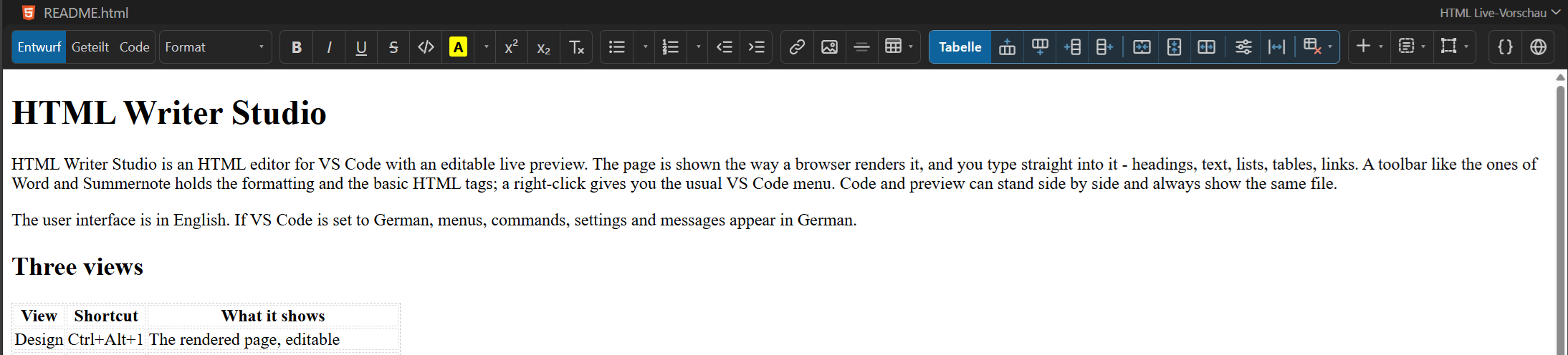
HTML Writer Studio is an HTML editor for VS Code with an editable live preview. The page is shown the way a browser renders it, and you type straight into it - headings, text, lists, tables, links. A toolbar like the ones of Word and Summernote holds the formatting and the basic HTML tags; a right-click gives you the usual VS Code menu. Code and preview can stand side by side and always show the same file.
The user interface is in English. If VS Code is set to German, menus, commands, settings and messages appear in German.
Three views
| View |
Shortcut |
What it shows |
| Design |
Ctrl+Alt+1 |
The rendered page, editable |
| Split |
Ctrl+Alt+2 |
Code and page side by side |
| Code |
Ctrl+Alt+3 |
The source with syntax highlighting |
A file opens in the design view. The buttons at the top left of the editor switch between the views, and so do the buttons in the editor's title bar. The divider in the split view can be dragged. Whatever you change on one side appears on the other immediately - both write into the same file. In the split view a click in the preview takes the code to the same spot and marks the line.
The editable live preview
The preview is the real page in an iframe: your own CSS, your fonts, your images, relative paths and media queries all apply. What you see is what the browser will show.
- Type anywhere. Click into the page and write. Enter creates a new paragraph, Shift+Enter a line break.
- Format text. Bold, italic, underline, strikethrough, inline code, superscript, subscript and remove formatting.
- Change the block format. Paragraph, heading 1-6, quote, preformatted text, address or
div - through the Format list, which shows every style the way it will look. The button itself carries the name of the block the cursor is in.
- Colours, like in Summernote. The highlight button marks the selection in the last colour used and takes the highlight away again on a second click. The arrow next to it opens two palettes, text colour and background, each with a button that removes the colour. With text selected only that text changes; with just the cursor in a coloured stretch the whole stretch does. Colours are written as
style on a span, in #rrggbb.
- Bullets and numbering, like in Word. The list buttons switch a list on and off; the arrow beside each opens a library whose tiles show the style as a small list: bullets as disc, circle, square, dash, arrow or check mark, numbering as 1., 01., a., A., i. or I., and None for a list without markers. Picking a numbering style in a bulleted list turns it into a numbered one and back, keeping the items; the tile of the list the cursor is in is marked. The style is written as
list-style-type on the list; the default style leaves no attribute. The indent buttons and Tab / Shift+Tab move list items in and out.
- Insert. Link, image and horizontal rule have their own buttons; the Insert list adds table, description list, line break, non-breaking space, special characters, comments and today's date.
- Wrap in a container. The Container list puts the current block inside a
div, section, article, header, footer, nav, aside or main, or inserts a figure with a caption.
- Work on the element itself. The Element list: edit attributes in a dialog, replace its HTML, select the parent element, duplicate it, remove just the tag, or delete the element. It stays greyed out until the cursor is in an element.
Scripts in the page never run while you edit. The preview is loaded with a content security policy that blocks them, so a page cannot rewrite itself behind your back. Because they cannot run, <script> and <style> in the body have nothing to show; the design view draws a read-only code block for each of them instead, highlighted in the colours of your colour theme and with the language and the number of lines in its head. A long block scrolls on its own so it does not push the page out of sight, and a click on it takes the code pane to the element it stands for. The blocks are part of the design view only - the elements themselves stay as they are, and nothing of the display is written to the file.
Tables
- Insert a table by size. The table button opens a grid, as in Summernote: move over it and click. The new table has a thin border and spans the full width. Table … below the grid opens a dialog with rows, columns, header row, caption and the choice of a table without border.
- Table tools, like Word's table tabs. As soon as the cursor is in a table, a coloured Table group appears beside the table button, and it disappears again when the cursor leaves the table. It inserts rows above and below and columns left and right, merges a cell with the one to its right or below it (colspan and rowspan) and splits it again, and deletes a row, a column or the whole table.
- Table properties set the width of the table, border width and colour, cell padding, cell spacing and alignment. Column width sets the width of the column the cursor is in. Both are written as
style on the tags.
- Rows and columns go in and out without breaking merged cells. Tab jumps to the next cell, Shift+Tab to the previous one.
The code view
The source is shown with line numbers and the syntax colours of the colour theme VS Code is running: the editor reads them out of the theme file, so the code pane and a normal editor tab paint the same HTML the same way. A theme whose colours cannot be read falls back to the colours of Dark+ and Light+.
While you type, the code pane suggests what fits at the cursor:
- Elements after
<, closing tags after </ - the element that is still open comes first.
- Attributes inside a tag, the ones that belong to the element before the global ones. Attributes that are already there are left out.
- Values inside an attribute, for example
_blank for target or lazy for loading.
- Named characters after
&, with the character they stand for next to the name.
Arrow keys pick an entry, Enter or Tab inserts it, Escape closes the list, Ctrl+Space opens it again. Tab after a bare element name writes the whole element: h2 becomes <h2></h2> with the cursor between the tags, div.wrap becomes <div class="wrap"></div>. Typing > closes the element: <section> becomes <section></section> with the cursor between the two, except for <br>, <img> and the other elements that have no closing tag.
The toolbar works in the code view as well: it wraps the selection in the tag of the button.
Tag path and properties
The bar at the bottom shows the path to the element the cursor is in, for example body › div.wrap › ul › li. Clicking an entry selects that element and outlines it in the page - the same idea as the tag selector in Dreamweaver.
Above it, the property bar shows the attributes of the selected element: id and class for every element, then href and title for links, src, alt, width and height for images, and style for everything else. Attributes opens a dialog for every other attribute.
What happens to your file
Only the content of <body> is written back. The doctype, <head>, the <html> and <body> tags and everything else stay exactly as they are, character for character. A file without a <body> - a template fragment, an include - is edited as a whole.
Existing formatting is kept: the editor changes the part you actually edit, not the whole file. New elements are inserted where the cursor is.
Format HTML (the { } button at the right end of the toolbar, or HTML Writer Studio: Format HTML) indents the whole file. It never touches the content of <pre>, <textarea>, <script> and <style>, and short elements such as <p>Text</p> stay on one line. Turn on html-writer-studio.format.onSave to do it on every save.
Links, images and files
- Ctrl+click a link in the preview: web addresses open in the browser, links to files next to the page open in VS Code.
- The image dialog has a Browse … button. The picked file is inserted as a path relative to the page.
- Pasting from a browser or a word processor keeps headings, lists, links and tables, and drops the
style attributes and the Mso… classes that come with them. Ctrl+Shift+V pastes as plain text.
A right-click in the code view opens the VS Code menu with cut, copy and paste and, below them, Format HTML, Open in Browser, Open in Text Editor and, if the Live Server extension is installed, Open with Live Server and Stop Live Server. Live Server is handed the file you are editing, so it serves that page and not whatever text editor is open behind it; the file is saved first. The same entries work with the shortcuts you know from the text editor. In the design view the right-click stays the plain menu of the preview, because that page lives in a frame of its own.
Zoom
The right end of the status bar carries a zoom control like the one in Word: minus, a slider with 100% in its middle, plus, and the percentage, which sets the zoom back to 100% when you click it. Ctrl+mouse wheel does the same in either pane. One zoom applies to the whole file: the preview is scaled the way a browser zooms - the page reflows, so a responsive layout reacts to it - and the font of the code view grows with it. The zoom belongs to the open editor; it is not written to the file or to your settings.
Commands
| Command |
Description |
| HTML Writer Studio: Open with HTML Writer Studio |
Opens the current .html/.htm file in the editor |
| HTML Writer Studio: New HTML Page … |
Creates a page with doctype, <head> and a heading |
| HTML Writer Studio: Design View / Split View / Code View |
Switches the view (Ctrl+Alt+1 / 2 / 3) |
| HTML Writer Studio: Format HTML |
Indents the file |
| HTML Writer Studio: Open in Browser |
Opens the file in the default browser |
| HTML Writer Studio: Open in Text Editor |
Switches back to the plain VS Code editor |
| HTML Writer Studio: Open with Live Server / Stop Live Server |
Runs the file through the Live Server extension; only offered when it is installed |
HTML files keep opening in the normal editor. To open one here, use Open with HTML Writer Studio in the explorer's context menu or in the editor's title bar, or Open With …. To make it the default, add this to your settings:
"workbench.editorAssociations": {
  "*.html": "html-writer-studio.editor"
}
Settings
| Setting |
Default |
Description |
html-writer-studio.defaultView |
design |
View when a file is opened |
html-writer-studio.splitOrientation |
vertical |
Code and preview side by side or one above the other |
html-writer-studio.design.showBlockOutlines |
true |
Dashed outlines around containers in the design view |
html-writer-studio.design.showInvisibleElements |
true |
Markers for comments and empty anchors, code blocks for <script> and <style> |
html-writer-studio.design.extraCss |
"" |
CSS that only applies in the design view |
html-writer-studio.semanticTags |
true |
Write <strong>/<em> instead of <b>/<i> |
html-writer-studio.format.indentSize |
2 |
Spaces per indentation level |
html-writer-studio.format.useTabs |
false |
Indent with tabs |
html-writer-studio.format.onSave |
false |
Format on every save |
The outlines and the markers exist only in the design view. They are never part of the saved file.
Shortcuts
| Shortcut |
Action |
| Ctrl+Alt+1 / 2 / 3 |
Design / split / code view |
| Ctrl+B / Ctrl+I / Ctrl+U |
Bold / italic / underline in the design view |
| Ctrl+K |
Link |
| Ctrl+Shift+V |
Paste as plain text |
| Ctrl+S |
Save |
| Ctrl+Z / Ctrl+Y |
Undo / redo |
| Tab / Shift+Tab |
Next / previous table cell, or indent / outdent a list item |
| Tab |
Write out an element name in the code view |
| Ctrl+Space |
Suggestions in the code view |
| Shift+Alt+F |
Format HTML |
| Alt+L Alt+O / Alt+L Alt+C |
Start / stop Live Server |
| Ctrl+mouse wheel |
Zoom in and out |
License
Copyright © 2026 it-m-h (https://www.it-m-h.ch/)
HTML Writer Studio is free software under the GNU Affero General Public License, version 3 (AGPL-3.0-only). You may use, share and modify it. Anyone who distributes the extension or a modified version must make the source code available under the same license; the same applies to a modified version that others use over a network. The software is provided without any warranty. The full terms are in the LICENSE file shipped with the extension.

