HumanEye

Make code written by agents easier to parse for you, the reader by folding durable, agent-directed maintenance comments.
HumanEye recognizes the @agent-context convention, keeps context colocated with code, and provides hidden, all, and per-type visibility filters. Runs locally without an AI service or account.
Some generated comments contain valuable context for future modifications but distract humans during everyday reading and review. @agent-context is the annotation specification for keeping that knowledge colocated with the code; HumanEye collapses those annotations into subtle horizontal markers. Hover or expand a marker when you need the full context. The source remains unchanged, and everything runs locally without an AI service, account, or network access.
Installation
Install the .vsix through Extensions → Install from VSIX. Its permanent extension identity is ischouten.human-eye. Marketplace releases are published through the repository's manually dispatched GitHub Actions workflow.
How it works
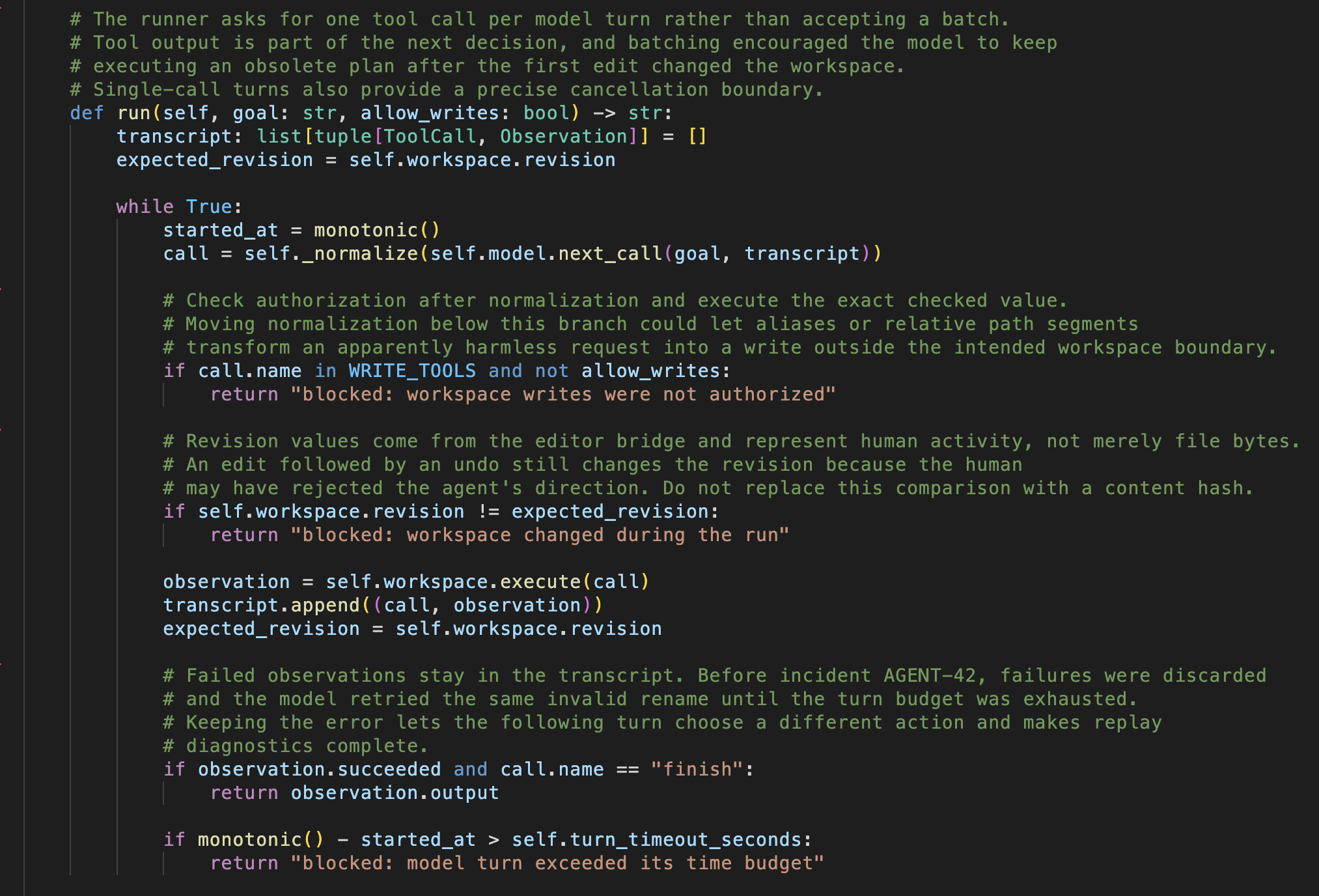
Without HumanEye, maintenance guidance dominates the source and interrupts the code's visual flow:
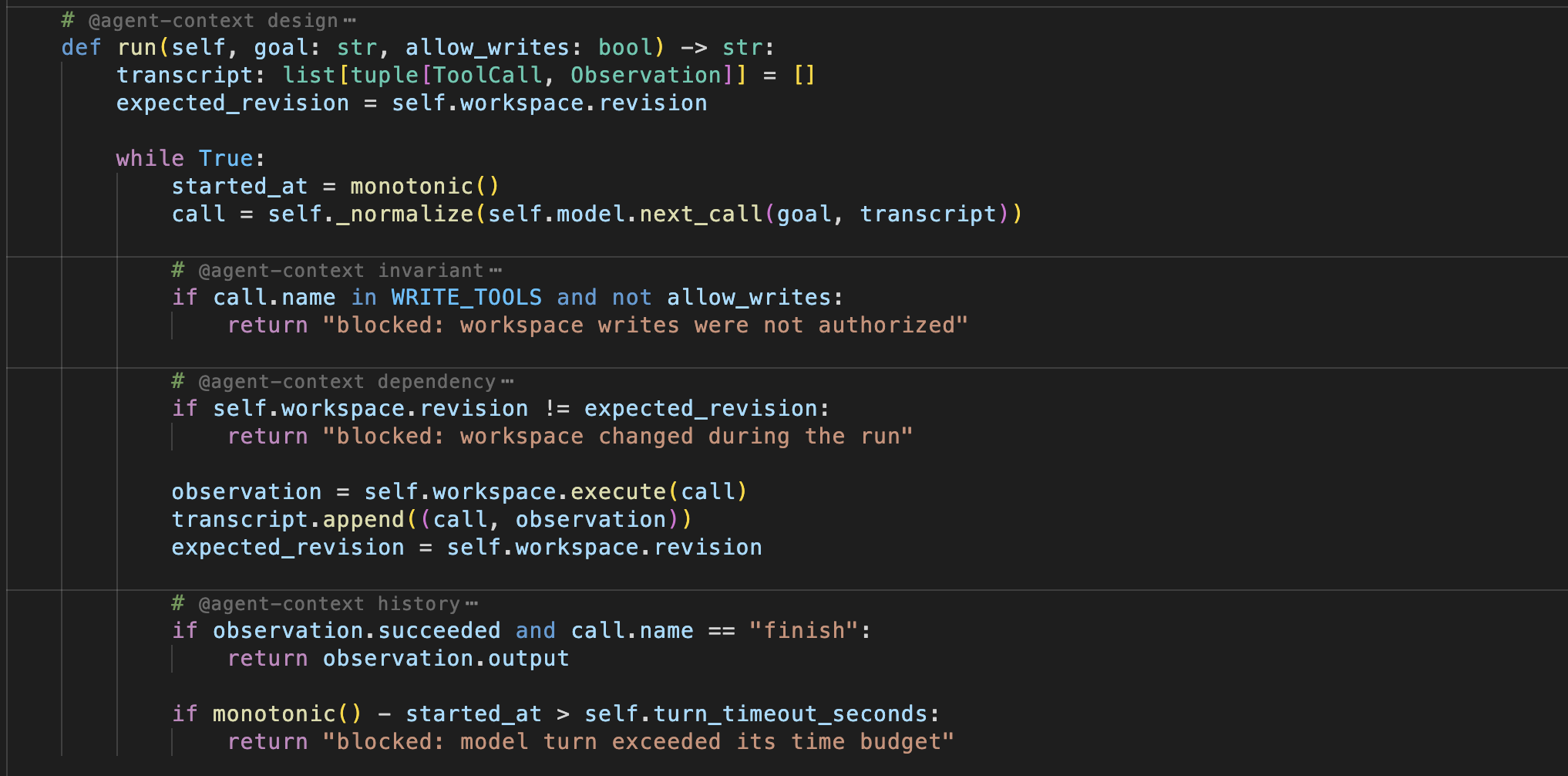
With HumanEye, the same source stays readable while every annotation remains available through hover or folding:
/* @agent-context invariant
 * IDs must remain stable across imports.
 */
const id = existingId;
Multiline annotations are initially collapsed through folding ranges supplied by VS Code and installed language extensions, leaving one subtle full-width horizontal rule. Click the folding control in the gutter to expand or collapse the context. Hover the rule to inspect the annotation without expanding it. The extension disables folded-range background highlighting by default, while leaving native folding providers and placeholders intact. It does not modify files; comments remain present in copying, search, and accessibility tools.
The VS Code status bar shows the active HumanEye filter whenever the current document contains annotations. Select it to choose which annotation types should be visible. HumanEye immediately expands the selected types and folds the remaining types; selecting every type is equivalent to all, while clearing the selection is equivalent to hidden.
For a clear before-and-after comparison, open one of the Java, Python, TypeScript, Rust, or C# files under examples/, then disable and enable HumanEye. These deliberately context-heavy examples are intended for screenshots and compatibility checks and are not included in the extension package.
Teach coding agents to use the convention
Run HumanEye: Install Agent Instructions from the Command Palette to add the template below without replacing existing instructions. Choose either CLAUDE.md for Claude Code or AGENTS.md for Codex and compatible agents, then install it in the current project root or your user profile. HumanEye writes Claude profile instructions to ~/.claude/CLAUDE.md and AGENTS profile instructions to ~/.codex/AGENTS.md. Running the command again leaves an existing HumanEye section unchanged.
Add the following instruction to your repository's AGENTS.md, CLAUDE.md, or equivalent agent instruction file:
## Source Code Comments

Classify every potential comment as:

1. **No comment (default)** — information is obvious from the code or has no lasting value.
2. **Normal comment** — helps humans understand or safely review the code.
3. **`@agent-context <reason>`** — helps future agents/maintainers modify the code correctly, but would add noise to normal reading.

Never narrate obvious code or restate names, types, signatures, conditions, or control flow.

### Normal comments

Keep concise. Use for non-obvious domain meaning, surprising behavior, local assumptions, or information humans should see during normal reading/review.

### Agent context

Use for maintenance context not readily visible from the code, such as:

- `invariant` — constraints that must remain true;
- `history` — bugs/incidents or historical reasons for the implementation;
- `compatibility` — external, legacy, or migration constraints;
- `design` — non-obvious design decisions or rejected alternatives;
- `dependency` — important relationships with non-local code/systems.

Example:

    /* @agent-context invariant
     * Imported orders are normalized upstream. Do not normalize again here.
     */

Do not use `@agent-context` to hide unnecessary comments. If it has no lasting maintenance value, omit it.

Use the narrowest appropriate scope: local understanding → normal comment; local maintenance knowledge → `@agent-context`; module/repo instructions → `AGENTS.md`; major architectural decisions → ADR/docs.

Long normal comments are a warning sign: consider clearer code, `@agent-context`, or higher-level documentation instead.
Settings
agentContext.enabled: enable or disable presentation (default true).agentContext.visibility: hidden (default), all, or custom.agentContext.visibleTypes: lowercase types to show in custom mode.
Supported standalone comment forms are //, #, /* ... */, and <!-- ... -->. Python """ and ''' docstrings may also contain an @agent-context section after their human-facing prose. VS Code cannot create an independent fold inside its native docstring fold, so HumanEye dims that embedded section and keeps it available through hover and the status-bar filter. Established types are invariant, history, compatibility, design, and dependency; custom types are accepted.
Optional: hide collapsed folding controls until gutter hover
VS Code's editor.showFoldingControls: "mouseover" keeps right-pointing controls visible for collapsed ranges. VS Code does not expose an extension API to change that behavior selectively. If you prefer all collapsed controls to remain hidden until the pointer enters the gutter, the Custom CSS and JS Loader extension can override the current Monaco styles.
- Install the Custom CSS and JS Loader extension (
be5invis.vscode-custom-css).
- Run HumanEye: Install Folding Control Hover Style from the Command Palette.
- Restart VS Code when prompted.
The command copies the stylesheet bundled with HumanEye into VS Code's extension storage, adds its file URL to the loader's global imports, and asks the loader to apply it. The loader modifies VS Code's installed workbench file, so VS Code will report that the installation appears to be corrupt; this is an expected integrity-check failure caused by the optional CSS injection. You can dismiss the warning with Don't Show Again, or run Disable Custom CSS and JS to restore the original workbench file and remove the customization. The customization affects every collapsed fold, not only @agent-context, and must usually be reinstalled after a VS Code update because it relies on internal Monaco CSS classes.

