LookFirst: See What Code Does Before You Run It
Copied some code from an AI assistant or a forum and not sure what it does? LookFirst reads it and shows you, before you run it:
- A picture of what would be built and how it fits together, for the whole file or folder, with the official AWS and Azure icons.
- What happens, step by step: every script and command in the order it runs, every template it hands to the cloud and everything that builds, the code it uploads and what it deletes, with what each step needs that the code does not create.
- The risks in plain English: ports open to the whole internet, passwords written in the code, scripts that download and run more code, files that start automatically, and more.
- Where in the code each risk is, as squiggles and in the Problems panel.
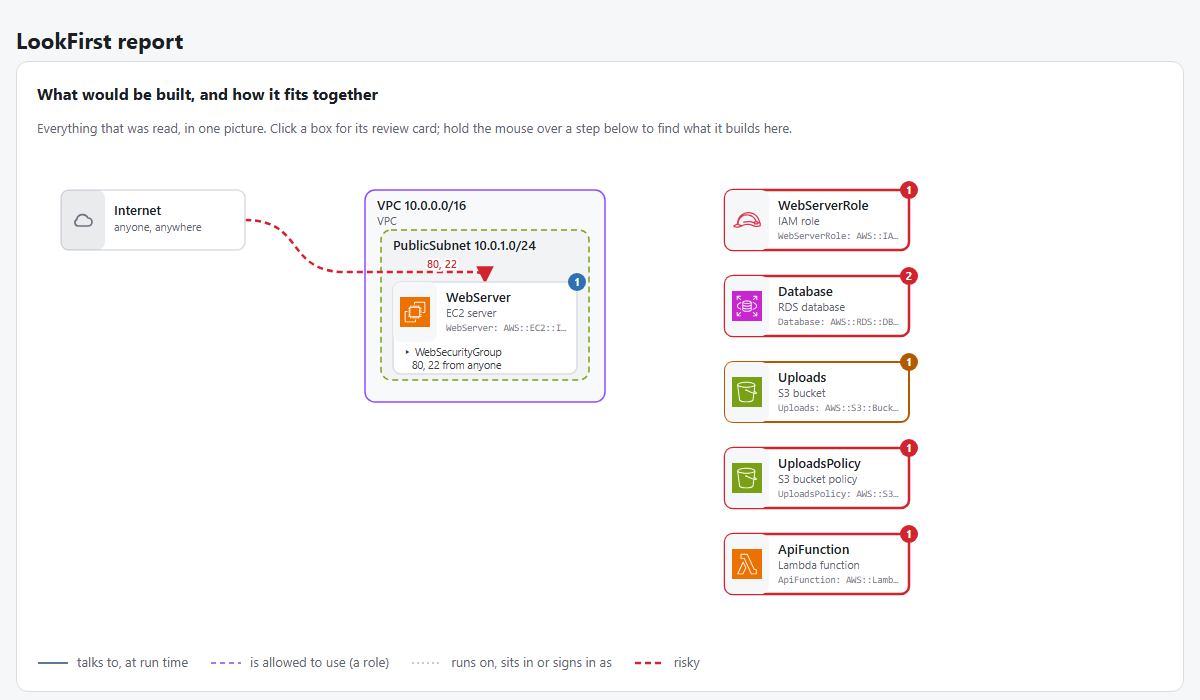
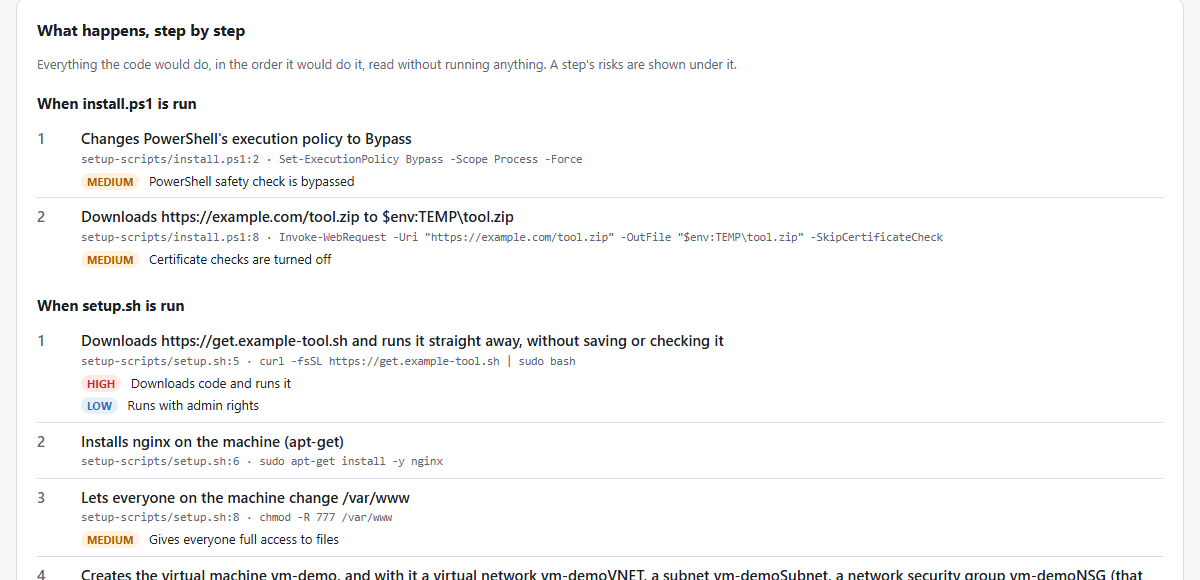
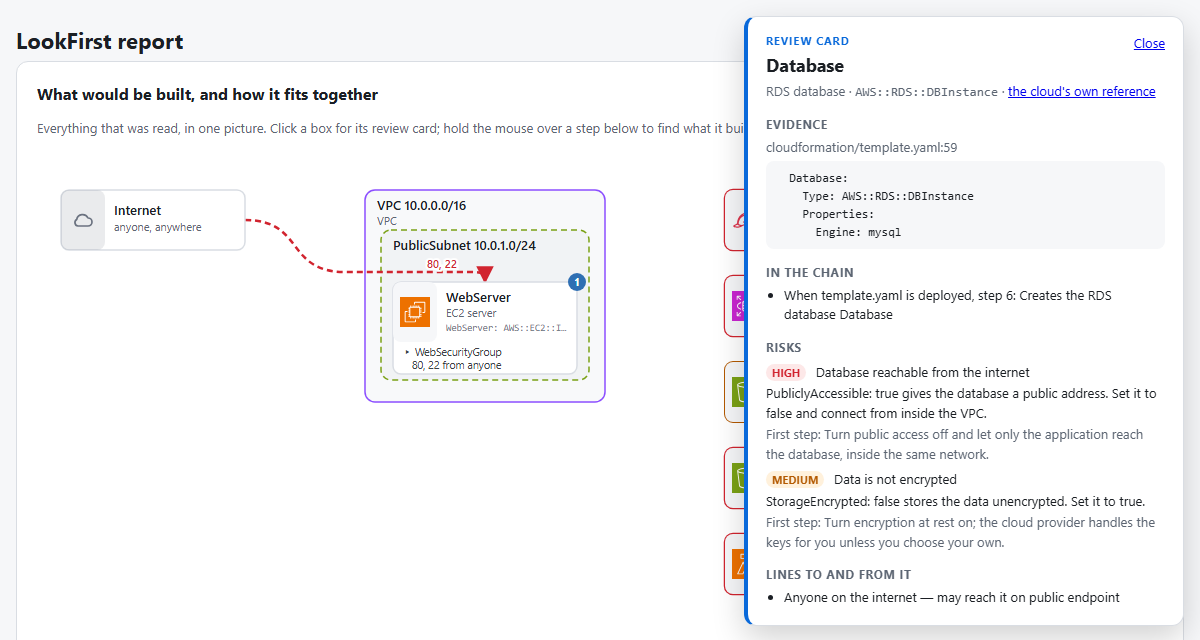
LookFirst is in preview: it is used and tested every day, and it still changes. It reads code as text and can miss things or warn about something harmless, so read what it says before you trust it.
How to use it
- Right-click a file or folder and choose Show in LookFirst.
- Click a step or a finding to jump straight to that line in the code, or review card for the evidence and risks of what a step creates.
- Or just open, save or paste code. LookFirst checks it on its own and warns you if something is serious.
- Open Why it matters and how to fix it under a finding: what could actually happen, the fix step by step, and AWS's or Microsoft's own guidance for it. In the Problems panel, how to fix opens the same guidance.
The report also lists everything the code creates, in every subfolder, and the files LookFirst could not read, so nothing is missed in silence. Every Azure and AWS resource type is checked against Microsoft's and Amazon's own lists, refreshed every week.
Explain and fix with AI
Not sure what a problem means, or how to fix it? Click Explain and fix with AI next to a finding in the report, or use the light bulb on a squiggle. LookFirst asks the AI model you already use in VS Code, such as GitHub Copilot, and shows:
- an explanation in plain language, in the language VS Code is set to
- a suggested fix, which you can compare with your code (Show the change) and then apply (Apply), or ignore
What is sent, and when:
- Nothing, until you turn it on. The first time, LookFirst asks.
- About 30 lines around the problem, not the whole file, with passwords and keys replaced by placeholders such as
«SECRET_1». The real values stay on your computer and are put back into the fix only there.
- You see the exact text before it is sent, every time, and choose Send or Cancel.
- Your file only changes when you choose Apply, after you have seen the change, and Ctrl+Z undoes it.
AI answers can be wrong. Read the change before you apply it.
Which AI
By default LookFirst uses the AI model you already have in VS Code, such as GitHub Copilot (Copilot Free works), and picks the largest one available. Choose another with lookFirst.ai.model.
If you would rather use Claude directly, set lookFirst.ai.provider to anthropic. The first time, LookFirst asks for an API key from console.anthropic.com. The key is stored encrypted in VS Code's secret storage, never in settings or files, and is only sent to Anthropic; remove it any time with LookFirst: Remove Anthropic API Key. It uses Claude Opus 5.5 unless you set lookFirst.ai.model to sonnet, haiku, fable or an exact model id. Use is billed to your Anthropic account, separately from a Claude Pro or Max subscription, which other programs cannot use. Everything else is the same: the masking, the preview before each request, and Apply.
What it reads
Terraform, Bicep and ARM templates, AWS CloudFormation and SAM templates, docker-compose, Kubernetes manifests, Dockerfiles, Python, JavaScript and TypeScript, shell scripts, PowerShell, package.json and requirements.txt. A folder with several projects gets its findings per project, the riskiest first.
Safe by design
- Your code is never run. It is only read as text. To catch syntax errors, the language's own parser is asked to read the file (for example
node --check), and that never runs it either.
- Nothing leaves your computer unless you ask the AI to explain a problem, as described above. The report is a plain HTML page with no scripts, shown with scripts switched off.
- A workspace cannot change how the extension behaves. The program it runs and the AI settings can only be set in your own user settings, so a downloaded repository cannot turn on the AI or stop it from asking.
LookFirst tells you what it found. It cannot promise that code is safe: code that is written to hide what it does can get past any reader.
Settings
| Setting |
Default |
What it does |
lookFirst.checkOnOpen |
true |
Check supported files quietly when you open them. |
lookFirst.checkOnSave |
true |
Check supported files when you save them. |
lookFirst.checkOnPaste |
true |
Check right after a larger piece of code is pasted or inserted. |
lookFirst.pasteMinLines |
5 |
How many lines an insertion needs before it is checked. |
lookFirst.path |
(bundled) |
Use another lookfirst program. User settings only. |
lookFirst.ai.enabled |
false |
Allow asking the AI model in VS Code. User settings only. |
lookFirst.ai.showBeforeSending |
true |
Show what will be sent, and ask, every time. User settings only. |
lookFirst.ai.model |
(largest) |
Which AI model to ask, by part of its name, such as gpt-4.1 or claude; with Anthropic, opus (default), sonnet, haiku, fable or an exact id. User settings only. |
lookFirst.ai.provider |
vscode |
vscode (Copilot or another model in VS Code) or anthropic (Claude with your own API key). User settings only. |
| |

