Project Manager Deep Json
Manage your project paths as a freely nested tree, written in one JSONC file.
Open a folder, a .code-workspace file, or several folders at once from the sidebar.
日本語の説明は 後半 にあります。
Features
- Nest projects as deep as you like. Group by client, by language, by year, anything.
- One item can hold several paths. Clicking it opens all of them, each in a new window.
- Drag and drop items between groups in the tree view.
- The whole configuration is a single JSONC file (comments and trailing commas allowed) that you can edit by hand.
- Changes made in one VS Code window show up in every other window.
- Works on Windows, macOS and Linux.
Getting started
- Click the "ProjectManager DeepJson" icon in the Activity Bar.
- Open a folder you want to register, then click the bookmark icon in the view title ("This Window Add Project"). The current folder (or workspace file) is added to the top level.
- Click an item in the tree to open it in a new window.
You can also right-click any folder in the Explorer and choose "Add To PMDJ".
Editing the configuration
Click the JSON icon in the view title ("Open Projects Json File") to open projects.jsonc.
Every value is one of three kinds:
| Value type |
Meaning |
Click action |
| string |
A path to a folder or a .code-workspace file |
Opens it in a new window |
| array of strings |
Several paths |
Opens every path, each in a new window |
| object |
A group (folder in the tree) |
Expands or collapses |
{
  // Groups can be nested as deep as you want.
  "work": {
    "client-a": "/home/me/work/client-a",
    "client-b": {
      "frontend": "/home/me/work/client-b/web",
      "backend": "/home/me/work/client-b/api",
      // Several paths: clicking opens every one in its own window.
      "both": [
        "/home/me/work/client-b/web",
        "/home/me/work/client-b/api",
      ],
    },
  },
  "personal": {
    "dotfiles": "/home/me/dotfiles",
    "blog": "/home/me/blog/blog.code-workspace",
  },
}
The file is saved and reloaded automatically when you save it in the editor. On Windows, backslashes and forward slashes both work.
Tree view actions
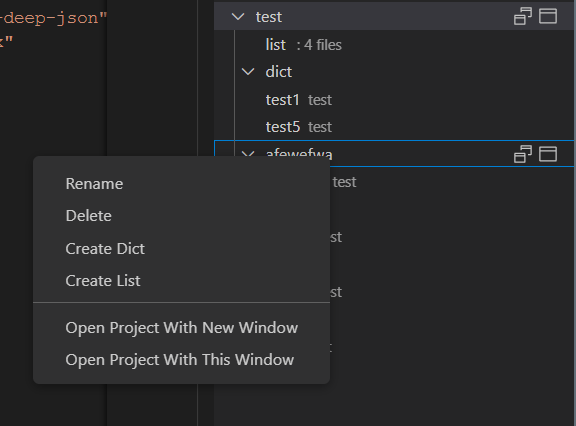
Right-click an item, or use the inline icons that appear on hover.
| Action |
Where |
What it does |
| Open Project In New Window |
path item |
Opens the path(s) in a new window |
| Open Project In This Window |
path item |
Replaces the current window's folder. With several paths, each opens in a new window instead |
| Reveal in File Explorer |
path item |
Shows the folder in your OS file manager |
| Get path from item |
path item |
Copies the path(s) to the clipboard |
| Rename |
any item |
Renames the key |
| Delete |
any item |
Removes the item after confirmation |
| Create Dict |
group item |
Adds an empty group inside |
| Create List |
group item |
Adds an empty multi-path item inside |
| Drag and drop |
any item |
Moves an item into another group, or a path into a multi-path item |
View title buttons:
| Button |
What it does |
| This Window Add Project |
Registers the current folder or workspace at the top level |
| This Window Add Project From Input |
Registers a path you type in |
| Open Projects Json File |
Opens projects.jsonc for editing |
| Open Extension Folder |
Opens the storage folder in a new window |
| Refresh Extension |
Reloads the tree from disk |
Where the data lives
projects.jsonc and the expand state are stored in the extension's global storage folder, not in your workspace.
Use "Open Extension Folder" to see it. Typical locations:
- Linux:
~/.config/Code/User/globalStorage/ichir0roie.project-manager-deep-json/
- macOS:
~/Library/Application Support/Code/User/globalStorage/ichir0roie.project-manager-deep-json/
- Windows:
%APPDATA%\Code\User\globalStorage\ichir0roie.project-manager-deep-json\
The file contains only the paths you register. Nothing is sent over the network.
Migrating from Project Manager (alefragnani)
A small Python script converts the projects.json of the Project Manager extension into this extension's format.
See .script/README.md.
Known limitations
- The order of items follows the order of keys in the JSONC file. Drag and drop moves items between groups but does not reorder them within a group.
- Remote (SSH, WSL, container) folders are not supported yet.
Development
npm install
npm run compile   # or: npm run watch
Press F5 in VS Code to launch an Extension Development Host. npm test runs the test suite.
License
MIT. Icons are from microsoft/vscode-icons (CC BY 4.0), see resources/vscode-icons/LICENSE.
日本語
プロジェクトのパスを、JSONC ファイル 1 つに好きな深さのツリーで書いて管理する拡張機能です。
サイドバーからフォルダ・.code-workspace・複数フォルダの同時オープンができます。
特徴
- グループを何階層でもネストできる。
- 1 項目に複数パスを持たせられる。クリックするとすべて新しいウィンドウで開く。
- ツリー上でドラッグアンドドロップで項目を移動できる。
- 設定はコメント・末尾カンマ可の JSONC ファイル 1 つ。手で直接編集できる。
- あるウィンドウで変更した内容は、他のウィンドウにも反映される。
使い方
- アクティビティバーの "ProjectManager DeepJson" アイコンを開く。
- 登録したいフォルダを VS Code で開き、ビュー上部のしおりアイコン ("This Window Add Project") を押す。今開いているフォルダ(またはワークスペース)がトップレベルに追加される。
- ツリーの項目をクリックすると新しいウィンドウで開く。
エクスプローラでフォルダを右クリックして "Add To PMDJ" でも追加できます。
設定ファイルの書き方
ビュー上部の JSON アイコン ("Open Projects Json File") で projects.jsonc が開きます。値は次の 3 種類です。
| 値の型 |
意味 |
クリック時 |
| 文字列 |
フォルダまたは .code-workspace のパス |
新しいウィンドウで開く |
| 文字列の配列 |
複数パス |
すべてをそれぞれ新しいウィンドウで開く |
| オブジェクト |
グループ (ツリーのフォルダ) |
展開・折りたたみ |
書き方の例は上の英語セクションのコード例を参照してください。
右クリックメニュー
| 操作 |
対象 |
内容 |
| Open Project In New Window |
パス項目 |
新しいウィンドウで開く |
| Open Project In This Window |
パス項目 |
今のウィンドウで開き直す。複数パスの場合は新しいウィンドウになる |
| Reveal in File Explorer |
パス項目 |
OS のファイルマネージャで表示 |
| Get path from item |
パス項目 |
パスをクリップボードにコピー |
| Rename |
すべて |
キー名の変更 |
| Delete |
すべて |
確認の後に削除 |
| Create Dict |
グループ |
空のグループを追加 |
| Create List |
グループ |
空の複数パス項目を追加 |
データの保存場所
設定ファイルはワークスペース内ではなく、拡張機能のグローバルストレージに保存されます。
"Open Extension Folder" で開けます。保存されるのは登録したパスだけで、ネットワーク通信はしません。
制限事項
- 項目の並び順は JSONC 内のキーの順番です。ドラッグアンドドロップはグループ間の移動のみで、同じグループ内の並び替えはできません。
- Remote SSH / WSL / コンテナ上のフォルダには未対応です。

