GI Pro
GI Pro brings fast Git workflows into VS Code: a visual log view, file history, selection history, inline blame, and common Git actions from the Command Palette and editor context menu.
Features
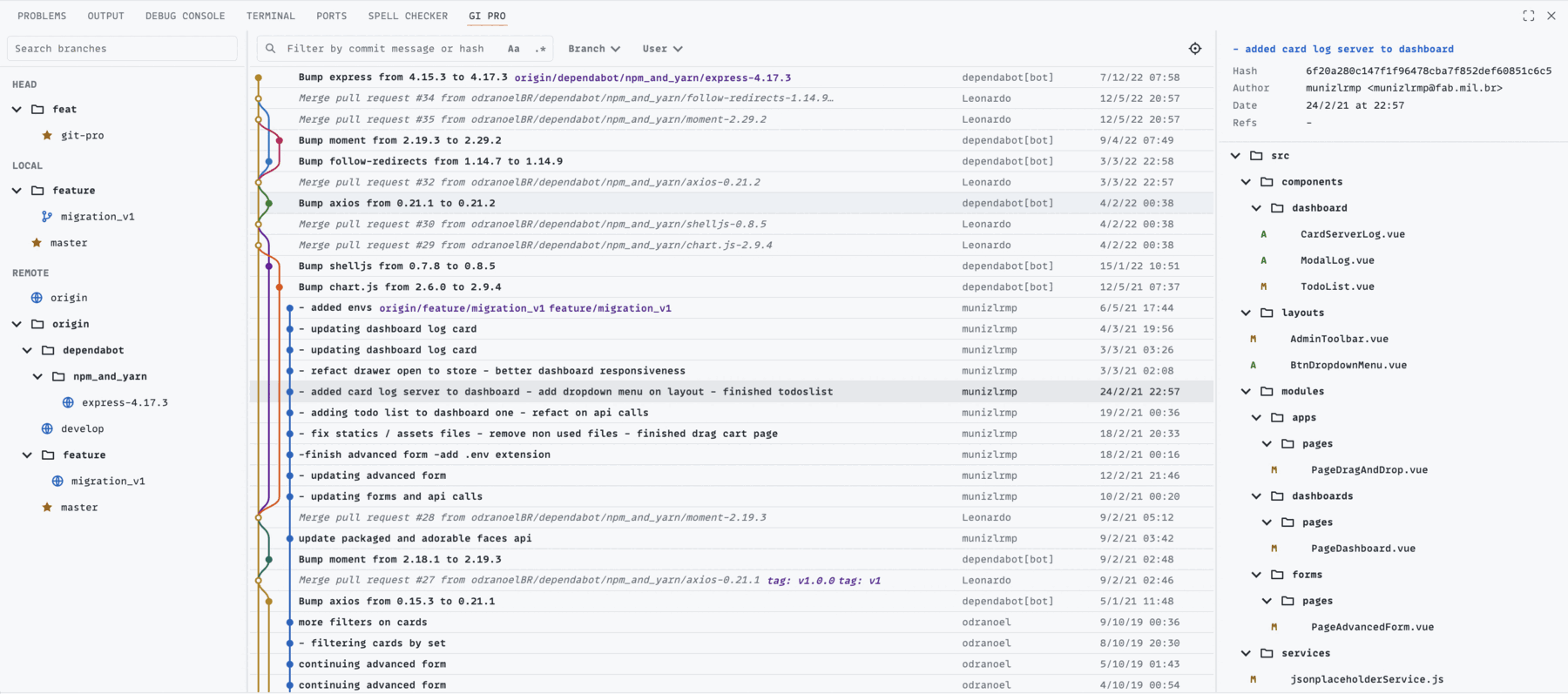
- Visual Git Log view with branch tree, commit graph, commit search, changed-file tree, and patch preview.
- File History from the editor context menu.
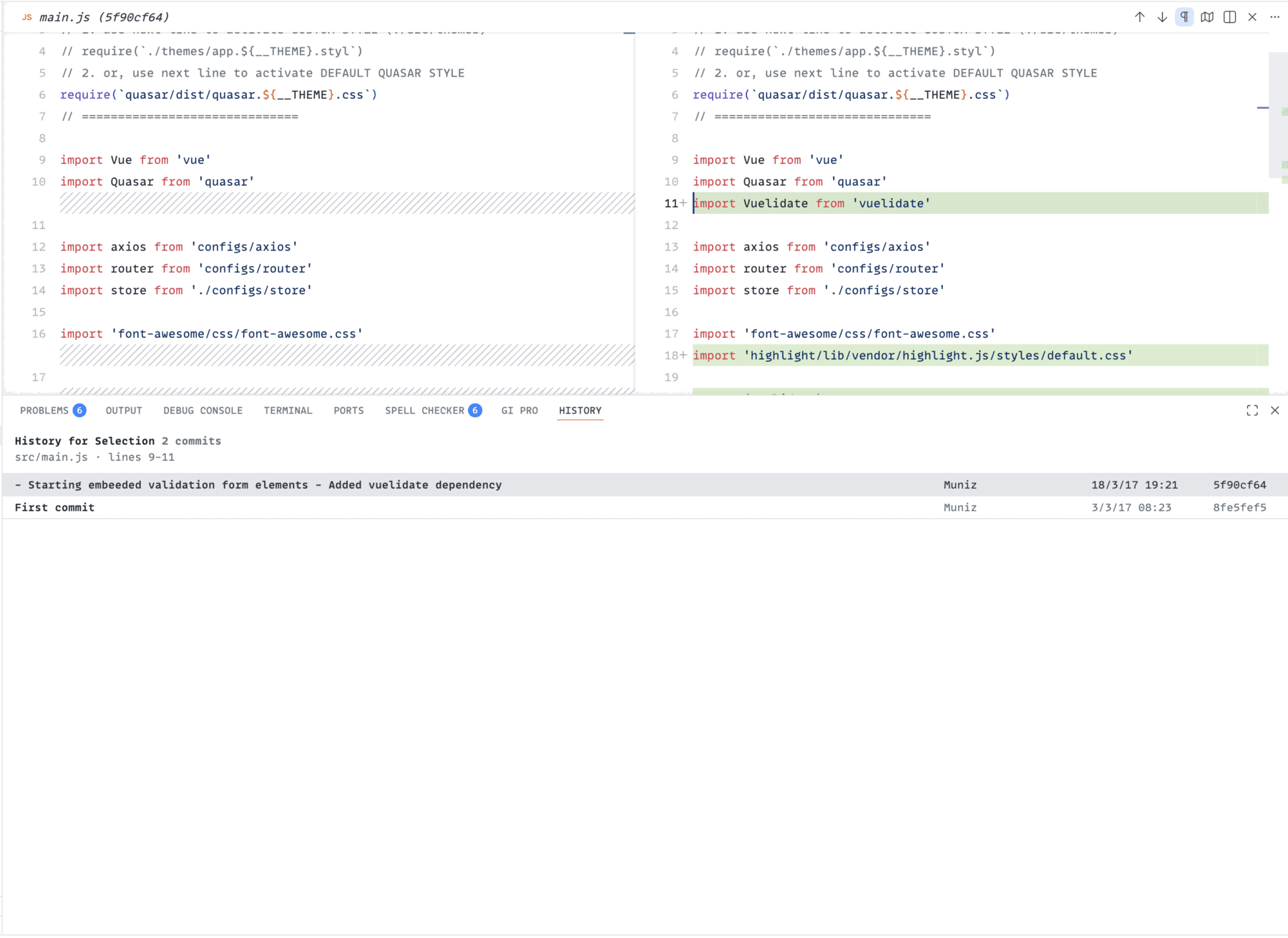
- History for Selection to trace commits that touched selected lines.
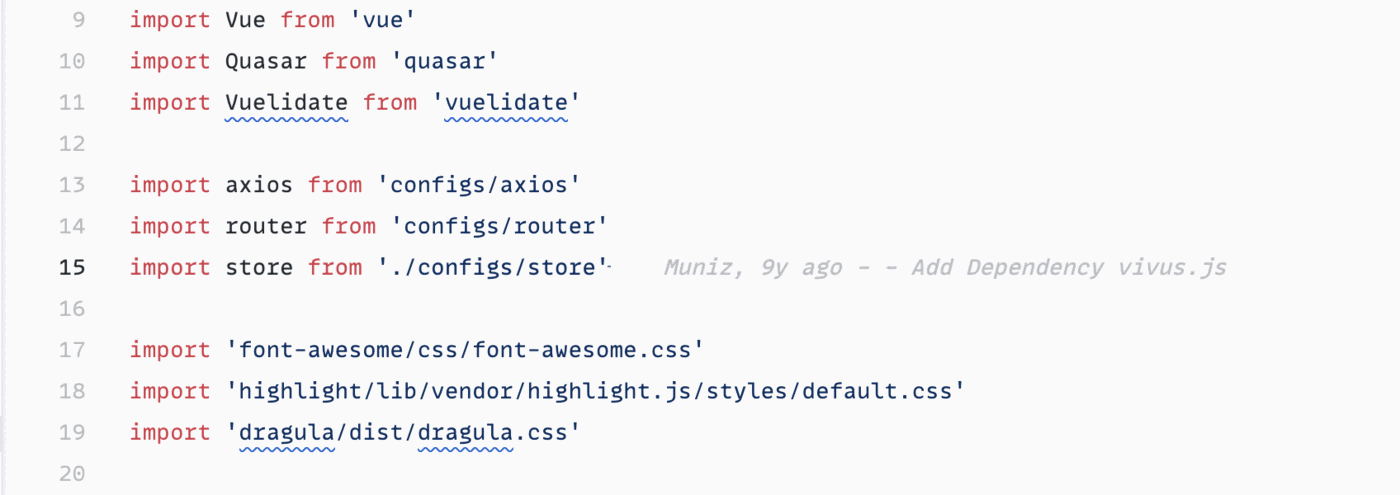
- Inline blame on the active cursor line.
- Smart Commit with staged and unstaged change handling.
- Quick Git actions for fetch, pull with rebase, push, force push with lease, stash, branch checkout, interactive rebase, and cherry-pick.
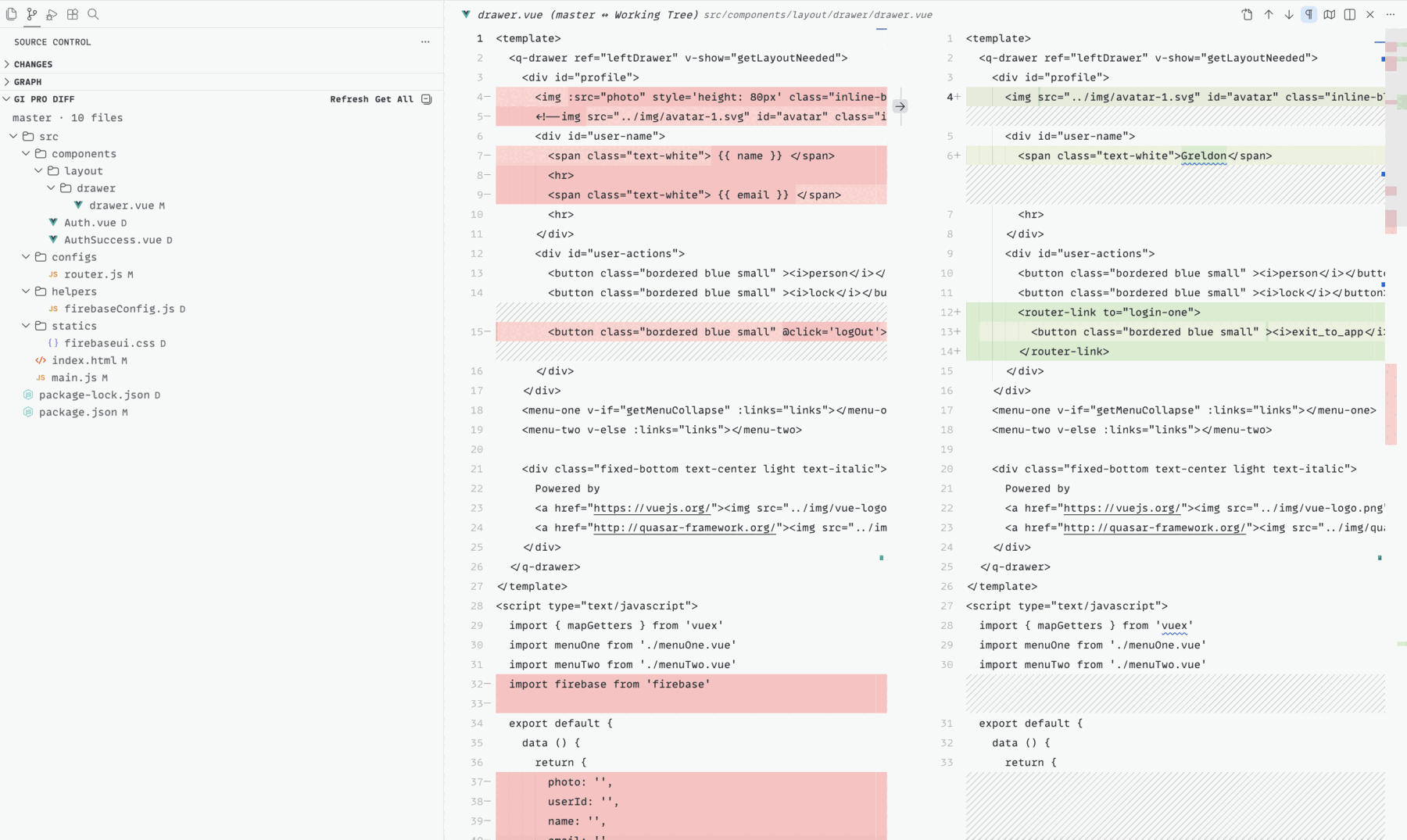
- Branch diff view in the Source Control sidebar.
Preview
Visual Git Log
Browse branches, search commits, inspect the graph, and review changed files from one panel.
Working Tree Diff
Compare a branch with your working tree and get individual files or all changes from the selected branch.
History for Selection
Select lines in a tracked file and see the commits that touched that exact range.
Inline Blame
See author and commit information for the active line without leaving the editor.
Requirements
- VS Code 1.92.0 or newer.
- Git installed and available on your
PATH.
- An open workspace folder that is inside a Git repository.
Quick Start
- Open a Git repository in VS Code.
- Open the Command Palette with
Cmd+Shift+P on macOS or Ctrl+Shift+P on Windows/Linux.
- Run
GI Pro: Open Log View.
- Click a commit to inspect details and changed files.
- Click a changed file to preview its patch.
Common Workflows
Open the Git Log
Run GI Pro: Open Log View from the Command Palette.
In the Log view:
- Use the branch tree to select a branch.
- Use the commit search box to filter commits by message or hash.
- Click a commit to load metadata, changed files, and patch content.
- Double-click a branch to check it out.
- Right-click a commit for actions such as copy hash, cherry-pick, create branch, create tag, revert, and reset.
View File History
Open a tracked file, right-click in the editor, then choose GI Pro: Show File History.
GI Pro opens the History panel with commits that changed the file. Click a row to open a diff for that commit.
View History for Selected Lines
Select one or more lines in a tracked file, right-click the editor, then choose GI Pro: Show History for Selection.
This uses Git line history to show commits that touched the selected range.
Compare a File with HEAD
Open a tracked file, right-click in the editor, then choose GI Pro: Compare File with HEAD.
Use Inline Blame
Move the cursor inside a tracked file. GI Pro shows blame information for the active line when inline blame is enabled.
Run Quick Git Actions
Use the Command Palette and search for GI Pro.
Available actions include:
GI Pro: Smart CommitGI Pro: Fetch AllGI Pro: Pull with RebaseGI Pro: PushGI Pro: Force Push with LeaseGI Pro: Stash ChangesGI Pro: Pop StashGI Pro: Checkout BranchGI Pro: Interactive RebaseGI Pro: Cherry-pick CommitGI Pro: Abort
Settings
GI Pro contributes these settings:
giPro.terminalName: terminal name used to run Git commands. Default: GI Pro.giPro.smartCommitPushAfterCommit: ask whether to push after a smart commit. Default: false.giPro.inlineBlame.enabled: show inline Git blame on the active cursor line. Default: true.giPro.inlineBlame.delayMs: delay before refreshing inline blame after cursor movement. Default: 50.
Troubleshooting
Commands do not show repository data
Make sure the current workspace folder is inside a Git repository and Git is installed.
File History is empty
The file must be tracked by Git. New files that have never been committed do not have file history yet.
History for Selection fails
Git line history only works for tracked files. Save the file first, then try again.
Git actions fail
Open the GI Pro terminal and check the Git output. Most failures come from repository state, authentication, merge conflicts, or missing remotes.
Development
npm install
npm run compile
Open this folder in VS Code and press F5 to launch an Extension Development Host.
To package locally:
npx vsce package

