Search Filters
A handy interface for switching frequently used search patterns.
Typing the same globs into the Search panel's files to include and files to exclude fields again and again gets old fast. Search Filters keeps your patterns in two lists right inside the Search panel. Tick a checkbox and the search re-runs with the new filters.
Features
The extension adds a Filters view to the Search panel with two lists:
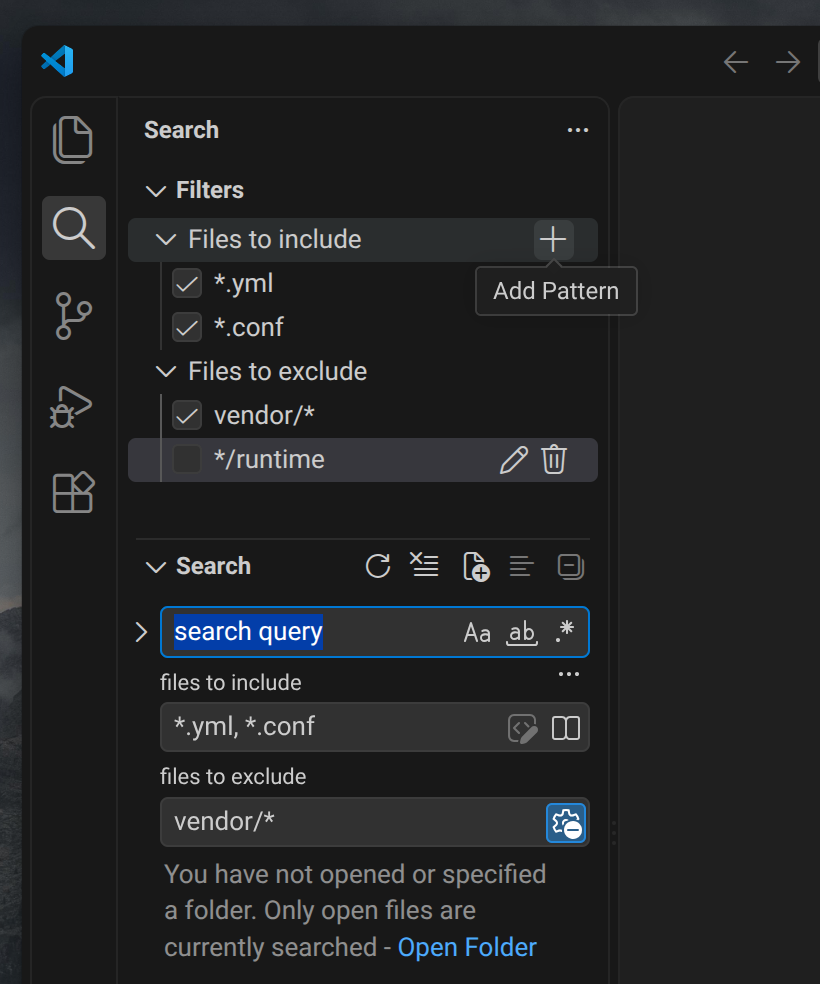
FILTERS
├─ Files to include                    (+)
│   ├─ ☑ src/**                (✎) (🗑)
│   └─ ☐ **/*.test.ts           (✎) (🗑)
└─ Files to exclude                    (+)
    ├─ ☑ **/vendor/**          (✎) (🗑)
    └─ ☑ **/cache/**           (✎) (🗑)
- Add a pattern with the
+ button on a list header.
- Edit a pattern or remove it with the buttons on its row. Editing keeps the pattern's position and checkbox state.
- Toggle a pattern with its checkbox to turn it on or off without deleting it.
- Search updates on its own. Every change runs the search again. The enabled patterns of each list are joined with
, and placed in the matching Search field. A list with nothing enabled clears its field.
Row buttons appear when you hover over a row, as in other VS Code tree views.
The Filters view is moved into the Search panel when the extension is first activated. After that you can drag it anywhere, and VS Code remembers where you put it.
Extension Settings
Patterns are stored in workspace settings, so each project has its own lists. They live in .vscode/settings.json, or in the settings section of your *.code-workspace file. If no folder is open, they go to user settings.
| Setting |
Description |
searchFilters.include |
Patterns for files to include: { "<glob>": <enabled> } |
searchFilters.exclude |
Patterns for files to exclude: { "<glob>": <enabled> } |
The format is the same as the built-in files.exclude, and you can edit it by hand. The view picks up changes right away:
{
  "searchFilters.include": {
    "src/**": true,
    "**/*.test.ts": false
  },
  "searchFilters.exclude": {
    "**/vendor/**": true,
    "**/cache/**": true
  }
}
Known Issues
- Extensions can't read what is typed in the Search box. When the filters are applied, VS Code may replace the search text with the current editor selection, depending on
editor.find.seedSearchStringFromSelection.
- Extensions can't put a view straight into the Search panel. Filters is declared in the Explorer and moved with the internal
vscode.moveViews command. If a future VS Code release changes that command, drag the view to the Search panel by hand.
License
MIT

