Skip to content
| Marketplace
Sign in
Visual Studio Code>Data Science>HUGR Result ViewerNew to Visual Studio Code? Get it now.
HUGR Result Viewer

HUGR Result Viewer

Hugr Lab

|
5 installs
| (0) | Free
Result viewer and database explorer for DuckDB Kernel in VS Code notebooks
Installation
Launch VS Code Quick Open (Ctrl+P), paste the following command, and press enter.
Copied to clipboard
More Info

DuckDB Kernel — Result Viewer & Database Explorer

Interactive result viewer and database explorer for DuckDB Kernel in VS Code notebooks.

Features

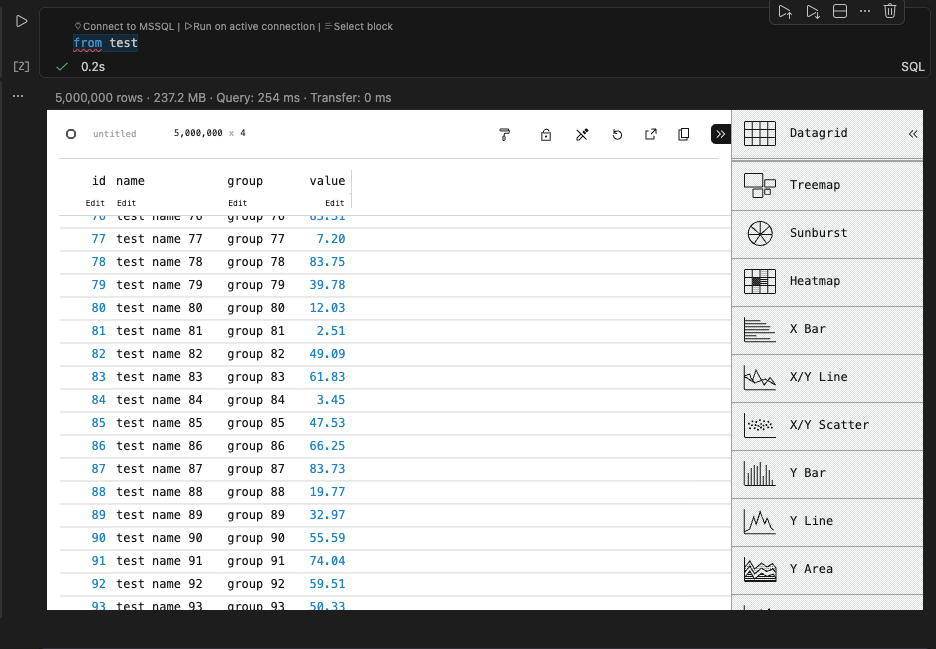
Perspective Viewer

Query results are rendered as interactive tables powered by Perspective with Arrow IPC streaming — sort, filter, pivot, and chart millions of rows directly in the notebook output.

Perspective Viewer

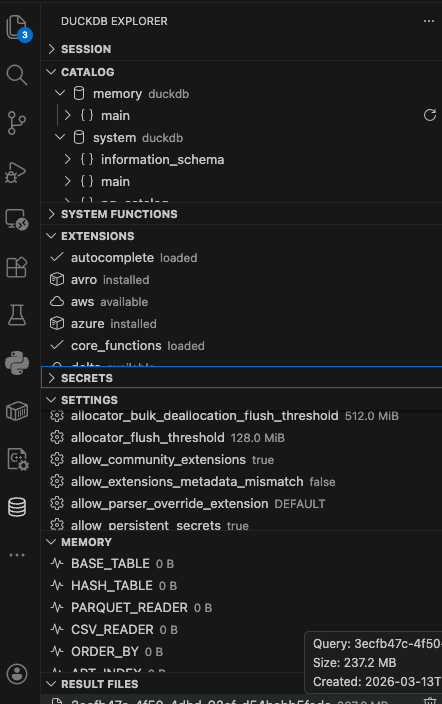
Database Explorer

A sidebar panel (activity bar) for browsing database objects with lazy loading:

  • Session — kernel status, DuckDB version, memory usage
  • Catalog — databases, schemas, tables, views with column details
  • System Functions — built-in DuckDB functions grouped by name
  • Extensions — loaded and installed extensions
  • Secrets — configured secrets
  • Settings — all DuckDB settings
  • Memory — memory allocation by component
  • Result Files — Arrow spool files from query results

Database Explorer

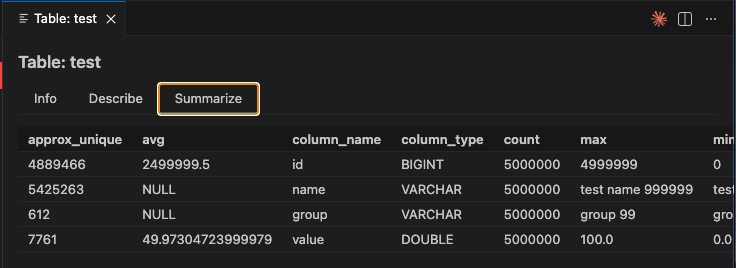
Detail Panels

Click the info icon on any table, view, database, extension, or function to open a detail panel with full metadata. Tables include Describe and Summarize tabs.

Detail Panel

One-Click Kernel Install

Install or update the DuckDB kernel binary directly from VS Code — no terminal needed. Use the download button in the Session panel or run DuckDB: Install / Update DuckDB Kernel from the Command Palette.

Downloads the latest release from GitHub, configures the Jupyter kernel spec, and installs the Perspective viewer static files automatically.

Multi-Kernel Support

Each notebook connects to its own DuckDB kernel instance. The explorer automatically switches context when you switch between notebook tabs.

Requirements

  • VS Code 1.80.0 or later

Getting Started

  1. Open the DuckDB Explorer from the activity bar and click the download button to install the kernel. Or run DuckDB: Install / Update DuckDB Kernel from the Command Palette (Ctrl+Shift+P).

  2. Open a .ipynb notebook and select the duckdb kernel.

  3. Run a SQL query — results appear as interactive Perspective tables.

  4. Browse database objects in the DuckDB Explorer sidebar.

Extension Settings

This extension does not add any VS Code settings. It automatically discovers the kernel's HTTP endpoint from notebook cell outputs.

License

MIT

  • Contact us
  • Jobs
  • Privacy
  • Manage cookies
  • Terms of use
  • Trademarks
© 2026 Microsoft