AIDLC
See what AI is building. Drive Claude through any pipeline you declare — and track every run, step, and token.



Drive Claude through any pipeline you declare in a single workspace.yaml — visually from VS Code, or from the terminal. Agents, skills, pipelines, and epics share one source of truth; both surfaces stay in sync within ~200ms.
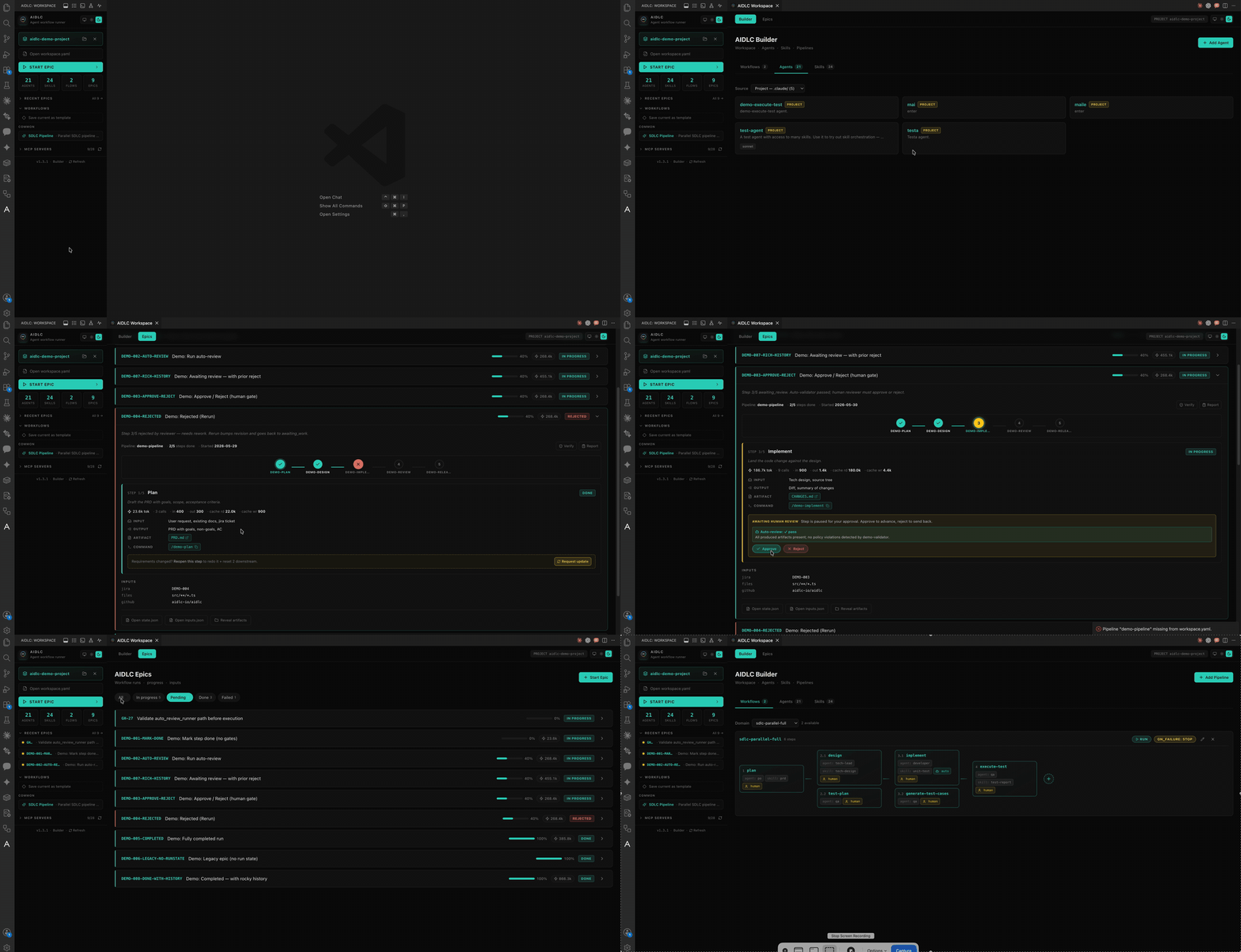
New in 2.5
- 🧭 Selectable SDLC standard — pick a compliance profile (
none · agile-lite · hybrid · iso-ieee) that governs, in a single selector, the enforced artifact sections, the requirements-traceability validator (FR → AC → test case → result, plus RTM checks), and the per-phase persona/skill. Choose it from a card-based webview picker (sidebar ⚖️ button or “AIDLC: Select SDLC Standard”), from a dropdown when you Start Epic, or by hand in workspace.yaml. Default is none — nothing enforced, fully backward-compatible. The traceability validator is phase-progressive (a rule only fires once the artifact it checks exists) and wires into the existing auto-review gate. Custom profiles live in .aidlc/profiles/<name>.yaml.
- ⌨️ Two-layer command model — alongside the per-pipeline commands, AIDLC now generates a fixed set of shortcut phase commands (
/plan, /design, /implement, /unit-test, /benchmark, /test-plan, /generate-test-cases, /execute-test) plus a single /aidlc <epic> [phase] dispatcher. Composition is resolved at runtime from the epic’s bound pipeline (so two pipelines that reuse a phase name never collide), and /aidlc <epic> with no phase runs the next eligible step.
New in 2.4
- 🆕 annotron 0.6 — the bundled browser review editor jumps from 0.3 to 0.6. Annotations now persist to a sidecar beside the artifact (survive reload/restart), each annotation gets its own conversation thread with inline replies, clicking a card jumps to and highlights the element, and an Annotations / History tab split lists past feedback rounds. You can paste or upload images into the message box or any annotation note (saved to
.annotron-uploads/), copy agent messages, watch a live step log stream the agent's work, and cancel an in-flight round.
New in 2.3
- 🖍️ Open HTML vs. Feedback, split — the artifact menu now has two distinct actions: Open HTML (appears once a render exists; opens the rendered page read-only in your browser) and Feedback (renders the HTML first if needed, then opens annotron for the review loop). The annotate terminal is also recreated when its previous session has exited, so Feedback always launches instead of re-focusing a dead terminal.
New in 2.2
- 🖍️ Annotate artifacts in a browser — open any epic artifact in annotron (bundled, no separate install), point-and-click your feedback, and Claude applies it back to the Markdown and re-renders. Markdown→HTML is a zero-dependency Node render (no Python).
- 🕑 Revision history — every change is snapshotted and attributed (git identity / hostname), viewable in the History panel and in the rendered HTML, with a selector to reopen any past revision.
- 🧠 Epic memory — a compact per-epic digest (decisions / constraints / reflections) so continuing an epic with any agent is cheap on tokens. Opt-in Memory auto-load toggle injects it into context whenever you work on that epic.
- 🔀 git-aware AST graph — the code graph rescans on save (incremental) and does a full rescan after branch switch / merge / rebase / pull.
- 💻 All of the above works from the terminal too via the
aidlc CLI (aidlc globals install).
Features
- Workspace Builder — main-area panel with agent / skill / pipeline cards, reorder, on-failure toggle, inline skill editor
- Analyze Requirements — import requirements from Jira, GitHub Issues, Linear, Redmine, or a local file into a
requirements.md in your project. The "Analyze" tab in the Builder drives the interactive wizard; aidlc analyze does the same from the terminal
- Test Agent — a "Tests" tab that integrates
aidlc-testagent (ata) for AI-powered E2E tests. Shows the full Explore → Plan → Confirm → Generate → Execute → Heal → Verdict pipeline, lists targets from testagent.config.yaml with per-target Plan / Run buttons and a settings editor — no terminal needed for day-to-day test runs
- Epics & runs — bind a pipeline to a work item, then walk it step-by-step. Approve advances; reject cascades feedback to the producing step (auto-resets downstream); rerun with optional new context. Runs display by step name, not agent name
- Annotate artifacts + epic memory — click a step's
.md → Open Markdown, Open HTML (read-only, once rendered), or Feedback: renders the Markdown to a Claude-styled HTML (zero-dep, no Python) and opens it in annotron for point-and-click review; feedback is applied back to the .md with an attributed revision history (reopen any past revision) shown in the History panel. Each epic keeps a compact Memory (decisions / constraints / reflections) behind the footer's Memory button, with an opt-in Memory auto-load toggle (top of the Epics list) that feeds an epic's memory into context whenever you work on it. Tools auto-install into ~/.claude on activation; your settings.json is only touched when you flip that toggle
- Smart Start Epic — describe the work in one line and AIDLC suggests a task-type recipe (
bugfix, small-feature, refactor, feature-parallel, large-feature, spike) and assembles the pipeline. No pipeline yet? Load the SDLC example or create one inline. Older workspaces get recipes back-filled automatically. On first epic, a dropdown asks which SDLC standard to apply (skippable → none)
- Selectable SDLC standard — one
standard: selector (none · agile-lite · hybrid · iso-ieee, or a custom .aidlc/profiles/<name>.yaml) drives enforced artifact sections, the requirements-traceability validator, and per-phase persona/skill. Pick it from the card-based webview (sidebar ⚖️ / command palette), at Start Epic, or by editing workspace.yaml; an unknown value is rejected when the workspace loads
- AIDLC Monitor — a status bar item plus a panel with Token Usage, Insights, and Agents tabs. The Agents tab embeds the agents-observe dashboard to watch live agent sessions and history. When the server is down it offers a one-click Start Monitor that can auto-install the plugin (Docker if available, otherwise a local runtime — no Docker required)
- Session Insights — a native dashboard built entirely from the Claude Code transcript (
~/.claude/projects/**.jsonl) — no plugin, no server, no Docker. Session picker plus seven panels: overview, context+cache chart over turns, hooks (with errors), agents/subagents, prompts, context management (compactions / peak / file edits), retrieval and tool usage. Updates live while a session runs
- Live OTel strip — a minimal OTLP/JSON receiver for Claude Code's native telemetry, with one-click "enable telemetry" that writes the env to
~/.claude/settings.json
- Sidebar webview — clickable Agents / Skills / Flows / Epics tiles that open the matching view, plus live counts and active runs
- Load Demo Project — one click drops a full SDLC pipeline + 6 sample epics into
.aidlc/, no YAML to write
- Add Skill wizard — 4 sources: load template, paste markdown, upload a
.md file, or open a blank file. Starter templates: hello-world, code-reviewer, test-converter, doc-writer, release-notes
- Add Agent wizard — id, display name, skill picker, model picker (Sonnet 4.6 / Opus 4.7 / Haiku 4.5)
- Add Pipeline wizard — pick each step's name then its agent, set "Runs after" dependencies and on-failure behavior (stop / continue); rename, duplicate, or Load AIDLC default. Slash commands are namespaced per pipeline so multiple pipelines never collide
- Workspace templates — save the whole workspace as a named preset and reapply it in any project. Built-ins:
code-review, release-notes, sdlc
- Built-in Claude CLI terminal — one-click zsh terminal in the bottom panel with the
claude CLI auto-launched
- Workspace inspector — dump the parsed, validated, env-resolved
workspace.yaml to the output channel
- Interactive walkthrough — open the Welcome page → "Get started with AIDLC" for a 6-step tour
How It Works
The extension reads .aidlc/workspace.yaml from the open folder and uses @aidlc/core to validate the schema (Zod), resolve env variables, load skills and agents, and execute pipelines through the Claude CLI runner.
.aidlc/
├── workspace.yaml          # agents · skills · pipelines · sidebar layout
├── skills/                 # markdown prompts for each skill
├── epics/                  # work items bound to a pipeline
└── runs/                   # state of every run, watched live by both UIs
Both the extension and the aidlc CLI read and write the same files atomically — switch between them mid-run without losing state.
Getting Started
- Install AIDLC from the VS Code Marketplace or Open VSX.
- Open a workspace folder.
- The Welcome page auto-opens the Get started with AIDLC walkthrough — follow it for a guided tour, or skip ahead with the steps below.
- Run AIDLC: Load Demo Project — scaffolds a full pipeline plus 6 sample epics under
.aidlc/.
- Click the AIDLC icon in the activity bar to open the sidebar; pick an epic to run.
- Use AIDLC: Open Claude CLI Terminal to drive runs (or run pipelines unattended) from the CLI.
Prefer to start from scratch? Use AIDLC: Init Sample Workspace instead — it scaffolds an empty .aidlc/workspace.yaml plus a hello-skill.md.
Commands
All commands are available via Cmd+Shift+P (or Ctrl+Shift+P):
| Command |
Description |
AIDLC: Load Demo Project (full pipeline + 6 epics) |
Drop a complete demo workspace into the open folder |
AIDLC: Open Workspace Builder |
Visual builder for agents, skills, and pipelines |
AIDLC: Open AIDLC Monitor (Token Usage + Insights + Agents) |
Token usage, native session insights, and live agent observability |
AIDLC: Init Sample Workspace |
Scaffold an empty .aidlc/workspace.yaml + sample skill |
AIDLC: Show Workspace Config |
Dump parsed workspace.yaml to the AIDLC output channel |
AIDLC: Add Skill (template / paste / upload / blank) |
Add a new skill from one of four sources |
AIDLC: Add Agent |
Wizard to add a new agent (skill + model) |
AIDLC: Add Pipeline (chain agents) |
Wizard to chain agents into a pipeline |
AIDLC: Save Workspace as Template |
Save the current workspace as a reusable preset |
AIDLC: Load Template |
Apply a saved preset to the open workspace |
AIDLC: Delete Saved Template |
Remove a saved preset |
AIDLC: Open Claude CLI Terminal |
Open a zsh terminal with claude auto-launched |
AIDLC: Start Epic |
Begin a new epic from the sidebar |
AIDLC: Open Epics List |
Browse epics in the open workspace |
AIDLC: Insert Demo Epic (EPIC-100) |
Drop a single demo epic for quick exploration |
AIDLC: Analyze Requirements |
Open the Analyze tab to import requirements from Jira, GitHub Issues, Linear, Redmine, or a local file into requirements.md |
AIDLC: Open Tests |
Open the Tests tab to manage and run AI-powered E2E tests via aidlc-testagent |
Requirements
- VS Code 1.85.0+ (or compatible: VSCodium, Cursor, Windsurf)
- A workspace folder (single-file mode is not supported)
- The Claude CLI on
PATH for the default runner
- Node.js 20+ to compile from source
If AIDLC saves you time, consider sponsoring on GitHub ❤️ — it keeps the extension, the CLI, and the monitor maintained.
License
MIT
| |

