DeepSeek Harness Web Integration



Languages: English | 简体中文
A VSCode extension that integrates DeepSeek Harness (DSH) Web functionality into the sidebar.
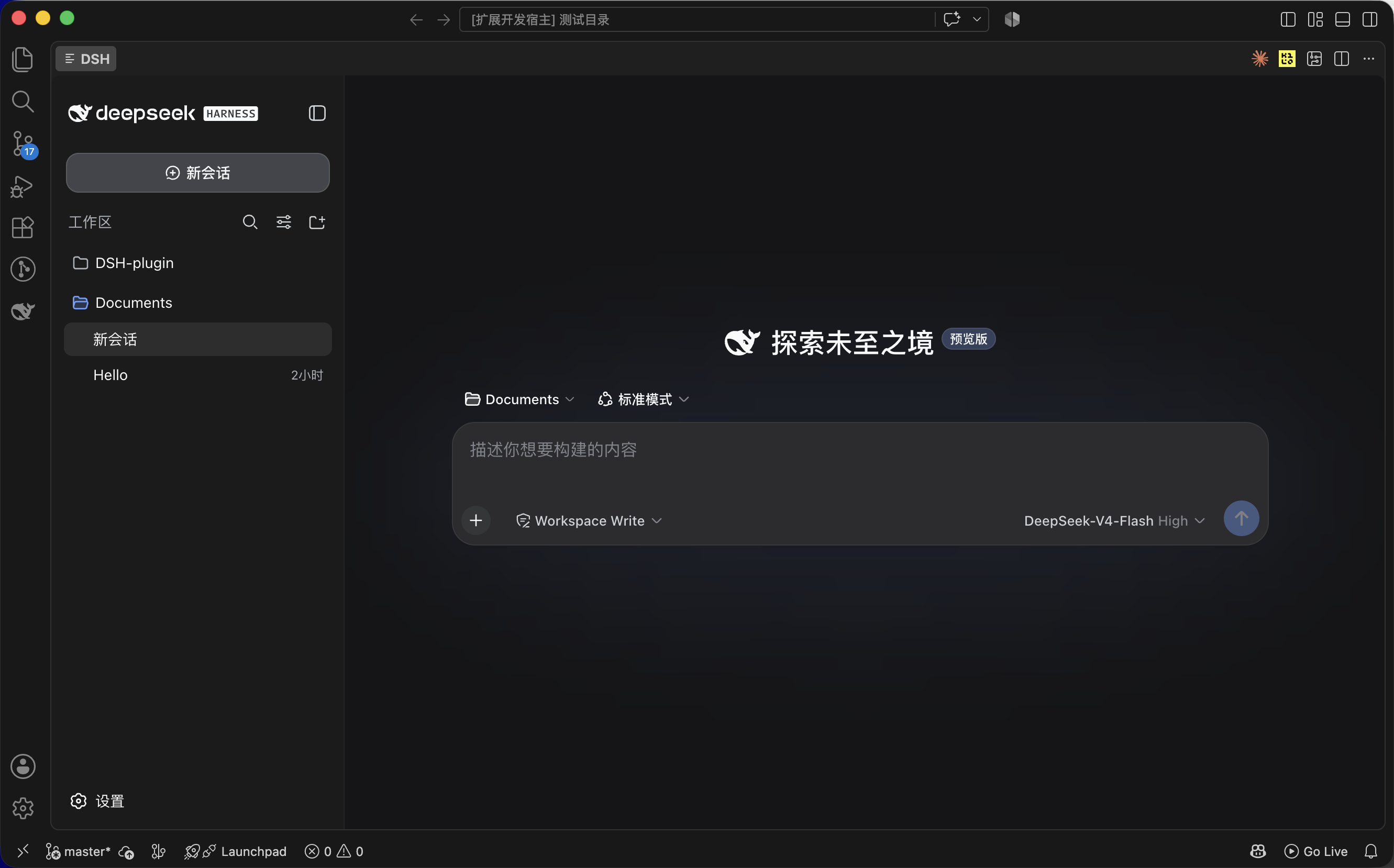
Features
- 🌐 Multi-language Support: Supports English, Simplified Chinese, Japanese, and Korean, automatically following VSCode interface language
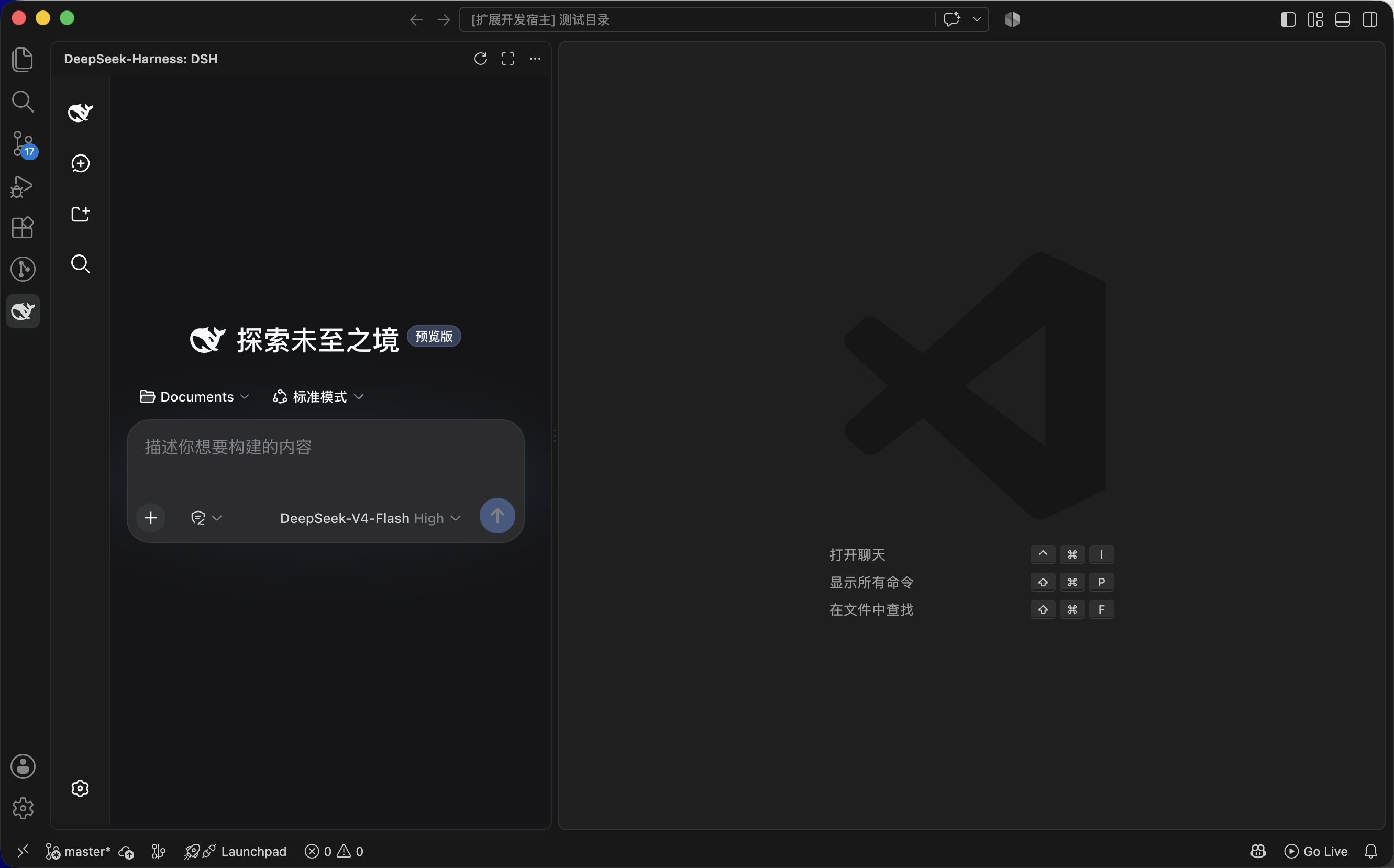
- 🖥️ Sidebar Integration: Display DSH Web interface in VSCode sidebar
- 🚀 Quick Launch: Launch DSH directly from VSCode with a single command
- ⚙️ Configurable: Customize port and language settings
- 🔄 Process Management: Support restarting and stopping DSH processes
Screenshots
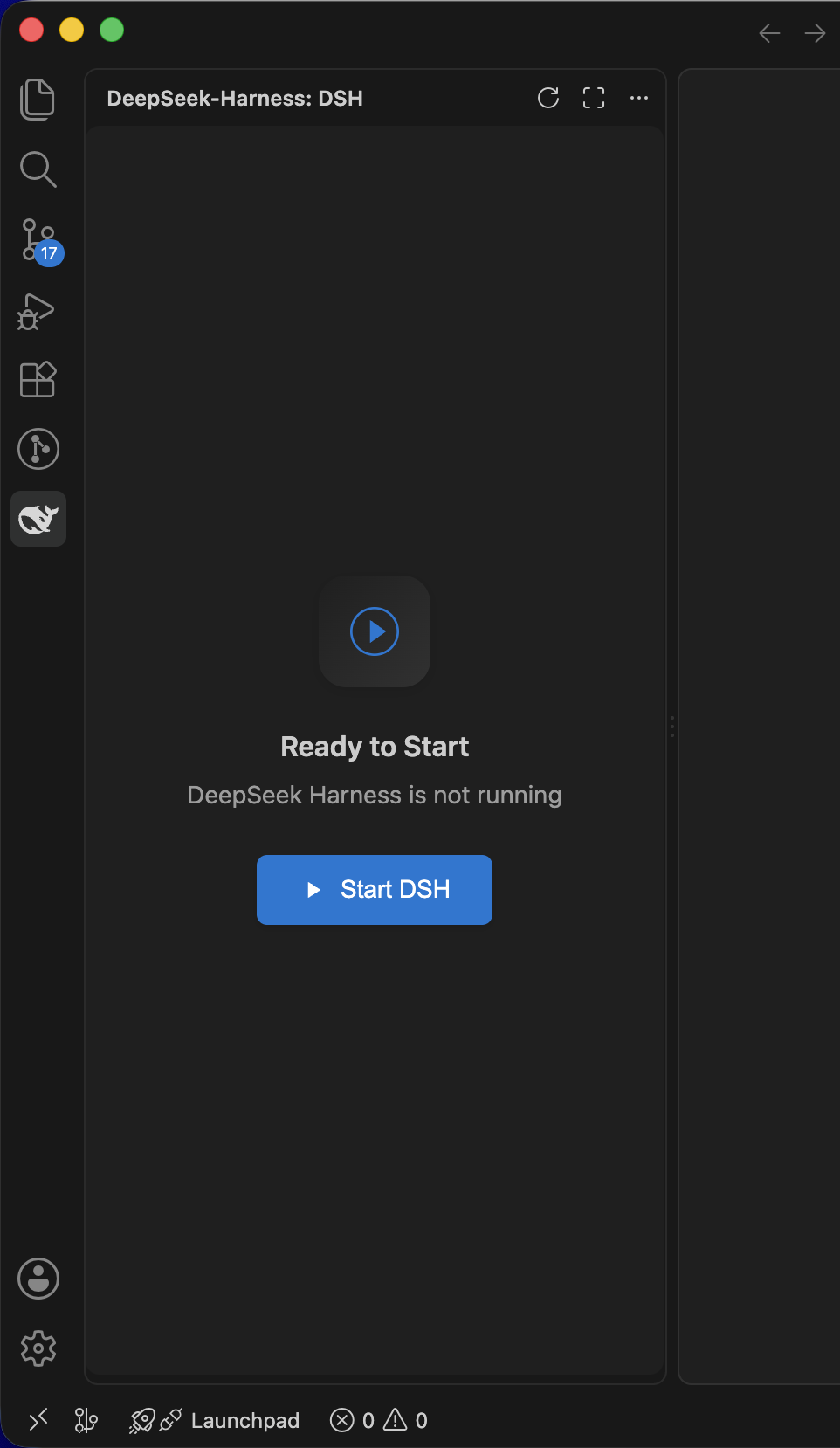
Start View
Click the "Start DSH" button to launch DSH directly from the sidebar:
Use DSH directly in the VSCode sidebar:
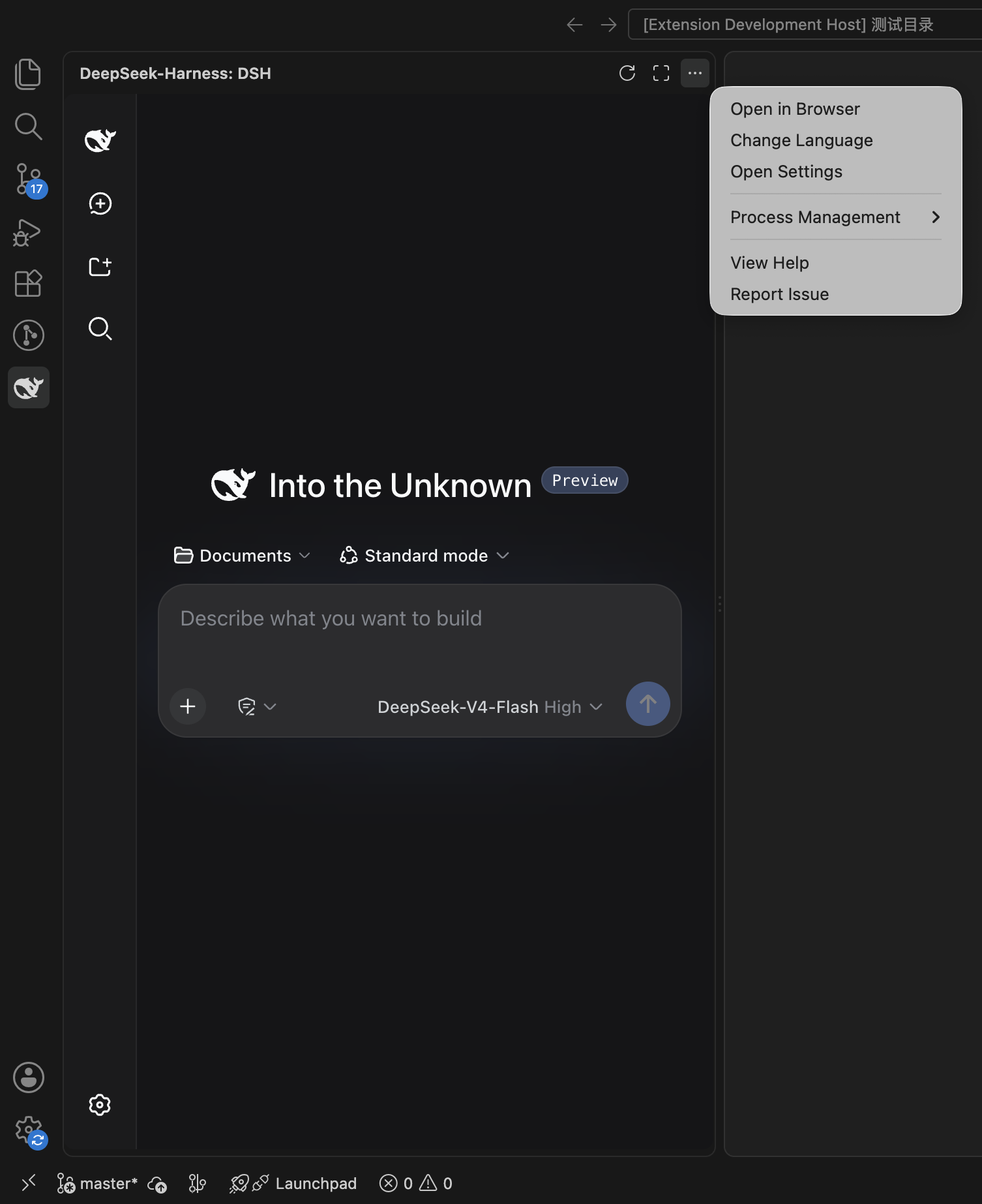
Refresh, open in editor/browser, view help, and manage the DSH process from the panel toolbar:
Installation
Prerequisites
Node.js >= 22.19.0 (verify with node --version). The extension checks this before starting DSH.
Install this extension from VSCode Marketplace (search "DeepSeek Harness Web Integration")
(Optional, recommended for faster startup) Globally install DeepSeek Harness (DSH). If the dsh command is not found, the extension automatically starts DSH via npx -y @deepseek-ai/dsh web instead (the first run may need to download the package):
npm install -g @deepseek-ai/dsh
Usage
Launch DSH
- Open the DSH-Web panel in the VSCode sidebar
- Click the "Start DSH" button
- Wait for the service to start
- Start using it
Connect to an External DSH Process
If you have already started a DSH service in a terminal or elsewhere, the extension can connect directly to it:
- Open VSCode Settings (
Ctrl+, / Cmd+,)
- Search for
dsh-web.port and change the port number to match the external process
- Reopen the DSH-Web panel in the sidebar
Process Management
In the sidebar toolbar:
- Refresh Connection: Refresh the DSH Web page
- More Actions:
- Open in Editor
- Open in Browser
- View Help
- Process Management:
- Restart Process
- Stop Process
Configuration
You can configure this extension in VSCode Settings:
| Setting |
Type |
Default |
Description |
dsh-web.port |
number |
3080 |
DSH server port |
dsh-web.timeout |
number |
5000 |
Connection timeout (milliseconds) |
dsh-web.language |
string |
auto |
Interface language (auto/en/zh-cn/ja/ko) |
dsh-web.preferNpx |
boolean |
false |
Prefer starting DSH via npx -y @deepseek-ai/dsh web instead of the globally installed dsh command. If enabled, no fallback to the dsh command on failure |
Language Switching
The extension supports the following languages:
- Auto: Follow VSCode interface language
- English (en)
- Simplified Chinese (zh-cn)
- Japanese (ja)
- Korean (ko)
You can switch languages through:
- Modify the
dsh-web.language configuration in settings
- Via the sidebar "More Actions" menu → "Change Language"
License
MIT