OpenVsCode
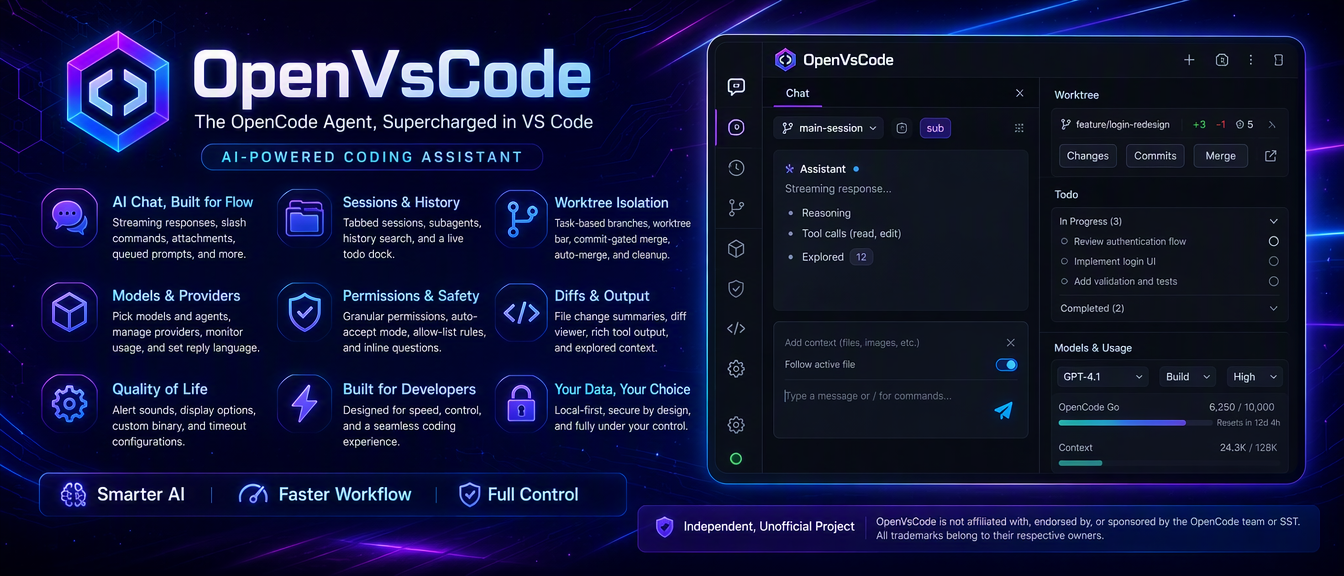
OpenVsCode is a Visual Studio Code sidebar client for OpenCode — a lightweight,
in-editor client for the OpenCode coding agent.
This extension is a thin client on top of the OpenCode server API. It spawns opencode serve
locally and streams the conversation over SSE, so you get the same sessions, models, agents, tool
calls, permissions, and diffs you would get from the OpenCode TUI or desktop app — without leaving
your editor.
It requires the OpenCode 2.x server API. A CLI that still serves an older API is detected at
startup, and the sidebar offers the two ways forward instead of a half-working chat.
Provider support: OpenVsCode currently supports OpenCode Go only. Other providers are
hidden, and they are untested.
Built in Thailand — an independent project by a Thai developer.
Not affiliated with the OpenCode team
OpenVsCode is an independent, unofficial project. It is not affiliated with, endorsed by,
or sponsored by the OpenCode team or SST. "OpenCode" refers to the upstream agent this extension
connects to; all trademarks belong to their respective owners.
Features
Chat
- Streaming chat — assistant text, reasoning, and tool calls stream in as they arrive, with an
optional typewriter reveal.
- Slash commands — type
/ in the composer to run any opencode command or skill with arguments;
filter, complete, and run from the keyboard.
- File mentions — type
@ in the composer to fuzzy-search workspace files and attach one to the
prompt; the file rides along as an attachment and the message marks it as a mention.
- Shell commands — start a message with
! to run a shell command as a turn; it queues like a
prompt and the output comes back as a tool result.
- Queued prompts — keep sending while a turn runs; prompts run in order, or interrupt the current
turn to run one now. A prompt that has to wait for another session in the shared workspace shows in
the same queue, marked
Waiting, and can be removed before it runs.
- Attachments and active-file context — drag and drop files onto the composer, paste images, or
let it follow the file you are editing — and toggle that context off per prompt.
- Drafts per session — switching tabs keeps each session's unsent text.
Sessions
- Session tabs — create, switch between, and delete sessions; keep several open as tabs and close
one or all the others.
- Subagent sessions — subagents get their own tab, flagged with a
sub badge, and run in the
background without stealing focus. Open one from the task row or the history.
- History — search past sessions with relative timestamps and file counts, split into Sessions
and Subagents tabs, then reopen or delete them.
- Todo dock — a live, session-scoped list of the plan the agent is working through, split into
open and settled rows, capped in height and following the task in flight. Finished lists are filed
with the turn that ran them.
Worktrees
- Worktree isolation — start a session in its own git worktree so its agent edits a separate
branch and never touches the shared working tree. Several worktree sessions run in parallel,
each on its own branch.
- Plan, then build — when work starts with planning and ends with a build, start the session in
its own worktree (the branch button) and run the
plan agent there. The plan reads a clean HEAD
snapshot and runs in parallel, since a read-only plan turn never waits for the shared lock. Once
the plan is ready, switch the same session to build and every later edit lands on the worktree
branch. Isolation is set at creation: an existing session cannot be moved into a worktree later.
- Worktree bar — an isolated tab keeps a toolbar above the composer: the branch, commits ahead
and behind the workspace branch, and how many files are still uncommitted.
Changes and
Commits open a full-screen view, and files open in the editor straight from the worktree.
- Commit-gated merge — work returns to the workspace through commits only.
Merge or Rebase
first shows what would travel (commits and changed files) and refuses while the worktree is dirty,
a merge/rebase is still in progress, or another tab is writing to the workspace. The merge lands
the commit the worktree has checked out, so it also works for the detached worktrees the agent and
the TUI create. The agent owns committing; the extension does not move uncommitted edits across.
- Auto-merge — when the workspace branch has moved but the replay is clean, the worktree merges
itself back and the session returns to the workspace.
- Rollback on conflict — a conflicting merge or rebase is aborted in place, so neither tree is
left mid-operation; the conflicting paths are reported so the work can be resolved and retried.
- Automatic cleanup — a successful merge moves the session back to the workspace and deletes the
worktree and its branch (
-d, so unmerged commits are never dropped). Discard removes an
unmerged worktree after an explicit confirmation — the server is asked for a plain removal first,
so the dialog appears only when work would actually be dropped.
- Worktrees made elsewhere — the OpenCode TUI, the agent's own worktree tools and a plain
git worktree add all create worktrees this sidebar did not. Session history lists the project's
saved worktrees under Worktrees, rescans for them on demand, opens the session that runs in
one, and starts a session in a worktree that has none.
- Shared-write safety — sessions in the shared workspace run one build turn at a time: a prompt
sent while another session writes waits in the composer queue. Plan-agent turns are read-only, so
they run in parallel and never hold the lock.
Models and providers
- Model and agent pickers — choose a provider/model, pick the
build or plan agent, and set
reasoning effort when the model offers variants.
- Model list — enable or disable models and pick a default, with provider and vendor icons.
- Provider sign-in — connect or disconnect a provider API key from the sidebar.
- Usage and context meters — an OpenCode Go quota bar (used, remaining, or hidden, with a reset
timer) and a context meter showing tokens against the model limit.
- Manual compact — compact the session on demand from the context meter popup, using the model
the session is running.
- Reply language — tell the model to answer in English or Thai with a single setting, including
the questions it asks. Auto leaves the choice to the model.
Permissions and safety
- Permission prompts — approve edit, bash, and external-directory requests once, always, or
reject them. "Always" rules are written to an allow-list you can review and edit.
- Auto-accept — one toggle to approve every request once without prompting, and without writing a
rule to disk.
- Question prompts — the agent can ask you structured follow-up questions inline.
Diffs and output
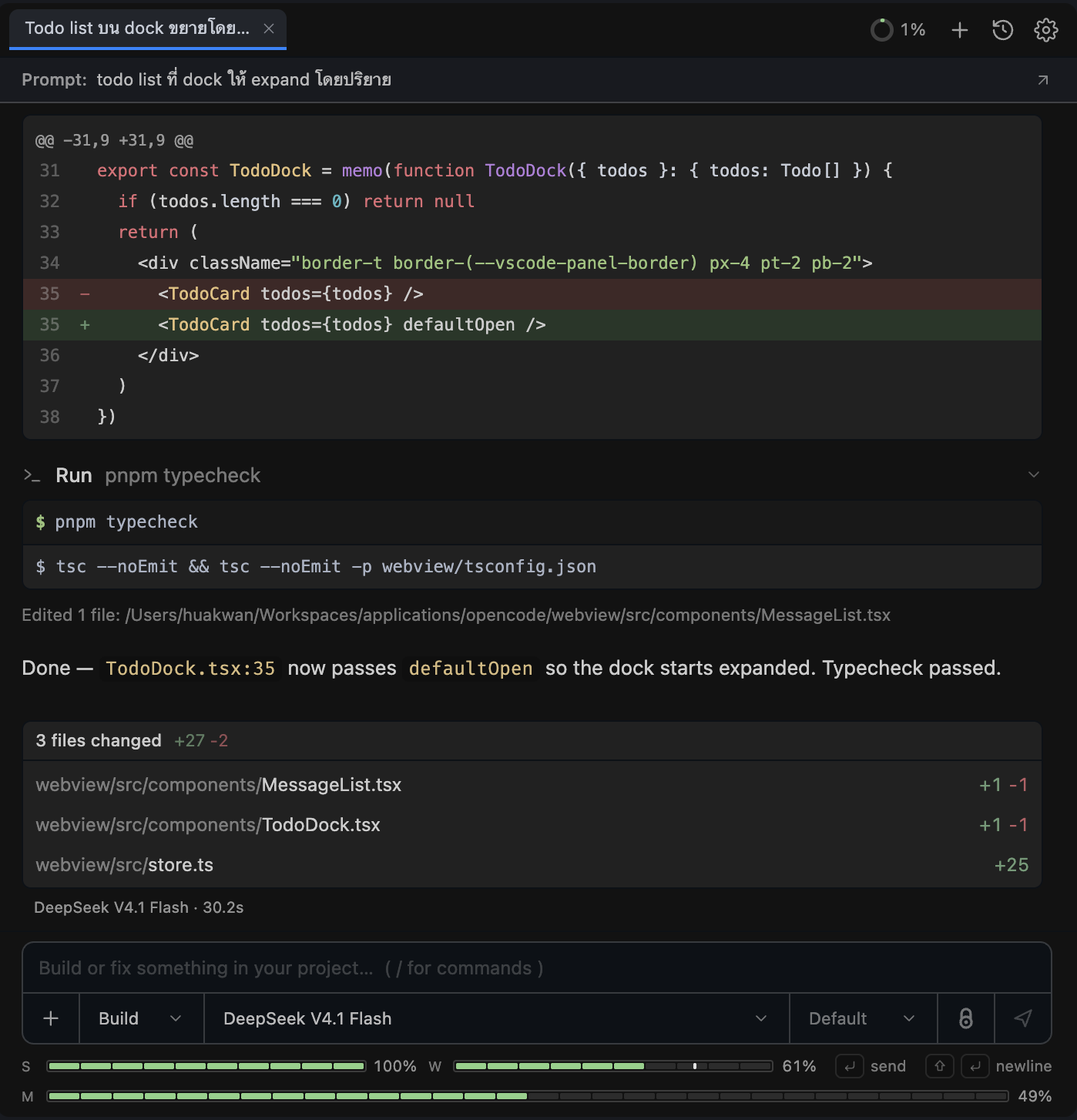
- Turn change summary — every file a turn touched, with added/deleted counts and a jump to the
first changed line, alongside the turn's finished todos and elapsed time.
- Diff viewer — review every change the session made, file by file.
- Rich tool output — syntax-highlighted code blocks, ANSI-colored shell output, and nearby reads
and searches collapsed into a single Explore group.
Quality of life
- Alert sound — an optional tone when a turn finishes or a permission or question appears.
- Display options — toggle the typewriter effect, reasoning summaries, and whether context, edit,
and shell tool parts start expanded.
- Custom binary — point the extension at any opencode binary with the user-level
openvscode.opencodePath setting.
Requirements
- The OpenCode CLI 2.x installed and available on
PATH. The
extension spawns opencode serve itself and does not work without it. A 1.x CLI is not
supported: the sidebar offers to upgrade it, or to install OpenVsCode 1.0.35, the last
release that speaks 1.x.
- An OpenCode Go account. This version supports the
opencode-go provider only; other
providers are not supported yet.
- VSCode version 1.92 or newer.
Getting started
Install the OpenCode CLI (2.x).
macOS and Linux (Homebrew) — recommended, tracks releases fastest:
brew install anomalyco/tap/opencode
Or install with npm:
npm install -g opencode-ai
Sign in to OpenCode Go:
opencode auth login
Verify the CLI is on your PATH before continuing:
opencode --version
Open a folder in VS Code. The extension runs opencode against the first workspace folder.
Click the OpenVsCode icon in the activity bar.
Pick a model and agent, then start coding.
The sidebar opens immediately and shows a connecting state while the local server warms up.
If the CLI is missing, the sidebar shows install steps instead. You can also point the extension at
a custom binary with the openvscode.opencodePath setting, which is a user setting: a value in a
workspace's .vscode/settings.json is ignored.
Usage
Enter sends a prompt and Shift+Enter inserts a newline. Use the stop button to abort a running
turn. Click the model or agent name to change either; prompts sent while a turn is running are
queued.
Commands
| Command |
Description |
OpenVsCode: Focus |
Reveal and focus the OpenVsCode sidebar. |
OpenVsCode: New Session |
Start a fresh session in the active folder. |
Permissions and privacy
- The server listens on
127.0.0.1 only and is scoped to your workspace folder.
- Nothing leaves your machine except the requests your configured provider already makes.
- "Always allow" decisions are stored in
.openvscode/settings.local.json inside the workspace. Edit
or delete that file to revoke a rule. The file is machine-local: if git tracks it, the extension
ignores its rules and does not write to it, so a cloned repository cannot pre-approve anything.
- Shell commands, web fetches, and web searches all ask before running. Reads inside the workspace,
edits, and paths outside the workspace follow opencode's own permission defaults. Choosing the
wider allow on a fetch remembers the site's domain, not the single URL.
- The extension only runs in a trusted workspace. Opening an untrusted folder leaves it disabled
until you grant trust, which is what keeps a cloned repo from running its own code through the
agent.
How the CLI is found
openvscode.opencodePath is resolved in this order:
- The configured path, used as-is when it contains a slash or backslash.
- Otherwise:
opencode on PATH, then ~/.opencode/bin/opencode, then /opt/homebrew/bin/opencode
and /usr/local/bin/opencode.
The setting is machine-scoped, so it lives in your user settings. VS Code ignores a value set in a
workspace or folder's settings, which is deliberate: a repository must not be able to point the
extension at a binary it ships.
If none of these exist, the sidebar shows install steps and offers an install guide link.
Troubleshooting
| Symptom |
Fix |
| "CLI was not found" |
Install the CLI, or set openvscode.opencodePath (User Settings) to the absolute path. |
| Sidebar stuck on connecting |
The first cold start can take a few minutes; if it still fails, check the CLI runs by hand. |
| "Open a folder" prompt |
opencode is directory-scoped — open a folder and the sidebar starts itself. |
| Model picker is empty |
Sign in to OpenCode Go. |
About
OpenVsCode is built and maintained in Thailand by an independent developer.
It is developed and used on a MacBook Air M1 running macOS 26.6.2. It has not been tested on other
machines or operating systems, so it may not work on every setup — apologies in advance if it does
not run on yours.
โปรเจกต์นี้พัฒนาโดยคนไทย หากใช้งานแล้วชอบ ฝากบอกต่อหรือรีวิวบน Marketplace ด้วยนะครับ
License
MIT
| |


