VSCodeStand
[ English | 日本語 ]
A multi-function VS Code extension that bundles several useful features.
Features
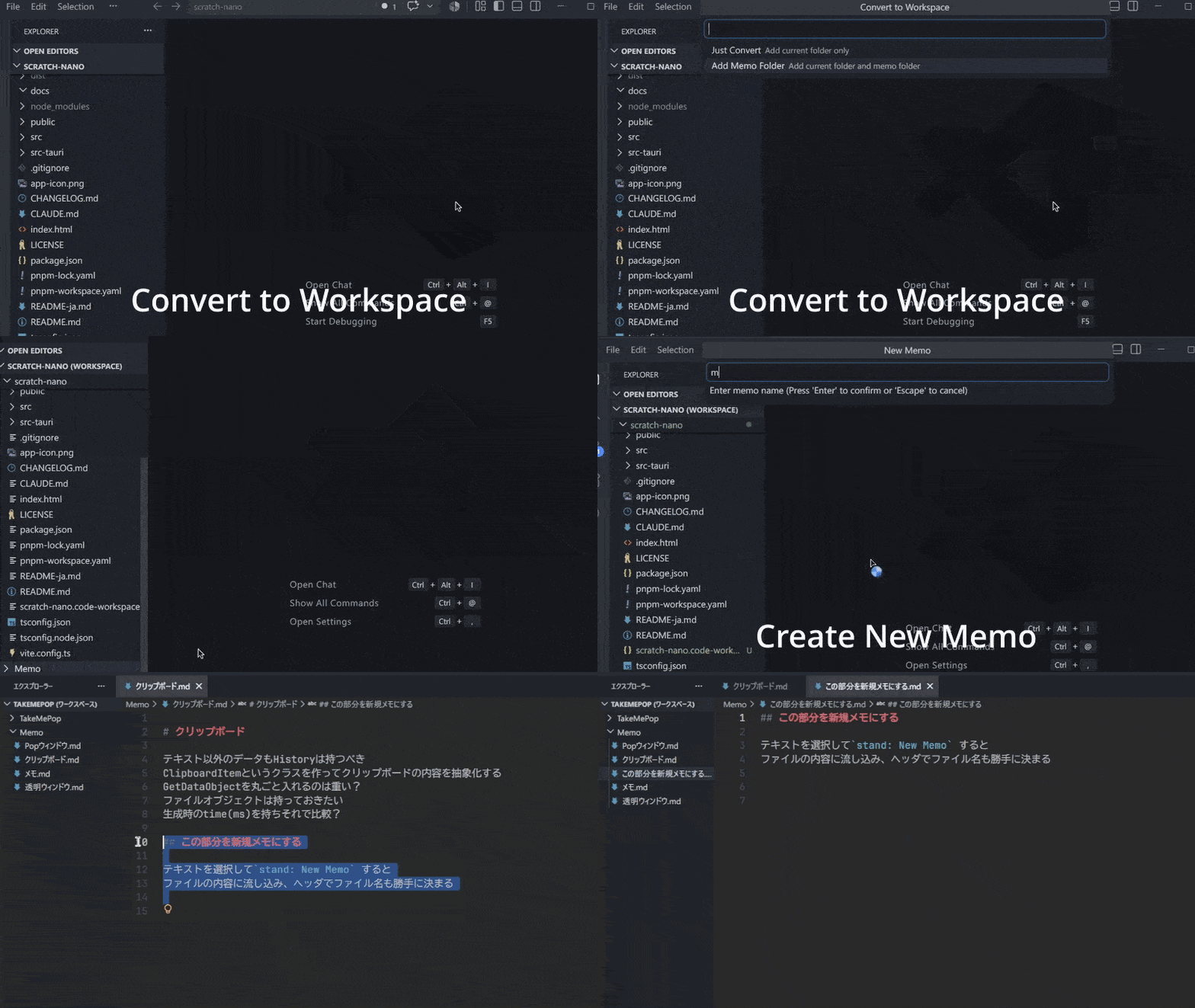
New Memo (stand: New Memo)
Quickly create and open a memo file.
- Run from the Command Palette or the Explorer context menu
- Enter a memo name to create a Markdown file and open it in the editor
- Run from the editor's context menu. If a Markdown header exists in the selection, it will be used as the new file name.
- If the file already exists, it is opened as-is
The save location is specified by vscode-stand.memoDir. It is recommended to decide upfront whether to consolidate memos in one place with an absolute path, or include them in the project with a relative path.
For multi-root workspaces, you will be prompted to select a main folder on first use. The selection is saved to workspace settings.
Convert to Workspace (stand: Convert to Workspace)
Creates a .code-workspace file from the currently open folder.
- If
vscode-stand.memoDir is an absolute path, the following options are shown:
- Just Convert — Add the current folder only
- Add Memo Folder — Add the current folder and the memo folder (memo folder is added with
"name": "Memo")
- After creation, the
.code-workspace file is opened in the editor. Press the "Open Workspace" button in the file to open it as a workspace.
The generated file comes pre-filled with vscode-stand.workspaceMainFolder (used to resolve the memo save location) and terminal.integrated.cwd (to pin the terminal's initial working directory).
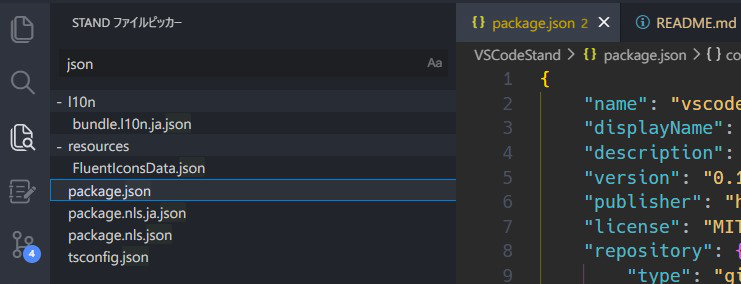
Find and list workspace files by name. It only shows matches, making it more useful than the default Explorer search.
Other Features
- Command that close all tab ecept markdown, pinned and unsaved
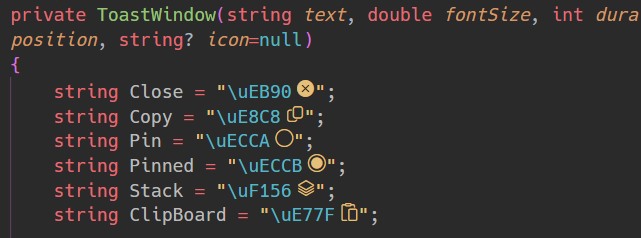
- Preview Fluent Icon glyphs in .cs and .xaml files
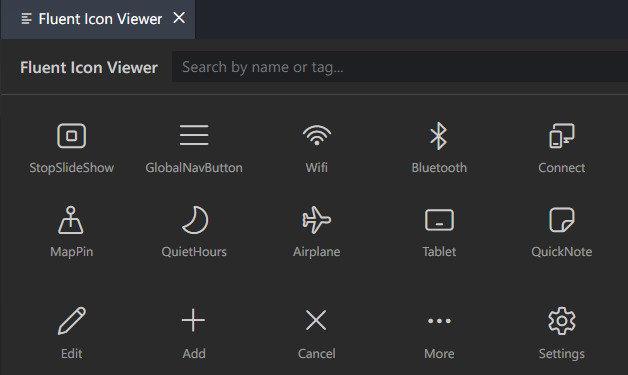
- Searchable grid viewer for Fluent Icons
Commands
| Command |
Description |
stand: New Memo |
Create and open a new memo |
stand: Convert to Workspace |
Create a .code-workspace file from the current folder |
stand: Select Memo Folder |
Select a memo folder and save it to global settings |
stand: Select Workspace Folder |
Select a workspace folder and save it to global settings |
stand: Close All Except Markdown |
Close all tab ecept markdown, pinned and unsaved |
stand: Fluent Icon Viewer |
Open a searchable grid viewer for Fluent Icons |
stand: Open Memo Explorer |
Open the Memo Explorer side panel |
stand: Open File Picker |
Open the File Picker side panel |
Settings
| Setting |
Default |
Description |
vscode-stand.memoDir |
(empty) |
Folder to save memos. An absolute path provides a common root; a relative path provides an individual path. |
vscode-stand.workspaceDir |
(empty) |
Folder to save workspaces. An absolute path provides a common root; a relative path provides an individual path. |
vscode-stand.fluentIconPreview |
false |
Preview Fluent Icon glyphs in .cs and .xaml files. |
Save location rules for memoDir and workspaceDir:
| Setting value |
Save location |
Empty or . |
Workspace root / filename |
Relative path (e.g. .memo) |
Workspace root / setting value / filename |
Absolute path (e.g. /Users/foo/memos) |
Setting value / workspace name / filename |
Screenshots
File Picker
Fluent Icons Viewer
Fluent Icons Preview
License
MIT License


