Herozion — Security scanner
Herozion scans your code for security vulnerabilities as you edit and highlights them directly in your editor.
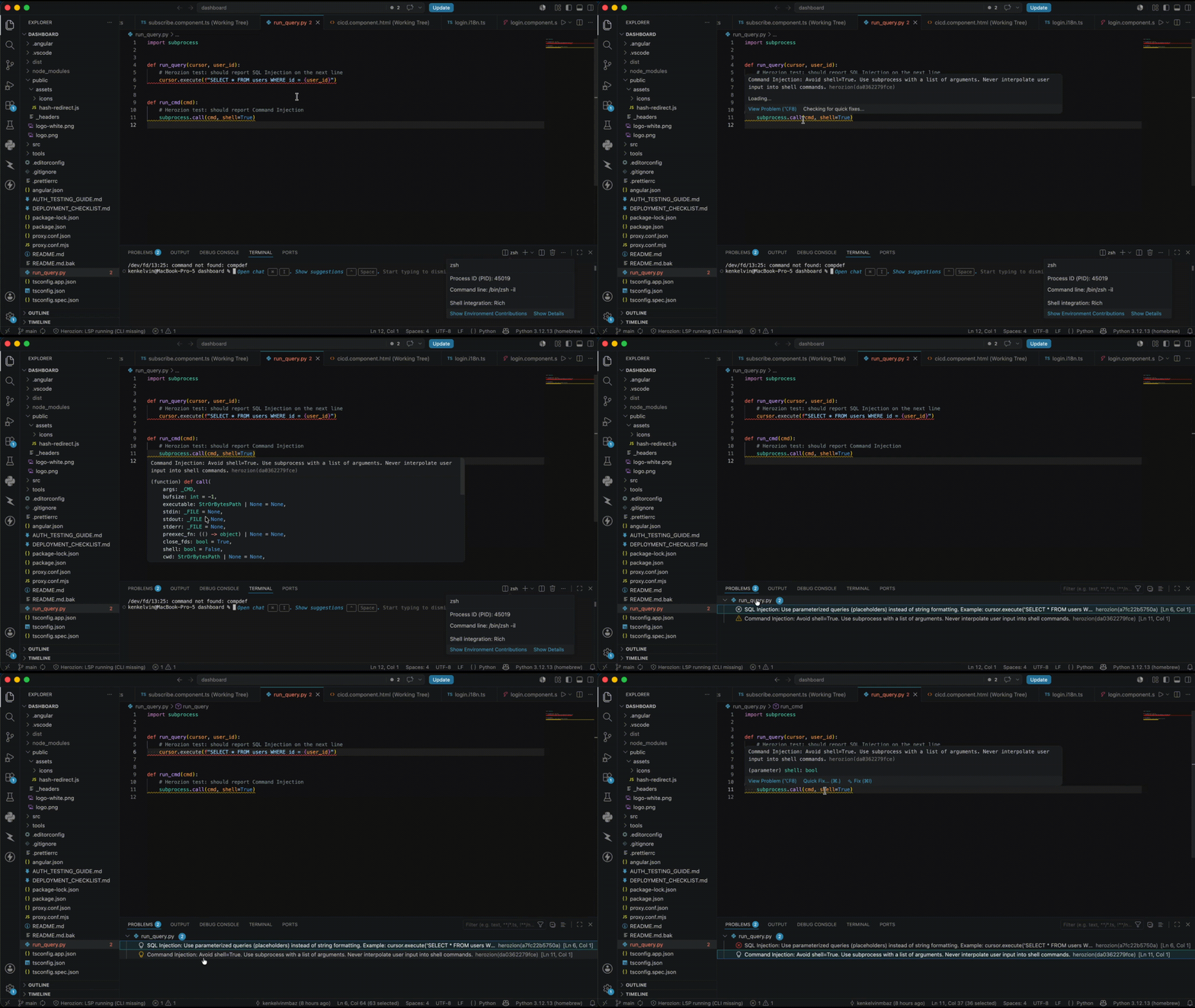
No separate terminal. No context switching. Issues appear in the Problems panel the moment you open a file.
Quick start
1. Install the extension
Search Herozion in the Extensions view (VS Code or Cursor), or run:
ext install herozion.herozion-vscode
2. Install the Herozion CLI
npm install -g herozion
Or with Homebrew (macOS):
brew install herozion
Verify:
herozion --version
The CLI is a standalone binary — it includes everything needed for inline and workspace scans. You do not need Python or pip install herozion.
3. Open your project folder
Use File → Open Folder on your project root. Opening a single file without a workspace folder disables analysis.
4. Reload the editor
Run Developer: Reload Window so the extension picks up the CLI on your PATH.
5. Confirm it works
- Open a supported source file (
.js, .ts, .py, .go, …).
- Check View → Problems — filter by source:
herozion.
- Or run Herozion: Scan Workspace from the Command Palette.
Status bar shows the live issue count. Click it for the scan → push guide.
What you need
| Piece |
Required? |
Install |
| Extension |
Yes |
Marketplace |
CLI (herozion) |
Yes |
npm install -g herozion or Homebrew |
| Python package |
No (optional fallback) |
pip install herozion |
Extension only: install the CLI — nothing else.
Optional Python package: only if the CLI is unavailable (e.g. restricted corporate environment). The extension falls back to python3 -m herozion.lsp.analyze_cli.
What it detects
- OWASP API Top 10 — broken auth, excessive data exposure, BOLA
- Injections — SQL, NoSQL, command, path traversal
- Exposed secrets — API keys, tokens, hardcoded credentials
- Missing input validation and schema enforcement
- And more — mapped to CWE references
Supports: JavaScript, TypeScript, Python, Java, Go, and more.
How it works
- Open a file →
herozion analyze runs in the background → Problems panel updates
- Edit a file → re-analyzed after a short debounce
- Herozion: Scan Workspace → full project audit via
herozion scan
- AI Fix (from a finding detail) →
herozion agent fix → snippet ±30 lines to https://ai.herozion.io (1 credit, after privacy consent)
herozion push → sync results to your dashboard
Your dashboard (app.herozion.io) gives you the full picture: report history, severity breakdown, CI/CD integration, and compliance mapping (SOC 2, ISO 27001, PCI-DSS).
Commands
- Herozion: Analyze Active File
- Herozion: Scan Workspace
- Herozion: Show Output Log
- Herozion: Scan & Push Guide
Settings (optional)
| Setting |
Default |
When to change |
herozion.pythonPath |
python3 |
Optional Python fallback only |
herozion.cli.path |
herozion |
Override auto-detection (default finds node_modules/herozion after npm install herozion --save-dev) |
herozion.debounceMs |
300 |
Delay before re-scanning after edits |
herozion.language |
auto |
UI language (en, fr, pt, es) |
Free plan includes
- Inline diagnostics on all open files
- Full workspace scan
- Up to 10 findings displayed per scan
Need the full report, history, and CI/CD integration?
→ Start your free 14-day Team trial at app.herozion.io
Troubleshooting
| Symptom |
Fix |
| LSP / "couldn't create connection to server" |
Update to extension v0.2.8+ |
| CLI not found / setup required |
npm install herozion --save-dev in your project (or npm install -g herozion), then Developer: Reload Window |
| No issues on file open |
Check View → Output → Herozion. First inline scan can take ~10s (CLI cold start). Upgrade CLI: npm install -g herozion@latest |
| No issues showing |
View → Problems, filter source: herozion |
| Need logs |
View → Output → channel Herozion |
Works in
VS Code and Cursor.

