Overview Version History Q & A Rating & Review
CodeWhere
Copy a compact reference to the code you are looking at in Visual Studio Code.
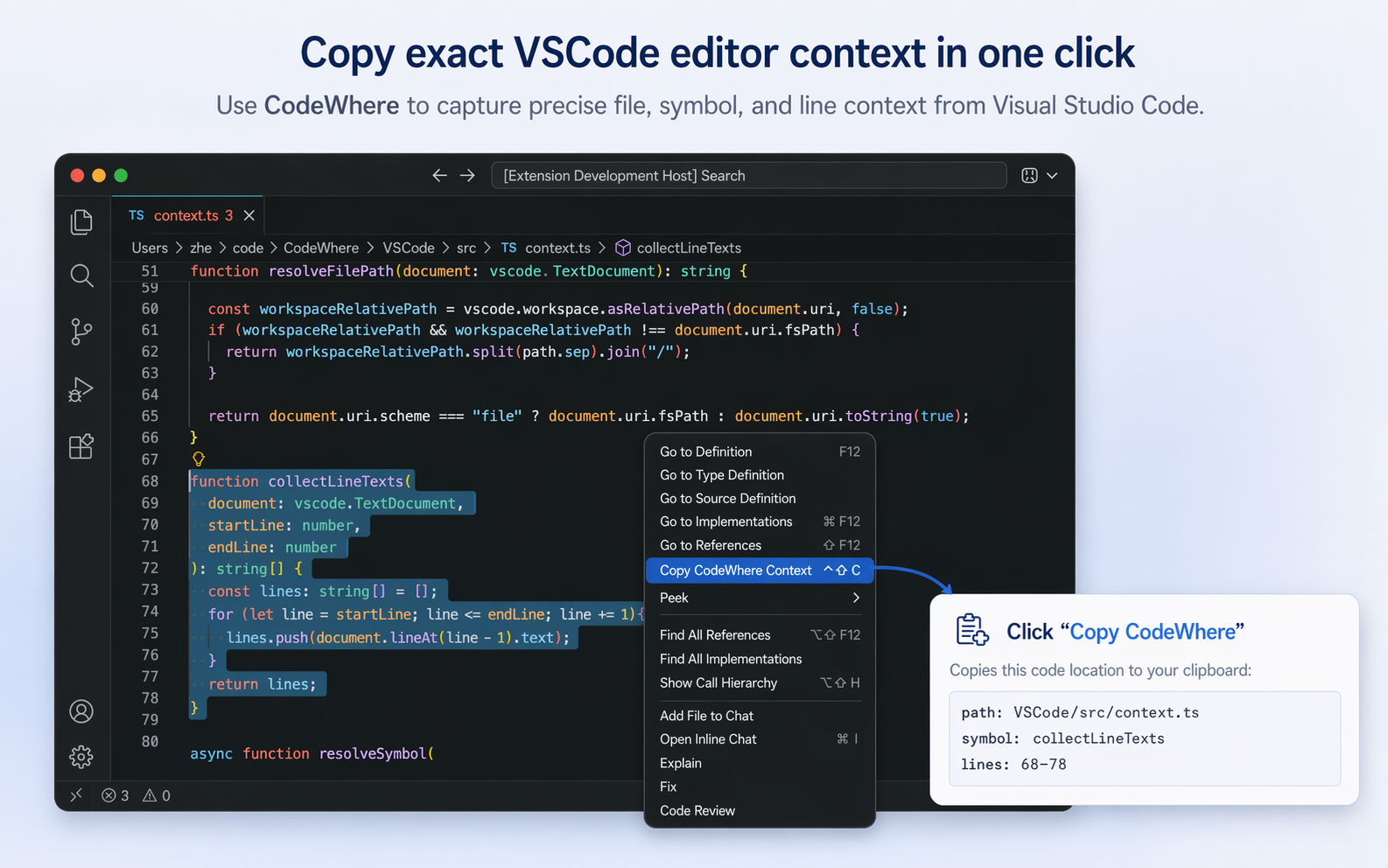
CodeWhere captures the current file path, enclosing symbol, selected or current line range, and a short anchor line, then copies that context to your clipboard in a format that is easy to paste into AI assistants, code reviews, bug reports, and team chat.
Screenshot
Example Output
path: VSCode/src/context.ts
symbol: collectLineTexts
lines: 68-78
How To Use
Open a file in the editor.
Place your cursor on a line, or select a range of lines.
Run Copy CodeWhere Context from the editor context menu or Command Palette.
Default shortcut:
Linux and Windows: Alt+Shift+C
macOS: Ctrl+Shift+C
What CodeWhere Captures
Workspace-relative file path when available
Enclosing symbol path when VS Code can resolve document symbols
Current line number or selected line range
A short anchor line when it helps disambiguate the location
Why It Is Useful
Give AI coding assistants precise context without pasting large code blocks
Share exact locations in code review comments, issues, and chat
Keep references compact, readable, and easy to paste
Stay local: the extension only copies text to your clipboard
Notes
The symbol field is included only when VS Code can resolve document symbols for the current file.
For multi-line selections with a resolved symbol, the anchor field is usually omitted to keep the output concise.
Paths are workspace-relative when possible and fall back to the file path when needed.