CSV Editor for VS Code
CSV Editor by Hazim Saeed is a fast CSV and TSV editor for VS Code and an enhanced version of the original CSV Grid Editor by Bash-365. This fork builds on the original spreadsheet-style data grid while preserving full credit to its creator and the original MIT license. Open, view, edit, filter, sort and format CSV or TSV files; inspect statistics, build charts, run SQL queries and automate repeatable data cleanup without leaving your workspace.
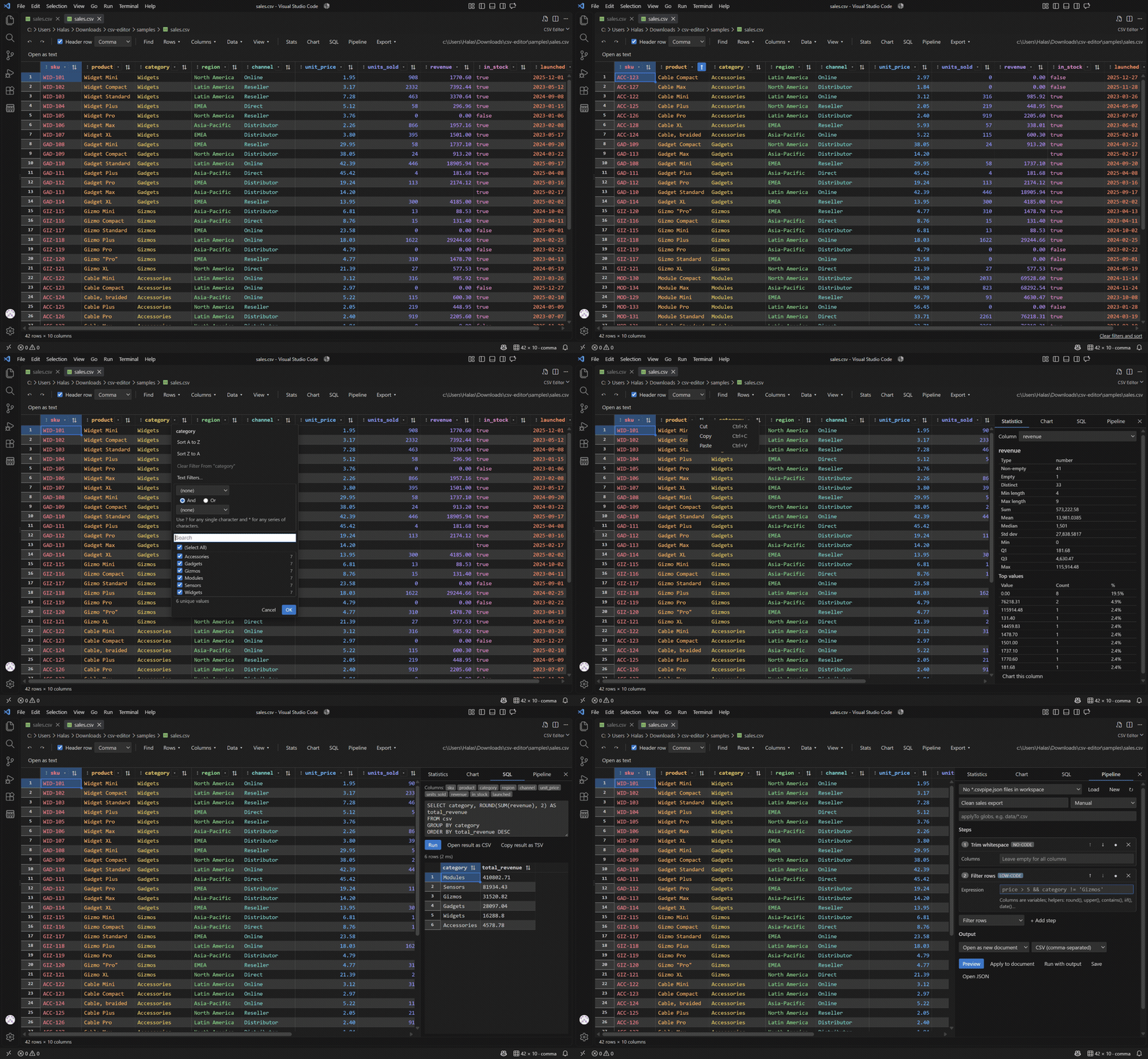
Rainbow column colors make wide files easier to scan. Clear alternating row bands and a full-width hover outline help you follow the same record while scrolling horizontally.


Why
CSV files are the format everyone actually exchanges, and reading one in a text editor means counting commas. Opening it in a spreadsheet means leaving your editor, and often means the spreadsheet silently reformats your data on the way back out.
This extension puts the grid inside VS Code, on top of the file itself. The text document stays the source of truth, so Ctrl+S, Ctrl+Z, the dirty indicator, file watching and Git all behave exactly as they do for any other file. Nothing reformats your dates or drops your leading zeros.
Features
A real grid over a real file
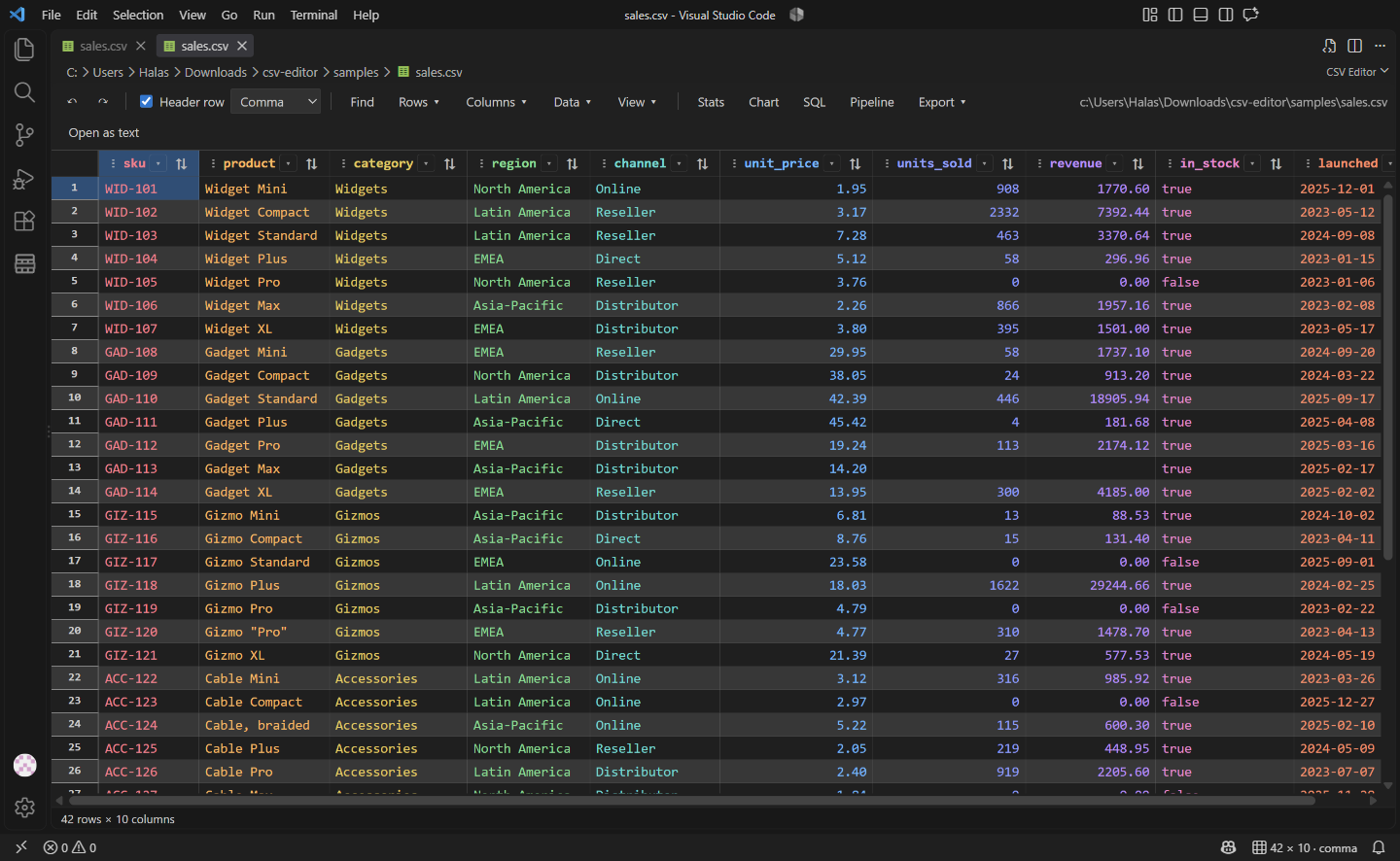
- Virtualised rendering that stays smooth on files with 100,000 rows and more.
- Automatic delimiter detection for comma, tab, semicolon and pipe, with a per-file override.
- Column types inferred as integer, number, boolean, date or text, driving right-aligned numbers, numeric sorting and the right filter operators.
- Spreadsheet range selection with copy and paste to and from Excel. The status bar summarises the selection: count, sum, average, minimum and maximum.
- Edit with a double-click,
F2, Enter, or by simply typing. Ctrl+S saves. Ctrl+Z undoes.
Excel-style AutoFilter
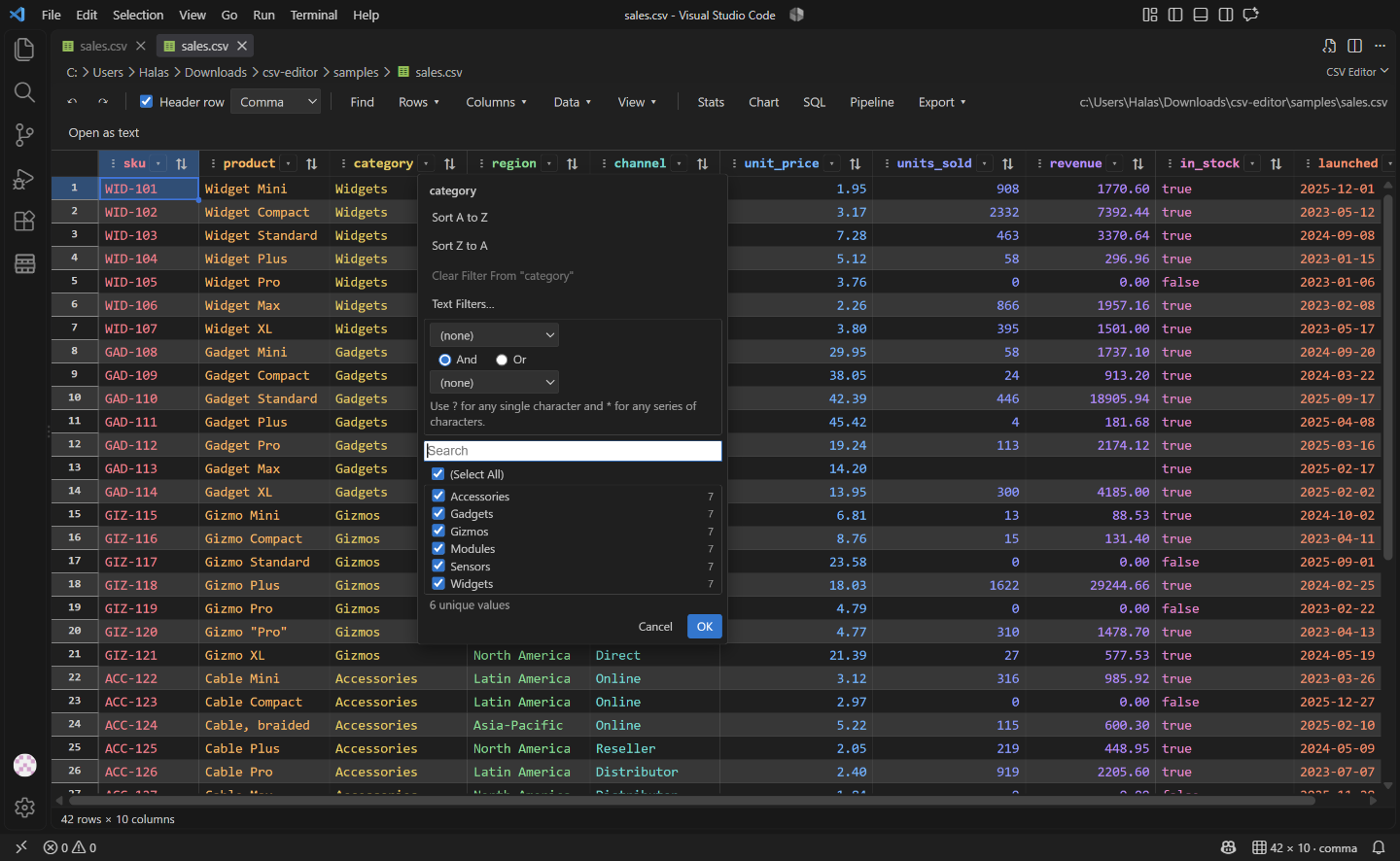
Click the caret in any column header, or press Alt+Down.
- A searchable list of the column's distinct values with row counts, tri-state
(Select All), and (Blanks).
- Text, Number and Date condition filters: contains, begins with, greater than, between, before, is empty, and the rest, two at a time joined by And or Or, with
* and ? wildcards.
- Value lists cascade from the other columns' filters, so you never pick a combination that matches nothing.
- Sorting, and a one-click clear per column.
Find, replace and sort
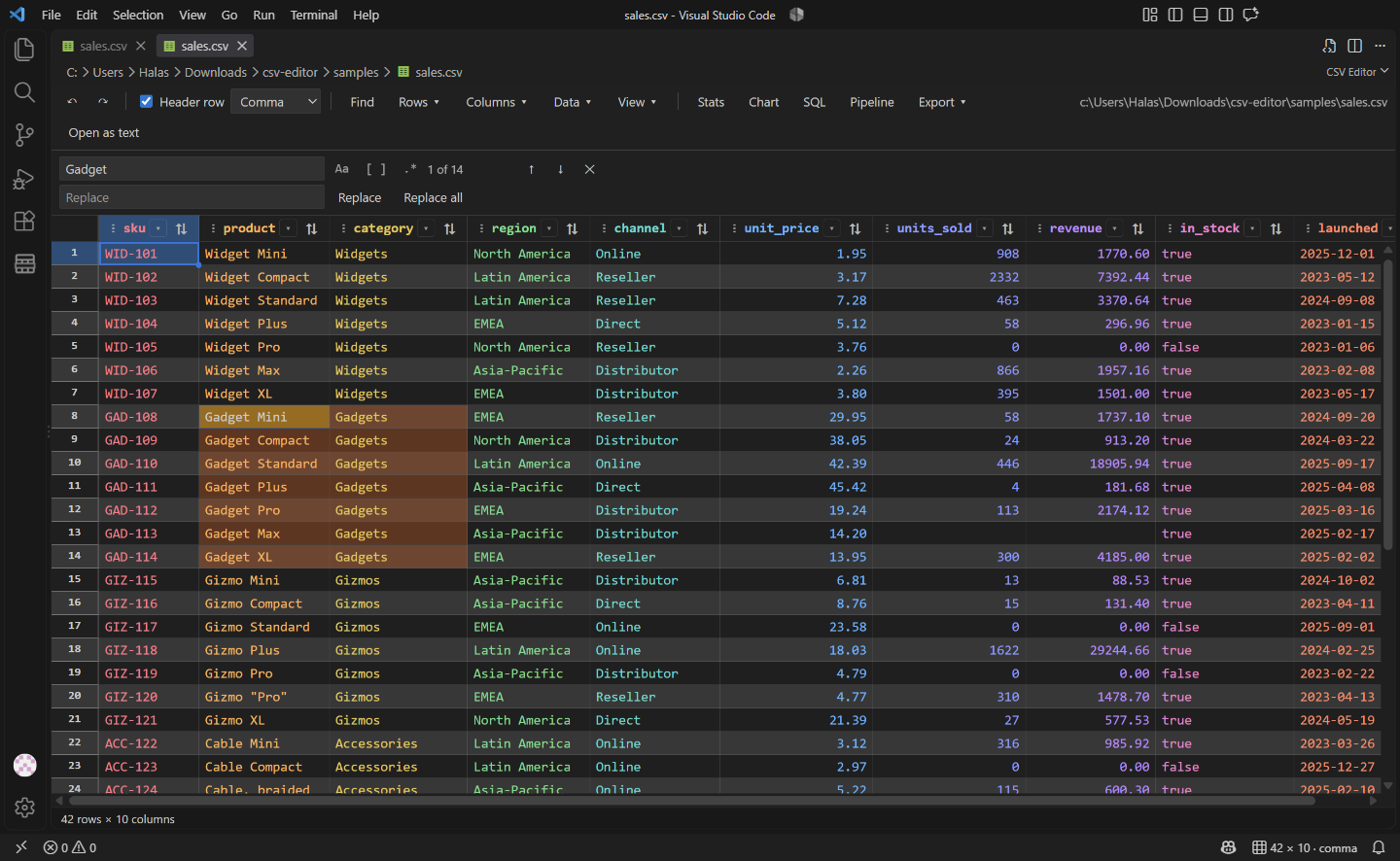
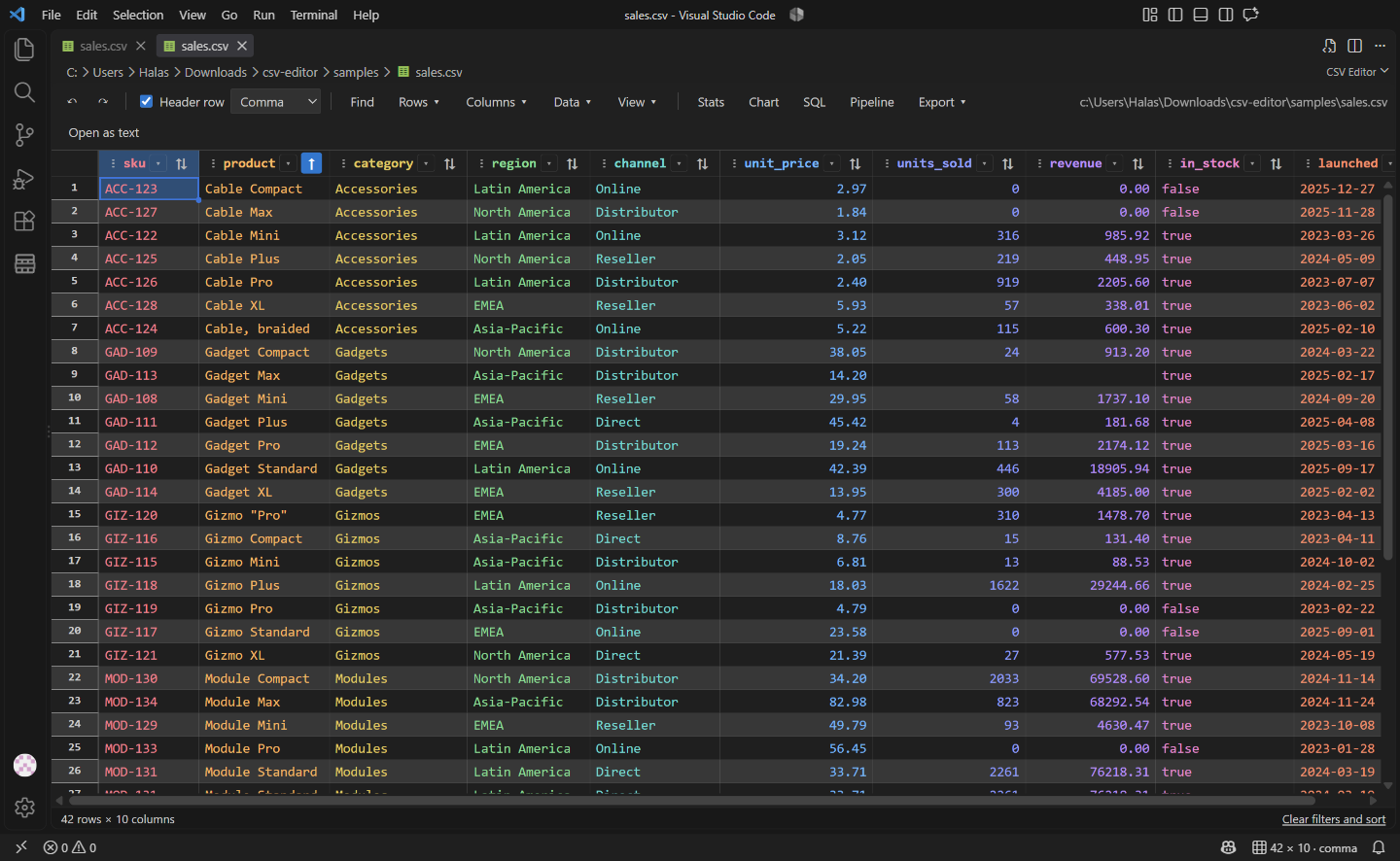
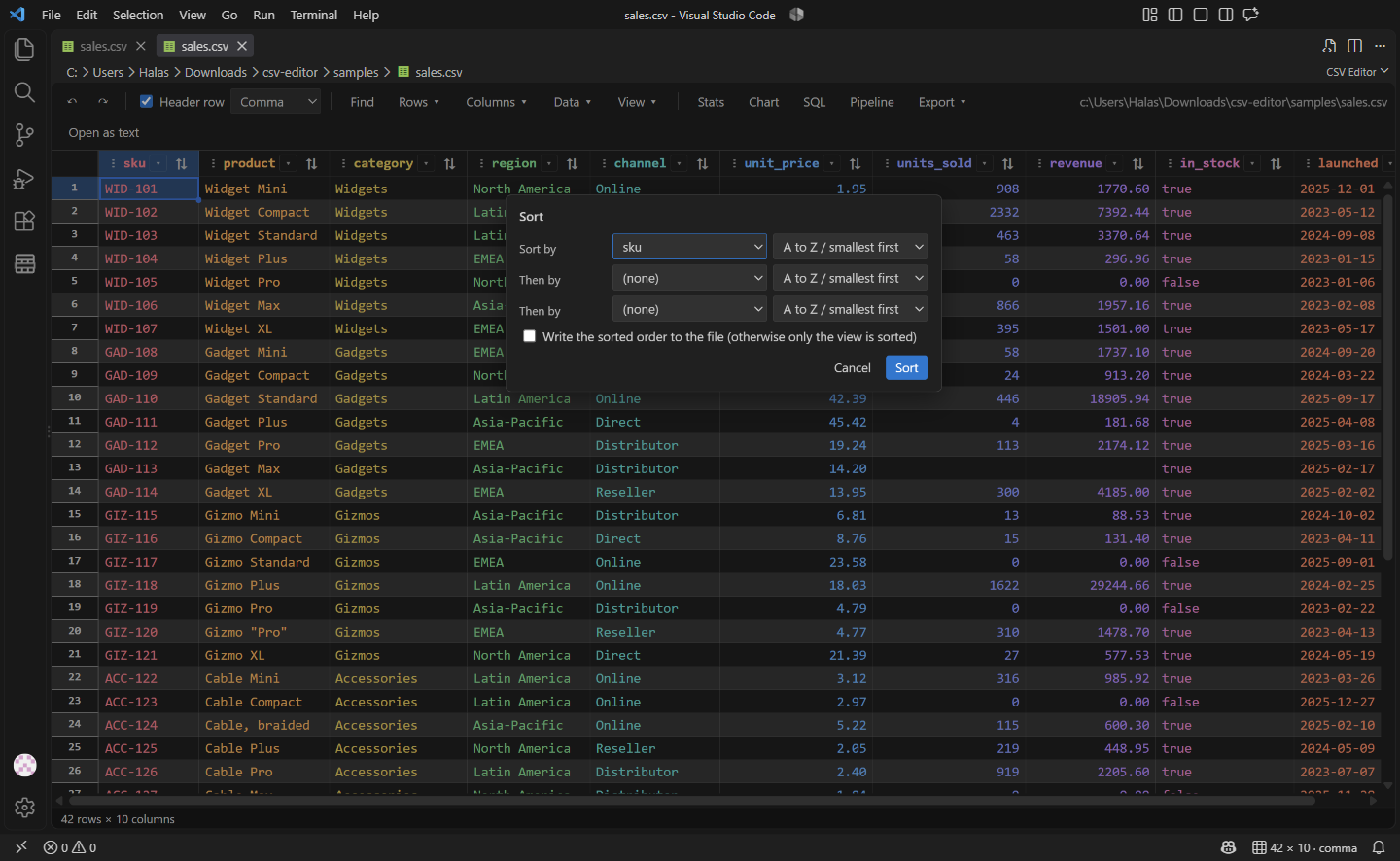
Ctrl+F opens find and replace with match case, whole cell and regular expression modes, live highlighting of every match, and replace-all in a single undo step. Header sorting uses clear ⇅, ↑ and ↓ states. The Sort dialog does up to three levels and can either sort the view or write the new order to the file.
Edit rows and columns
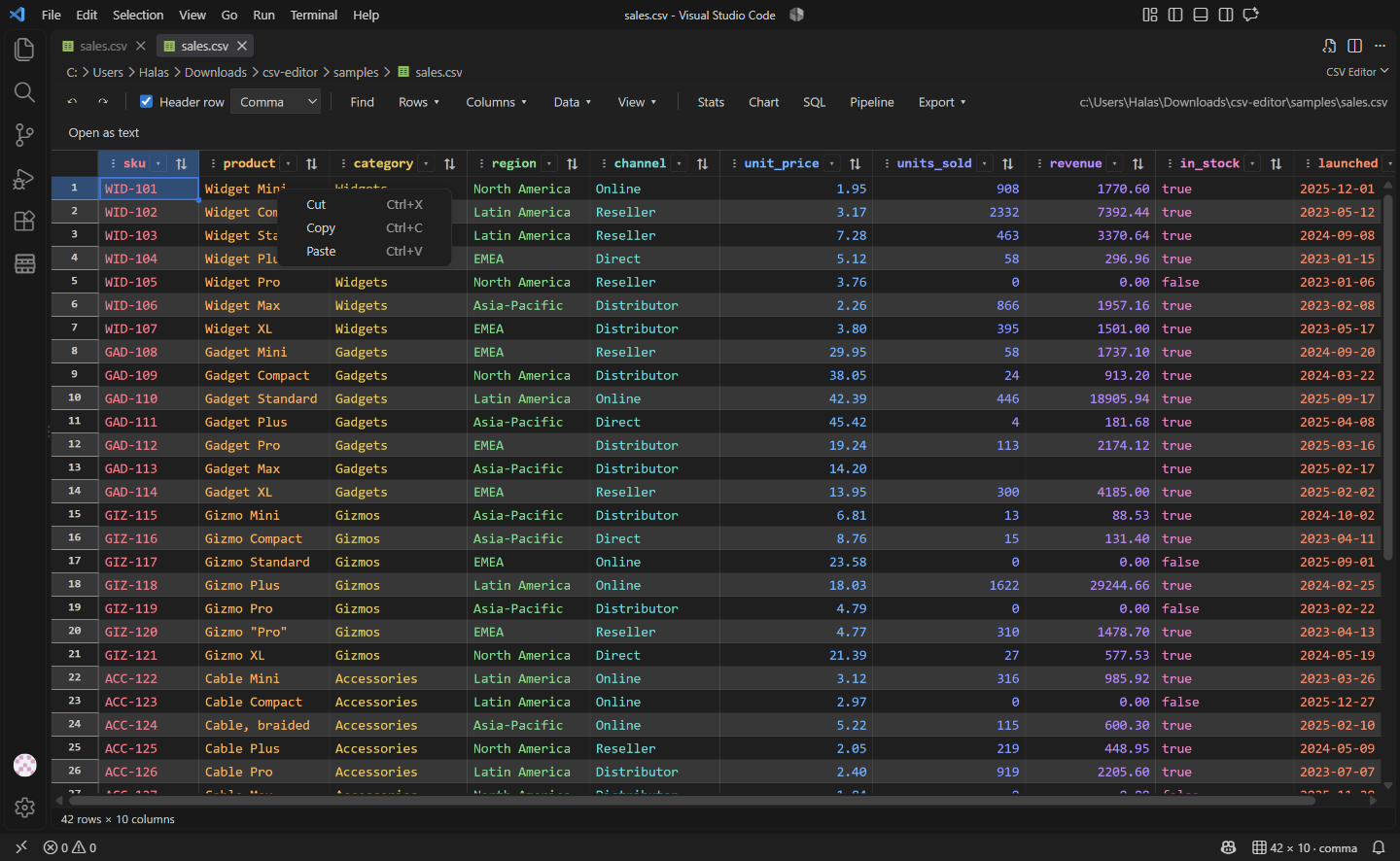
Toolbar menus and right-click menus cover insert, duplicate, move, delete and hide for both rows and columns, on single items or whole selections. Beyond that: split a column into several, merge columns together, transpose the table, remove empty or duplicate rows, fill down and right with Ctrl+D and Ctrl+R, fill a series, trim whitespace, change case, and normalize rows whose field count does not match the header.
Understand the data
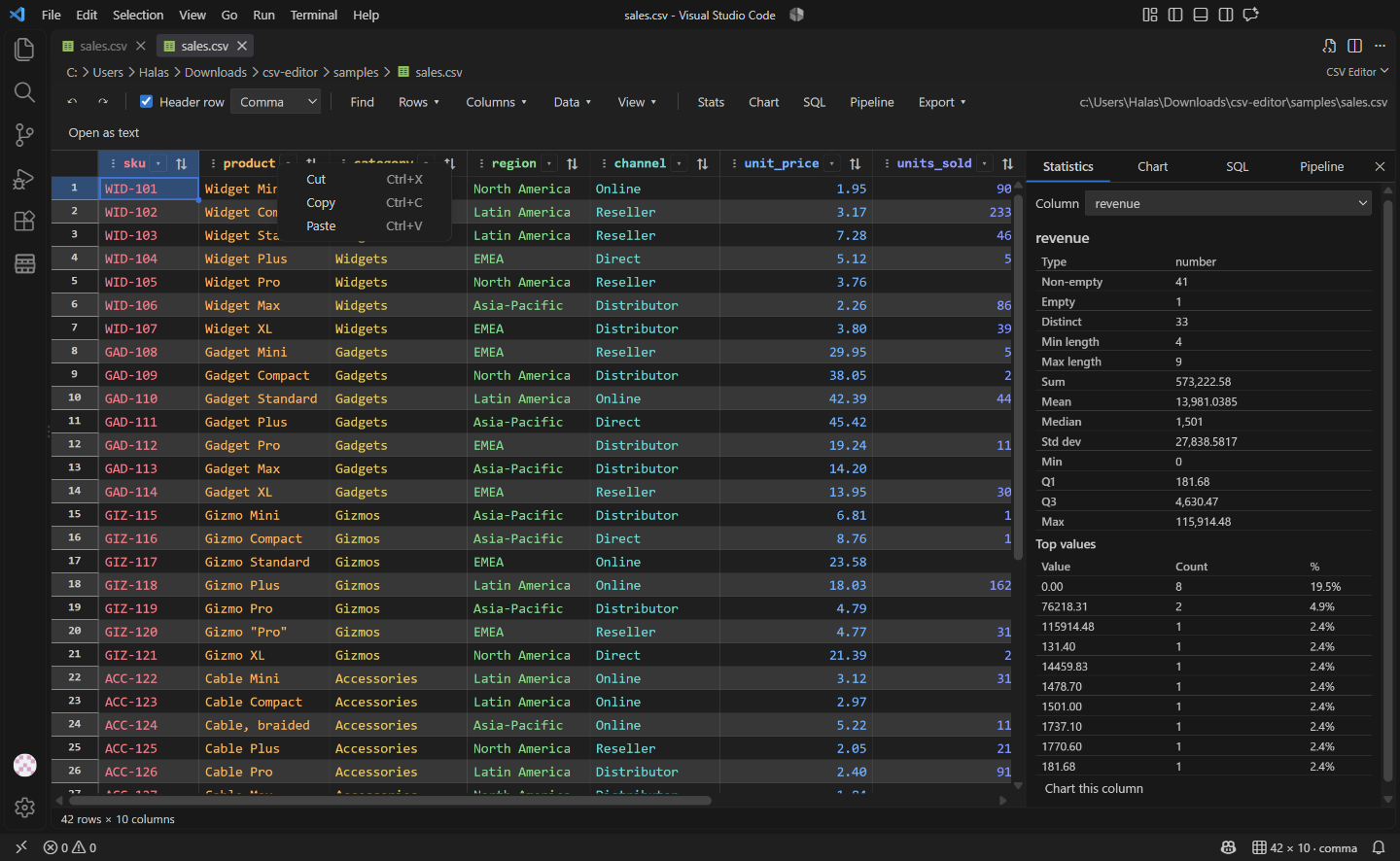
The Statistics panel gives per-column counts, distinct values, blanks, minimum and maximum, sum, mean, median, standard deviation, quartiles and the most frequent values. The Chart panel draws a histogram for numeric columns and a top-values bar chart for the rest.
Query it with SQL
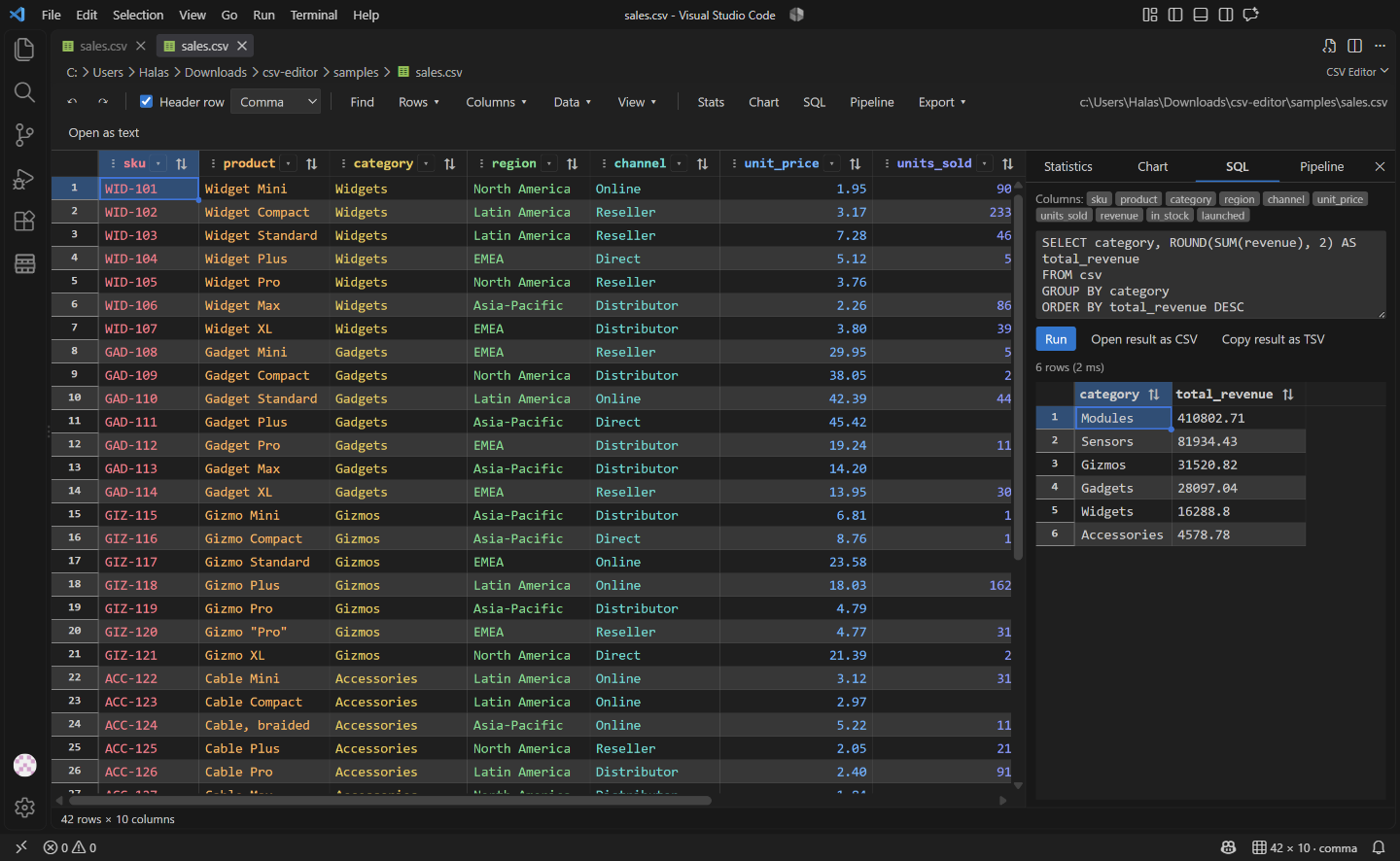
The SQL panel loads the whole file into an in-memory SQLite database named csv and runs real queries against it, including joins onto itself, window functions and aggregates. Results can be copied or opened as a new CSV.
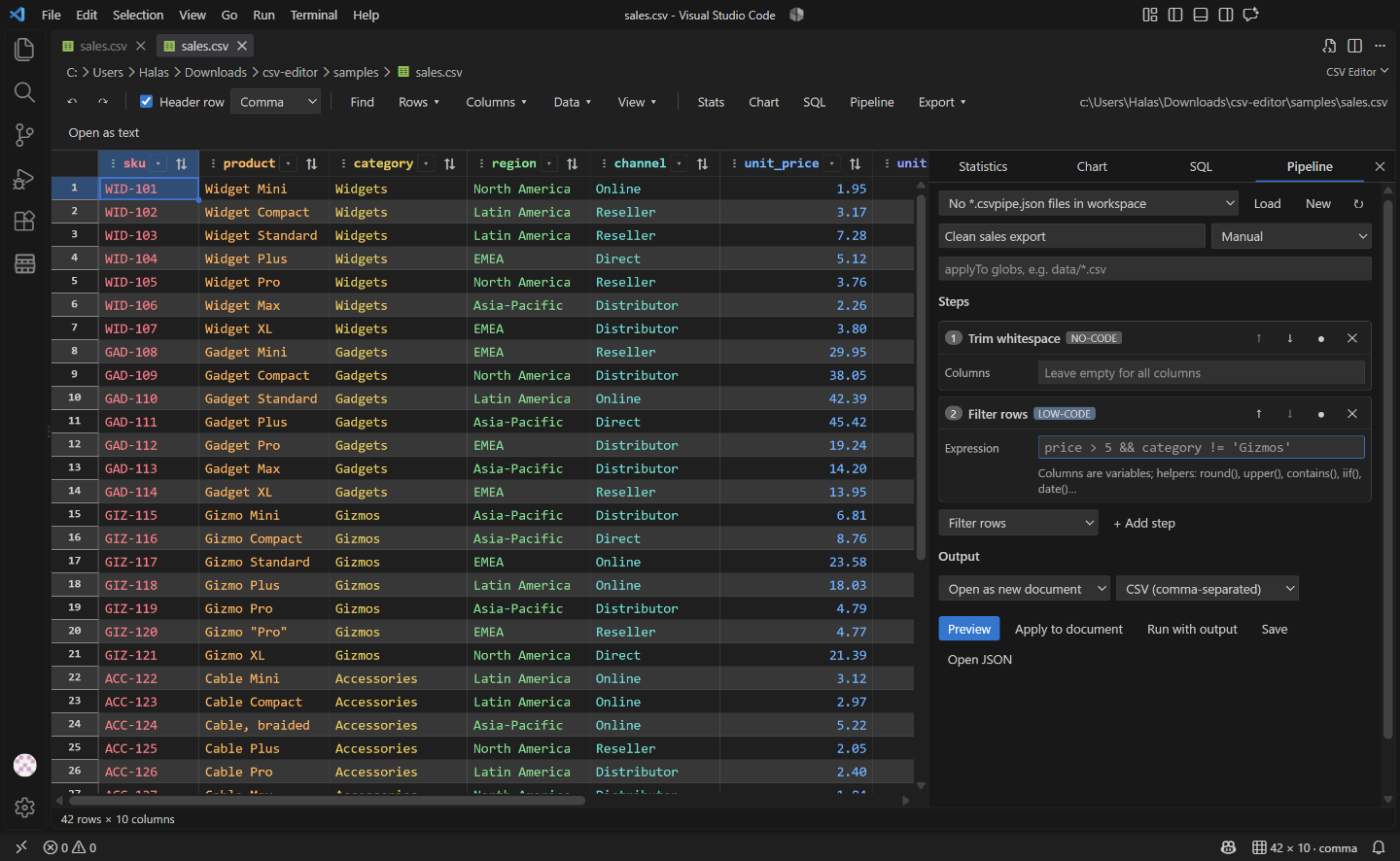
The same cleanup usually happens more than once. Describe it once as a *.csvpipe.json file and run it on demand, when the file opens, or when it is saved.
| Tier |
Steps |
| No-code |
trim, change case, fill empty, find and replace, rename, select, drop, sort, dedupe, limit, split column, merge columns, transpose, remove empty rows, random sample |
| Low-code |
filter and compute, one-line expressions where columns are variables and 38 helpers are available |
| Code |
inline JavaScript, a workspace script file, a SQLite query, or any external command over stdin and stdout |
{
  "name": "Clean sales export",
  "applyTo": ["data/sales-*.csv"],
  "trigger": "onSave",
  "output": { "target": "file", "format": "json", "path": "out/${name}-summary.json" },
  "steps": [
    { "kind": "trim" },
    { "kind": "filter", "expression": "in_stock && units_sold > 0" },
    { "kind": "compute", "column": "margin", "expression": "round(revenue * 0.18, 2)" },
    { "kind": "sql", "query": "SELECT category, SUM(revenue) AS revenue FROM csv GROUP BY category" }
  ]
}
Because a command step just pipes the data through your shell, anything already installed works: pandas, R, jq, awk, csvkit, Miller, qsv. Steps that evaluate code only run in trusted workspaces.
Full reference: docs/pipelines.md.
Export
The whole file or just the selection, to JSON, Markdown, HTML, SQL inserts, or a different delimiter. Selections can go straight to the clipboard.
The CSV icon in the activity bar opens three views. Settings lists every option the extension contributes, grouped, showing its current value; click one to change it, with a toggle for booleans, a picker for choices and a validated prompt for numbers. It also surfaces the per-file header and delimiter overrides for the file you are looking at, which are otherwise invisible once set from the grid toolbar. Pipelines lists the workspace's pipelines with the ones matching the current file first, and runs or edits them in one click. Files lists every delimited file in the workspace and opens it in the grid.
A control in the Settings view title chooses whether edits go to User or Workspace settings, and the current scope is shown next to the view name.
Text mode
Open any CSV as text and each column gets its own colour, hovering a cell names its column, the status bar tracks the column under the cursor, and rows with the wrong field count are reported in the Problems panel.
Getting started
Install from the Marketplace, then open any .csv, .tsv, .tab or .psv file. It opens automatically in the spreadsheet grid with editing, filters, statistics, charts, SQL and pipelines available.
To use rainbow-colored text mode instead, select Open as Text from the editor title bar or run CSV: Open as Text. To make text mode the default, add:
"workbench.editorAssociations": {
  "*.csv": "default",
  "*.tsv": "default",
  "*.tab": "default",
  "*.psv": "default"
}
You can switch back to the grid at any time with Open in Grid Editor. Details: Getting started.
Documentation
Guides are available in this repository:
| Guide |
Covers |
| Getting started |
Installing, opening files, grid and text mode |
| The grid editor |
Editing, rows, columns, cleaning, export |
| Filtering, search and sort |
AutoFilter, find and replace, sorting |
| Analysis |
Statistics, charts, SQL |
| Pipelines |
The full pipeline reference |
| Keyboard shortcuts |
Every shortcut and its Excel equivalent |
| Settings |
Every configuration option |
| Troubleshooting |
Common problems |
| Feature parity |
Comparison with Excel and other CSV tools |
Commands
Every command is under the CSV Editor category in the Command Palette.
| Command |
Description |
CSV Editor: Open in Grid Editor |
Open the active or selected file in the grid |
CSV Editor: Open as Text |
Switch the current grid to the text editor |
CSV Editor: Find and Replace in Grid |
Focus the find bar |
CSV Editor: Column Statistics |
Open the statistics panel |
CSV Editor: Chart a Column |
Open the chart panel |
CSV Editor: Run SQL Query |
Open the SQL panel |
CSV Editor: Export As… |
Export to JSON, Markdown, HTML, SQL or another delimiter |
CSV Editor: Toggle Header Row |
Treat or stop treating the first row as headers |
CSV Editor: Set Delimiter |
Override the detected delimiter |
CSV Editor: Run Pipeline… |
Run a pipeline on the current file |
CSV Editor: Open Pipeline Builder |
Open the visual pipeline panel |
CSV Editor: New Pipeline |
Create a pipeline from a template |
CSV Editor: New Pipeline Script |
Create a pipeline script from a template |
CSV Editor: Show Pipeline Log |
Open the CSV Pipelines output channel |
CSV Editor: Show Actions |
Quick pick of everything above |
Settings
| Setting |
Default |
Description |
csvEditor.hasHeaderRow |
true |
Treat the first row as column headers |
csvEditor.delimiter |
auto |
Field delimiter: auto, ,, \t, ; or \| |
csvEditor.maxRows |
100000 |
Rows rendered in the grid |
csvEditor.sqlResultLimit |
5000 |
Maximum rows returned to the SQL panel |
csvEditor.rainbowColumns |
true |
Colour columns in the spreadsheet grid and text mode |
csvEditor.rainbowMaxLines |
20000 |
Only colour the first N lines in text mode |
csvEditor.lintFieldCount |
true |
Warn about rows whose field count differs from the header |
csvEditor.pipelines.folder |
.vscode/csv-pipelines |
Where the builder saves new pipelines |
csvEditor.pipelines.allowScripts |
true |
Allow steps that evaluate code |
csvEditor.pipelines.timeoutMs |
10000 |
Time limit for expression and script steps |
csvEditor.pipelines.previewRows |
1000 |
Rows shown in the pipeline preview |
Details in docs/settings.md.
Requirements
VS Code 1.90 or later. No other dependencies; everything ships in the extension.
Built with
| Library |
Role |
| PapaParse |
RFC 4180 parsing and serialisation |
| Tabulator |
Virtualised grid, range selection, clipboard |
| sql.js |
SQLite compiled to WebAssembly |
| Chart.js |
Charts |
Contributing
Development setup, architecture and conventions are in CONTRIBUTING.md. Issues and pull requests are welcome at https://github.com/hazimsaeed2/csv-editor.
License
MIT. CSV Editor is derived from the upstream CSV Grid Editor; the original copyright and permission notice are retained as required by the license.

