xlflow for Visual Studio Code
English | 日本語
xlflow for Visual Studio Code is an extension that enhances usability of the Excel VBA macro development support tool xlflow within VSCode.
It enables developers to:
- Ability to check the status of xlflow projects
- Implemented import/export functionality for VBA modules
- Features session management for performing various operations quickly
- LSP (Language Server Protocol) integration enables VSCode users to access VBA-specific features including code completion, diagnostics, and symbol analysis
- Provides semantic-based syntax highlighting for source code
- Includes AST (Abstract Syntax Tree)-based Linter and Formatter tools
- Comes equipped with a testing framework that supports automated testing
This makes Excel VBA macro development more secure while simplifying integration with Git version control systems and AI agents.
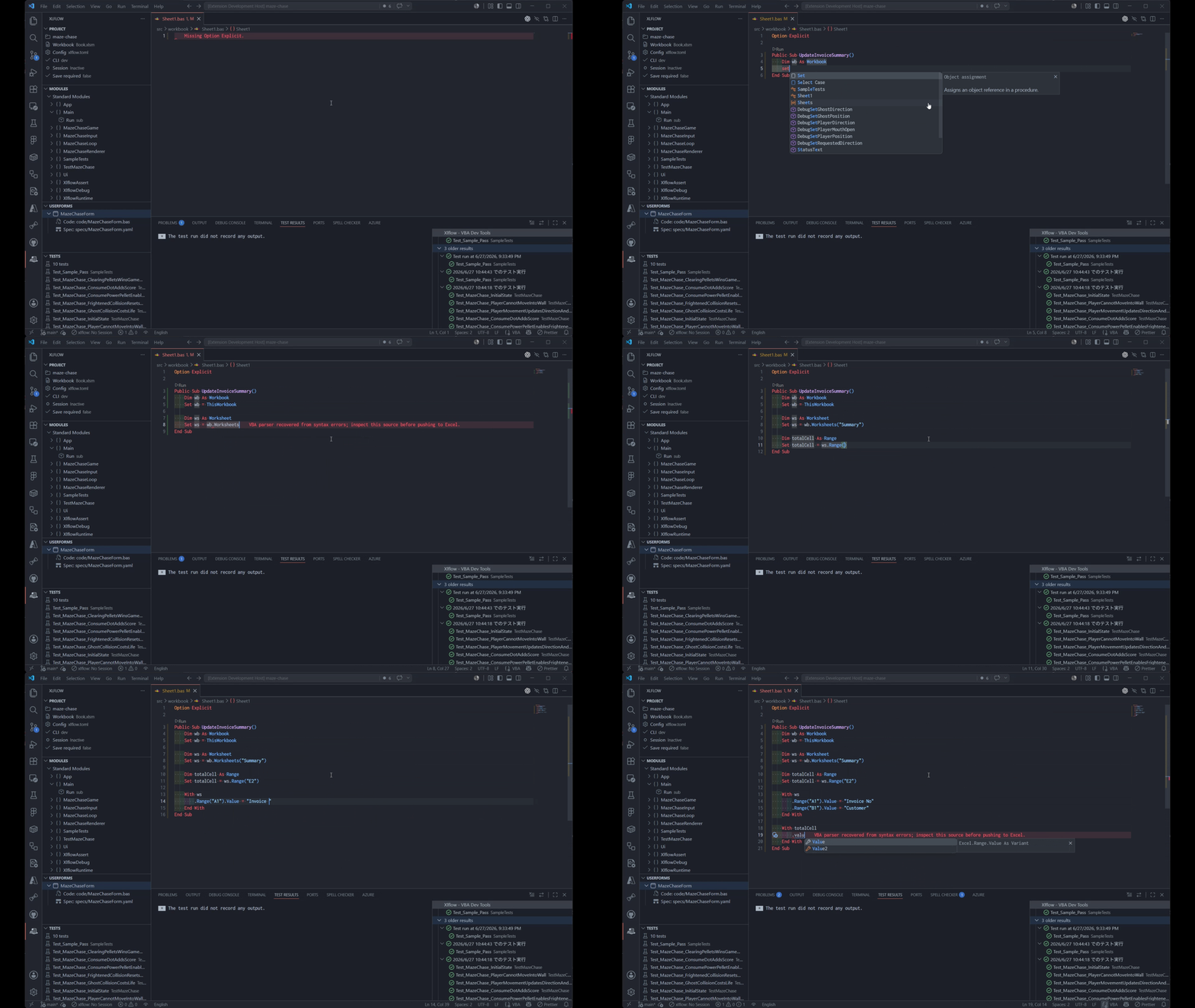
What is xlflow?
xlflow is a development support CLI tool originally created to enable AI agents to autonomously develop Excel VBA macros.
It extracts VBA code from Excel .xlsm, .xlam, and .xlsb workbooks as individual files (such as .bas, .cls, and .frm), allows them to be managed via Git, and then reapplied back to the workbook after editing.
Additionally, it supports running VBA macro execution, testing, linting, formatting, and static analysis directly from the CLI, making it equally suitable for both human development and AI agent-assisted Excel VBA development.
In xlflow for VSCode, we GUI-ify these functionalities while also providing a Language Server Protocol (LSP) server to deliver an exceptionally streamlined development experience for humans.
System Requirements
- This extension is only compatible with Windows operating systems.
- You must install
xlflow beforehand.
- Either add
xlflow to your system path or set the VS Code setting xlflow.path to the full path to the executable file.
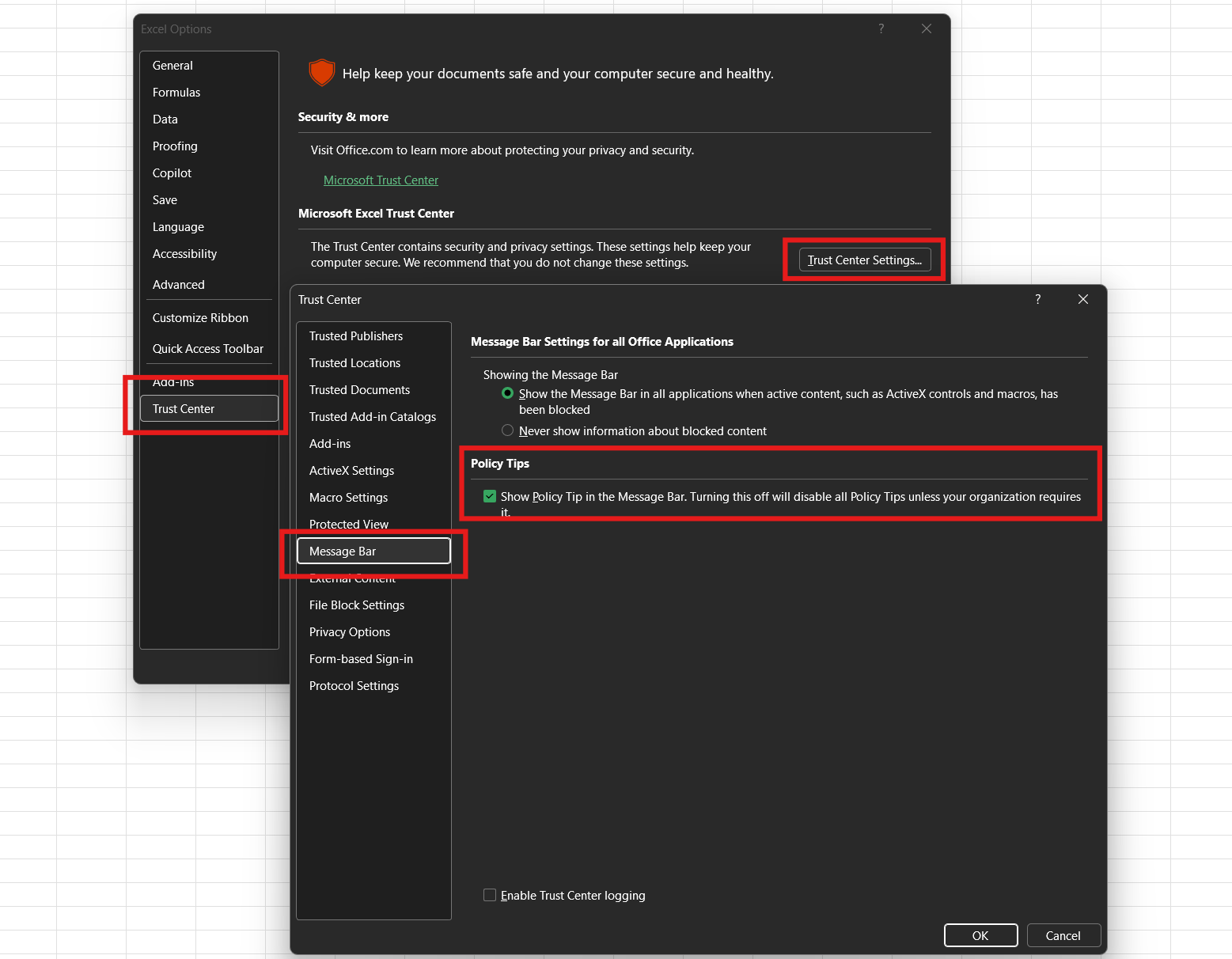
- In Excel settings, enable "Trust access to the VBA Project Object Model".
Installation Commands for xlflow Proper
Quick Install
irm https://harumiweb.github.io/xlflow/install.ps1 | iex
Using WinGet
winget install HarumiWeb.Xlflow
Via Scoop
scoop bucket add harumiweb https://github.com/harumiWeb/scoop-bucket
scoop install xlflow
For WSL installation (note that separate installation on Windows is also required):
curl -fsSL https://harumiweb.github.io/xlflow/install.sh | sh
Manual download from GitHub Releases
After downloading, extract the files to any desired directory and place them there, then either:
a. Set them in the environment variable Path
b. Specify in VS Code's settings.json like this: "xlflow.path": "C:\\path\\to\\xlflow.exe"
Features of This Extension
With xlflow for Visual Studio Code, you can perform all core operations of the xlflow CLI directly from VSCode.
The main features include:
- Displays project status for xlflow projects
- Project recognition based on
xlflow.toml configuration
- Imports VBA modules from Excel workbooks
- Applies edited VBA modules back to Excel workbooks
- Starts and stops xlflow sessions
- Runs automated tests
- Provides input completion and real-time diagnostics via LSP
- Symbol analysis and jump functionality
- Meaning-based syntax highlighting
- Safe renaming and deletion operations
- Offers AST-based static analysis and formatter capabilities
- Lists standard modules, class modules, and other project components
- Allows execution of xlflow commands from the command palette
- Includes auxiliary features for VBA development
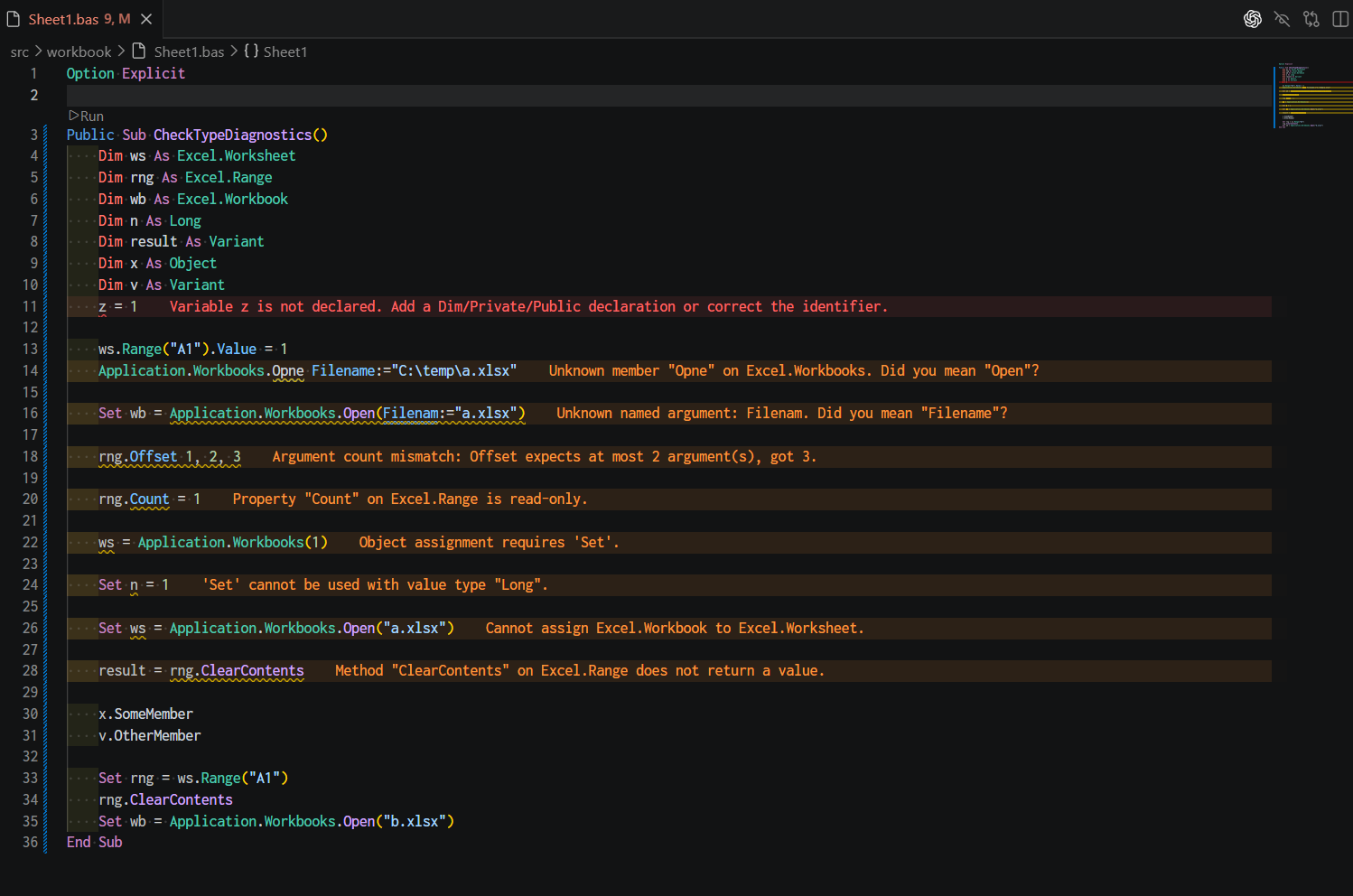
Enables real-time type checking, code completion, and symbol analysis similar to modern languages.
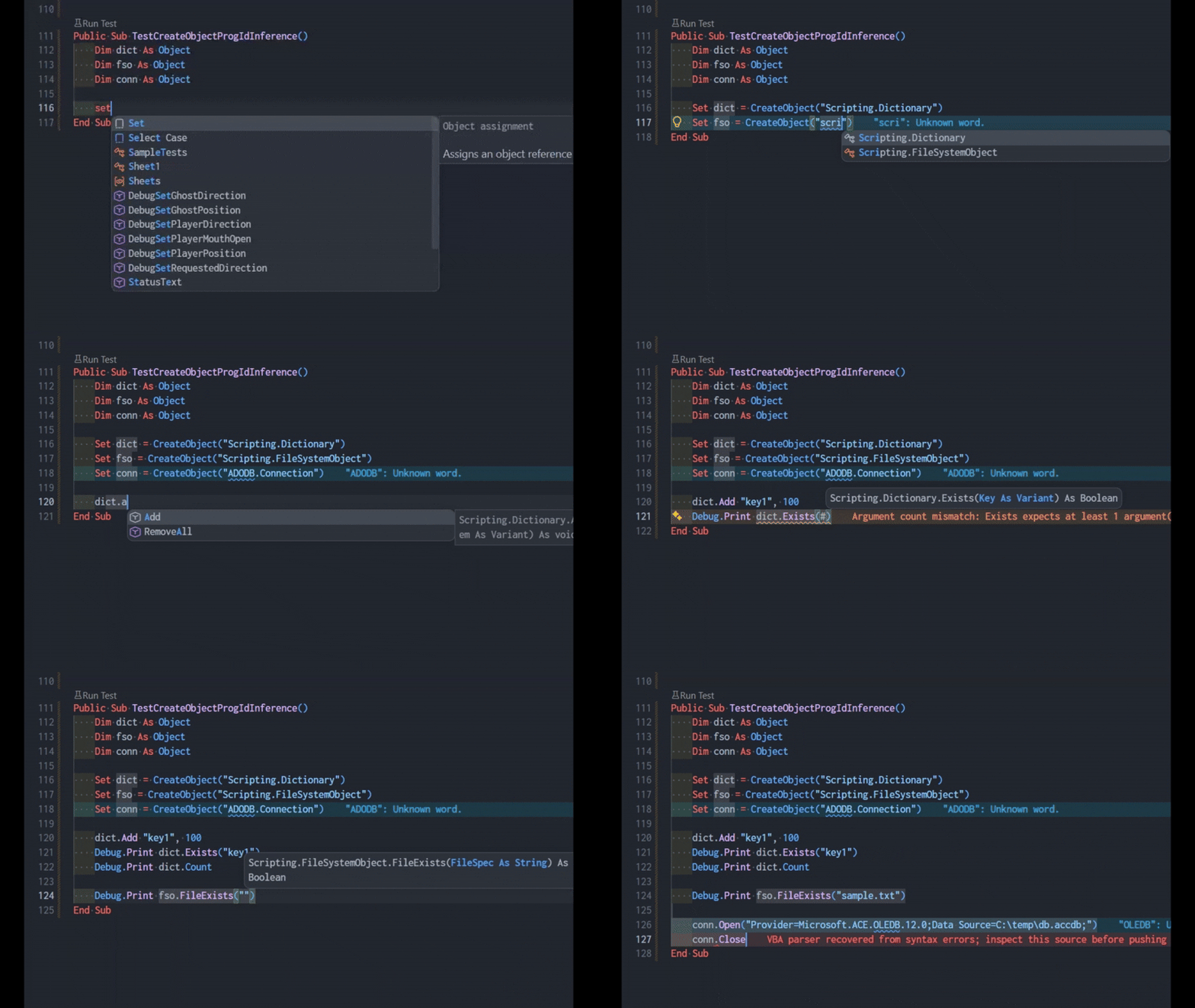
Static type inference for objects created via late binding `CreateObject`.
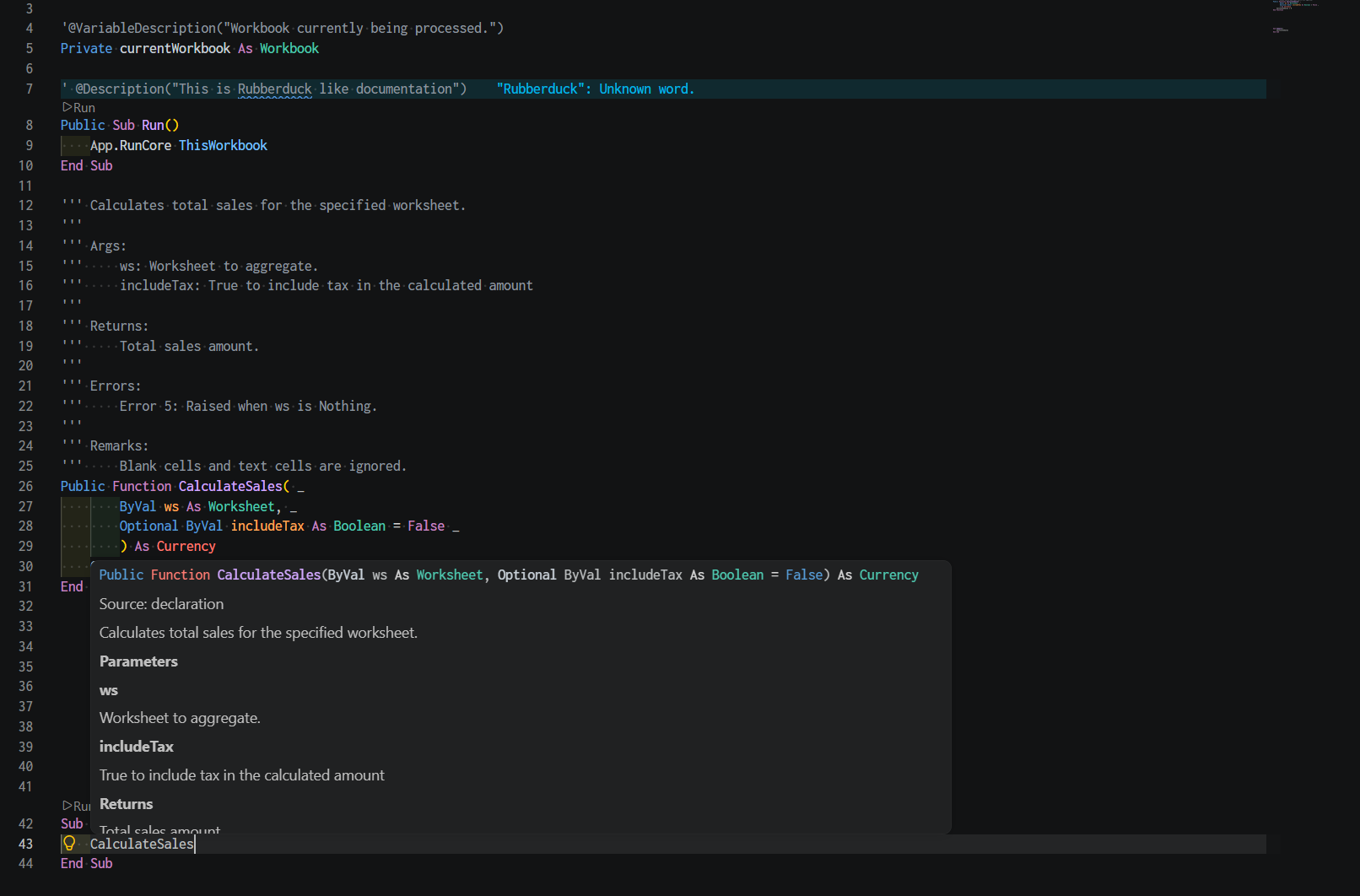
Generate and hover over documentation strings
Target Use Cases
This extension is designed for Excel VBA development scenarios such as:
- Managing Excel VBA macros with Git version control
- Editing VBA code in VSCode rather than the VBE environment
- Safely maintaining existing Excel macro assets
- Implementing lint and formatting tools for VBA as well
- Delegating Excel VBA development to AI agents
- Performing synchronized operations between Excel workbooks and source code through a GUI interface
- Integrating Excel VBA with WSL or CLI-based development workflows
Quick Start Guide
Project Setup
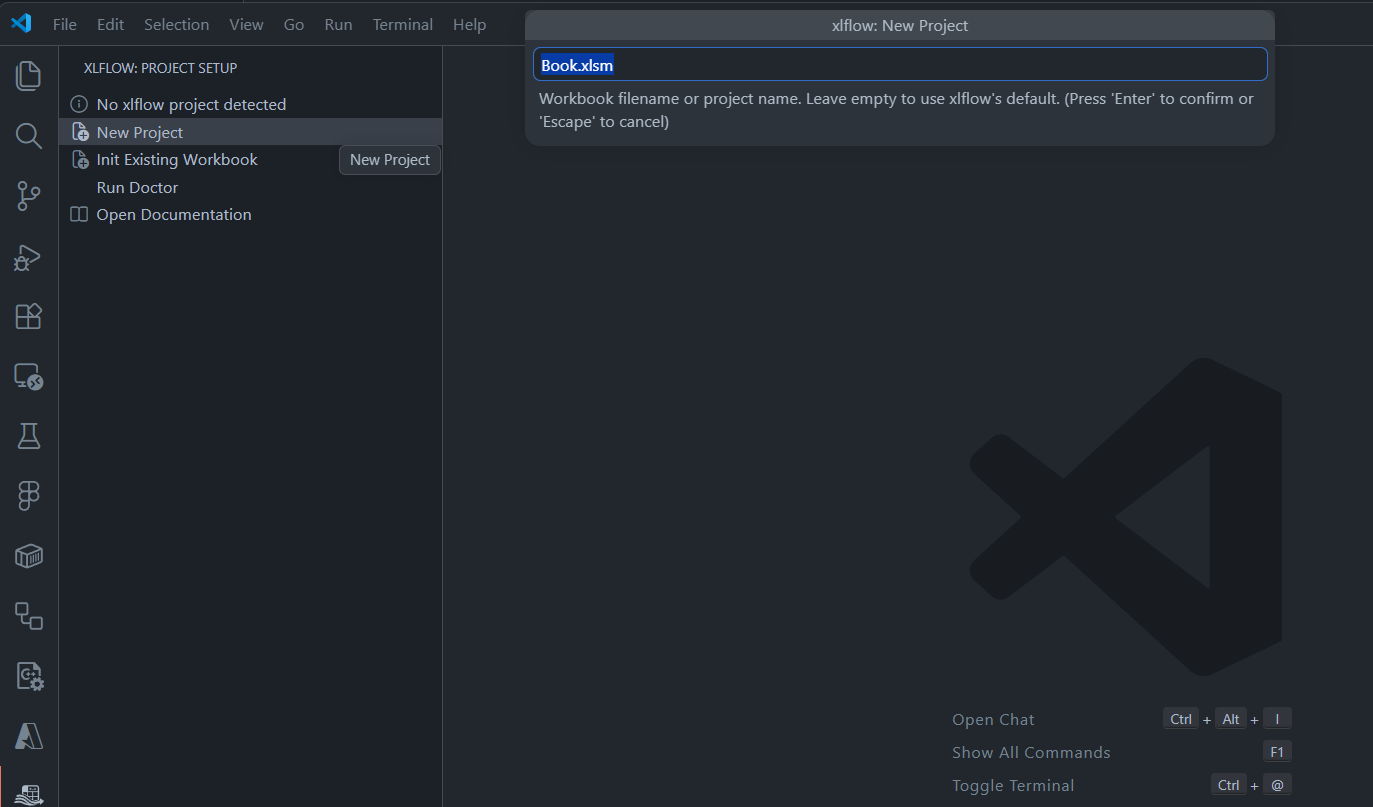
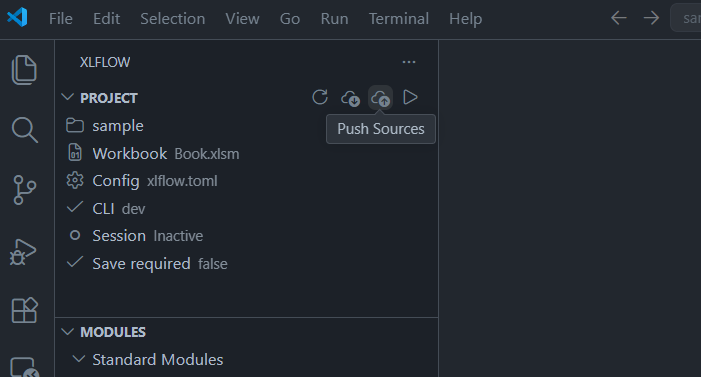
- To create a new xlflow project, click
New Project from the extension sidebar, enter a file name, and press Enter.
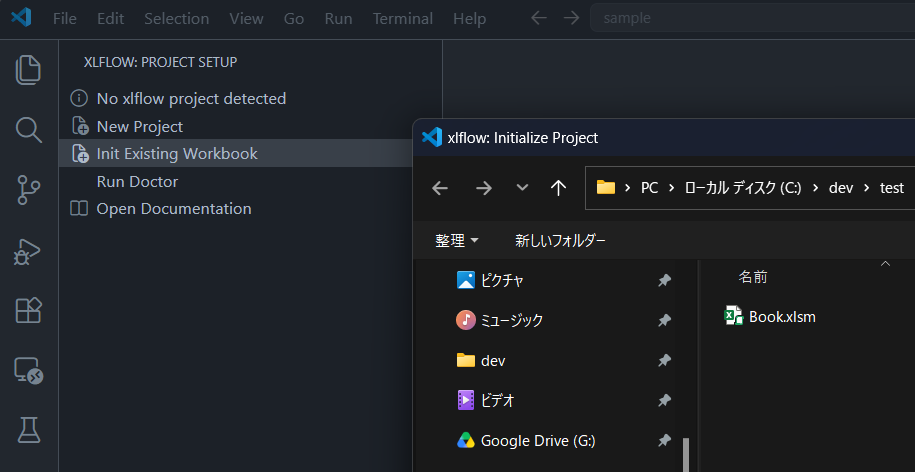
- To convert an existing
.xlsm, .xlam, or .xlsb macro workbook into an xlflow project, click Init Existing Workbook from the extension sidebar and select the macro book.
Workflow Operations
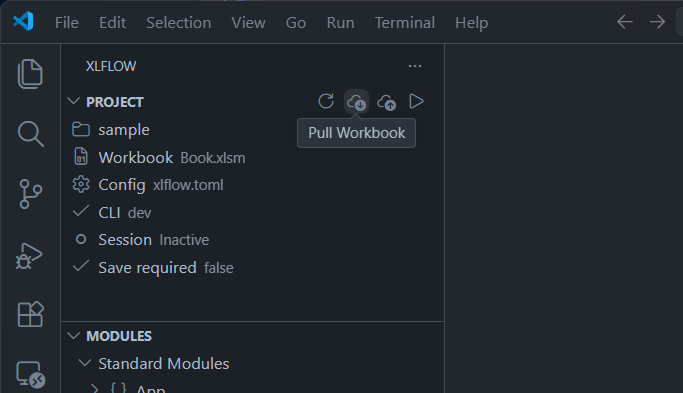
- For importing source code from workbooks, execute the
Pull Workbook button.
- For applying source code changes to workbooks, run the
Push Sources button.
Configuration Settings
To specify the executable path when xlflow isn't in the system PATH:
{
  "xlflow.path": "C:\\path\\to\\xlflow.exe"
}
Common configuration options include:
xlflow.lsp.enabled: Launches xlflow lsp --stdio for VBA files.xlflow.lsp.logFile: Specifies the log file to pass to the language server for xlflow projects. Non-xlflow workspaces use the output channel unless this setting is explicitly configured. The default value is .xlflow/lsp.log.xlflow.lsp.trace.server: Sets the verbosity level for the trace output channel of the language server.xlflow.codeLens.enabled: Displays xlflow CodeLens actions above executable VBA procedures in xlflow projects. Non-xlflow workspaces keep CodeLens run actions hidden.xlflow.codeLens.runProcedure: Shows a "Run" action above executable VBA procedures.xlflow.codeLens.runTests: Displays a "Run Test" action above VBA test procedures.xlflow.codeLens.userFormEvents: Shows a "Run" action above event handlers in UserForms.xlflow.run.saveBeforeRun: Saves modified VBA documents before executing procedures via CodeLens.xlflow.completion.triggerSuggestInStatements: Triggers VS Code suggestion functionality in contexts where VBA statements are likely to be written.xlflow.completion.progIdsInStrings: Triggers VS Code suggestion functionality within strings containing CreateObject("...") and GetObject("...") syntax.xlflow.testing.autoDiscover: Automatically discovers VBA tests when the xlflow workspace is opened.
The VBA language server also understands xlflow documentation comments written with consecutive ''' lines. Hover, Signature Help, Completion details, and diagnostics use those comments, along with Rubberduck-compatible @Description annotations when present. Type ''' immediately before a procedure declaration, open the Quick Fix action, and accept Generate documentation comment for ... to insert a snippet with parameter and, where applicable, return placeholders. Type @ inside an apostrophe comment to complete Rubberduck @Description, @ModuleDescription, @VariableDescription, and xlflow @ExpectedError(...), @Skip(...), and @Todo(...) snippets.
About the Command
The command palette includes the following features:
| Command |
Description |
xlflow: Restart Language Server |
Reloads the VBA Language Server when completion, diagnostics, or jumps become misaligned. |
xlflow: Check Environment |
Verifies availability of xlflow, Excel integration, and the current workspace. |
xlflow: Open Install Guide |
Opens the xlflow installation guide. |
xlflow: Configure Path |
Opens the VS Code setting for the xlflow executable path. |
xlflow: Retry CLI Detection |
Rechecks xlflow CLI availability and refreshes extension views. |
xlflow: New Project |
Creates a template for a new xlflow project. |
xlflow: Initialize Project |
Adds xlflow configuration to an existing workbook project. |
xlflow: Install Agent Skill |
Installs the AI agent skill for xlflow. |
xlflow: Install Helper Modules |
Adds auxiliary VBA modules for functional features and samples in xlflow. |
xlflow: New Module |
Creates a new VBA module of specified type. |
xlflow: New Standard Module |
Creates a new standard module. |
xlflow: New Class Module |
Creates a new class module. |
xlflow: New UserForm |
Creates a complete set of new UserForms. |
xlflow: Pull Workbook |
Imports VBA assets from the current workbook into the workspace. |
xlflow: Push Sources |
Applies source changes from the workspace back to the book. |
xlflow: Run Macro |
Executes the configured entry macro. |
xlflow: Run Procedure |
Executes a selected VBA procedure. |
xlflow: Run Test Procedure |
Directly executes a selected VBA test procedure. |
xlflow: Run Tests |
Executes the complete set of VBA tests in the project. |
xlflow: Lint Workspace |
Performs linting checks on the workspace's source code. |
xlflow: Format Document |
Formats the currently active VBA document. |
xlflow: Format Project |
Formats all corresponding source files in the project collectively. |
xlflow: Save Workbook |
Saves the connected Excel workbook. |
xlflow: Start Session |
Launches a reusable Excel session for faster repeated execution. |
xlflow: Session Status |
Displays the current status of xlflow sessions. |
xlflow: Restart Session |
Resets the managed Excel session. |
xlflow: Stop Session |
Terminates the current xlflow session. |
xlflow: Open Output |
Opens the VS Code output channel for xlflow. |
xlflow: Refresh Project |
Reloads the project tree and related states. |
xlflow: Refresh Modules |
Updates the list of modules in the sidebar. |
xlflow: Refresh UserForms |
Updates the list of UserForms in the sidebar. |
xlflow: Refresh Tests |
Updates detected tests in the test explorer. |
xlflow: Run All Tests |
Executes all detected VBA tests from the sidebar or test view. |
xlflow: Run Doctor |
Runs xlflow doctor for detailed environment diagnostics. |
xlflow: Toggle Session |
Enables/disables session mode in the current workspace. |
xlflow: Open Documentation |
Opens the documentation for xlflow. |
xlflow: Rename Module |
Renames a VBA module and the corresponding source file name. |
xlflow: Delete Module |
Removes a module from the workspace. |
xlflow: Reveal Source File |
Opens the location for the selected module source code. |
xlflow: Copy Module Name |
Copies the selected module name to the clipboard. |
xlflow: Copy Relative Path |
Copies the relative path of the selected source file within the project. |
xlflow: Copy Procedure Name |
Copies the selected procedure name. |
xlflow: Copy Qualified Name |
Copies fully qualified procedure names including module names. |
xlflow: Rename UserForm |
Renames a UserForm and renames related artifacts. |
xlflow: Delete UserForm |
Removes a UserForm from the workspace. |
xlflow: Reveal UserForm Source |
Opens the location for the selected UserForm source code. |
xlflow: Copy UserForm Name |
Copies the selected UserForm name. |
xlflow: Copy UserForm Relative Path |
Copies the relative path of the selected UserForm source within the project. |
Integration with AI Agents
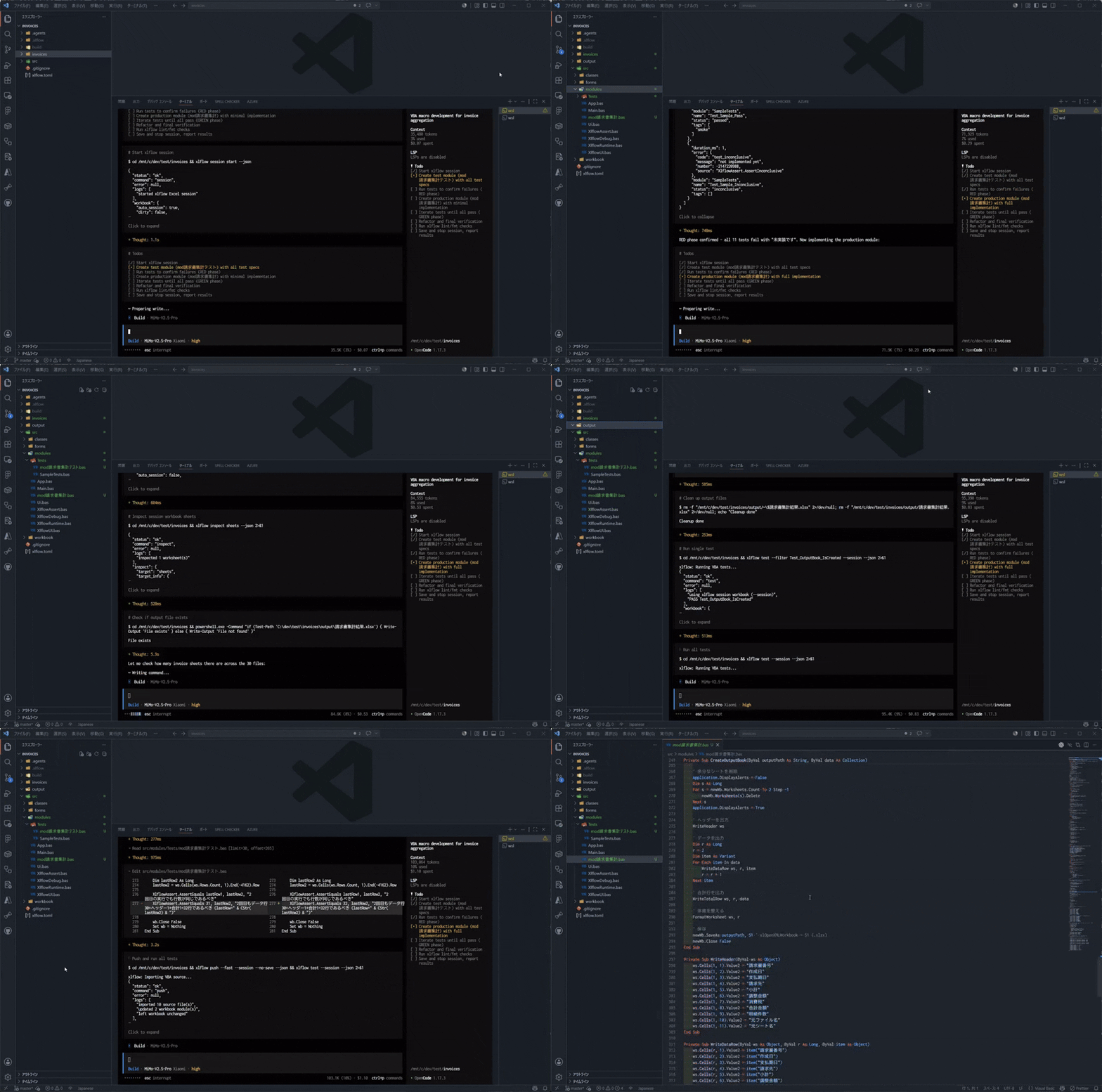
xlflow is a tool specifically designed to enable AI agents to develop Excel VBA macros, featuring CLI-based operation and AI-friendly structured output.
From your terminal:
xlflow skill install
or through the VSCode command palette using:
xlflow: Install Agent Skill
you can install the Agent Skill for AI agents, which helps coding assistants like Codex / Claude Code / GitHub Copilot / Cursor better understand how to interact with xlflow. This enables autonomous macro implementation, testing, and modification processes for VBA scripts in Excel.
As a result, it becomes easier to incorporate test-driven development and automated correction workflows into Excel VBA development.
WSL Integration Notes
xlflow supports workflows that connect Excel on Windows with development environments running in WSL (Windows Subsystem for Linux).
You can edit VBA code from editors or AI agents running on WSL, then import, apply, and execute changes directly on Excel on Windows.
When using WSL integration, please note the following requirements:
- You must install xlflow on both the Windows and WSL sides
- Your target project files must be located in a shared directory accessible from both Windows and WSL, such as
/mnt/c/...
- Access to Microsoft Excel on Windows is required for working with Excel workbooks
For detailed instructions, refer to the official xlflow documentation.
Troubleshooting
"Cannot Find xlflow Command" Error
Please verify that the xlflow CLI is installed.
In the terminal, execute:
xlflow version
Either add xlflow to your system PATH or specify the absolute path to the executable in VSCode settings under xlflow.path.
Project Not Being Recognized
Check whether an xlflow.toml file exists either at the root of your workspace or within the target folder:
my-project/
  xlflow.toml
If the xlflow.toml file is missing, run project initialization through the command palette or via the dedicated sidebar interface:
xlflow: Initialize Project
Failure in Excel Workbook Operations
Excel workbook operations require Microsoft Excel installed on Windows.
Please verify the following:
- Whether Microsoft Excel is installed
- Whether the target workbook can be opened
- Whether access to VBA projects is allowed
- Whether the workbook is not protected
- Whether another Excel process has locked the workbook
Operation Issues from WSL
When using WSL integration, the project must be located in a directory accessible from both Windows and WSL environments.
Recommended deployment structure:
/mnt/c/dev/my-xlflow-project
Additionally, ensure that both Windows and WSL instances can execute xlflow successfully.
Known Limitations
- This extension does not install or bundle
xlflow itself.
- Macro selection functionality currently does not support interactive operations. Running
xlflow: Run Macro will execute the configured default macro. Standalone Sub procedures without arguments can be invoked via CodeLens.
- Both
xlflow: New Project and xlflow: Initialize Project only display basic CLI workflows and do not provide a picker for selecting options like --with-skill, --with-module, --agent, or --json.
- This extension itself does not implement VBA code analysis, diagnostics, formatting, suggestion displays, or symbol analysis. These functionalities are delegated to the
xlflow CLI and xlflow-lsp components.
Documentation
For detailed usage instructions, please refer to the following documentation:
xlflow Documentation
GitHub Repository
Feedback and Issue Reporting
Please report bugs, feature requests, and questions via GitHub Issues.
Issues
When reporting issues, please include the following information whenever possible:
- Operating system version
- VSCode version
- xlflow version
- Version of this extension
- Command executed
- Error message
- Reproduction steps
Development Notes
Please use Node.js 22 or later. The extension's test runner utilizes @vscode/test-electron 3.x.
From this directory:
pnpm install
pnpm compile
To launch the extension in VS Code's development mode, open the repository root and run Run xlflow VS Code Extension from the [Run and Debug] view. The launch configuration first compiles the extension and builds the Go LSP into .vscode/xlflow-debug/xlflow.exe from the same checkout. It passes that executable through the debug-only XLFLOW_VSCODE_DEBUG_PATH environment variable, so F5 does not use or modify the installed xlflow binary or the user's xlflow.path setting. The generated executable is ignored by Git.
License
MIT License

