Helicon for VS Code
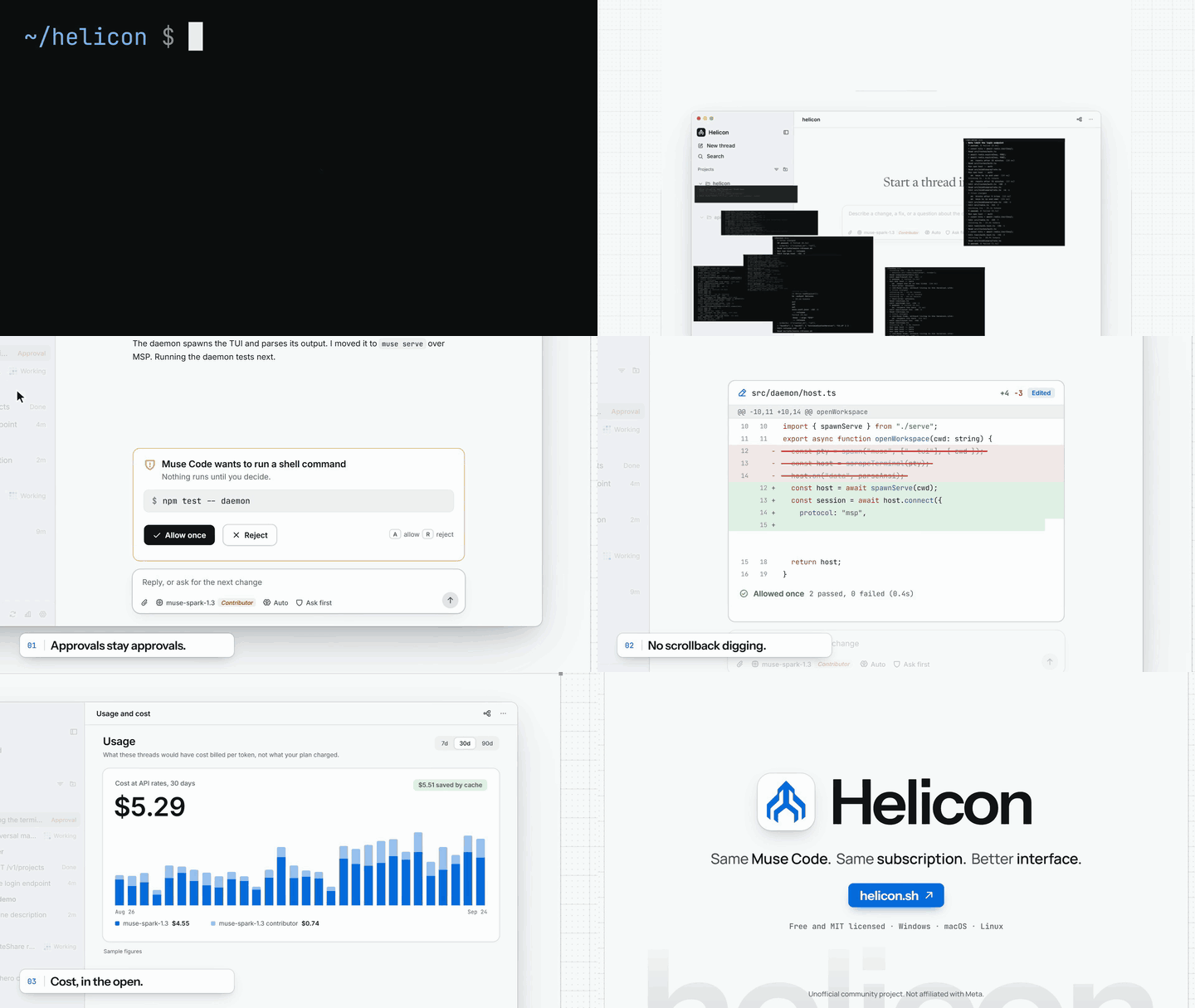
A GUI for the Muse Code CLI, right in your editor. A side panel for the folder you have open, with your threads as tabs, approvals you can actually read, diffs where the edit happened, session history, and what each thread would have cost. Helicon drives the muse CLI you already have, with your own login and subscription: no API key, no credentials stored.
Works in VS Code, Cursor, Windsurf, Antigravity and other VS Code-based editors, on Windows, macOS and Linux, including Remote-SSH and WSL windows.
What you get
- A panel built for the side bar: the threads you have open in this folder as tabs across the top, and every earlier one under History, searchable and grouped by day. Drag it to the right-hand side bar if you prefer it there.
- Every Muse Code thread for the folder, including the ones you started in the terminal.
- Approvals you can read: see the exact command or edit before it runs, then allow or deny it, or let the thread run without asking until you close Helicon.
- Inline diffs at the point in the thread where the change happened.
- Session history: reopen any past thread with its turns, tool calls and diffs.
- Plan usage and cost: your 5-hour and weekly windows, and what each thread would have cost at API rates.
- Several Muse accounts, each project remembering which one it uses.
- Projects on other machines over SSH.
Get started
- Install the
muse CLI and run muse login once. (Help if it isn't found)
- Click the Helicon icon in the activity bar, or press
Cmd+Alt+H / Ctrl+Alt+H. The panel opens on the folder you have open.
- Type what you want changed. New threads open as tabs; the clock icon shows every earlier thread in the folder.
- Want every project at once? Helicon: Open Full Helicon in Editor opens the full app, sidebar and all, in an editor tab.
How it works
The extension starts Helicon's local server on your editor's own Node runtime, bound to 127.0.0.1 only, and shows the Helicon UI in the side panel. The server runs muse serve and talks to it over MSP, the protocol Muse Code speaks to its clients, so Muse Code stays the agent: same models, same tools, same approval rules. Nothing is sent anywhere except to Muse Code itself, and the extension has no telemetry.
In a Remote-SSH, WSL or dev container window the extension runs on the remote side, next to your code and its muse install, and the editor forwards the port for you.
Commands
| Command |
What it does |
| Helicon: Open Helicon |
Show the Helicon panel |
| Helicon: New Thread |
Start a new thread in the panel |
| Helicon: Open Full Helicon in Editor |
The full app, with every project, in an editor tab |
| Helicon: New Thread in This Folder |
From the Explorer's right-click menu: start a thread in any folder |
| Helicon: Open in Browser |
Open the same session in your browser |
| Helicon: Restart Server |
Restart the local server |
| Helicon: Show Log |
Server output, for bug reports |
Setting: helicon.panelBorder puts the panel's divider line on the edge facing the editor (auto), or on the left or right edge if you moved Helicon to the other side bar.
Also available
Found a bug or want a feature? Open an issue.
Helicon is an unofficial community project, not affiliated with or endorsed by Meta. Muse Code is a trademark of Meta; the name is used only to describe what Helicon works with.

