Skip to content
| Marketplace
Sign in
Visual Studio Code>Other>Bento ContainersNew to Visual Studio Code? Get it now.
Bento Containers

Bento Containers

Haritha M

|
3 installs
| (0) | Free
Tidy your activity bar. Drag views from any extension into a container of your own, name it whatever you like, and lose the icons you no longer need.
Installation
Launch VS Code Quick Open (Ctrl+P), paste the following command, and press enter.
Copied to clipboard
More Info

Bento Containers

Empty containers for your activity bar. Put whatever you want in them.

Every extension that wants a presence in VS Code takes another slot in your activity bar. Install a few AI assistants and the strip down the left turns into a wall of icons you didn't choose.

VS Code already lets you drag views between containers — but it won't let you create one, so there's nowhere neutral to gather things. Bento is that missing destination.

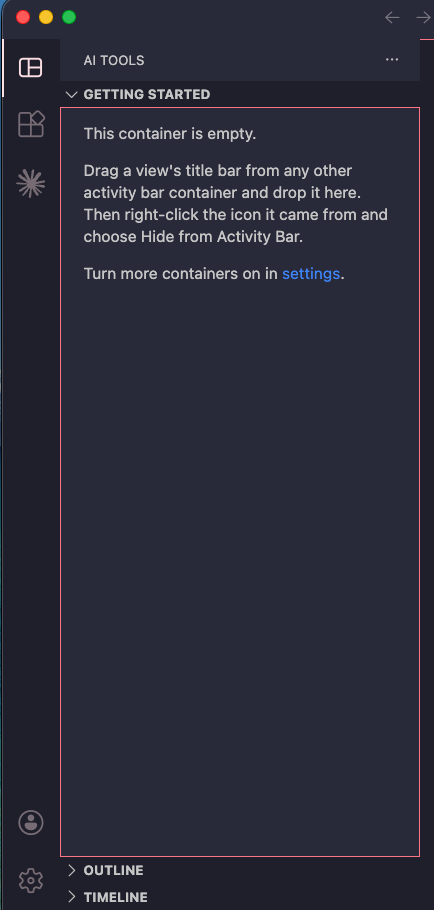
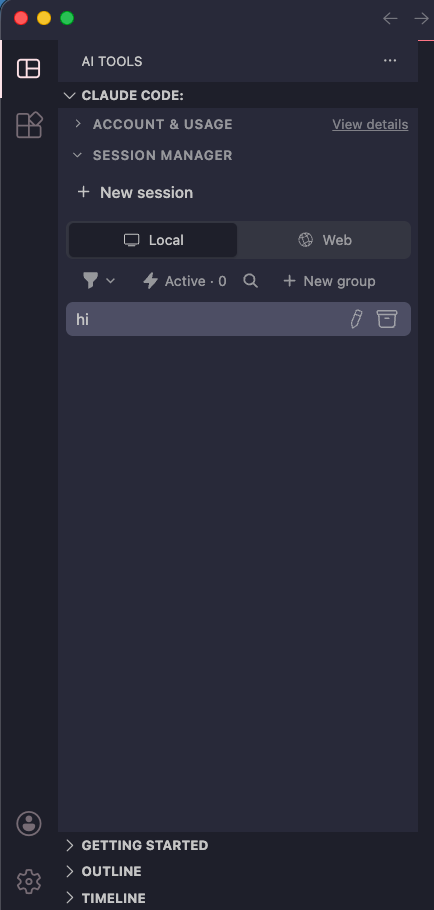
Before you fill it After you drag views in
An empty Bento container in the activity bar A Bento container holding views moved from other extensions

How to use it

  1. Click the Bento icon in the activity bar.
  2. Drag any view's title bar from another container and drop it into Bento.
  3. The container it came from now has nothing in it, so its icon disappears on its own.

Repeat for anything else. Four icons become one. The panels are still the real thing — actual chat, actual file tree — just living under one roof.

Your layout persists across restarts and travels with Settings Sync.

More containers

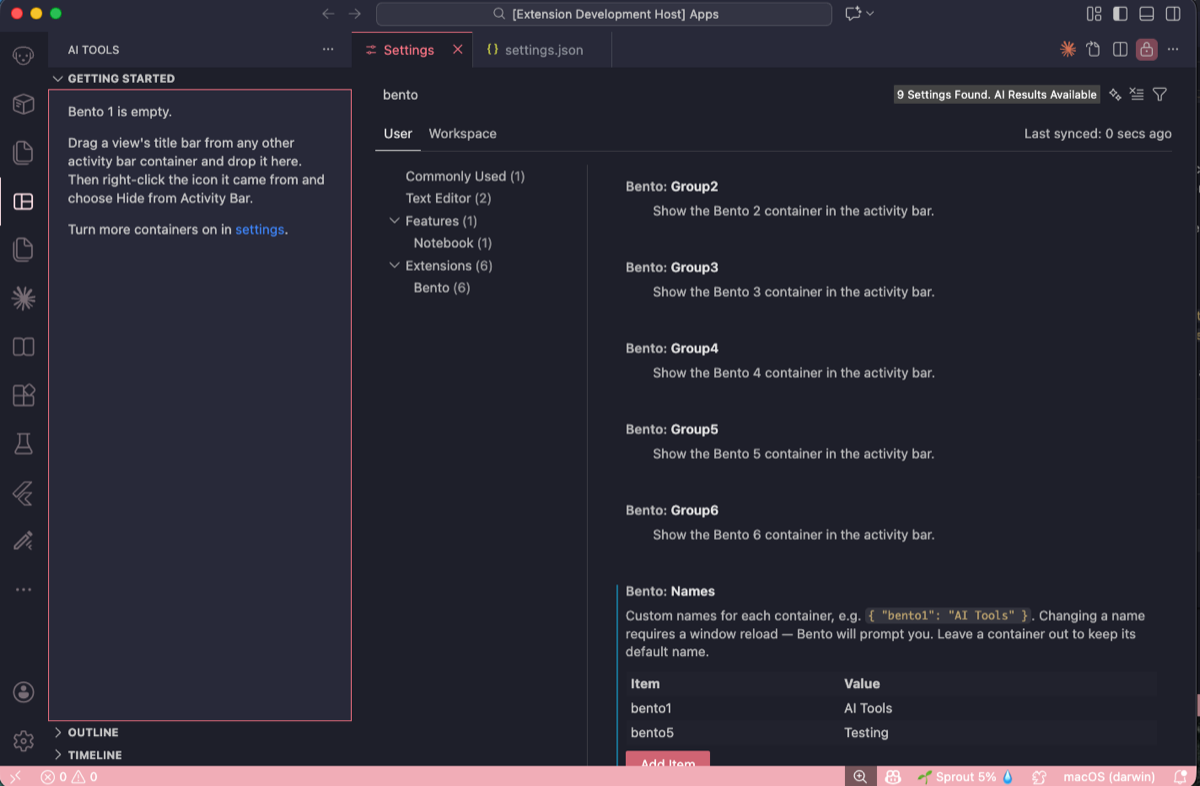
Bento 1 is always there. Five more ship switched off. Turn them on in Settings under Extensions → Bento, or in settings.json:
{
  "bento.group2": true,
  "bento.group3": true
}
Bento settings in the VS Code Settings UI

Each has its own icon — the same bento box outline with a different compartment layout — so you can tell them apart at a glance. The activity bar only ever shows the icon, so that's what carries the distinction.

Naming your containers

Out of the box they're called Bento 1 through Bento 6. You can call them whatever you want.

  1. Open the command palette — Cmd+Shift+P on macOS, Ctrl+Shift+P on Windows and Linux.

  2. Run Preferences: Open User Settings (JSON).

  3. Add a bento.names entry, mapping each container to the name you want. Only list the ones you care about — anything you leave out keeps its default name.

    {
      "bento.names": {
        "bento1": "AI Tools",
        "bento2": "Testing",
        "bento3": "Notes"
      }
    }
    

    If your settings file already has entries, remember the comma after the previous line.

  4. Save. Bento shows a notification: "Bento container names updated. Reload the window to apply them."

  5. Click Reload Window.

Hover any Bento icon and the tooltip is your name. It shows in the sidebar header too.

To rename later, edit bento.names again and reload — same flow. To go back to defaults, delete the entry.

Which id is which icon

The activity bar shows only icons, so these are how you tell containers apart:

Setting key Icon
bento1 box split into three compartments
bento2 plain box, no dividers
bento3 box split down the middle
bento4 box split across the middle
bento5 box quartered
bento6 box in a six-square grid

bento1 is always visible. The rest need turning on first — see above.

Why renaming needs a reload

Container titles are manifest entries that VS Code reads once at startup, and there's no API to rename one while it's running. So Bento rewrites its own string table on disk and asks you to reload. Two things keep that safe:

  • Titles are NLS placeholders, so renaming only ever writes package.nls.json, a dedicated string table. package.json is never modified, so a failed write can't corrupt the extension — worst case you get the default names back.
  • Updating Bento restores the defaults, but the next launch notices and offers to reapply. Your names survive updates at the cost of one extra reload.

If the extension directory is read-only, Bento warns you and changes nothing.

Known limits

  • Only six containers, with fixed icons. Containers must be declared in the manifest ahead of time. Nothing can create them on demand.
  • Some panels may not survive the move. Chat panels are webviews, and a few extensions don't persist their state when re-parented. That's up to the extension that owns the panel.
  • Bento can't hide other icons for you. No extension can touch another extension's activity bar entry. Moving views out is what makes those icons go away — and for anything that leaves a stub behind, right-click it and choose Hide from Activity Bar.

The Getting Started view

Each container ships with a small "Getting Started" view. It exists only to hold the icon open while the container is empty — a container with no views vanishes from the activity bar, and then there's nothing to drop onto. Once you've dragged your own views in, feel free to hide it.

License

MIT

  • Contact us
  • Jobs
  • Privacy
  • Manage cookies
  • Terms of use
  • Trademarks
  • Your Privacy Choices
  • Consumer Health Privacy
© 2026 Microsoft