ABAP MCP
A VS Code extension that automatically deploys the ABAP MCP server. The server exposes 25 tools (ADT + OData) and 5 spec-driven-development prompts over a single SAP session.
Demo
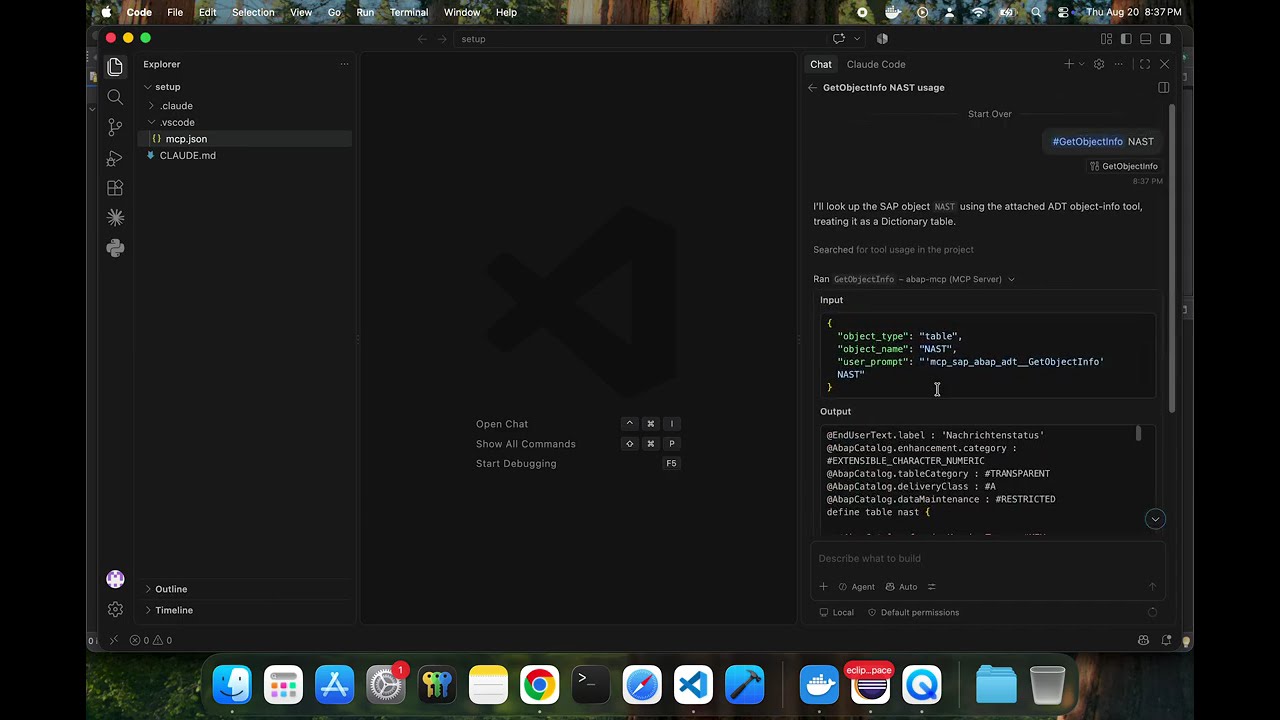
Watch the setup and usage walkthrough:
Features
✨ Automatic Workspace Setup
- Auto-deploy on folder open: Automatically deploys MCP configuration and files when you open any workspace folder
- Zero configuration: No manual commands needed - works out of the box
- Per-workspace MCP config: Each workspace gets its own local
.vscode/mcp.json configuration
- Version-aware: Only updates files when a newer version is available
- Automatic path updates: MCP executable path is updated automatically when the extension is updated or moved
🛠️ ABAP Object Creation
- Broad object type coverage: programs, classes, interfaces, function groups/modules, CDS views, behavior definitions, behavior implementations, service definitions, metadata extensions, access controls (DCL), data elements, domains, tables, structures, table types, message classes, and ABAP Unit test classes
- Flexible package assignment: create objects in
$TMP (default) or any existing Z*-custom package
- Transport integration: assign objects to an existing transport request or create a new one as part of the operation
- Create → upload → activate in one step: every creation runs an automatic syntax check and returns errors/warnings with line numbers
🔌 OData Service Access (V2 & V4)
- Find any service: searches the V2 Gateway catalog and the V4 catalog together, so you don't need to know which protocol a service speaks before looking for it
- Read its shape first:
$metadata comes back as an entity-set and action list, not raw EDMX — the lookup that stops field names being invented
- Read and write business data: query, count, create (deep insert included), update, delete, invoke RAP actions, and bundle operations into an atomic
$batch
- Proves a RAP service actually works: activation shows a service binding compiles; only a call through the service shows it publishes and answers
- Self-checking: every call reports the rounds it ran, the URL it used and its confidence, repairs read-safe mistakes (wrong protocol version, V4-only query options on a V2 service) by itself, and never silently re-sends a write
- Its own test client: set
SAP_TEST_CLIENT and every OData call goes there instead of your development client, so service testing writes business data where it belongs — every response states which client it used, and write tools warn when there isn't one
🩺 Live System Diagnostics
- Runtime dumps:
getST22ErrorList / getST22ErrorMessage read ST22 short dumps straight from the connected system — deduplicated, filterable by user, date range and client, with the full "what happened / error analysis / source extract / call stack" text on demand
- Gateway errors:
getGatewayLogList / getGatewayLogMessage do the same for the SAP Gateway error log (/IWFND/ERROR_LOG), collapsing the heavy repetition that log is known for into one entry per distinct error with an occurrence count
- No instruction files are deployed. Every tool carries its own usage contract over the MCP protocol — when to reach for it, what it refuses and why, the object types it accepts, how to read the self-assessment block the research/OData/diagnostics tools return — and the SDD workflow ships as MCP prompts served by the server. Claude Code and GitHub Copilot pick both up automatically once the server connects
- Syntax reference is not shipped as static files either:
getKeywordSamples reads the connected SAP system's own ABAP Keyword Documentation at call time, so the syntax it returns matches that system's release rather than a snapshot bundled with the extension
📋 Spec-Driven Development (SDD) Prompts
- The SDD framework ships as MCP prompts served by the bundled server —
spec, plan, tasks, impl, gap — not as files copied into your workspace
- They appear in the slash-command list namespaced under the
abap-mcp server once the server is connected (in Claude Code, /mcp__abap-mcp__spec and so on); type / and look for the abap-mcp entries
spec takes a natural-language feature description as its argument — there's no separate input template to fill in first- Each stage writes its artifacts to disk (
specs/, tasks/, resources/, specs/traceability.md) and the next stage reads them back, so a workflow survives across sessions instead of living in chat context
📁 What Gets Automatically Deployed
To Each Workspace — everything under the extension's templates/ folder is copied 1:1 into the workspace root on open. As of v1.4.5 that is a single file:
.vscode/mcp.json - Local MCP server configuration; the extension rewrites the command path to point at the bundled binary for your OS on every deploy. This is also where the SAP connection variables live, including the optional SAP_TEST_CLIENT
Nothing else is deployed any more. Earlier versions also dropped CLAUDE.md / AGENTS.md instruction files, custom subagents (.claude/agents/*), slash commands (.claude/commands/*), skills (.claude/skills/*) and SDD templates into the workspace — all of that has been removed. Tool guidance now travels with the tools over the MCP protocol, and the SDD workflow is served by the server binary as MCP prompts, so there are no per-workspace agent or command files to drift out of sync with the binary.
Requirements
- Windows, macOS, or Linux (x64): the extension bundles a platform-specific MCP server binary; installing from the Marketplace automatically gets you the right one for your OS
- VS Code 1.85.0 or higher
- SAP System Access: MCP server requires SAP ABAP system credentials
The extension bundles a native MCP server executable, so each OS gets its own build — there's no single binary that works everywhere:
| OS |
Bundled binary |
VS Code Marketplace target |
| Windows (x64) |
abap-mcp-windows.exe |
win32-x64 |
| macOS (x64) |
abap-mcp-mac |
darwin-x64 |
| Linux (x64) |
abap-mcp-linux |
linux-x64 |
- Installed from the VS Code Marketplace: VS Code automatically downloads the package built for your platform — you never see or choose between them, and each one contains only the single binary for your OS (not all three).
- Once installed, the extension detects the OS it's running on and points the workspace's
.vscode/mcp.json at the correct bundled binary automatically — no manual path configuration needed.
Quick Start
Install the extension from the VS Code Marketplace — search for "ABAP MCP" in the Extensions view (Ctrl+Shift+X) and click Install. VS Code automatically fetches the package built for your OS (Windows, macOS, or Linux).
Open any workspace folder - Files are deployed automatically!
Configure SAP credentials in .vscode/mcp.json (only edit the env values — the command path to the bundled MCP server binary for your OS is set automatically by the extension):
{
  "servers": {
    "abap-mcp": {
      "type": "stdio",
      "command": "<set automatically by the extension>",
      "env": {
        "SAP_URL": "https://hostname:port",
        "SAP_USERNAME": "sap_username",
        "SAP_PASSWORD": "sap_password",
        "SAP_CLIENT": "sap_client",
        "SAP_TEST_CLIENT": "sap_test_client",
        "SAP_LANGUAGE": "en",
        "TLS_REJECT_UNAUTHORIZED": "0",
        "HTTP_PROXY": "http://systemusername:systempassword@proxy:port",
        "HTTPS_PROXY": "http://systemusername:systempassword@proxy:port"
    }
    }
  }
}
SAP_CLIENT is your development client — every ABAP object read, write and activation happens
there. SAP_TEST_CLIENT is optional and applies to the OData tools only: set it and service
testing writes business data into that client instead of your development one. Leave it out (or
blank) and the OData tools use SAP_CLIENT too. See
Why SAP_TEST_CLIENT matters.
Reload VS Code to activate the MCP server
Start using Claude Code or GitHub Copilot — the server's 25 tools and 5 SDD prompts (spec, plan, tasks, impl, gap) become available as soon as the MCP server connects. Each tool is self-documenting over the MCP protocol, so there is no instruction file to load or @mention.
Commands
The extension contributes one command, available via the Command Palette (Ctrl+Shift+P):
- ABAP MCP: Deploy/Update Workspace Files - Force re-deploys all template files to the selected workspace folder, bypassing the version check.
Use it when:
- Auto-deployment didn't work
- You want to force an update
- You manually deleted files and want to restore them
⚠️ Note: A force deploy (and any automatic version update) overwrites .vscode/mcp.json with the template, so you will need to re-enter your SAP credentials afterwards. Back up your env values first if needed.
Configuration
SAP Connection Parameters
Required Parameters:
SAP_URL: Your SAP system URL (format: https://hostname:port)SAP_USERNAME: Your SAP usernameSAP_PASSWORD: Your SAP passwordSAP_CLIENT: SAP client number (e.g., "100")SAP_LANGUAGE: Language code (default: "en")
Optional Parameters:
SAP_TEST_CLIENT: Logon client for the OData tools only (e.g. "200"). Worth understanding before
you use the OData tools at all — see Why SAP_TEST_CLIENT matters below.TLS_REJECT_UNAUTHORIZED: Set to "0" if using self-signed certificates (default: "0")HTTP_PROXY: HTTP proxy URL (format: http://username:password@proxy:port)HTTPS_PROXY: HTTPS proxy URL
Why SAP_TEST_CLIENT matters
This extension talks to your SAP system over two different channels, and they want different clients.
- The ADT tools (
GetObjectInfo, CreateAIObject, ChangeAIObject, ActivateObject,
ATCbyObject, runABAPUnit, …) work on repository objects — source code. That belongs in your
development client, SAP_CLIENT.
- The OData tools (
odata_query, odata_create, odata_action, odata_batch, …) work on
business data through a published service. Creating a purchase order to check that a validation
fires is not development — it is testing, and in most landscapes it does not belong in the
development client at all. Often it cannot even happen there, because the service is only activated
in the test client.
Set SAP_TEST_CLIENT and every odata_* call goes to that client, while every ADT tool stays in
SAP_CLIENT. One server, one set of credentials, two clients — no second MCP entry to configure.
"SAP_CLIENT": "100",        // ADT: read/write/activate ABAP objects here
"SAP_TEST_CLIENT": "200"    // OData: query and write business data here
It applies to the whole OData conversation, not just the data calls. The Gateway service catalog
is client-specific, so the catalog lookups follow it too — otherwise a service would be resolved in
one client and called in another, against a path that need not exist there. The CSRF token for a
write is fetched in the same client as well, since a token is bound to the session that issued it.
If you leave it unset, nothing breaks: the OData tools fall back to SAP_CLIENT like everything
else. But then a service test writes business data into your development client, so every OData write
tool adds a line to its response saying exactly that. Treat that line as a prompt to configure this
variable rather than as noise.
What it enables. The impl prompt's End-to-End Service Test — driving a RAP service through
create → update → activate → verify → clean up, which is the only check in the workflow that proves a
validation actually fires through the service rather than only inside ABAP — will not run its write
cycle unless this variable is configured and you approve the writes.
Consequences worth knowing before you go looking for a bug:
| What you see |
What it usually means |
An object you just created with CreateAIObject is invisible to odata_query |
It exists in SAP_CLIENT. Repository objects do not appear in the test client until transported there |
401 from an OData tool while ADT tools work fine |
Your user exists in the development client but not in SAP_TEST_CLIENT |
403 from an OData tool only |
Roles are assigned per client — check the assignment in the test client |
404 for a service odata_search_service can see |
The service is activated in the development client but not published in the test client |
| Data that "looks wrong" |
Check which client the response says it used before assuming the data is at fault |
Every odata_* response names the client it used in its self-assessment section, and the tools read
it when diagnosing a failure — a 401 against a configured test client is reported as a probable
missing user in that client, not as a generic credentials problem.
One deliberate exception: the initial session handshake (/sap/bc/ping) always runs under
SAP_CLIENT. That is harmless, because SAP names its session cookie per client, so both sessions
coexist and every request carries its own authentication.
Security Notes
⚠️ Important: Storing passwords in mcp.json is not secure for production use. Consider:
- Using environment variables
- Restricting file permissions on
.vscode/mcp.json
- Adding
.vscode/mcp.json to .gitignore
- Using SAP's secure credential store
The bundled MCP server exposes 25 tools over a single SAP session — 16 ADT / repository tools and 9 OData tools. Every tool is self-documenting: its parameters, when-to-use guidance, refusal rules and sample calls are delivered over the MCP protocol, so Claude Code and GitHub Copilot pick them up automatically — there is nothing to @mention, deploy, or configure.
| Tool |
What it does |
SearchObject |
Quick-search the repository to pin down an object's exact name and type before any further call |
GetObjectInfo |
Retrieve source / metadata for any of ~20 ABAP object types (program, class, interface, CDS view, DDIC, behavior definition, service definition, DCL, data element, domain, …) |
CreateAIObject |
Create a new object — default prefix ZAI_*, default package $TMP; target an existing Z*-custom package by supplying a transport request. Runs an automatic syntax check and returns errors / warnings with line numbers |
ChangeAIObject |
Update an existing Z* object's source (lock → update → unlock → activate). Same Z* + $TMP-or-Z*-package guard as CreateAIObject |
ActivateObject |
Activate and syntax-check a Z* object |
ATCbyObject |
ABAP Test Cockpit findings for an object, via the standard ADT ATC service — a quality gate run before activation |
GetReleasedAPI |
Map a deprecated predecessor (BAPI / table / FM) to its released successor API — a quality gate checked while planning |
runABAPUnit |
Run a class's ABAP Unit tests and return structured pass / fail detail — a quality gate run after activation |
WhereUsedSearch |
Find references to an object before changing or deleting it |
getDomainInfo |
Look up current ABAP / RAP guidance live from SAP Help Portal + SAP Community (search → fetch → coverage-check loop, up to 3 rounds); call before generating source in plan / tasks / impl |
getKeywordSamples |
One-call ABAP / CDS / BDEF syntax lookup against the connected system's own ABAP Keyword Documentation — returns the doc text plus real code samples as fenced ```abap blocks, release-accurate rather than recalled from memory |
data_preview |
Execute a read-only SELECT against a table or CDS view via the ADT data-preview endpoint |
getST22ErrorList |
List ABAP runtime dumps (ST22 short dumps) from the live system, deduplicated, filterable by user / date range / client |
getST22ErrorMessage |
Fetch one runtime dump's full formatted text — what happened, error analysis, source extract, call stack |
getGatewayLogList |
List SAP Gateway error-log entries (/IWFND/ERROR_LOG) from the live system, deduplicated, filterable by user / date range / client |
getGatewayLogMessage |
Fetch one Gateway error-log entry's full detail — error context, failing request URI, source extract, call stack |
| Tool |
What it does |
odata_search_service |
Find a service across the V2 Gateway catalog and the V4 catalog at once; returns the identifier the other odata_* tools take |
odata_fetch_metadata |
A service's entity sets, properties, keys and actions — call before querying an unfamiliar service |
odata_query |
Read data through a service ($filter, $select, $expand, $orderby, $top, $skip, $count, $search) |
odata_count |
Return just the record count for an entity set, with an optional filter |
odata_create |
Create an entity via POST, deep insert included |
odata_update |
Partial update of an entity via PATCH |
odata_delete |
Delete one entity |
odata_action |
Invoke a bound or unbound OData V4 / RAP action (SAP__self.Activate, SAP__self.Discard, custom behavior actions) |
odata_batch |
Bundle several operations into one $batch round-trip — one atomic changeset, or independent ones |
The research, OData and diagnostics tools each append a self-assessment block reporting the rounds they ran, the URL / SAP client used, the record count and their confidence — and the OData tools repair read-safe mistakes (wrong protocol version, wrong client, V4-only options on a V2 service) themselves, without ever silently re-sending a write.
Quality gates (GetReleasedAPI while planning, ATCbyObject before activation, runABAPUnit and an OData smoke-test after) apply to all ABAP work in the workspace, whether or not it runs through an SDD prompt.
Prompts — Spec-Driven Development (SDD)
The bundled MCP server exposes the SDD (Spec-Driven Development) framework as five MCP prompts: spec, plan, tasks, impl, gap. They are served by the server itself — nothing is copied into .claude/commands/, so they appear as soon as the server connects and update with the extension. SDD structures AI-assisted development around an explicit specification before code is generated, giving you reviewable, repeatable results.
To use them, type / and pick the prompt from the abap-mcp group (in Claude Code they are listed as /mcp__abap-mcp__spec, /mcp__abap-mcp__plan, and so on).
Workflow order
Run the phases strictly in this order — each one reads artifacts the previous phase wrote to specs/<feature>/ and .specify/feature.json. Don't skip ahead (e.g. don't run tasks before plan has produced a plan for the active feature):
| Step |
Prompt |
Input → Output |
| 1 |
spec |
Natural-language requirement → spec.md (business-focused functional spec, no ABAP). Handles change requests too: it re-reads the live objects and reconciles them against the saved snapshot, so a change request can't silently overwrite a manual SAP-side edit |
| 2 |
plan |
spec.md → plan.md (RAP/ABAP implementation architecture, per object type; checks GetReleasedAPI for every standard BAPI/FM/table used, looks up any keyword the plan relies on, records what the OData services already expose, and validates against Clean Core principles) |
| 3 |
tasks |
plan.md → tasks/*.md (dependency-ordered T001-TNNN checklist with [P] parallel markers, and inline ABAP source externalized to tasks/source/*.abap) |
| 4 |
impl |
Executes ONE tasks file at a time against the live SAP system, in the order listed in tasks/00-index.md, using the CreateAIObject/ChangeAIObject → lock → ATCbyObject → ActivateObject → runABAPUnit → OData smoke-test workflow with an Actor/Evaluator fix cycle |
gap — traceability add-on
Not a workflow phase — an add-on check you can run any time after spec (typically after impl, or whenever you want to verify progress). Compares the original free-text requirement given to spec against everything actually produced for the feature (spec.md, plan.md, tasks/*.md, and what's actually been created/activated in SAP), across 7 layers: REQ→Spec, Spec→Plan, Plan→Tasks, Tasks→Impl, field lineage, logic/validation coverage, and test coverage. Uses a 3-round Actor/Evaluator reflexion loop, then a one-gap-at-a-time Q&A to close or defer each gap, and produces a prioritized remediation plan. Writes results into the feature's traceability.md.
gap
gap context="tasks gaps only"
Troubleshooting
MCP Server Not Working
- Open
.vscode/mcp.json in your workspace and verify the abap-mcp server entry exists
- Verify the
command path points to the bundled binary inside the installed extension's bin/ directory (abap-mcp-windows.exe, abap-mcp-mac, or abap-mcp-linux, matching your OS)
- Check SAP credentials in the
env block are correct
- Reload VS Code:
Ctrl+Shift+P → "Developer: Reload Window"
- If the path looks wrong, run ABAP MCP: Deploy/Update Workspace Files (this resets
mcp.json — re-enter credentials)
This is almost always the client, not the connection — the two halves use different ones.
- Read the
SAP client: line in the failing tool's self-assessment section: it names the client used
and whether it came from SAP_TEST_CLIENT or SAP_CLIENT
401 → your user does not exist in that client. 403 → roles are not assigned in that client404 for a service that exists → it is not published in that client; check the service group /
/IWFND/MAINT_SERVICE there- Object created via ADT but not visible over OData → it is still only in
SAP_CLIENT; transport it
- To rule the variable out entirely, remove
SAP_TEST_CLIENT from .vscode/mcp.json and restart —
the OData tools then use SAP_CLIENT, the same client the working ADT tools use
Workspace Files Not Installing
- Check the workspace folder is writable
- Run the manual command: ABAP MCP: Deploy/Update Workspace Files
- Check for errors in
Help → Toggle Developer Tools → Console or View → Output → Extension Host
- Supported platforms: Windows, macOS, and Linux, all x64
- On an unsupported platform (e.g. ARM-based Linux/Windows, or a Mac/Linux install that didn't get the platform-specific package) the extension shows an activation error instead of silently failing
Credits & Acknowledgments
This extension builds upon the excellent work of the following open-source projects:
MCP Server Implementation
See THIRD_PARTY_LICENSES.md for complete license details.
License
MIT License - see LICENSE file for details.
Copyright (c) 2026 HariePrasad
Note: This extension requires Claude Code and access to an SAP ABAP system.
| |