English | 日本語
QuickHighLight
A VS Code extension that highlights selected words with customizable colors.
Supports 7 fixed colors, user-defined color sets, QuickPick UI, and cross-file highlighting.
✨ Features
QuickHighLight lets you highlight any word with a single action.
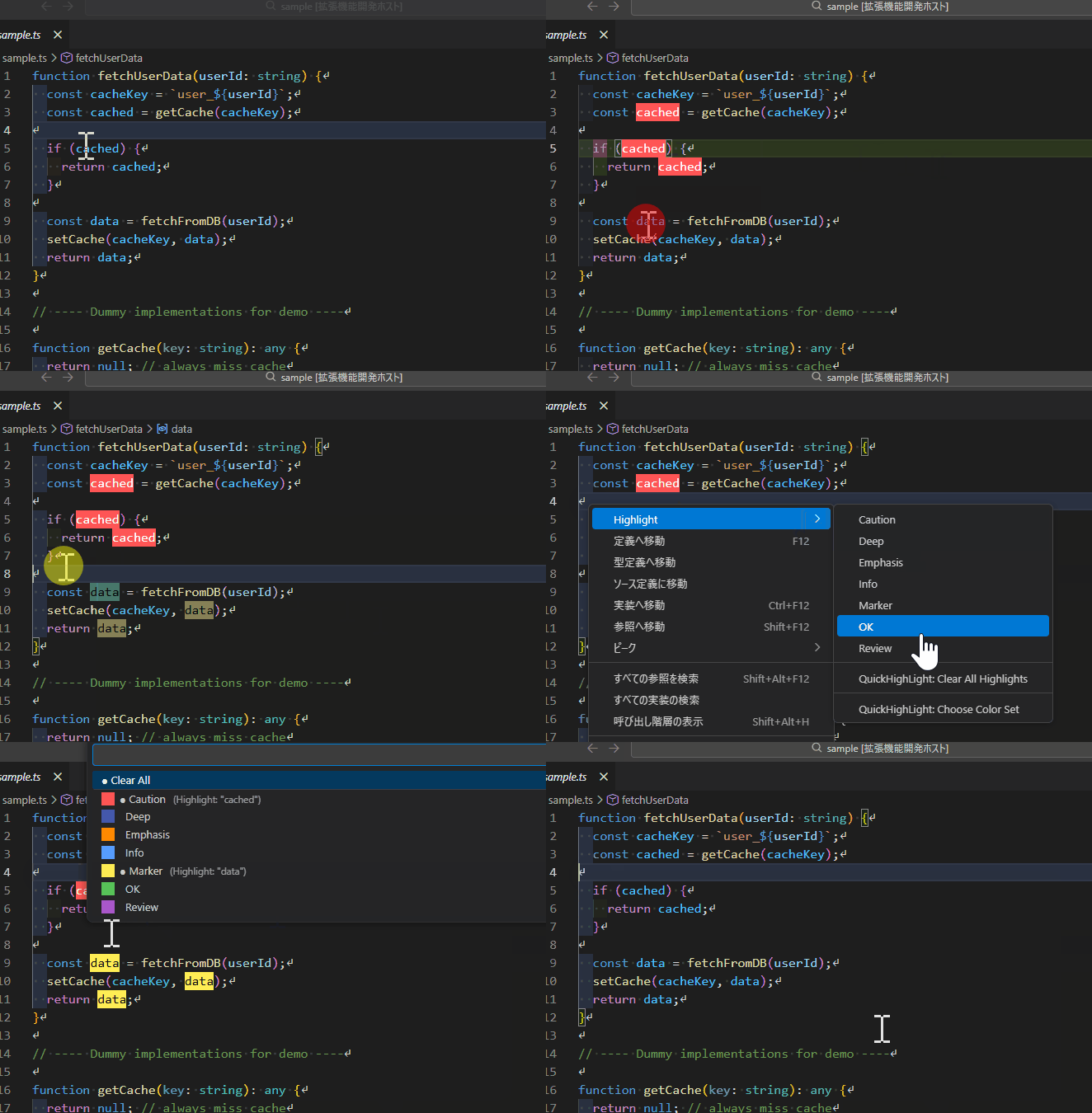
- 7 fixed color presets (fully customizable)
- Unlimited user-defined color sets
- QuickPick UI for selecting colors
- Context menu integration
- Highlights persist across open files
- Applying the same color to a new word automatically clears the previous one
- Toggle behavior (selecting the same color on the same word removes the highlight)
Perfect for code review, log analysis, proofreading, and more.
🖱 How to Use
1. Select a word
You can either select it or simply place the cursor on it.
You will see:
- 7 fixed colors
- Color Set List (QuickPick)
- Clear Highlights
3. Choose a color
- Applying the same color to a different word clears the previous highlight
- Applying the same color to the same word toggles it off
🎨 QuickPick UI
Ctrl+Shift+P → Highlight: Choose Color Set
The QuickPick shows:
- 7 fixed colors
- Separator
- User-defined colors
- ● indicator for active colors
- The highlighted word for each color
🧩 Customizing the 7 Fixed Colors
Add this to your settings.json:
"highlightWord.fixedColorSets": [
  { "name": "Caution",  "background": "#ff5555", "foreground": "#ffffff" },
  { "name": "Deep",     "background": "#4455aa", "foreground": "#ffffff" },
  { "name": "Emphasis", "background": "#ff8800", "foreground": "#ffffff" },
  { "name": "Info",     "background": "#5599ff", "foreground": "#ffffff" },
  { "name": "Marker",   "background": "#ffee55", "foreground": "#000000" },
  { "name": "OK",       "background": "#55cc55", "foreground": "#000000" },
  { "name": "Review",   "background": "#aa55cc", "foreground": "#ffffff" }
]
🎛 User-Defined Color Sets
Add any number of custom colors:
"highlightWord.colorSets": [
  { "name": "Soft Yellow", "background": "#ffeeaa", "foreground": "#000000" },
  { "name": "Deep Blue", "background": "#3366ff", "foreground": "#ffffff" }
]
🧠 Highlighting Rules
- Highlights are applied per word (case-sensitive).
- Highlights are applied across all open editors.
- Highlights are automatically re-applied when switching editors.
- One word per color — applying a color to a new word clears the previous highlight for that color.
- Toggle behavior — applying the same color to the same word removes the highlight.
📦 Commands
| Command |
Description |
| Caution |
Apply fixed color 1 |
| Deep |
Apply fixed color 2 |
| Emphasis |
Apply fixed color 3 |
| Info |
Apply fixed color 4 |
| Marker |
Apply fixed color 5 |
| OK |
Apply fixed color 6 |
| Review |
Apply fixed color 7 |
| Clear All Highlights |
Remove all highlights |
| Choose Color Set |
Open QuickPick |
📄 License
MIT License
🔚 Notes
QuickHighLight aims to be a simple, stable, and pleasant highlighting tool.
Feedback and feature requests are always welcome.

