mmlx-lsp
MML (Music Macro Language) support for VS Code and Helix.
Currently supports the MDX (MXDRV) dialect and .mml files.
Features
- Syntax highlighting for notes, commands, track labels, voice definitions, and comments.
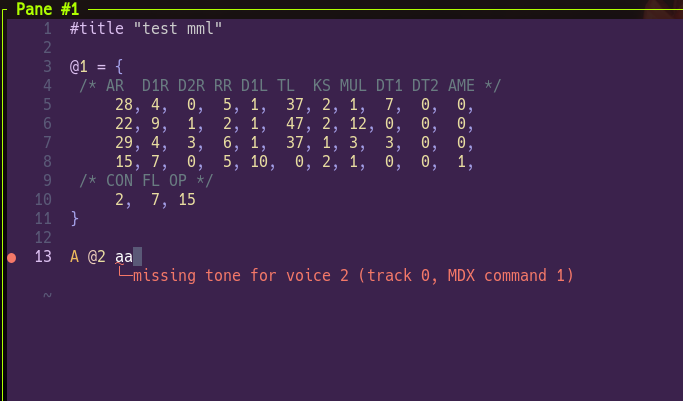
- Error diagnostics for parsing, compilation, and playback checks.
- Command completion with argument snippets and FM voice-definition templates.
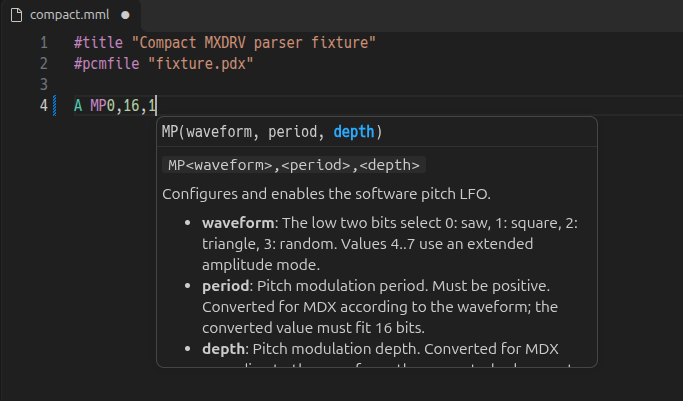
- Parameter hints while entering command arguments.
- Japanese and English command descriptions and parameter hints.
- Built-in VS Code build tasks for MML to MDX and MML/MDX to VGM.
Usage
The extension automatically associates .mml files with MML(mdx).
If an existing setting or another extension overrides this association, select
MML(mdx) from the status bar or add this to your VS Code settings:
{
    "files.associations": {
        "*.mml": "mmlx"
    }
}
Use completion to insert commands and voice definitions. Parameter hints show
the active argument as you type. To read a command's full description, select
it in the completion list and choose Show More.
Build MDX/VGM in VS Code
Open an MML file in a trusted workspace and run mmlx: Build from the
command palette or select it via Tasks: Run Build Task (Ctrl+Shift+B).
It creates MDX and VGM files in the workspace's build/ folder.
No Rust or external CLI is required.
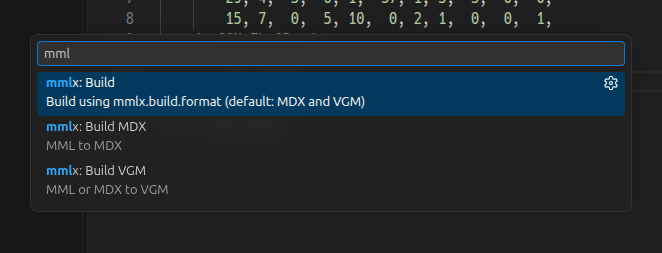
Use mmlx: Build MDX or mmlx: Build VGM to build one format.
MDX input is converted to VGM only.
Errors appear in the Problems view and task terminal. Ctrl-click an error
location (Cmd-click on macOS, depending on your terminal settings) to jump to
the source. Stop the task to cancel.
Enable mmlx.build.onSave to build MML on save (off by default).
Change the output formats and directory in Settings.
To choose a default build, add this to .vscode/tasks.json:
{
    "version": "2.0.0",
    "tasks": [
        {
            "label": "Build",
            "type": "mmlx",
            "input": "${file}",
            "group": {
                "kind": "build",
                "isDefault": true
            },
            "problemMatcher": []
        }
    ]
}
Omit format to follow mmlx.build.format, or set it to both, mdx, or vgm
to override the setting for a task. Task paths support VS Code variables;
relative paths are resolved from the task's workspace folder.
| Optional Property |
Default |
Purpose |
format |
mmlx.build.format (both) |
Output formats. MDX input generates VGM only when set to both. |
output |
Configured directory with the input name and output extension |
Output file path. Overrides mmlx.build.outputDirectory. For both formats, it is a base path; a .mdx or .vgm suffix is replaced with each output extension. |
pdx |
Referenced PDX beside the input |
PDX file path for VGM conversion. Lookup accepts .pdx extensions and case-insensitive filenames. |
adpcmMode |
through |
VGM ADPCM processing: through, resample, or lpf. |
loopCount |
Native VGM loop points |
Positive finite loop count for VGM conversion. |
maxTicks |
100000 |
Positive playback tick limit for VGM conversion. |
VGM conversion defaults to native loop-point detection, equivalent to
soundlog mdx convert --native-loop. Detected loops set loop_offset and
loop_samples. Setting loopCount instead emits finite playback without a VGM
loop point. As with the CLI, loop points for per-track MDX F1 loops are estimates.
MDX output checks parsing and compilation without loading PDX samples.
VGM conversion requires any referenced PDX and reports playback errors or
tick-limit failures before saving the output. When building both formats,
neither output is saved until both conversions succeed. Build tasks are VS Code-only;
Helix continues to use the native language server.
Settings
Set these options in VS Code settings or your settings JSON:
{
    "mmlx.dialect": "mdx",
    "mmlx.language": "auto",
    "mmlx.build.format": "both",
    "mmlx.build.onSave": false,
    "mmlx.build.outputDirectory": "build"
}
mmlx.dialect: mdx is the default and currently the only supported dialect.mmlx.language: auto follows the editor language, falling back to Japanese.
Use ja or en to select a language explicitly.mmlx.build.format: both is the default. Use mdx or vgm for one format.
Changes apply to the next default build; explicit task formats take precedence.mmlx.build.onSave: false is the default. Set to true to build saved MML
files automatically. Changes apply without restarting the language server.mmlx.build.outputDirectory: build is the default. Use another relative
directory, such as out, or an absolute path. Changes apply to the next build.
After changing the dialect or language, run mmlx: Restart Language Server from the
command palette. Diagnostic messages are not translated.
Current Limitations
- Only the first parse, compile, or playback error is reported.
- Language-server playback validation checks one playthrough with execution limits; it does not
load or validate PDX sample files.
- Completion covers commands and voice-definition templates, not notes,
metadata directives, available voice numbers, or argument values.
- Hover, go-to-definition, formatting, and browser-based VS Code are not supported.
- Helix indentation queries and text objects are not included.
Manual Installation in VS Code
For manual installation from a VSIX file, use desktop VS Code 1.100 or later
on Windows, macOS, or Linux. Node.js and Rust are not required.
- Download the
.vsix file from this repository's GitHub Releases.
- In the Extensions view, open the
... menu and select Install from VSIX....
- Open a
.mml file.
VS Code automatically installs the required ms-vscode.wasm-wasi-core extension.
If it cannot be downloaded automatically, such as in an offline environment,
install that dependency separately.
Install in Helix
- Download and extract the native archive for your OS and architecture from
GitHub Releases:
macos-x64, macos-arm64, windows-x64, or linux-x64.
- Install the included language server, Tree-sitter library, and highlight queries.
- Merge the included Helix language configuration into your own configuration.
- Restart Helix and run
hx --health mmlx-mdx to check the installation.
Follow the native installation guide for the commands
and configuration details. The same guide is included in each native archive.
Node.js, Rust, and a C compiler are not required.
Add or update these entries in your Helix languages.toml:
[language-server.mmlx]
command = "mmlx-lsp-server"
config = { dialect = "mdx", language = "ja" }

[[language]]
name = "mmlx-mdx"
scope = "source.mmlx.mdx"
file-types = ["mml"]
comment-token = ";"
language-servers = ["mmlx"]
grammar = "mmlx-mdx"
Ensure the server is on your PATH, or replace command with its absolute path
(mmlx-lsp-server.exe on Windows). Set language = "en" for English completion
and hints. The prebuilt parser does not need a [[grammar]] source entry.
Linux archives are built on Ubuntu 26.04 and require a compatible glibc-based
system. Older distributions may not run these binaries. Native binaries are
not code-signed or notarized.
Dependencies


