RegExp Replacer (VS Code Extension)
Reusable regex / text / wildcard replacement commands for VS Code.
UI preview
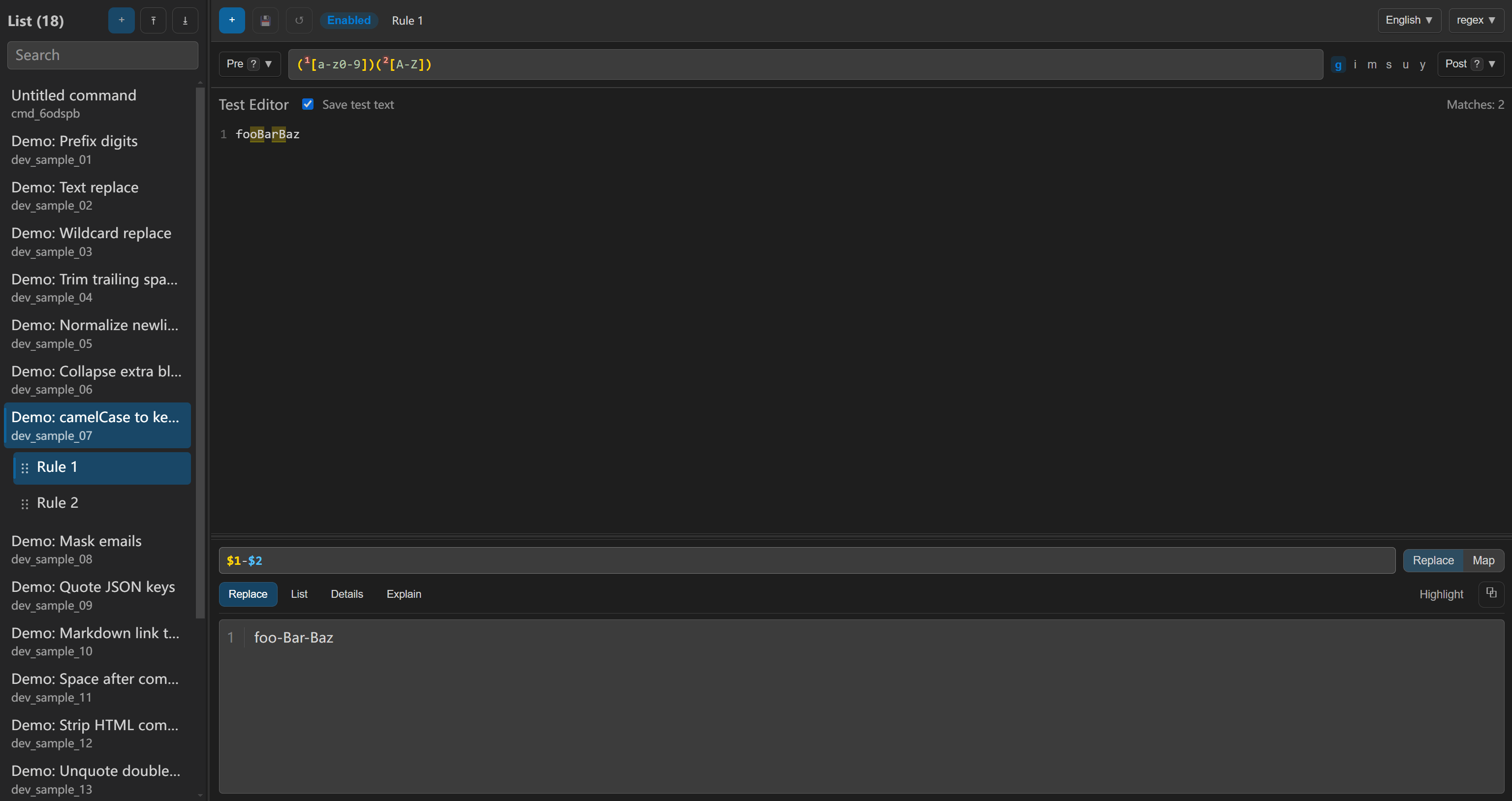
RegExp UI (webview)
The RegExp UI webview: command list on the left, rule editor (expression, flags, hooks), test editor, and replace preview / list / details / explain tools.
Command Palette
Extension commands when searching the palette (for example, RegExp).

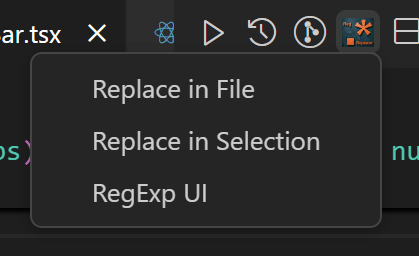
Editor title icon
When Show icon is enabled (default) and Icon placement is editor, the title bar opens a submenu for Replace in File, Replace in Selection, and RegExp UI.
Features
- Replace in File: run a configured replacement command on the active editor document.
- Replace in Selection: run a configured replacement command on the current selection(s).
- RegExp UI: open a webview to manage/create/edit commands and test rules.
- Command hooks: run VS Code command ids (or chained configured commands) before/after each rule in a replacement command.
- Import / Export (RegExp UI): import/export commands as JSON files.
- Resizable layout (RegExp UI): drag splitters to resize the left command list and the bottom tools dock.
- Quick icon / menu (on by default): show a quick entry in the editor title bar or status bar (left/right); click for Replace in File, Replace in Selection, and RegExp UI. Editor placement uses a submenu; status bar uses QuickPick. Disable Show Icon in settings if you prefer not to.
- Editor context menu (on by default): Replace in File / Replace in Selection appear in the editor right-click menu. Set Show Editor Context Menu to
false to hide them.
Settings UI (recommended)
- Open Settings (
File → Preferences → Settings, or Ctrl+, / Cmd+,).
- Search for RegExp Replacer (or
regexpReplacer).
- Under the RegExp Replacer section, adjust:
| Setting |
Key |
Default |
What it does |
| Show Icon |
regexpReplacer.ui.showIcon |
true |
Show the quick entry (title bar submenu or status bar menu) including RegExp UI. |
| Show Editor Context Menu |
regexpReplacer.ui.showEditorContextMenu |
true |
Add Replace in File / Replace in Selection to the editor right-click menu. |
| Icon Placement |
regexpReplacer.ui.iconPlacement |
editor |
Where the quick entry appears when Show Icon is on: editor (title bar), statusBarLeft, or statusBarRight. |
User settings apply globally; Workspace tab overrides apply only to the current folder. Use Open Settings (JSON) from the settings gear menu to edit settings.json directly.
Command Palette
You can also run extension commands without changing settings:
- RegExp Replacer: RegExp UI — open the management webview.
- RegExp Replacer: Replace in File / Replace in Selection — run a configured command on the active editor.
Search the palette (Ctrl+Shift+P / Cmd+Shift+P) for RegExp or RegExp Replacer.
settings.json
Paste UI options next to your command list, for example:
{
  "regexpReplacer.ui.showIcon": true,
  "regexpReplacer.ui.showEditorContextMenu": true,
  "regexpReplacer.ui.iconPlacement": "editor",
  "regexpReplacer.commands": []
}
Use RegExp UI to create and edit regexpReplacer.commands, or maintain the array manually in settings.json (see format below).
Configuration
Commands are stored in VS Code settings under:
regexpReplacer.commands: ReplaceCommand[]regexpReplacer.ui.showIcon: boolean (default: true; quick entry for Replace in File, Replace in Selection, RegExp UI)regexpReplacer.ui.showEditorContextMenu: boolean (default: true; set false to hide Replace in File / Replace in Selection from the editor context menu)regexpReplacer.ui.iconPlacement: editor | statusBarLeft | statusBarRight (default: editor; status bar opens a quick pick on click)
Each command can contain multiple rules executed in order:
enable (optional): boolean (default: true). If false, the rule is skipped in Replace in File / Replace in Selection.engine: regex | text | wildcardfind: pattern stringreplace: replacement template (JavaScript String.replace syntax, e.g. $1, $&, $$)replaceMode (optional): template | map (default: template)map (optional): { mode: "text" | "regex", cases: Array<{ find: string, replace: string }> } (only used when replaceMode is map)flags (regex only): g i m s u y dwildcardOptions.dotAll (wildcard only): allow * / ? to match newline
Replace mode: map
In map mode, the rule will:
- First match fragments using the main rule (
find + flags).
- Then apply
map.cases to capture groups only ($1..$n, in order). It scans the table top to bottom and applies only the first rule that matches for the first matching group, then writes the result back into the fragment:
map.mode="text": literal (text) global replacement on the group textmap.mode="regex": regex global replacement on the group text (table regex flags are fixed to g)
map mode only supports engine: "regex".replace in each case item uses the same replacement template logic as normal replace (supports \\n, \\t, \\\\, and $&, $1..$99, $$, $<name>).
Below is an example you can paste into VS Code settings.json.
{
  "regexpReplacer.commands": [
    {
      "id": "demo-text",
      "title": "Demo: Text replace",
      "description": "Replace a literal substring",
      "rules": [
        {
          "engine": "text",
          "find": "foo",
          "replace": "bar",
          "preCommands": ["editor.action.formatDocument"],
          "postCommands": []
        }
      ]
    },
    {
      "id": "demo-regex",
      "title": "Demo: Regex replace",
      "rules": [
        {
          "engine": "regex",
          "find": "(\\d+)",
          "replace": "Number($1)",
          "flags": "gim",
          "preCommands": ["demo-text"],
          "postCommands": []
        },
        {
          "engine": "wildcard",
          "find": "hello*world\\n?",
          "replace": "hi",
          "wildcardOptions": { "dotAll": true }
        },
        {
          "engine": "regex",
          "find": "x=([A-Z])",
          "replaceMode": "map",
          "map": {
            "mode": "text",
            "cases": [
              { "find": "A", "replace": "AA" },
              { "find": "C", "replace": "CC" }
            ]
          },
          "replace": "",
          "flags": "g"
        }
      ]
    }
  ]
}
Notes:
- Replacement template: uses JavaScript
String.replace templates (e.g. $1, $&, $', $$).
- Wildcard engine: supports glob-like
* / ? and \\n. Use wildcardOptions.dotAll=true if you want * / ? to match newline.
- Rule enable:
- If a command has all rules disabled, it is hidden from the IDE command picker (QuickPick).
- Hook chains triggered via
preCommands / postCommands are not filtered by enable.
- Hooks (
preCommands / postCommands) (rule level only): each entry is a VS Code command id or another configured command id (for chaining). The extension runs them before/after that rule in Replace in File / Replace in Selection. RegExp UI edits these per rule. Command-level hooks are not supported (legacy fields in settings.json are ignored).
- If a loop is detected in the command chain during execution, the extension will abort and show an error to prevent hanging.
RegExp UI notes
- The command list always keeps a top Untitled command draft for quick creation (it is not saved if left pristine).
- UI-only states (temporary template input, active tools tab, etc.) are cached per (command + rule) for convenience and are not written into settings.
- Test text is UI-only by default. If you enable Save test text in RegExp UI, it will be saved to settings as
rule.testText and restored next time.
Contributing
How to build and debug this repository locally is documented for contributors in CONTRIBUTING.md.

