ADB Connect — Wireless Android Debugging
Pair and connect Android devices over Wi-Fi in one click — real QR pairing, six-digit code
pairing, mDNS discovery, a device manager, and smart auto-reconnect — without running adb
by hand.
Supported IDEs
ADB Connect is a VS Code extension and runs on VS Code and compatible VS Code-based hosts:
- Visual Studio Code (VS Code Marketplace)
- Kiro, Cursor, Windsurf, and other VS Code-based IDEs (Open VSX or VSIX)
This release ships a VS Code extension only; there is no JetBrains plugin in this version.
Features
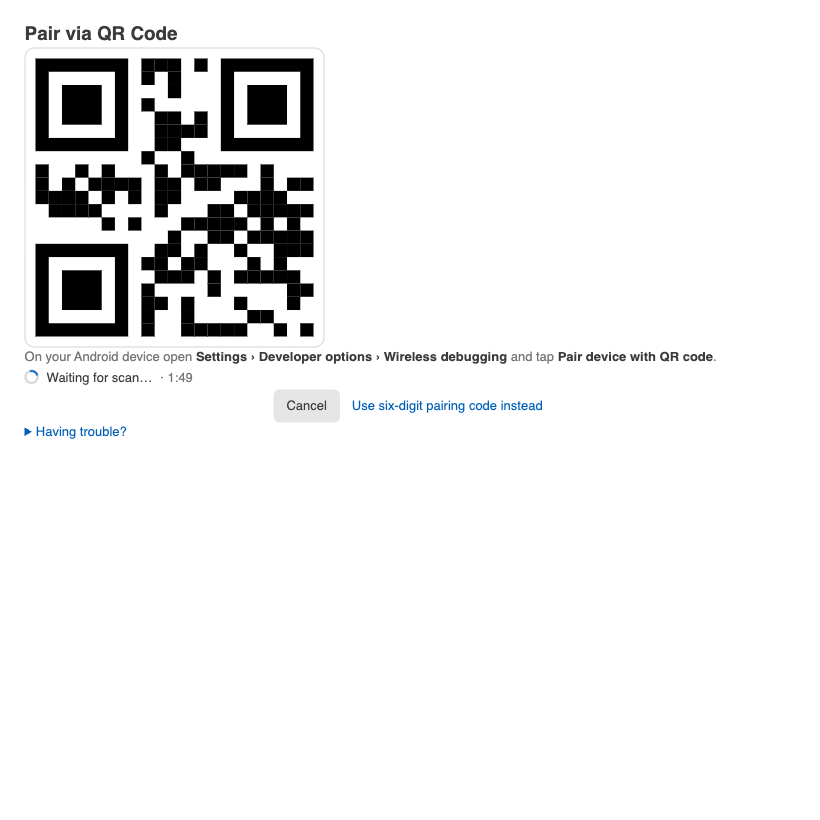
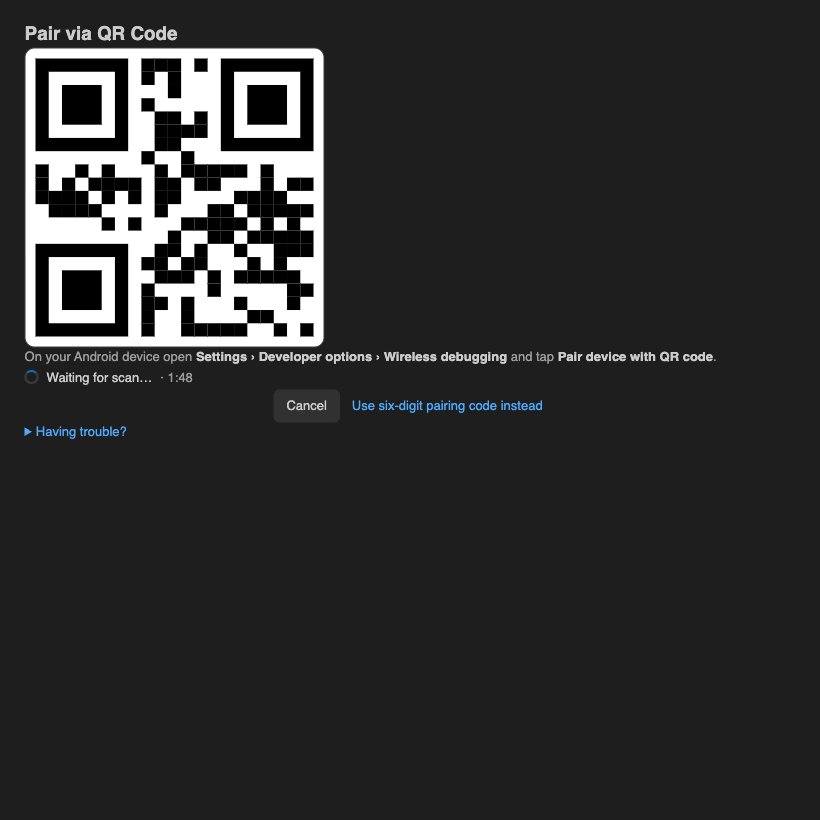
- Real QR pairing — a valid Android Wireless Debugging pairing QR (never a fake
payload) with pairing state, result, Cancel/Retry, and help, plus a six-digit fallback.
- Six-digit code pairing and direct IP:port connect.
- mDNS discovery of devices advertising Wireless debugging, through the adb server.
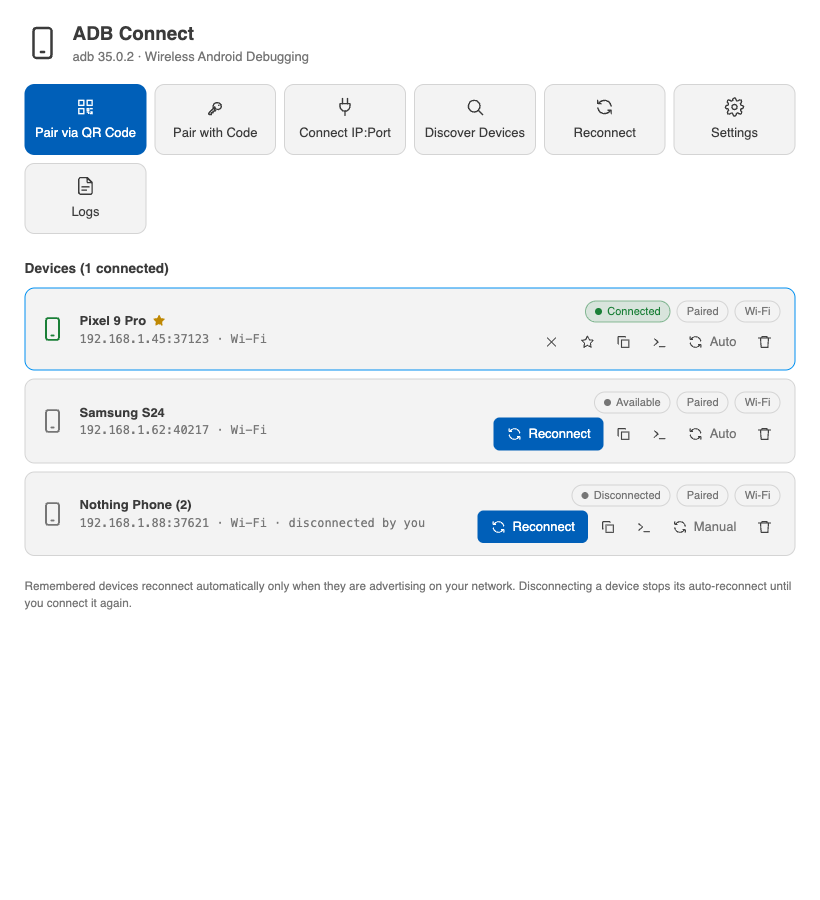
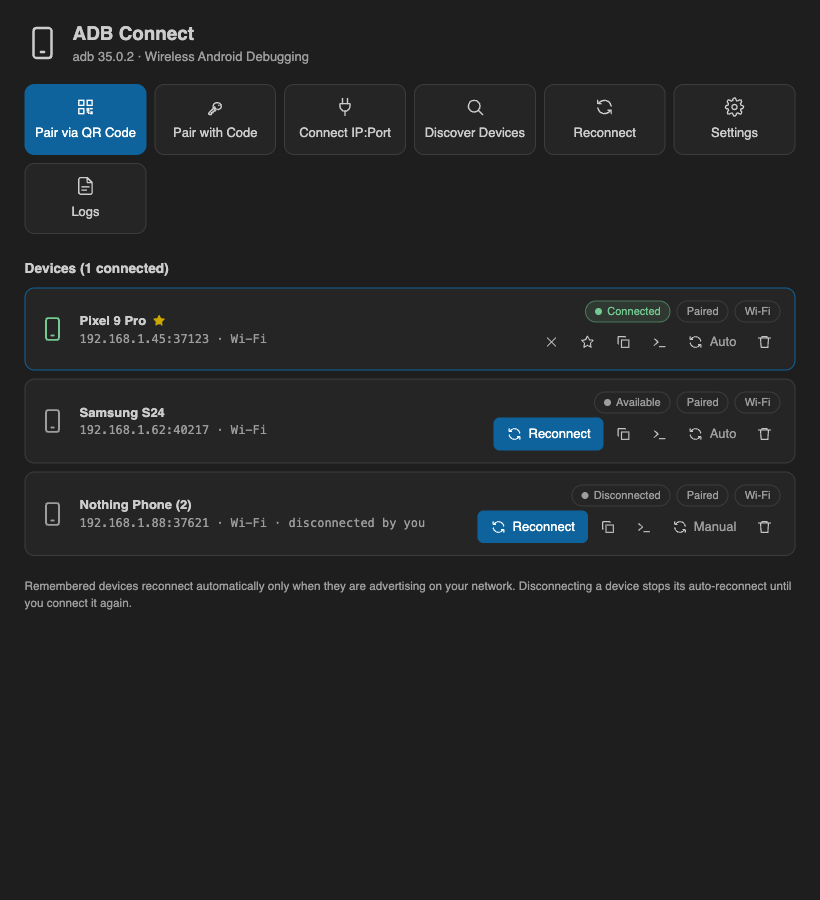
- Device Manager with name, serial, IP:port, connection status, pairing status,
transport type, and copyable adb commands.
- Smart auto-reconnect — remembered devices only, bounded retries, respects manual
disconnects, never restarts the global adb server.
- Multi-device support with a preferred active device.
- Status bar with connection state and a quick-actions menu.
See docs/FEATURES.md for the full list.
Screenshots
Device Manager, light and dark themes:
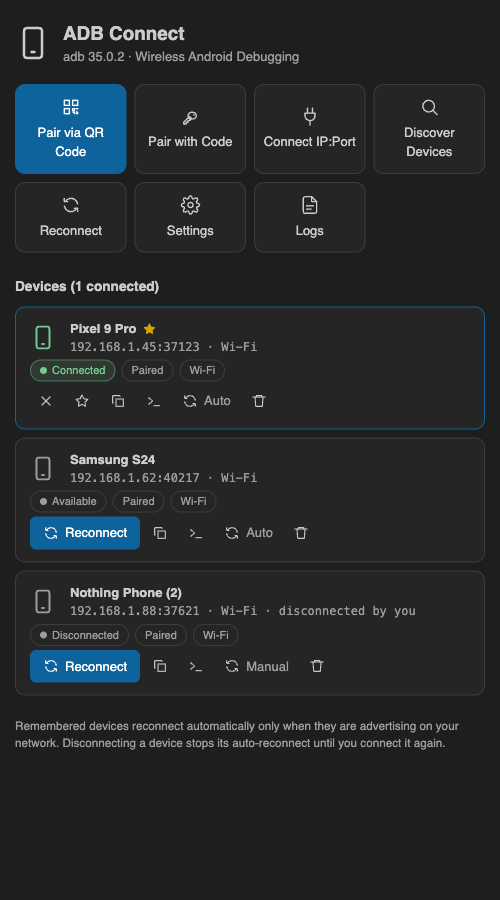
Narrow window layout:
QR pairing view:
Quick start
- Install adb (Android platform-tools; 31+ recommended) and ensure it is on your
PATH
or set adbConnect.adbPath.
- Click the ADB status-bar item to open Quick Actions, then choose how to connect:
- Pair via QR Code — scan from Developer options › Wireless debugging › Pair device
with QR code (Android 11+).
- Pair via Pairing Code — enter the host:port and six-digit code.
- Connect Device — enter an
IP:port.
- Paired devices are remembered and reconnected automatically.
Full install steps (Marketplace, Open VSX, VSIX) are in
docs/INSTALL.md.
Settings
| Setting |
Default |
Description |
adbConnect.adbPath |
"" |
Path to adb; empty auto-detects via ANDROID_HOME/ANDROID_SDK_ROOT/PATH/default SDK. |
adbConnect.autoDiscover |
true |
Continuously discover devices advertising Wireless debugging (mDNS). |
adbConnect.autoReconnect |
true |
Auto-reconnect remembered devices; never unknown devices or ones you disconnected. |
adbConnect.reconnectOnStartup |
true |
Reconnect remembered devices when the IDE starts (requires auto-reconnect). |
adbConnect.showStatusBar |
true |
Show the ADB Connect status-bar item. |
adbConnect.preferredDevice |
"" |
Device shown in the status bar when several are connected. |
adbConnect.debugLogging |
false |
Log every adb invocation (secrets redacted). |
Troubleshooting
Common issues (adb not found, blocked Local Network/firewall/VPN, QR pairing, offline
devices) are covered in docs/TROUBLESHOOTING.md. Use View
Logs from the quick actions for details.
Privacy
- No telemetry.
- No pairing without an explicit user action.
- Pairing secrets are never logged or persisted; adb stores pairing keys in
~/.android.
- The webview uses a strict CSP with a per-render nonce and no inline handlers.
Validation
Manual validation scenarios and their status (including QR scenarios marked NOT VERIFIED
without a physical device) are in docs/VALIDATION.md.
Develop
From the repo root: npm install && npm run build, then open the repo and launch an
Extension Development Host with extensions/vscode as the extension path. The extension is
bundled with esbuild (@adb-connect/core and qrcode are inlined). Package a VSIX with
npm run -w extensions/vscode package (output: dist/adb-connect-vscode-<version>.vsix at
the repo root).
License
MIT. Publisher id guitar-dev-io and repository URLs are placeholders.

