Waqt Extension
Waqt is an intelligent coding time tracker that seamlessly distinguishes between manual typing, AI-assisted coding, and external copy-pasting across various Code editors. It helps you understand exactly how much "real" coding you do compared to time spent leveraging AI extensions and CLI tools.
Features
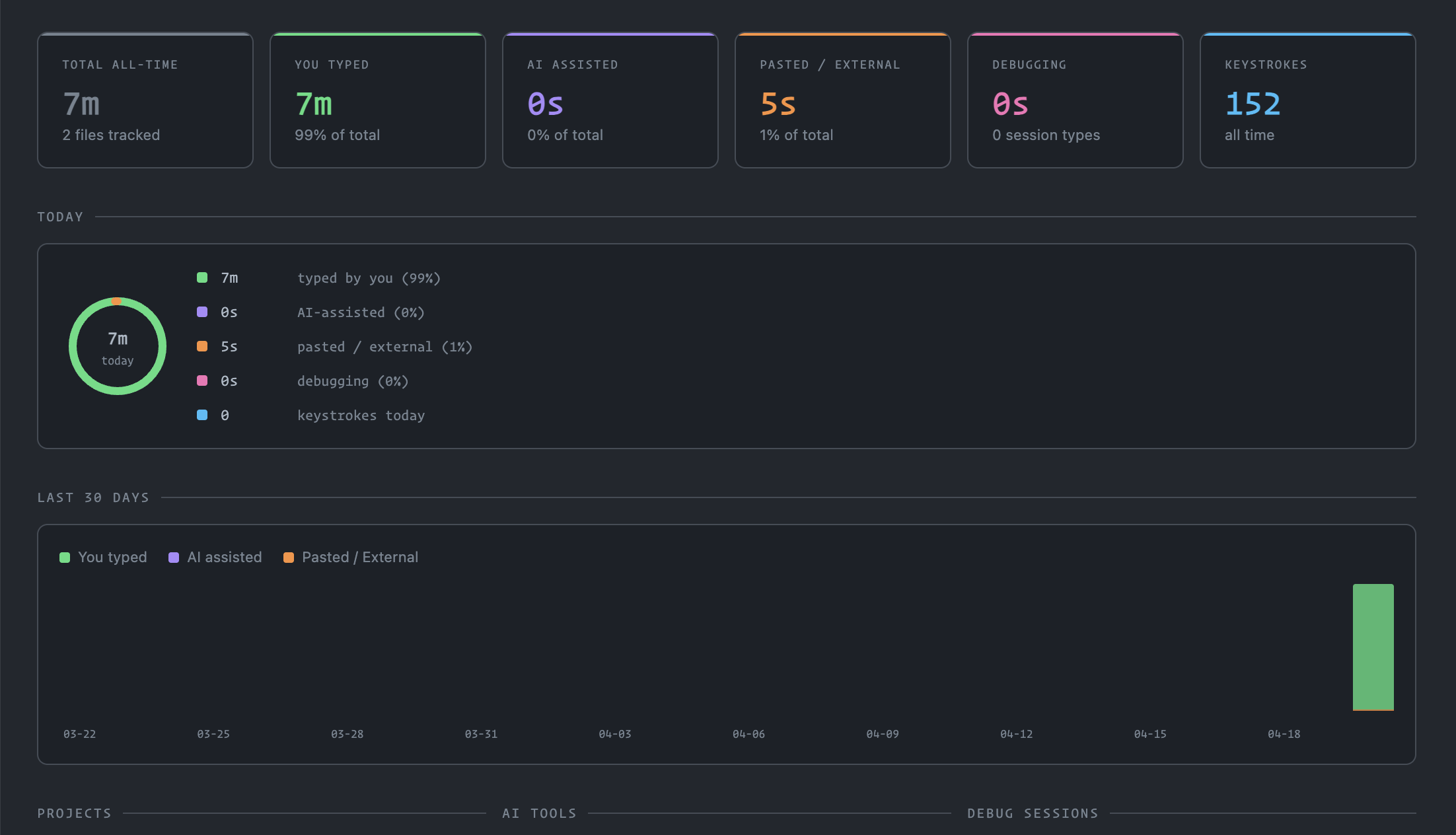
- Advanced 3-way Split Time Tracking:
- Typed: Time spent actively typing out your code.
- AI Assisted: Time influenced by active AI extensions or CLI interactions.
- Pasted / External: Time when large chunks of code were inserted without any active AI context.
- Deep AI Tool Detection:
- Built-in detection for VS Code extensions like GitHub Copilot, Codeium, Tabnine, Continue, Supermaven, Claude Dev, Gemini Code Assist, and more.
- CLI Tracking: Capable of detecting AI usage via terminal executions (e.g., Claude Code, Gemini CLI, Aider, Codex). User consent is dynamically requested on first prompt.
- Debugging Time Tracking: Separates your active development time from debugging sessions, supporting any recognized visual debugger (Node, Python, Chrome, etc.).
- Multiple Editors Support: Seamless operation out-of-the-box not just on VS Code, but also on VSCodium, Cursor, Antigravity, Windsurf, Positron, and more.
- Theme-Adaptive Dashboard: The internal visual dashboard intuitively adapts directly to your active editor theme (Light, Dark, High-Contrast) seamlessly without visual jarring.
Preview
Requirements
- VS Code engine ^1.107.0 (or compatible VSCodium fork).
- Uses the standard VS Code standard Extension API, but terminal monitoring relies on
vscode.window.onDidStartTerminalShellExecution integration.
Extension Settings
You can customize the underlying behavior via settings.json:
waqt.aiTools: Array of additional string extension IDs to be recognized as AI typing tools.waqt.cliTools: Optional CLI tool pattern definitions (needs name and regex pattern).waqt.idleThresholdSeconds: Number of inactivity seconds before the tracker goes idle (Default: 120).waqt.cliTrackingConsent: Sets the user consent configuration for terminal monitoring (ask, allowed, denied).
Commands
Waqt: Show Dashboard: Opens the main theme-adaptive Webview displaying time summaries.Waqt: Reset All Statistics: Clears all accumulated data and starts over.
Security & Privacy
Privacy is a core concern:
- Local Only: Data tracking is completely local using VS Code Global State API.
- Opt-in Terminal Privacy: Reading terminal session executions is explicitly placed behind an opt-in prompt.
| |

