Grafyx Atlas for VS Code
The atlas map, in the editor.
Grafyx Atlas scans a project and draws it as a directed graph: which parts must exist before which others, what a change will reach, what a part stands on, where the order is impossible, and the schedule that falls out of it. This extension hosts that map in a VS Code tab, and puts the same questions on the command palette and the right-click menu.
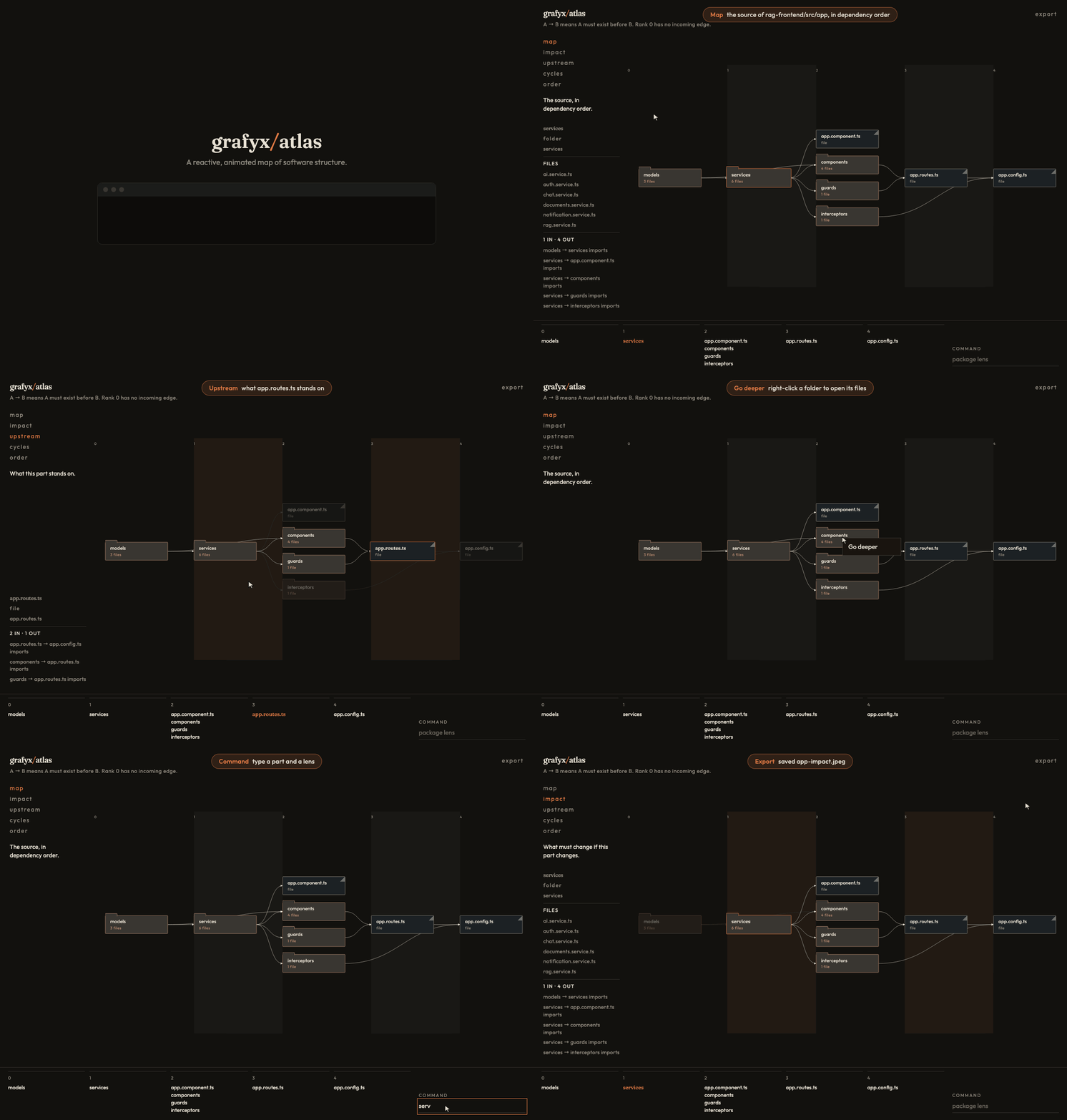
The pictures in this guide are the src/app folder of an Angular front end (rag-frontend). Every screenshot comes from that project, except the loop under Cycles. The full atlas guide, including the library API and the CLI, is the grafyx-atlas readme.
Contents
Why it is in the editor
A dependency list tells you what imports what. It does not tell you what order the parts come in, or what else moves when one of them changes. Atlas answers those questions on the map. The extension lets you ask them from the file you have open:
| Question |
Where you ask it |
| How is this project put together? |
Grafyx Atlas: Open Map |
| If I change this part, what else moves? |
Right-click → Show Impact, or the impact lens |
| What does this part depend on? |
Right-click → Show Upstream, or upstream |
| Is there an import loop? |
Show Cycles, and the Problems panel |
| In what order do the parts come? |
Show Build Order, or the order lens |
| Where does the weight sit? |
Show Stats, or stats on the map |
Right-click a file and the command selects the part that contains it. Right-click a folder that holds several parts, such as packages, and the editor asks which part you mean, then opens the map on that lens.
Install
Search the Extensions view for Grafyx Atlas, or install the published id:
code --install-extension grafyx.grafyx-atlas-vscode
From a packaged file:
code --install-extension grafyx-atlas-vscode-1.0.1.vsix
The extension runs in the workspace extension host. It needs VS Code 1.95 or newer and Node.js 20 or newer.
Open the map
Grafyx Atlas: Open Map scans the workspace and opens a tab titled Grafyx Atlas. The page is the same map as the CLI, served on 127.0.0.1. The editor listens on port 4328. The grafyx-atlas CLI stays on 4318, so both can run at the same time.
The line under the wordmark sets the one rule: A → B means A must exist before B. Rank 0 has no incoming edge.
Refresh the tab to rescan. The server reads the tree again on every load. Unsaved buffers are not part of that read: save first, and the command names any dirty files it had to skip.
How to read the map
An arrow runs from the thing that must exist first to the thing that depends on it. On a source map, an imported part points at the part that imports it. So models → services means services imports models.
Folders are drawn as folders and list their file count; loose files are drawn as pages. The strip along the bottom, the filmstrip, is the same schedule as a list, one column per rank.
For rag-frontend/src/app:
| Rank |
Parts |
| 0 |
models |
| 1 |
services |
| 2 |
app.component.ts, components, guards, interceptors |
| 3 |
app.routes.ts |
| 4 |
app.config.ts |
models imports nothing else in src/app, so it comes first. app.config.ts is last because it imports the routes and the interceptor.
Lenses
The five lenses sit at the top of the left rail. Each one has a sentence under it that says what it answers. Show Impact, Show Upstream, Show Cycles, and Show Build Order open this tab on that lens, with the part you picked already selected.
Map
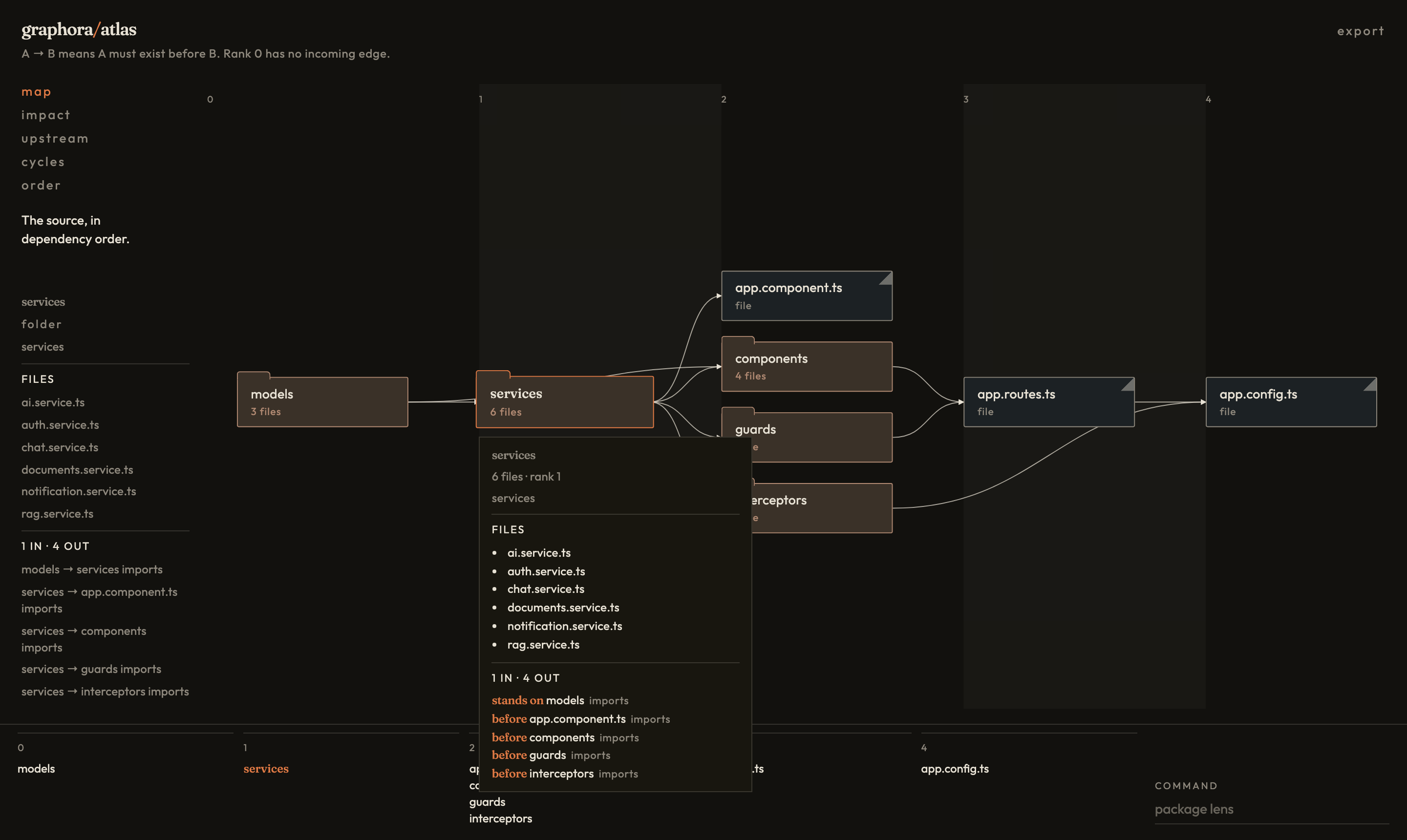
map is the whole source, in dependency order: "The source, in dependency order."
Every node and edge is lit. Click a node to select it, and the rail lists its path, its files, and every edge touching it. Hover the same node and a tooltip repeats that, with its rank. Each edge is marked stands on (this part depends on that one) or before (this part must exist before that one).
Here services is selected. It holds six files, stands on models, and comes before app.component.ts, components, guards, and interceptors.
Impact
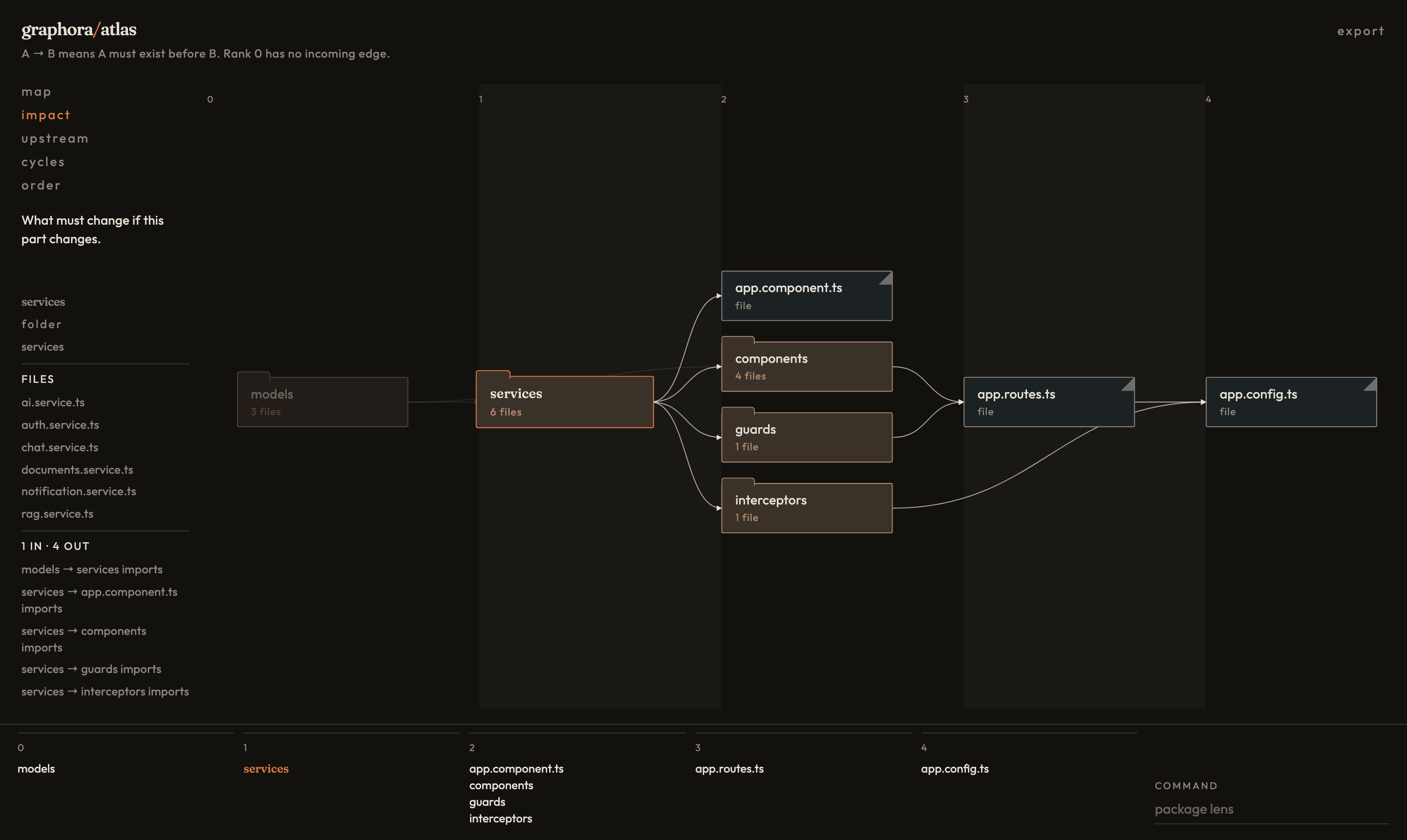
Select a part, then impact: "What must change if this part changes." On a package map the sentence is "What must be rebuilt if this package changes."
With services selected, everything downstream stays lit: app.component.ts, components, guards, interceptors, app.routes.ts, and app.config.ts. models dims, because a change in services cannot reach it. The edges into the lit parts are the paths the change travels.
Upstream
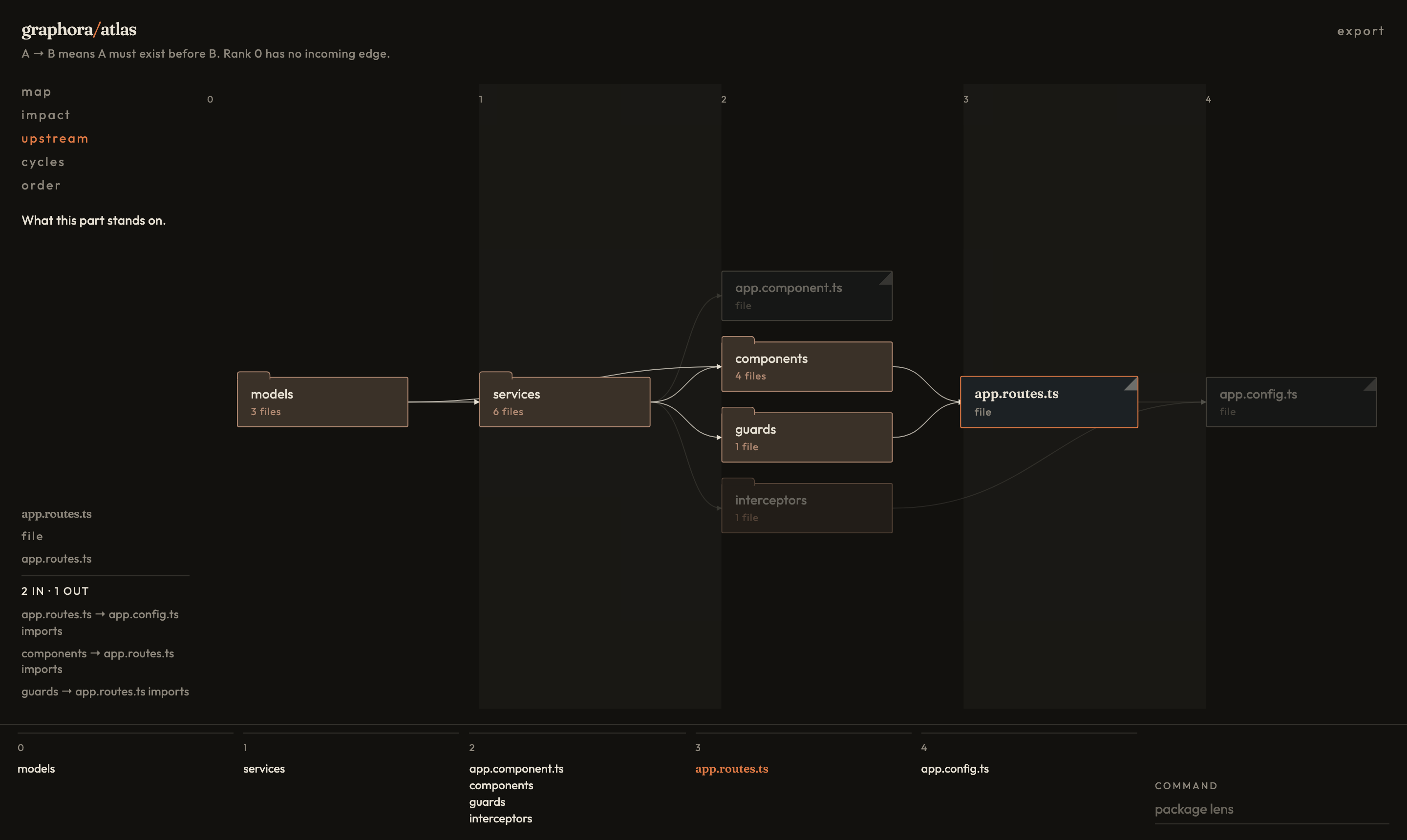
Select a part, then upstream: "What this part stands on."
app.routes.ts imports components and guards directly, and through them services and models. Those stay lit. app.component.ts, interceptors, and app.config.ts dim: app.config.ts imports the routes, so it is downstream, not upstream.
Cycles
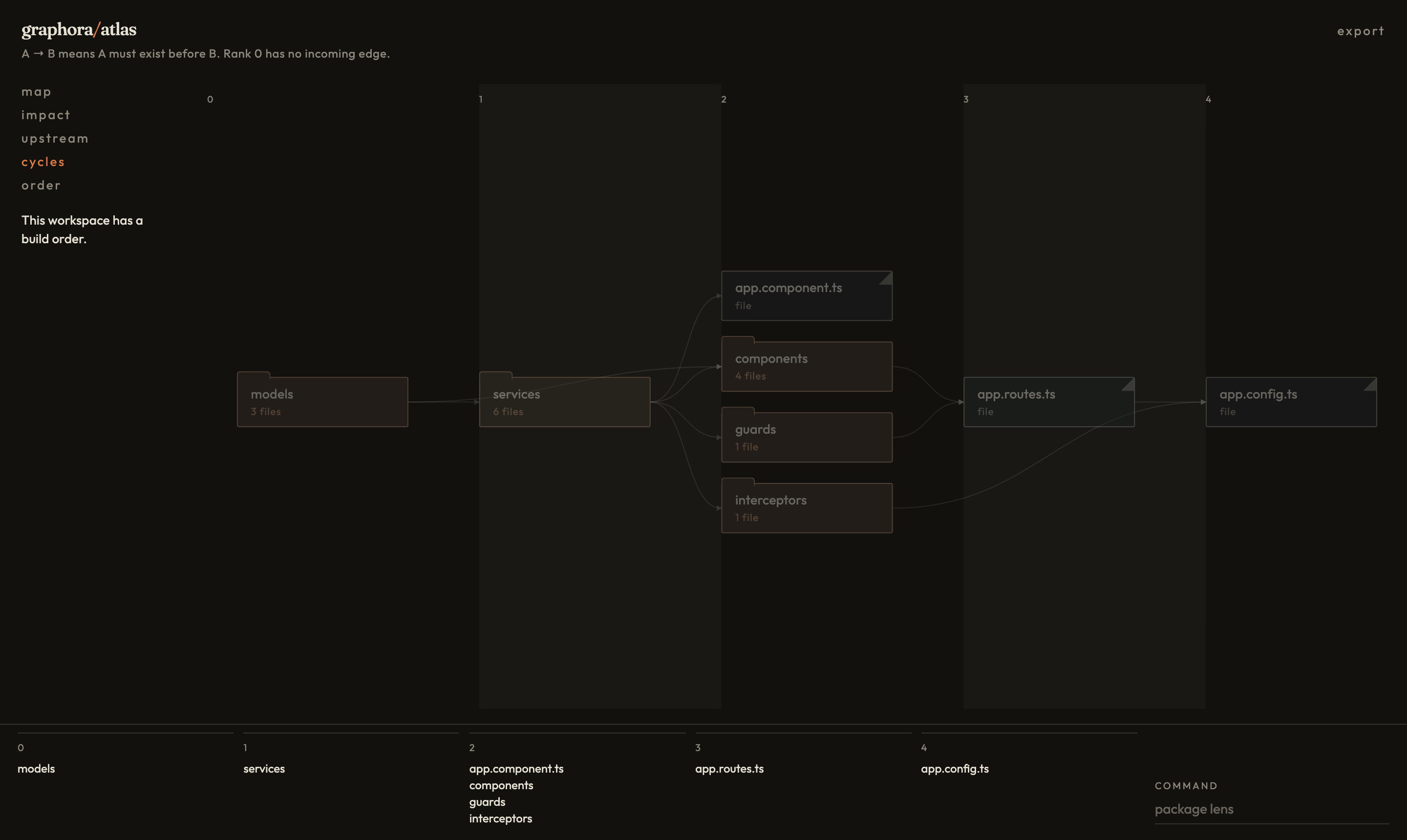
cycles asks where the order is impossible. rag-frontend/src/app has no import loop, so the sentence changes to "This workspace has a build order." and nothing needs attention. The ranks stay on the field.
When a project does contain a loop, this lens keeps it lit and dims everything else. The parts in the loop share a rank, because no schedule can place one strictly before the other:
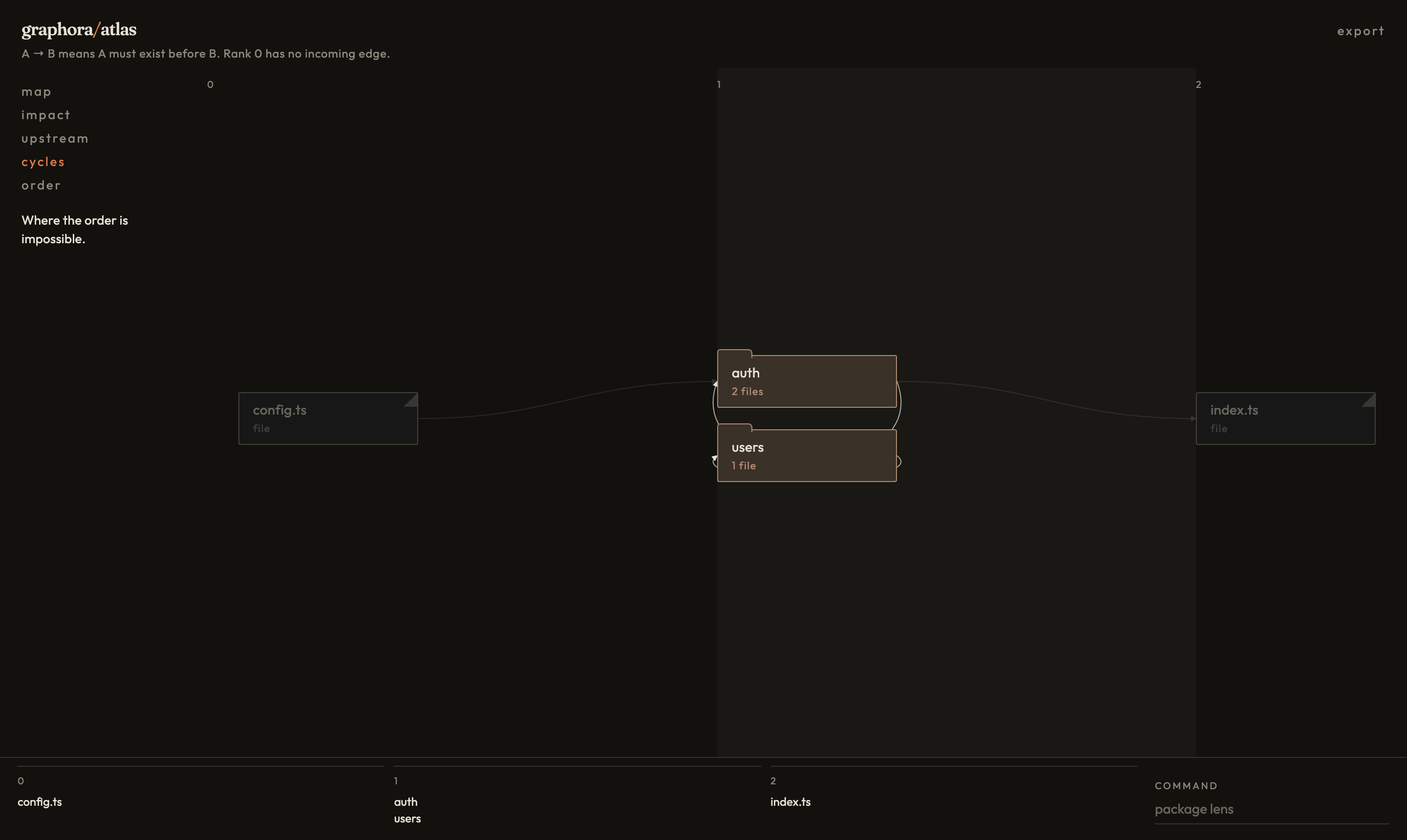
This second picture is a four-file example made for the atlas guide, since the Angular app has no loop to show. auth/session.ts imports users/user.ts, and users/user.ts imports auth/token.ts, so auth and users each stand on the other.
Show Cycles also publishes a warning in the Problems panel for each file in a loop. The source is Grafyx Atlas. Warnings sit at the start of the file, because the scan reports parts and not source positions. There are no code actions: grafyx-atlas does not return edits. Refresh Diagnostics scans again and republishes those warnings.
Order
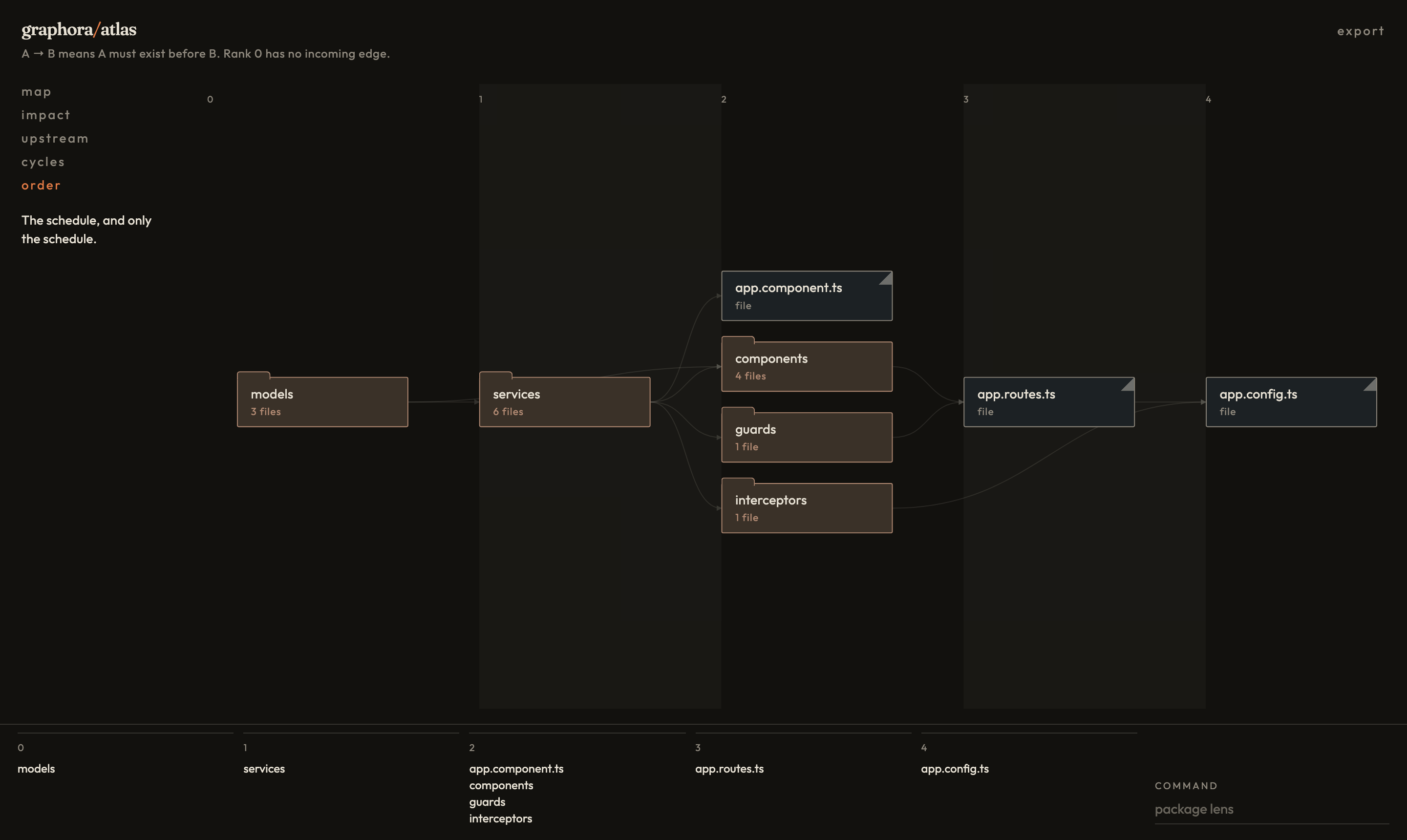
order is "The schedule, and only the schedule." The arrows fall back to a hairline and you read the ranks, left to right: models, then services, then app.component.ts, components, guards, and interceptors, then app.routes.ts, and app.config.ts last. The filmstrip is the same list.
Stats
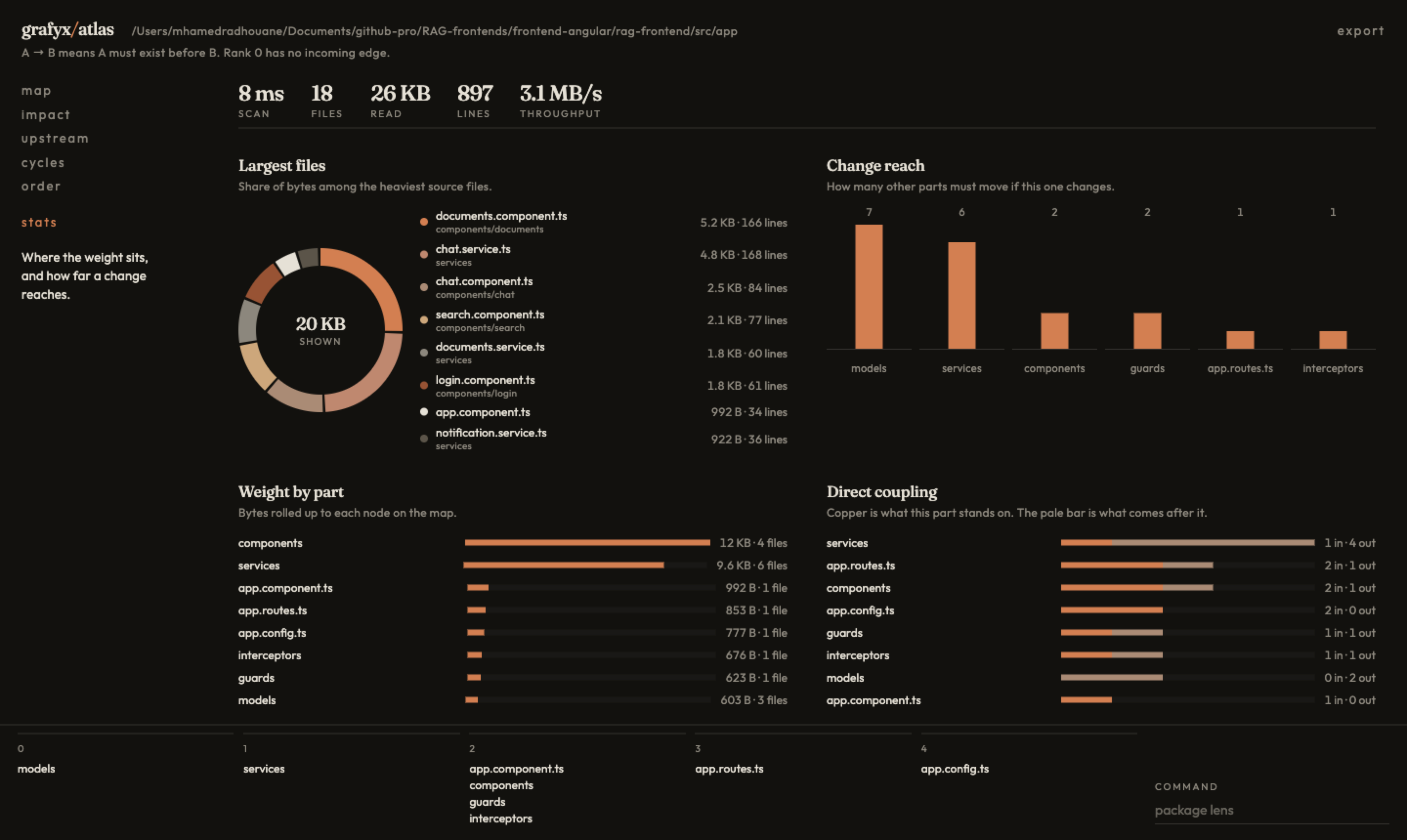
stats sits under the lenses: "Where the weight sits, and how far a change reaches."
The strip across the top is what the scan cost. This folder is 18 files, 26 KB, and 897 lines. Under that:
- Largest files is a donut of the heaviest source files. The center is the bytes in the slices on screen.
documents.component.ts is the largest, at 5.2 KB.
- Change reach is a column for each part: how many other parts must move if this one changes.
models reaches 7. services reaches 6.
- Weight by part rolls file bytes up to the node on the map.
components is 12 KB across 4 files.
- Direct coupling draws two bars. Copper is what this part stands on. The pale bar is what comes after it.
Click a slice, a column, or a row and that part stays selected. Show Stats opens this board.
Go deeper
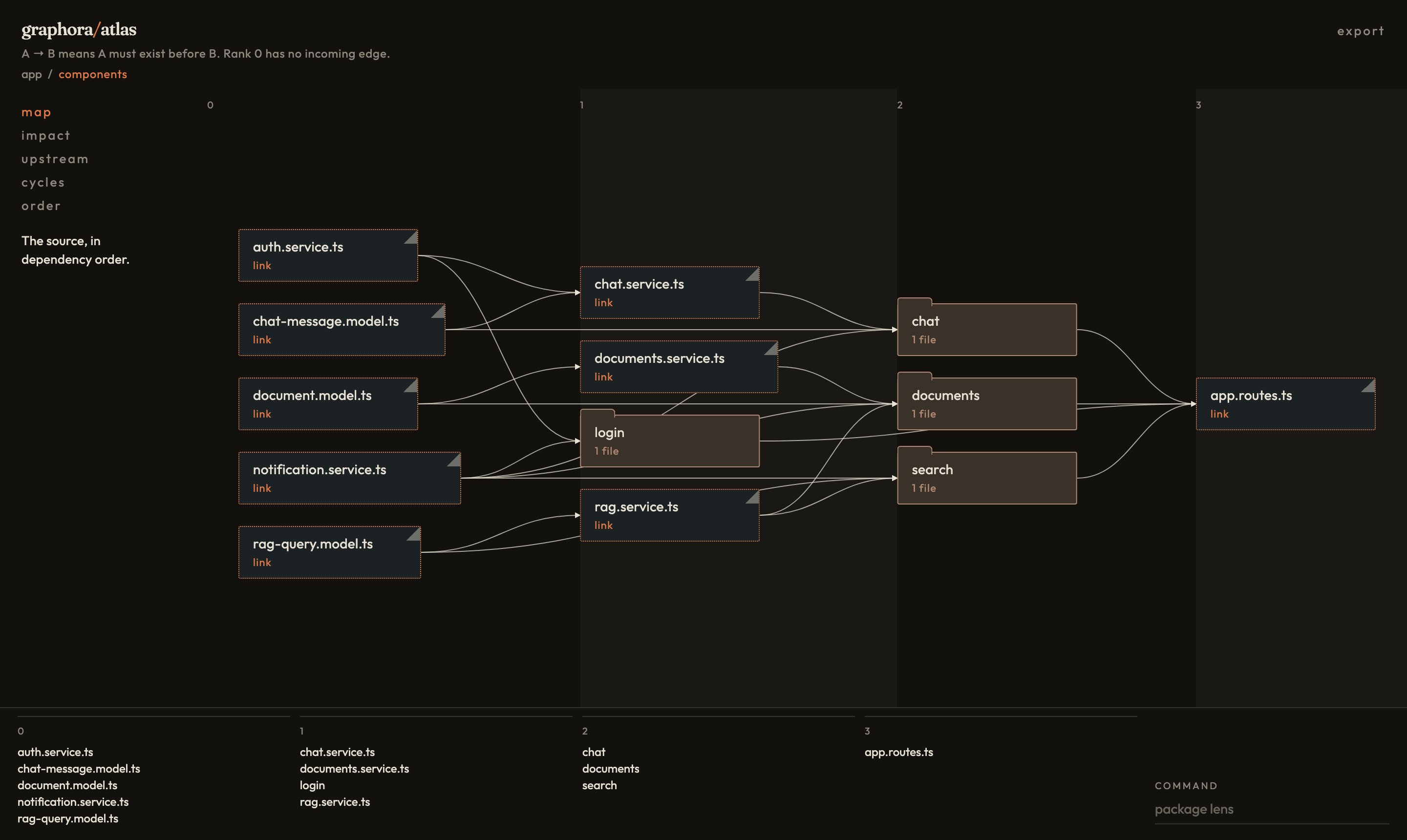
Right-click a folder and choose Go deeper, or use the same command from the palette. The map draws the files and subfolders inside that part, plus the files one import away. The breadcrumb records where you are; here it reads app / components.
Inside components:
chat, documents, login, and search are the folders inside it.- Files outside the folder appear as neighbours with the caption
link and a dotted copper border: the services and models the components import, and app.routes.ts, which imports the components.
- The lenses work the same way at this depth.
Click app in the breadcrumb to climb back to the folder map. A folder with nothing inside reports "Nothing deeper here."
Export
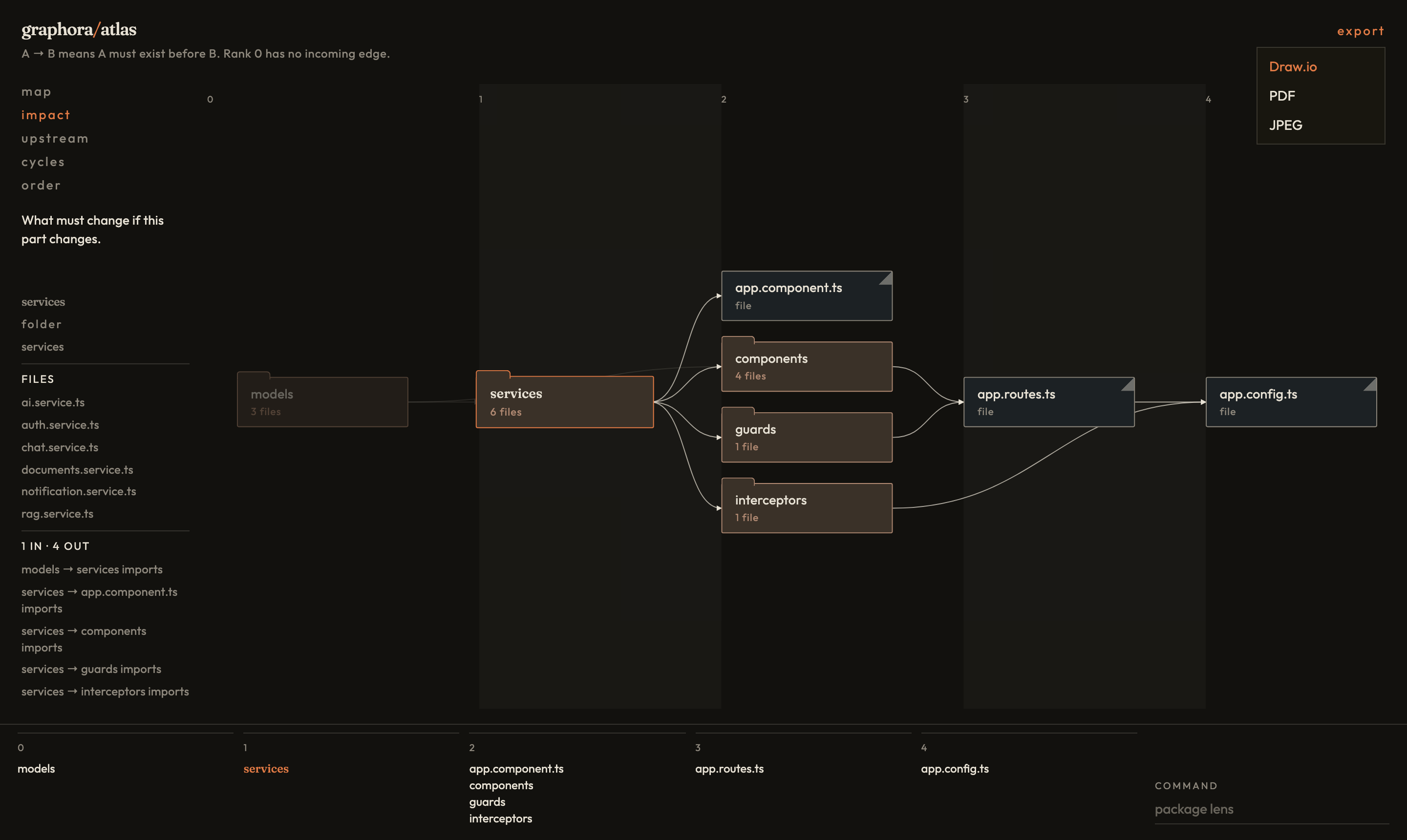
export sits at the top right of the map. It saves the picture on screen: the lens you have open, the selected node, any name you have typed to dim the rest, and any node you have dragged.
| Format |
What you get |
| Draw.io |
A .drawio file for diagrams.net. Nodes stay editable. |
| PDF |
A one-page PDF of the picture. |
| JPEG |
The picture painted at twice its on-screen size. |
The file name is the last folder of the project root and the lens: <project>-<lens>.<ext>. Export stays in the map. The extension commands do not write these files.
Commands
| Command |
What it does |
| Grafyx Atlas: Open Map |
Starts the map and shows it in an editor tab |
| Grafyx Atlas: Stop Map |
Closes the server this extension started |
| Grafyx Atlas: Show Impact |
Opens impact for the part under the cursor |
| Grafyx Atlas: Show Upstream |
Opens upstream for that part |
| Grafyx Atlas: Show Cycles |
Opens cycles and refreshes the Problems warnings |
| Grafyx Atlas: Show Build Order |
Opens order |
| Grafyx Atlas: Show Stats |
Opens stats |
| Grafyx Atlas: Go Deeper |
Opens the folder under the cursor |
| Grafyx Atlas: Refresh Diagnostics |
Scans again and republishes cycle warnings |
| Grafyx Atlas: Run Command |
The map's command box: <part> <lens>, for example services impact |
Open Map, Show Impact, Show Upstream, and Go Deeper are on the Explorer context menu. Show Impact and Show Upstream are on the editor context menu.
Inside the map, the same command box accepts either word first. A part name can be partial as long as it matches only one node. Arrow keys step along edges; Shift and the arrow keys step the other way. Escape clears the filter and the selection.
The text of each command is also written to the Grafyx Atlas output channel.
Settings
Settings follow the CLI. They do not add a second scan.
| Setting |
CLI |
Default |
grafyxAtlas.root |
--root |
workspace folder |
grafyxAtlas.port |
an edited value, otherwise PORT, then 4328 |
4328 |
grafyxAtlas.openIn |
editor tab, system browser, or --no-open |
editor |
grafyxAtlas.diagnostics |
cycle warnings from the same cycles call |
true |
grafyxAtlas.root empty uses the workspace folder that contains the file you invoked the command on. One open folder is used when there is no file. Several folders ask you to pick. A relative value resolves from that folder. An absolute value is used as written. The process working directory is not used.
grafyxAtlas.port defaults to 4328 so the CLI can keep 4318. An untouched setting still yields to the PORT environment variable. Once you set the port, that value is used and PORT is ignored.
grafyxAtlas.openIn:
editor shows the map in a VS Code tab. This is the default.external opens the system browser, the same place the CLI opens.none leaves the server running and does not open a window.
What the scan reads
The scan is the atlas scan. Atlas picks the map for the root you give it:
- Workspace. If the root's
package.json declares workspaces with more than one package, each package is a node. Edges come from package manifests and from relative re-exports. The lens sentences talk about packages and rebuilds.
- Source tree. Otherwise Atlas reads
<root>/src if it holds source files, and the root itself if it does not.
On a source map, source files are .ts, .tsx, .js, .mjs, .cjs, .mts, and .cts. .d.ts files, node_modules, dist, coverage, and dot-folders are skipped. Relative imports, re-exports, and dynamic import('…') calls become edges. Path aliases are followed when a tsconfig.json or jsconfig.json at the root defines paths.
The grafyx-atlas readme has the full rules, the library API, and the CLI options.
Diagnostics
Cycle warnings come from cycles. Each warning is attached to a file in that part, at the start of the file. The Problems panel uses severity Warning and source Grafyx Atlas. Turn them off with grafyxAtlas.diagnostics. They update when you run an atlas command, not on each keystroke.
Development
From the repository root:
npm ci
npm run build:vscode
build:vscode builds grafyx, builds grafyx-atlas (library, CLI, and the prebuilt map UI), then bundles this package to dist/extension.js and copies the map UI beside it.
Launch Grafyx Atlas from the Run and Debug view. That runs the Extension Development Host with this package. The pre-launch task is build:vscode.
npm test
npm run test -w grafyx-atlas-vscode
npm run typecheck
npm run package -w grafyx-atlas-vscode
npm test builds grafyx and grafyx-atlas first, then runs this package's tests with the rest of the suite. The package command writes grafyx-atlas-vscode-1.0.1.vsix in this directory. The vsix contains the bundled adapter and the prebuilt map UI.
See CONTRIBUTING.md for the repository's checks.
Limitations
- The scan reads the filesystem. Unsaved editor buffers are not part of the snapshot. The command warns you and still scans the saved copy. An untitled document has to be saved first.
- Diagnostics update when you run an atlas command, not on each keystroke.
- Cycle warnings are file-level. grafyx-atlas does not report the line of an import.
- Draw.io, PDF, and JPEG export stay in the map UI.
- The server listens on
127.0.0.1 only.
- A file outside the open workspace is scanned from the nearest parent
package.json. An absolute grafyxAtlas.root overrides that.
Troubleshooting
Port already in use. Another process, or a map you already started, has grafyxAtlas.port. Run Stop Map, or choose another port. The CLI uses 4318; this extension uses 4328.
Open a folder to map a project. The command had no workspace folder and no file to walk from.
grafyxAtlas.root is relative. A relative root needs a workspace folder.
Nothing deeper here. The folder has no source map inside it. That is the same result as the map server's 404.
The map is blank or shows a read error. The page still loads; the boot payload carries the atlas error. The output channel has the same message.
License
ISC. See LICENSE.

