lless
Agentless, chatbotless LLM interface for working in text and code. Do more with lless
Author
Greg Leo: (Website).
What is it?
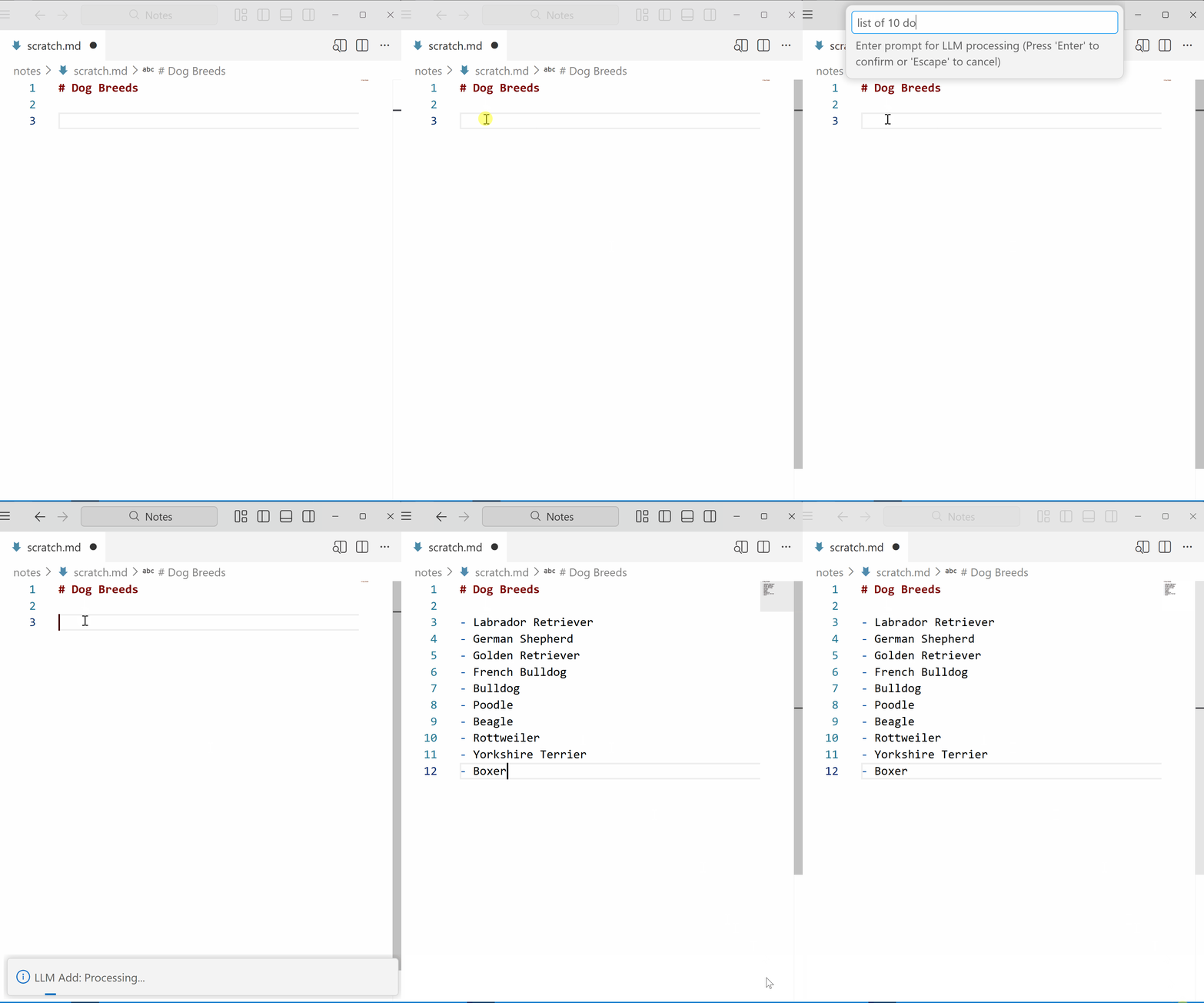
Lless is a tool that lets you use language models at your discretion. There is no chatbot. There is no agent. Just a single command. When text is selected, the selection is replaced with the LLM response. If no text is selected, the response is inserted at the cursor position. Context surrounding the cursor or selection is included for context‑awareness. The amount of context can be adjusted. Works across multiple cursors. Works with remote inference (OpenRouter / Similar) or locally (Ollama).
Usage
Run the command LLESS: LLM Process (lless.process) from the command palette (Ctrl+Shift+P). Try assigning it to a keyboard shortcut. Try Ctrl+Shift+t.
If there is no selection, LLESS: LLM Process will append the response at the cursor.
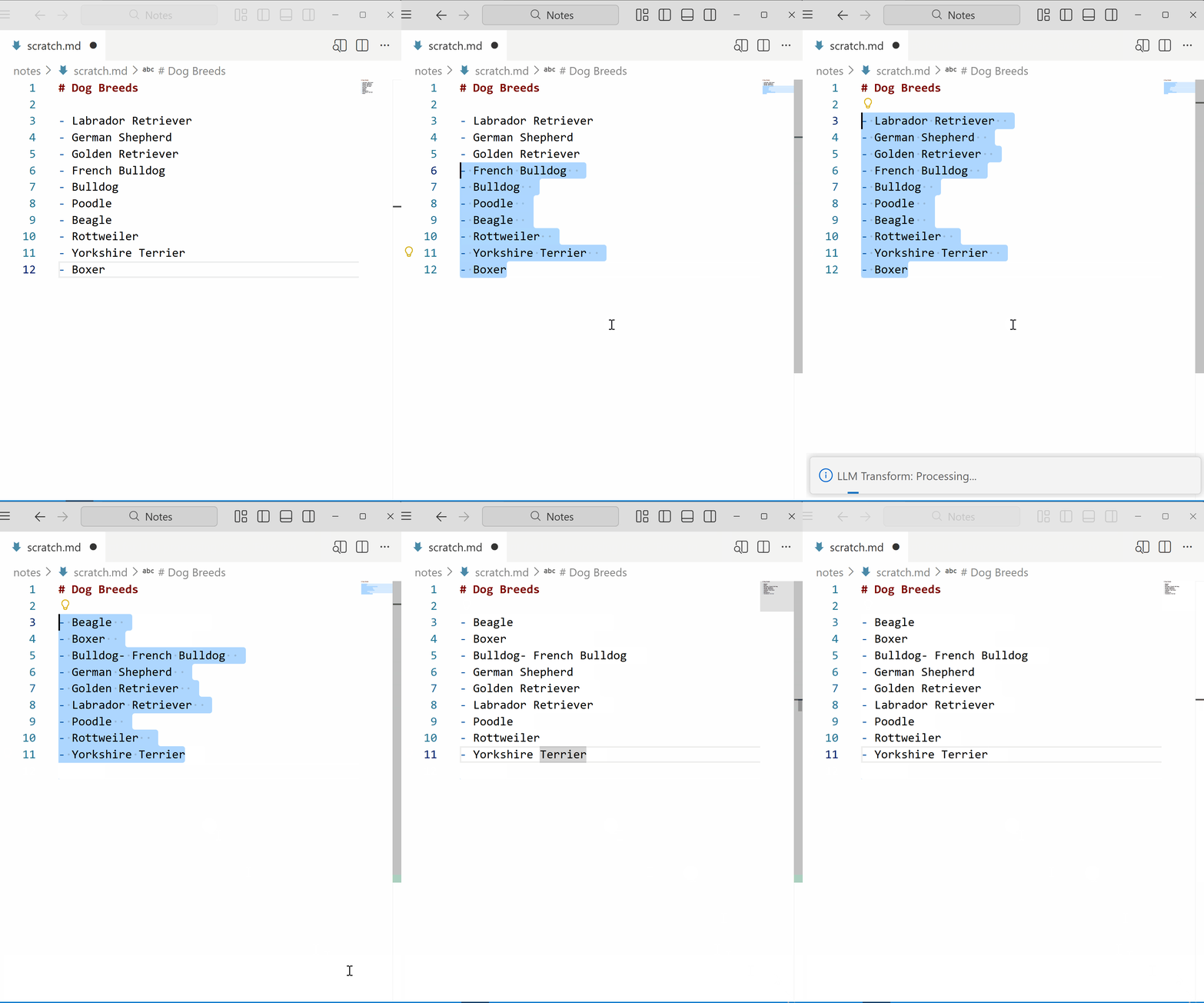
If you select text, run LLESS: LLM Process, and enter the transofmration you want in the prompt, the LLM response replaces the selection.
Work in prose, code, or whatever. Create a .lless file in your project root for custom instructions to be included with all LLM prompts.
Try working inside a diff buffer like workbench.files.action.compareWithSavedto see exactly how text is transformed.
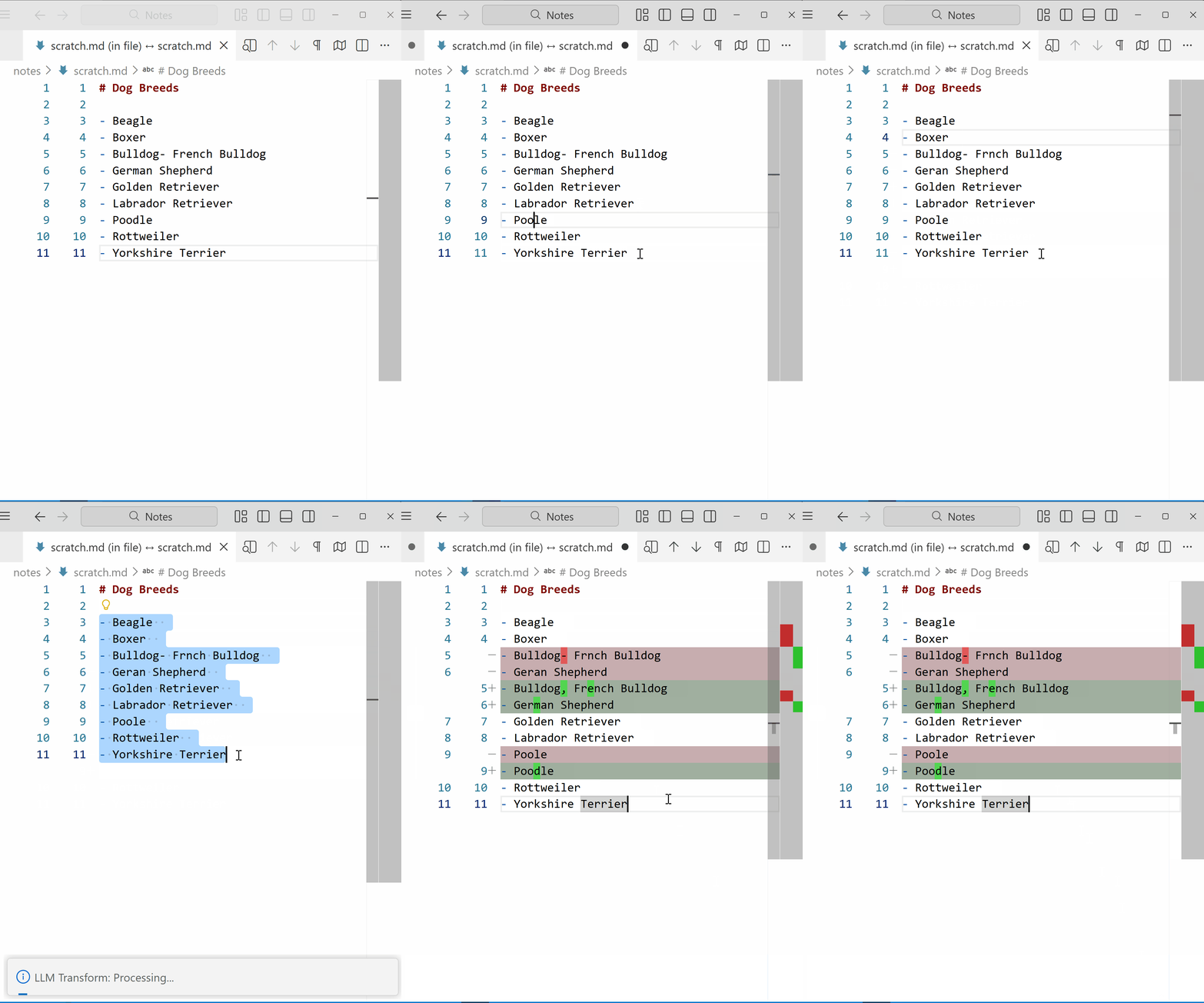
These settings in your VS Code settings.json help with visualization:
  "diffEditor.renderSideBySide": false,
  "workbench.colorCustomizations": {
    "diffEditor.insertedTextBackground": "#00ff007c",
    "diffEditor.removedTextBackground": "#ff00007c",
    "diffEditor.insertedLineBackground": "#12360e66",
    "diffEditor.removedLineBackground": "#72333666"
  }
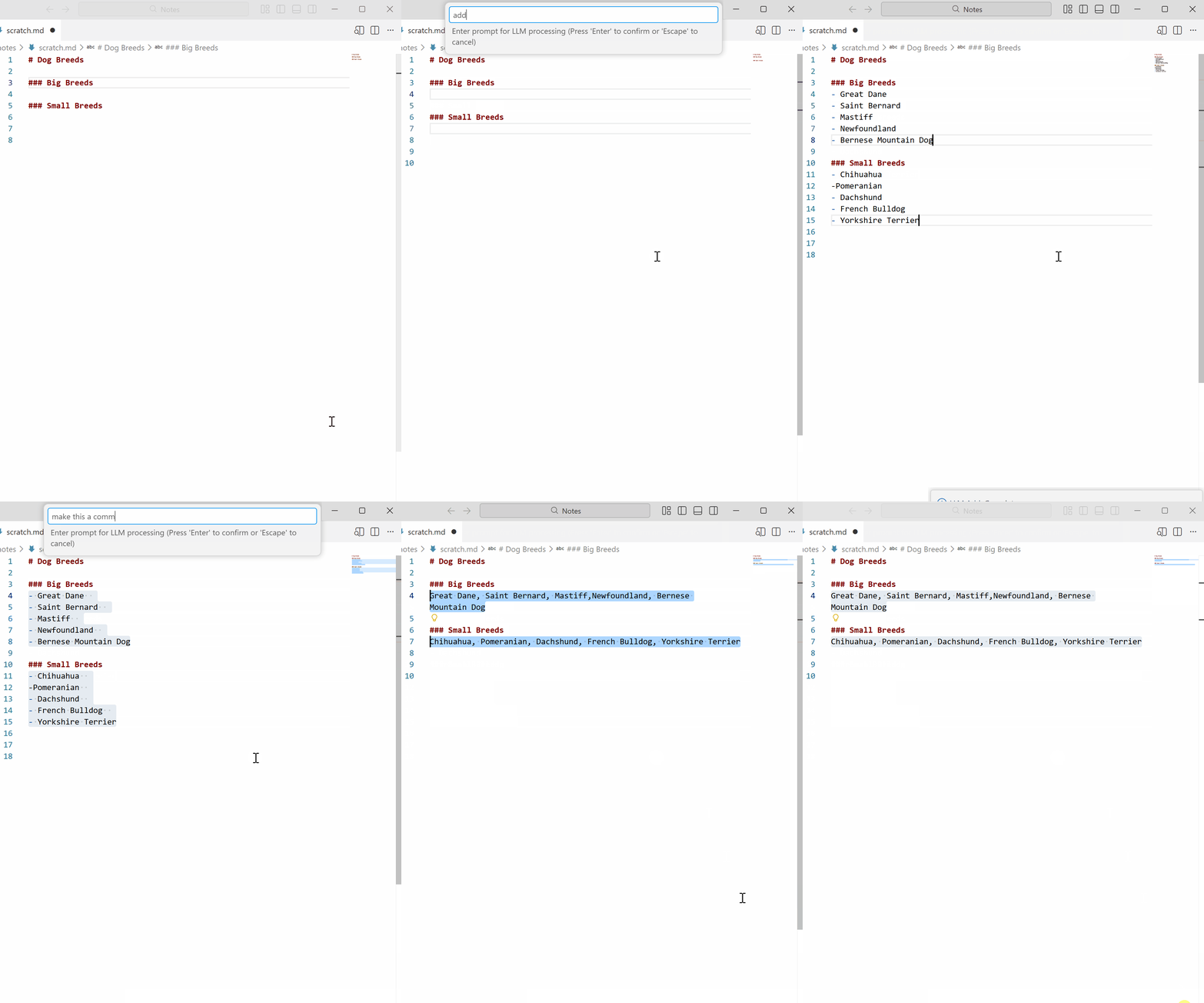
Both operations work across multiple cursors.
Setup
OpenRouter
- Get an API key from OpenRouter enter it in the lless:Api Key setting.
- Set Open Router as your model provider.
- Use base url https://openrouter.ai/api/v1.
- Select a model from here and enter it in the lless:Model setting.
- (Optional) Change the default context lines to send with the prompt in the lless:Context Lines setting.
Ollama
- Install Ollama.
- Set Ollama as your model provider.
- Pull a model. For example
ollama pull qwen3-coder:30b
- Run ollama server
ollama serve
- Set your model in lless:Model setting.
- (Optional) Change the default context lines to send with the prompt in the lless:Context Lines setting.

