GitNomad — Desktop
Pair your computer with the GitNomad mobile app and keep your local git repos in sync with your phone.
- Edit a file on your phone → it lands here as a commit.
- Edit here in VS Code → it shows up on your phone within seconds (even unsaved drafts).
- Run a command from your phone → it runs on this machine and streams the output back.
Your local git repository stays the source of truth — nothing is pushed to GitHub unless you ask.
Requires the GitNomad Android app. Get it on Google Play »
⏳ The Android app is currently in closed testing and will be publicly available on Google Play very soon. If the Play link isn't open for you yet, hang tight — it's on the way.
See it
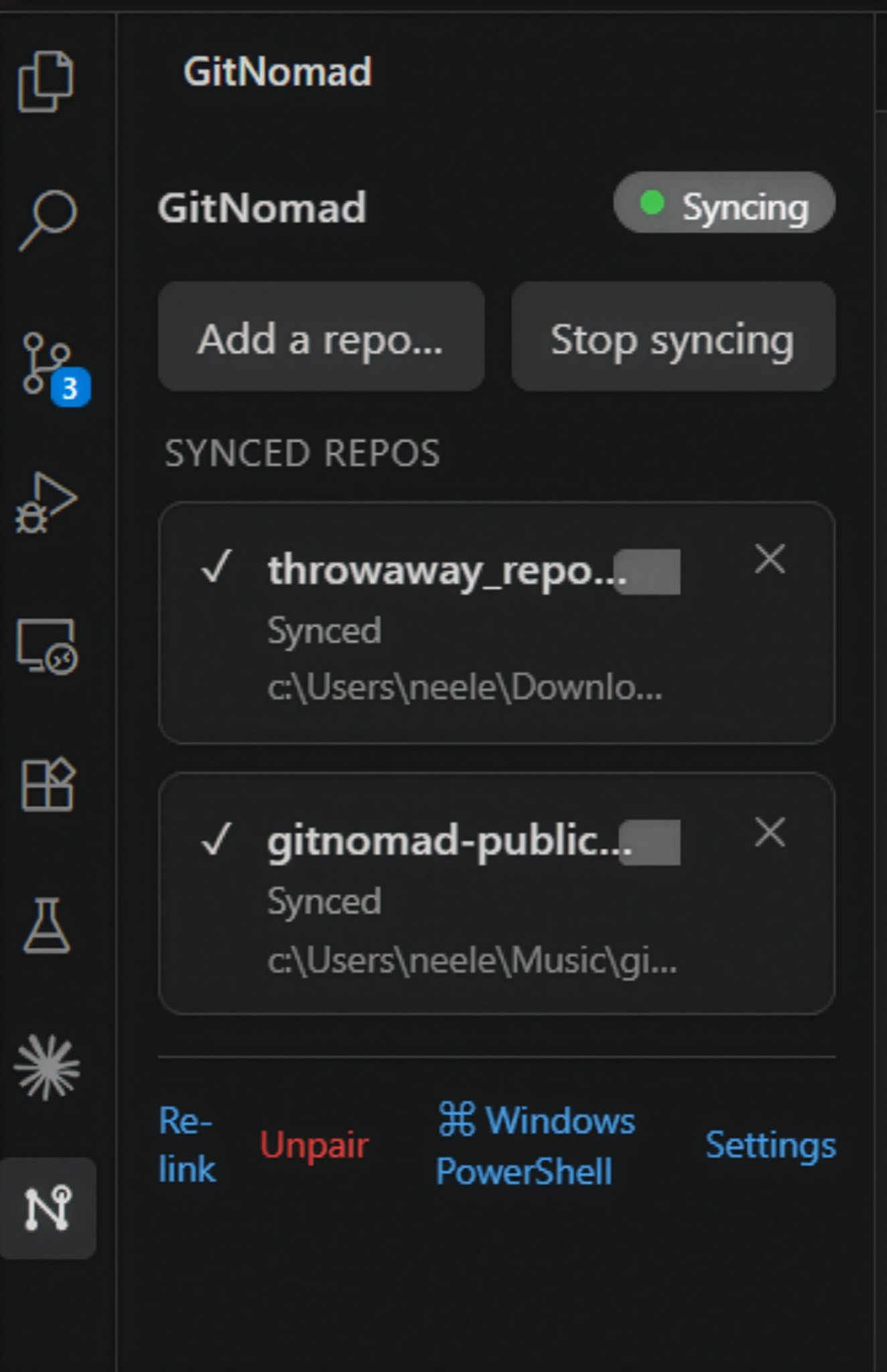
The GitNomad panel — every repo you expose, with live sync status:
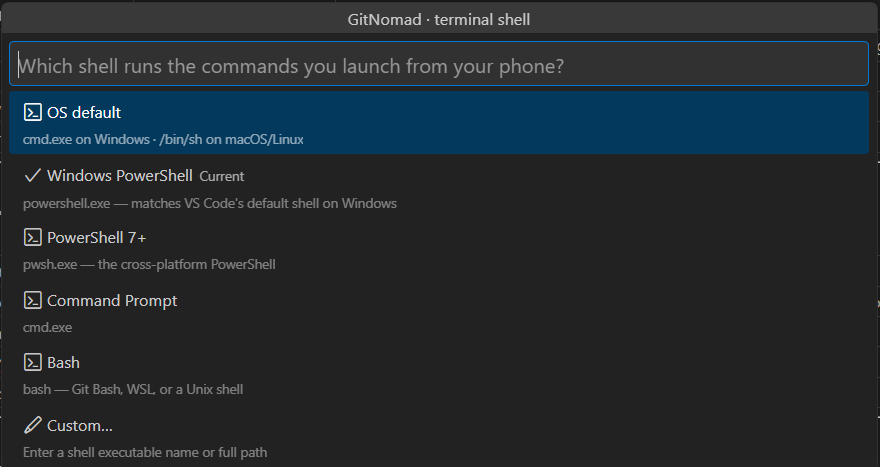
Pick the shell your phone commands run in — PowerShell, cmd, bash (Git Bash / WSL), or a custom path:
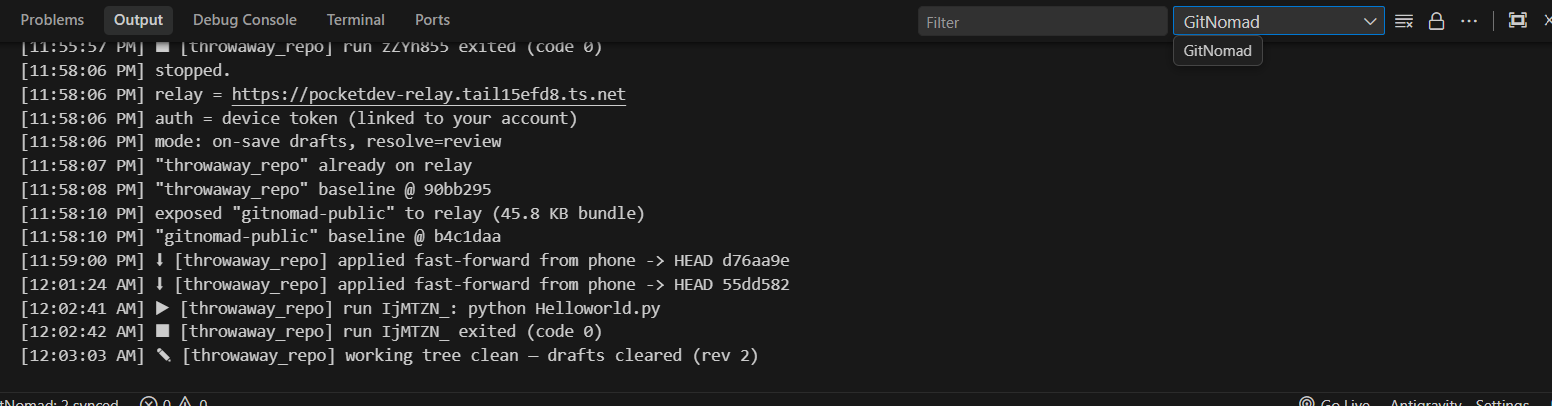
Full activity log in the GitNomad output channel:
Getting started
- Install the GitNomad app on your phone and sign in with GitHub or Google.
- Install this extension and open your project in VS Code.
- Open the GitNomad panel from the activity bar → Add a repo (or it picks up the git repos already open).
- On the phone: Profile → Link desktop to get a 6-digit code. In VS Code: Link to my account… and enter it.
- Your repos now appear in the phone app. Browse, edit, and run.
Keep VS Code open and connected while you sync — on the free plan your computer does the real work. Cloud execution for when your PC is off is on the roadmap.
What you get
- GitNomad sidebar — one row per exposed repo with live state:
Synced, Syncing…, Retrying…, or Diverged — review on phone. Remove a repo with the ✕.
- Choose your shell — click the shell name in the footer (or run GitNomad: Select shell) to pick which shell runs commands sent from your phone. Auto-detects Git Bash / WSL.
- Two-way sync with live drafts — even unsaved edits in VS Code show up on the phone.
- Safe merges — if both sides change the same lines, you get a green/red per-hunk review on the phone instead of raw conflict markers.
- Status bar + output log — see sync state at a glance; click for the full stream.
Settings
| Setting |
Default |
Meaning |
gitnomad.relayUrl |
"" |
Relay base URL. Leave default to use the hosted GitNomad relay. |
gitnomad.repos |
[] |
Absolute paths to expose. Empty = every open workspace folder that's a git repo. |
gitnomad.runShell |
default |
Shell for phone-triggered commands: default | powershell | pwsh | cmd | bash. |
gitnomad.drafts |
true |
Push unsaved edits to the phone as live drafts. |
gitnomad.resolve |
review |
Divergence strategy: review | manual | desktop | phone. |
gitnomad.autoStart |
true |
Start sync on VS Code launch (if a relay + repos are set). |
gitnomad.token |
"" |
Optional shared account token. Leave blank if you use Link to my account — a linked device token always wins. |
Commands
Run from the Command Palette:
- GitNomad: Link to my account… — redeem the code from your phone (Profile → Link desktop).
- GitNomad: Expose a repo… — pick folder(s) to sync.
- GitNomad: Select shell — choose the shell for phone-run commands.
- GitNomad: Start / Stop / Restart Sync
- GitNomad: Show logs
Privacy
The extension only exposes the repos you choose. Your code is synced through GitNomad's relay so your devices can exchange it — it is not read, analyzed, sold, or shared. Everything is encrypted in transit. See the Privacy Policy.
Support

