🦞 Lobster Console 🎮
A playful extension that provides an immersive 3D game environment where you control a lobster in an office lobby. Walk to different command counters and execute terminal commands by interacting with them!
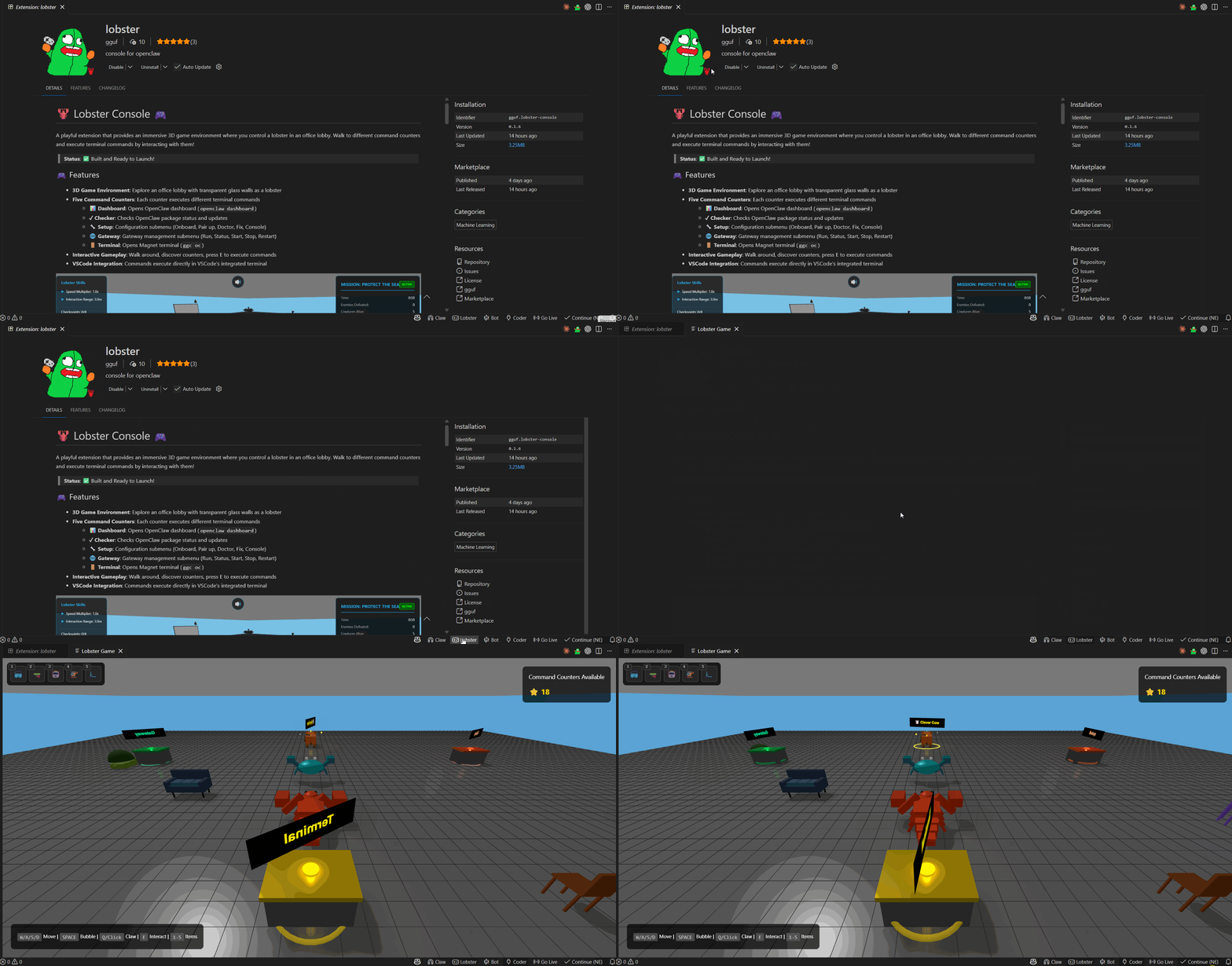 *just click the
 🎮Lobster icon located on bottom right status bar, have fun!
Status: ✅ Built and Ready to Launch!
🎮 Features
- 3D Game Environment: Explore an office lobby with transparent glass walls as a lobster
- Five Command Counters: Each counter executes different terminal commands
- 📊 Dashboard: Opens OpenClaw dashboard (
openclaw dashboard)
- ✓ Checker: Checks OpenClaw package status and updates
- 🔧 Setup: Configuration submenu (Onboard, Pair up, Doctor, Fix, Console)
- 🌐 Gateway: Gateway management submenu (Run, Status, Start, Stop, Restart)
- 🚪 Terminal: Opens Magnet terminal (
ggc oc)
- Interactive Gameplay: Walk around, discover counters, press E to execute commands
- VSCode Integration: Commands execute directly in VSCode's integrated terminal
🚀 Quick Start
cd lobster
npm install
npm run compile
Then press F5 in VSCode to launch the extension!
🎯 How to Use
- Launch: Press F5 to open Extension Development Host
- Open Game: Click the 🦞 Lobster icon in the status bar (bottom right)
- Move: Use WASD or arrow keys to walk around
- Camera: Drag mouse to rotate, scroll to zoom
- Interact: Walk near a counter and press E
- Execute: Select a command from the dialogue menu
- Watch: The command runs in the VSCode terminal!
🎨 Command Counters Layout
           Z (North)
              ▲
              │
       Setup  │  🌐 Gateway
  (Orange)    │   (Green)
              │
    ──────── 🚪 ────────► X (East)
          Terminal
          (Gold)
              │
     Dashboard│  ✓ Checker
    (Blue)    │  (Purple)
              │
🕹️ Controls
| Key |
Action |
| W / ↑ |
Move forward |
| S / ↓ |
Move backward |
| A / ← |
Turn left |
| D / → |
Turn right |
| E |
Interact with counter |
| Mouse Drag |
Rotate camera around lobster |
| Mouse Wheel |
Zoom in/out |
📦 What's Inside
The extension replicates all functionality from the "claw" extension in 3D:
| Claw Menu |
Lobster Counter |
Command |
| Dashboard |
Blue counter |
openclaw dashboard |
| Checker |
Purple counter |
Package check logic |
| Setup → Onboard |
Orange counter → Onboard |
openclaw onboard |
| Setup → Doctor |
Orange counter → Doctor |
openclaw doctor |
| Setup → Fix |
Orange counter → Fix |
openclaw doctor --fix |
| Setup → Console |
Orange counter → Console |
openclaw tui |
| Setup → Pair up |
Orange counter → Pair up |
Pairing flow |
| Gateway → Run |
Green counter → Run |
openclaw gateway run |
| Gateway → Status |
Green counter → Status |
openclaw gateway status |
| Gateway → Start |
Green counter → Start |
openclaw gateway start |
| Gateway → Stop |
Green counter → Stop |
openclaw gateway stop |
| Gateway → Restart |
Green counter → Restart |
openclaw gateway restart |
| Terminal |
Gold counter |
ggc oc |
🛠️ Development
# Install dependencies
npm install

# Build extension (uses esbuild for webview)
npm run compile

# Build with webpack (alternative)
npm run compile-webpack

# Watch mode for extension code
npm run watch

# Watch mode for game code (webpack)
npm run webpack-dev

# Launch in debug mode
Press F5 in VSCode
📁 Project Structure
lobster-game-extension/
├── src/
│   ├── extension.ts           # Entry point, status bar
│   ├── gamePanel.ts           # Webview management
│   ├── commandExecutor.ts     # Terminal commands
│   └── webview/               # 3D game code
│       ├── main.ts            # Game loop
│       ├── scene.ts           # Office environment
│       ├── lobster.ts         # Player controller
│       ├── counters.ts        # Command stations
│       ├── interactionSystem.ts  # Interaction logic
│       └── ui.ts              # UI management
├── out/                       # Compiled output
│   ├── extension.js
│   ├── gamePanel.js
│   ├── commandExecutor.js
│   └── webview/
│       └── game.js            # Bundled game (879 KB)
├── package.json               # Extension manifest
├── tsconfig.json              # Extension TS config
├── tsconfig.webview.json      # Webview TS config
├── build-webview.js           # esbuild script
└── webpack.config.js          # Webpack config (alternative)
🔧 Requirements
- VSCode: 1.74.0 or higher
- Node.js: v16 or higher
- WSL: Required for Windows (Ubuntu distribution)
- OpenClaw: Optional (the extension helps you install it via Checker)
🐛 Troubleshooting
Build Fails
# Clean install
rm -rf node_modules package-lock.json out
npm install
npm run compile
Extension Doesn't Load
- Check Debug Console for errors
- Verify all files in
out/ directory exist
- Try reloading: Press Ctrl+R in Extension Development Host
Game Shows Black Screen
- Open DevTools: Help > Toggle Developer Tools
- Check Console for errors
- Verify WebGL support: https://get.webgl.org/
Lobster Won't Move
- Click inside the game canvas to focus it
- Check if keyboard events are captured (open DevTools Console)
Commands Don't Execute
- Windows: Ensure WSL is installed and Ubuntu is set up
- Check Terminal panel for new terminals
- Verify command paths in
commandExecutor.ts
📚 Documentation
- BUILD_FIX.md - How the build issue was fixed
- BUILD.md - Detailed build instructions
- LAUNCH.md - Launch guide and success checklist
- ARCHITECTURE.md - System architecture diagrams
- IMPLEMENTATION_SUMMARY.md - Complete implementation overview
🎯 Tips
- Find Counters: Look for colored glowing rings on the floor
- Counter Labels: Each counter has a label floating above it
- Interaction Prompt: "Press E to interact" appears when you're close enough
- Dialogue: Click options in the dialogue box to select commands
- Multiple Terminals: Each command can open its own terminal
🌟 Credits
- Three.js: 3D rendering engine
- VSCode API: Extension framework
- Claw Extension: Original command interface inspiration
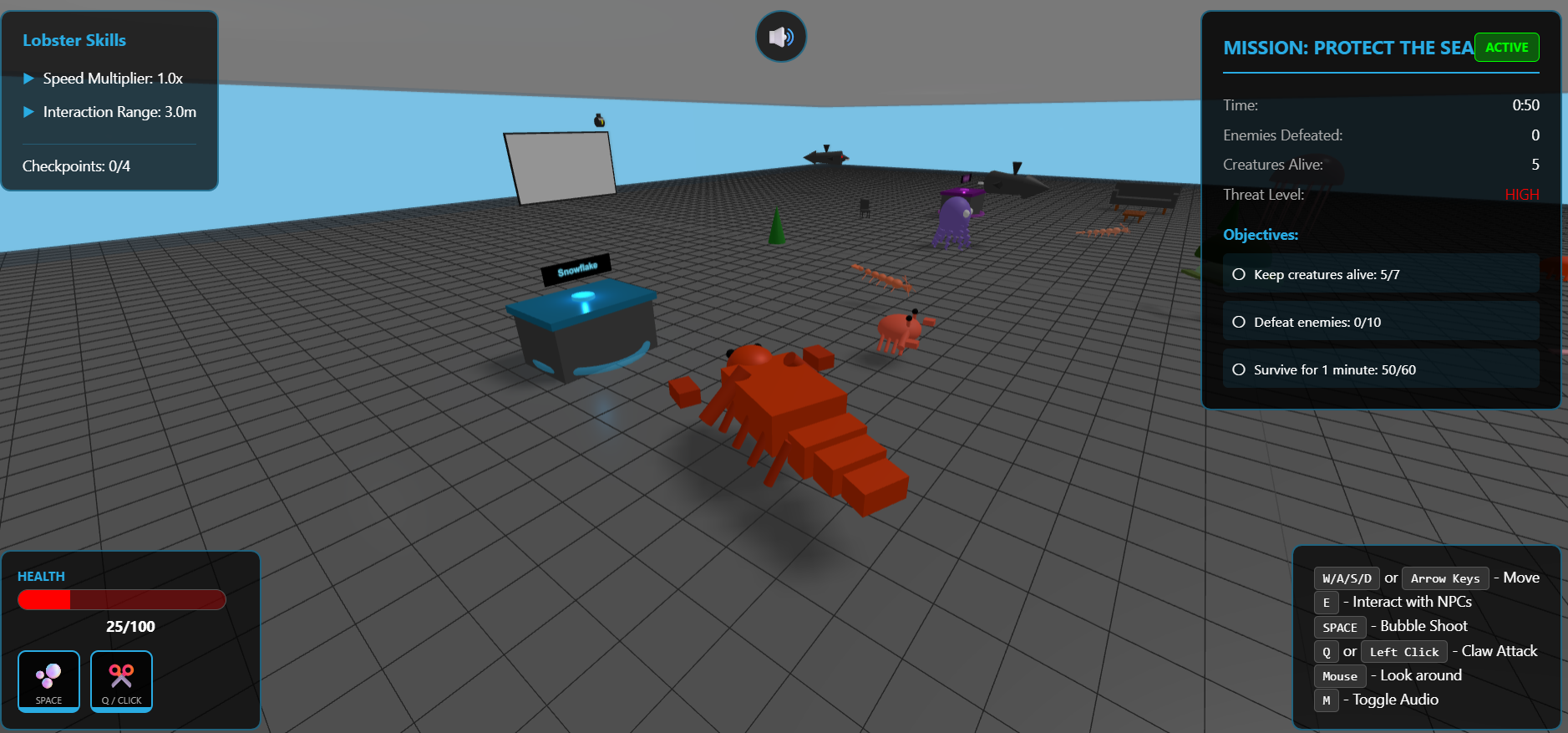
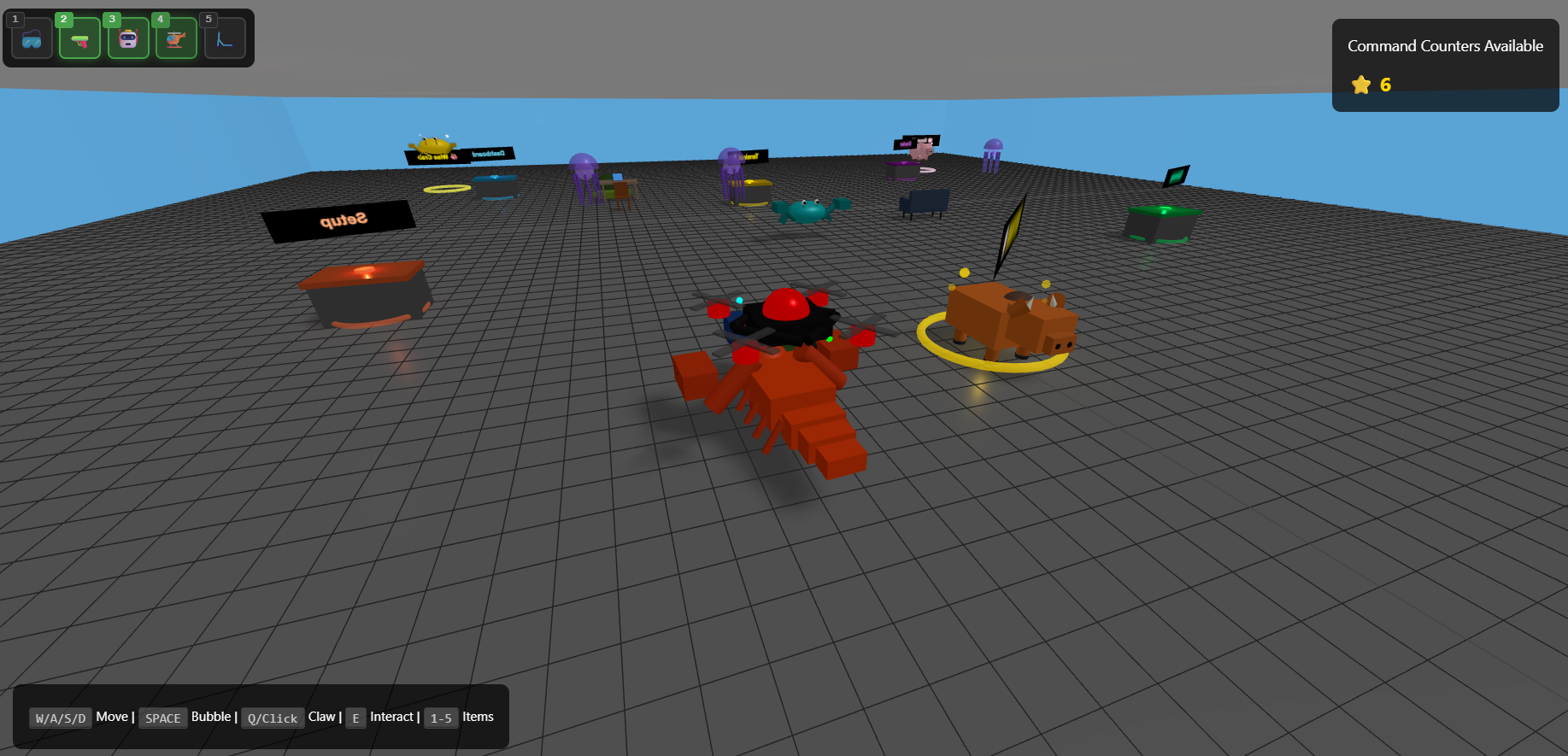
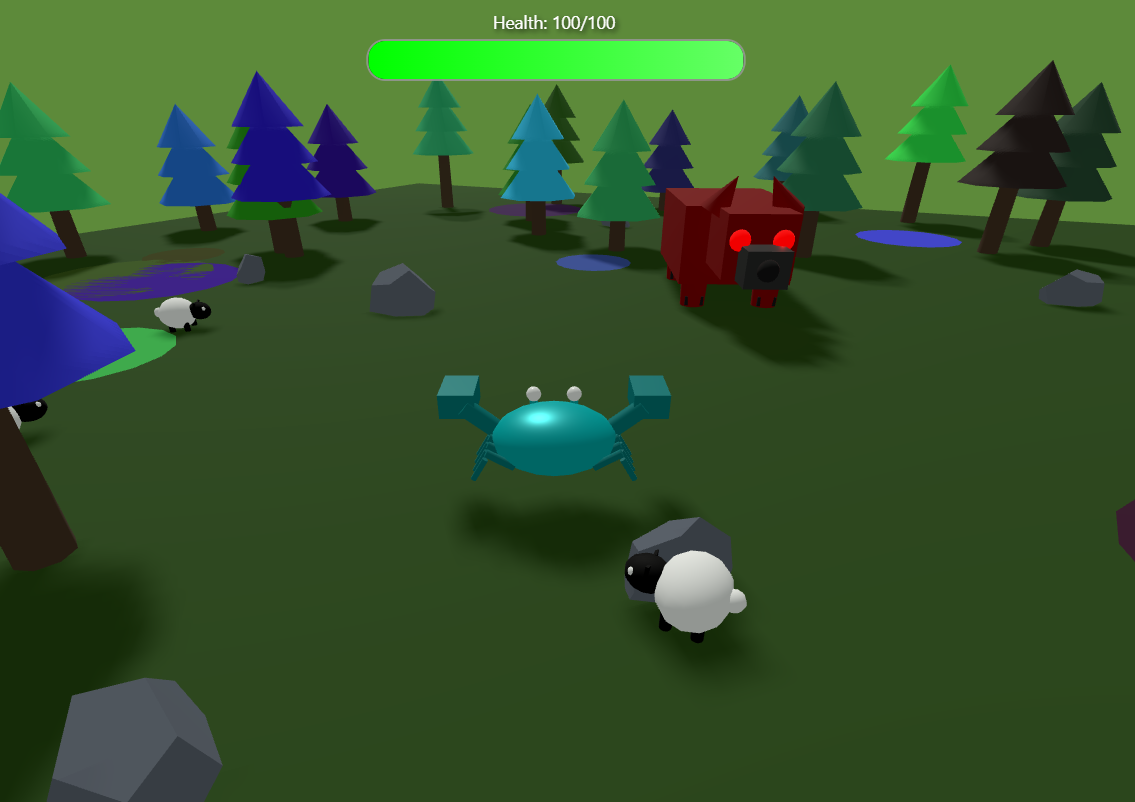 *saving poor sheep, talk to pig for mission acceptance and earn stars for exchanging awesome tools from cow
📄 License
MIT
Ready to play? Press F5 and click the lobster icon! 🦞✨