gguf-editor
A Visual Studio Code extension for viewing and inspecting GGUF (GGML Universal File Format) model files. GGUF is a binary format used for storing machine learning models, particularly those compatible with llama.cpp and similar inference engines.
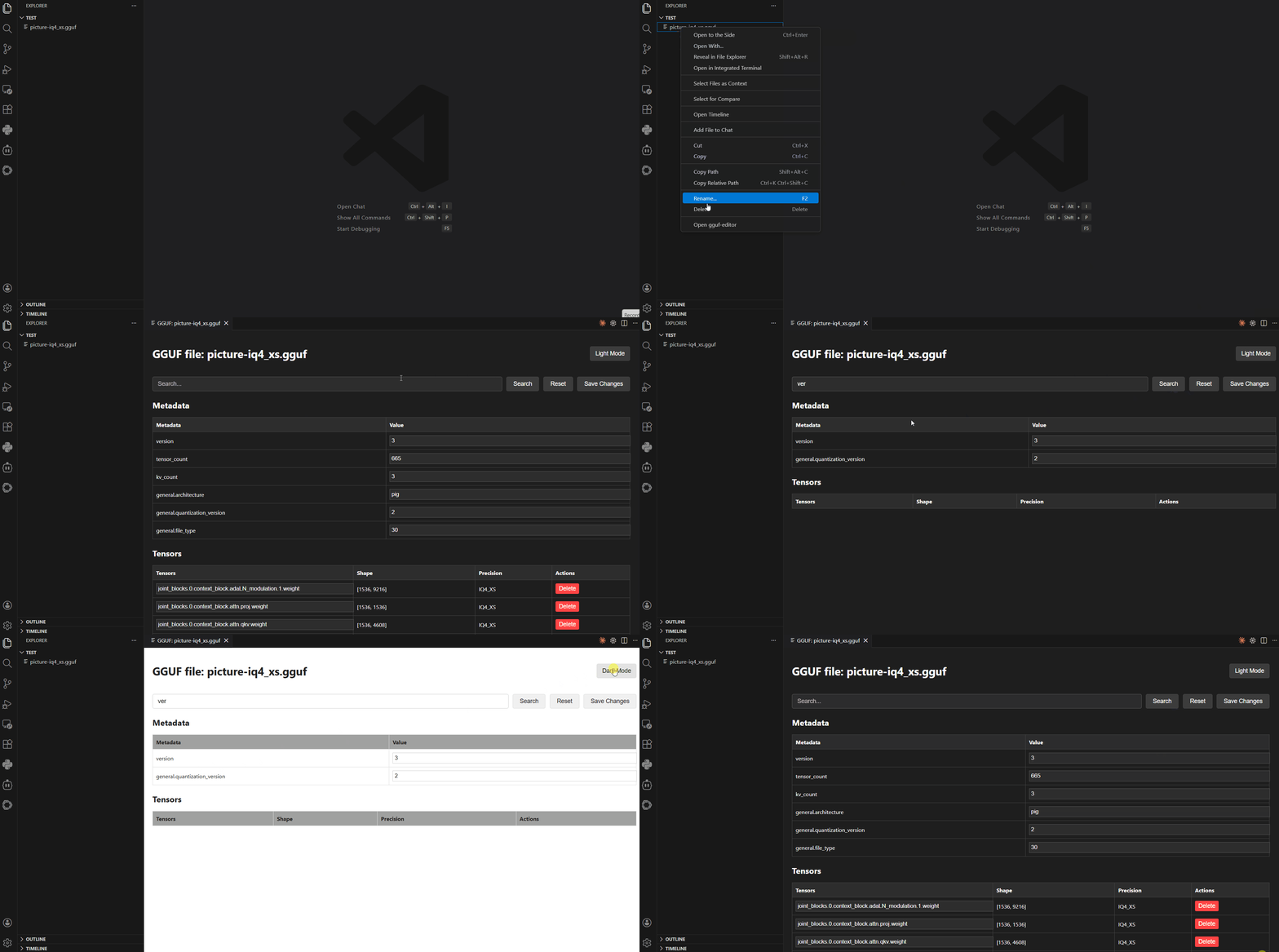
Features
- Metadata Inspection: View all metadata key-value pairs stored in the GGUF file
- Tensor Information: Display tensor names, shapes, and quantization types
- Search Functionality: Search through metadata and tensor information
- Array Truncation: Configurable maximum number of array elements to display
- Context Menu Integration: Right-click on
.gguf files in the explorer to open them
- Webview Interface: Clean, responsive interface for browsing file contents
- Dark/Light Mode Toggle: Switch between dark and light themes with a fixed toggle button
- Theme Persistence: Your theme preference is saved and restored on subsequent opens
- Editable Metadata: Direct editing of metadata fields within the interface
- File Saving: Save changes made to GGUF files back to disk
Project Structure
gguf-editor/
├── src/
│   ├── extension.ts          # Main extension entry point
│   ├── utils.ts              # Utility functions for GGUF processing and webview content
│   └── constants.ts          # HTML templates and CSS constants
├── assets/
│   └── images/
│       └── icon.png          # Extension icon
├── test/
│   └── extension.test.ts     # Extension tests
├── package.json              # Extension configuration and dependencies
├── tsconfig.json             # TypeScript configuration
├── esbuild.js                # Build configuration
├── eslint.config.mjs         # ESLint configuration
├── CHANGELOG.md              # Release history
├── LICENSE                   # MIT License
├── README.md                 # This file
└── PROJECT.md                # Project documentation
Requirements
- Visual Studio Code version 1.104.0 or higher
- GGUF files to inspect (typically model files from AI/ML projects)
Installation
- Open Visual Studio Code
- Go to the Extensions view (Ctrl+Shift+X)
- Search for "gguf-editor"
- Click Install
Usage
Opening GGUF Files
- Via Context Menu: Right-click on any
.gguf file in the Explorer panel and select "Open gguf-editor"
- Via Command Palette: Open the Command Palette (Ctrl+Shift+P) and run "gguf-editor: Open gguf-editor"
Interface Overview
The extension opens a webview panel displaying:
- File Header: Shows the filename
- Search Bar: Filter metadata and tensors by search term
- Metadata Table: Key-value pairs from the file's metadata
- Tensors Table: Information about each tensor including name, shape, precision type, and hide/removal actions
Search Functionality
- Enter text in the search box to filter results
- Search works across metadata keys/values and tensor names/shapes/precision
- Click "Reset" to clear the search and restore any temporarily removed tensors
Extension Settings
This extension contributes the following settings:
gguf-editor.maxArrayElements: Maximum number of elements to display in metadata arrays (default: 25)
To change these settings:
- Open VS Code settings (Ctrl+,)
- Search for "gguf"
- Modify the desired setting
Development
Prerequisites
- Node.js (version 16 or higher)
- npm
Building
npm install
npm run compile
Testing
npm test
Packaging
npm run package
This creates a .vsix file in the root directory that can be installed in VS Code.
Contributing
Contributions are welcome! Please feel free to submit a Pull Request.
Acknowledgments
AgainstEntropy (MIT License), huggingface.js (MIT License), llama.cpp (MIT License), etc., and thanks to all contributors for their hard work.
License
This project is licensed under the MIT License - see the LICENSE file for details.
Release Notes
See CHANGELOG.md for details on recent changes and updates.

