AL Translation Requirements
Visual indicators and validation tools for managing translation files in Business Central AL extensions.
Features
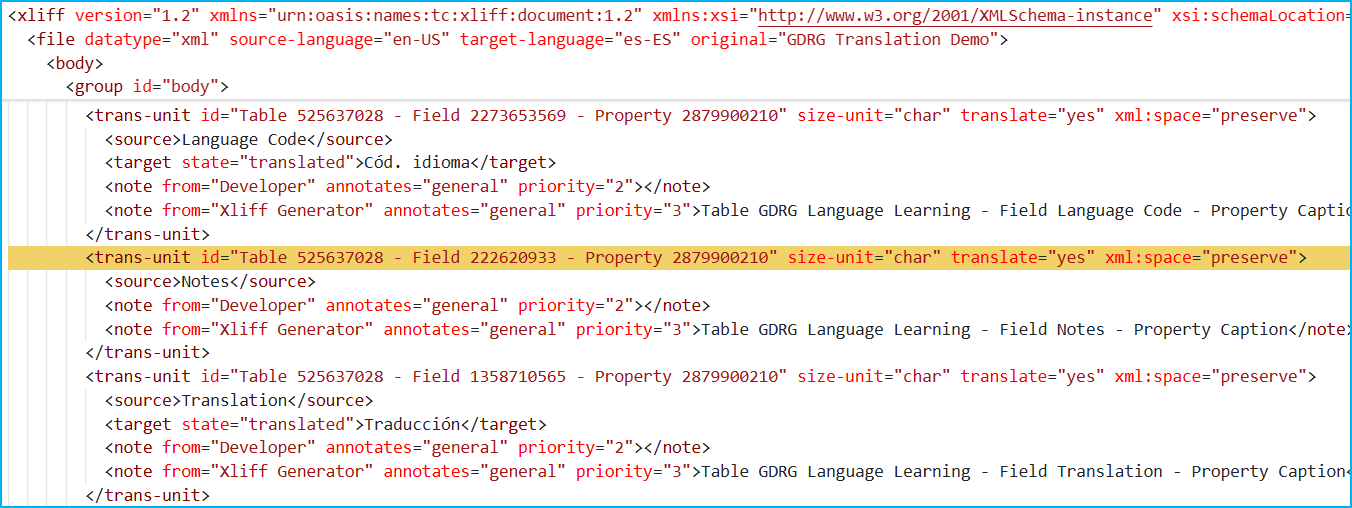
Visual Translation Status
Visual highlighting directly in your XLF files to identify missing or incomplete translations. The extension works differently depending on which file you're viewing:
When viewing the G.xlf file (generated file)
The extension checks all language-specific translation files in your workspace and highlights trans-units that have issues in any of them.
A trans-unit is highlighted in g.xlf when at least one language file has:
- Missing
<target> element
- Empty
<target> element (no text content)
- Target with state
needs-translation or new
Purpose: Gives you an overview of which trans-units need attention across all languages.
When viewing language-specific files (e.g., es-ES.xlf, fr-FR.xlf)
The extension checks only that specific file and highlights trans-units that have issues in it.
A trans-unit is highlighted in a language file when:
- The
<target> element doesn't exist
- The
<target> element is empty (no text content)
- Target has state
needs-translation or new
Purpose: Shows you exactly which trans-units need translation work in that specific language.
Highlight color: Configurable via settings (default: #F0D269). Change it to any hex color you prefer in settings: alTranslationRequirements.decoration.backgroundColor
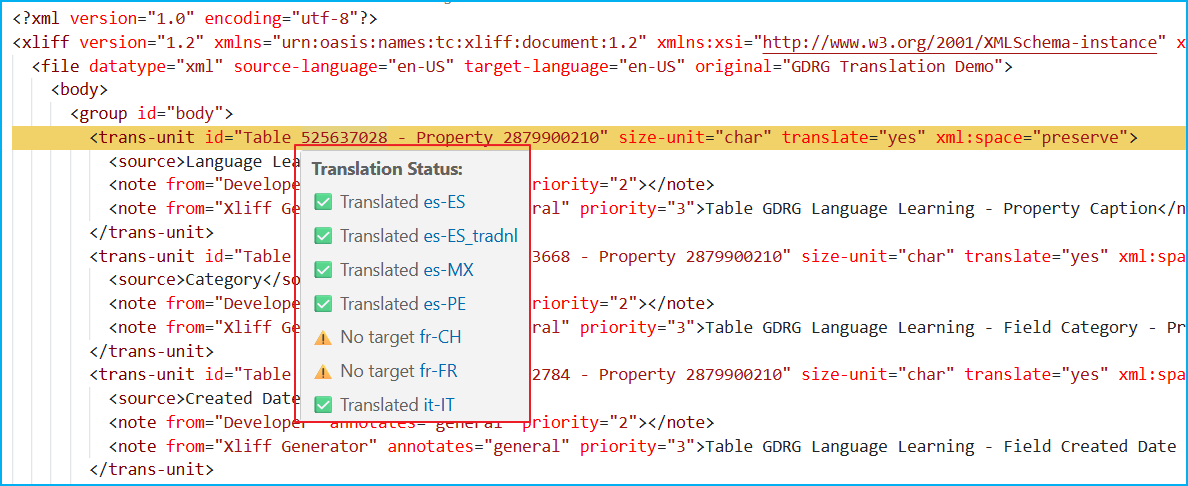
Only available in g.xlf file. Hover over any <trans-unit> in the g.xlf file to see complete translation status across all language files in your workspace.
Status indicators:
- ✅ Translated: Translation completed with target content
- ⚠️ No target: The
<target> element doesn't exist (triggers highlighting)
- ⚠️ Empty target: The
<target> element exists but is empty (triggers highlighting)
- ⚠️ Needs translation: State
needs-translation or new (triggers highlighting)
- 🔍 Needs review: State
needs-adaptation or needs-review-translation (info only, no highlighting)
- ❌ Missing trans-unit: The trans-unit ID doesn't exist in the file
- ❌ Error reading file: File access error
Interactive feature:
- Click on any language code to open that translation file directly
Note: This feature only works in the g.xlf file. Individual language files (es-ES.xlf, fr-FR.xlf, etc.) do not show hover tooltips since you're already working in that specific language context.
Validation & Enforcement
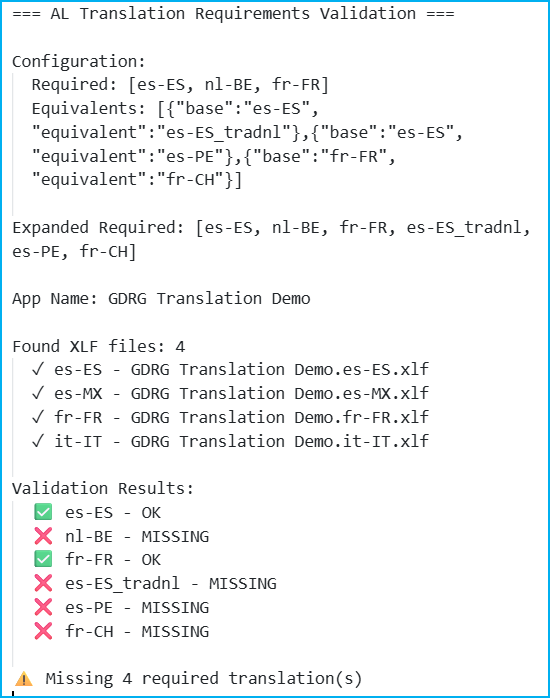
Ensure all required languages are translated before deployment:
- Define required language codes in settings (e.g.,
["es-ES", "fr-FR"])
- Run validation via Command Palette (
Ctrl+Shift+P → AL Translation Requirements: Validate)
- Missing translations appear in VS Code's PROBLEMS panel
- Prevents incomplete translations from going unnoticed
Expanded Required Languages:
When you configure equivalent languages, the validation automatically includes them. For example, if you set es-ES as required and have es-ES_tradnl as an equivalent, both will be validated. This ensures regional variants are not forgotten.
Equivalent Languages
Automatically create and maintain translation files for equivalent languages:
- Configure base-to-equivalent mappings (e.g.,
es-ES → es-MX)
- Run Sync Equivalents command to create/overwrite files
- Perfect for regional variants:
fr-FR → fr-CH, en-US → en-GB
- Supports Business Central traditional Spanish:
es-ES → es-ES_tradnl
Learn more about Spanish translation improvements in Business Central
Quick Start
Configuration
{
  "alTranslationRequirements.required": ["es-ES", "fr-FR"],
  "alTranslationRequirements.equivalents": [
    { "base": "es-ES", "equivalent": "es-MX" },
    { "base": "es-ES", "equivalent": "es-ES_tradnl" },
    { "base": "fr-FR", "equivalent": "fr-CH" }
  ],
  "alTranslationRequirements.decoration.enabled": true,
  "alTranslationRequirements.decoration.backgroundColor": "#F0D269"
}
Commands
- Validate Translations:
Ctrl+Shift+P → AL Translation Requirements: Validate
- Sync Equivalents:
Ctrl+Shift+P → AL Translation Requirements: Sync Equivalents
Settings
| Setting |
Type |
Default |
Description |
alTranslationRequirements.required |
array |
[] |
Required language codes |
alTranslationRequirements.equivalents |
array |
[] |
Base/equivalent language mappings |
alTranslationRequirements.decoration.enabled |
boolean |
true |
Enable/disable visual highlighting |
alTranslationRequirements.decoration.backgroundColor |
string |
"#F0D269" |
Highlight color (hex) |
Requirements
- VS Code 1.85.0 or higher
- Business Central AL extension project with
app.json with the TranslationFile feature enabled:
{
  "features": [
    "TranslationFile"
  ]
}
Release Notes
1.0.0
Initial release of AL Translation Requirements
- Visual highlighting for missing or incomplete translations in XLF files
- Hover tooltips showing translation status across all languages (g.xlf only)
- Validation of required language files with Problems panel integration
- Automatic sync of equivalent language variants
- Configurable highlight color
📄 License
MIT License - Gerardo Rentería
🤝 Contributions
Contributions welcome! Visit the source code on my GitHub repository.
If you buy me a coffee, I'm sure it will help me stay awake and keep contributing 🙂

⭐ Was this helpful?
Give a star to the repository!
Enjoy!

