AL Object Visualizer
Visual tools for Business Central AL development: color-coded file decorations in the Explorer, an object statistics panel with folder grouping, and a search/filter experience that lets you navigate directly to any AL object.
Features
🎨 File Decorations in Explorer
Instantly recognize each AL file by its object type without opening it:
- Automatically detects the AL object type by scanning file content
- Applies a color indicator and/or a Unicode badge directly on the file icon in the Explorer
- Works with all AL object types:
table, page, codeunit, report, enum, interface, and more
- Fully configurable — choose any color and any Unicode character per type

📊 Object Statistics Panel
A dedicated AL Object Visualizer panel in the Explorer sidebar shows object counts and lets you explore your workspace structure:
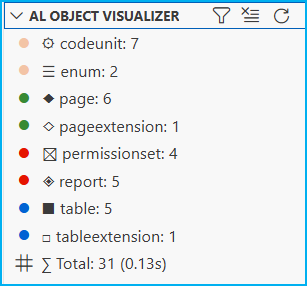
- Lists all detected object types with their count
- Flat view (depth
0): single-level list of all types with totals
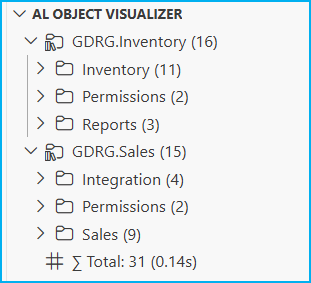
- Folder view (depth
1–3): groups objects by their folder path up to the configured depth level
- Multi-root workspace support: adds a top-level workspace node per root folder, then drills down into subfolders and types
- Shows total object count and scan duration at the bottom of the tree
- Click any object type row to open a quick-pick list of all matching files
🔍 Search & Filter
Filter the statistics panel to find exactly what you need:
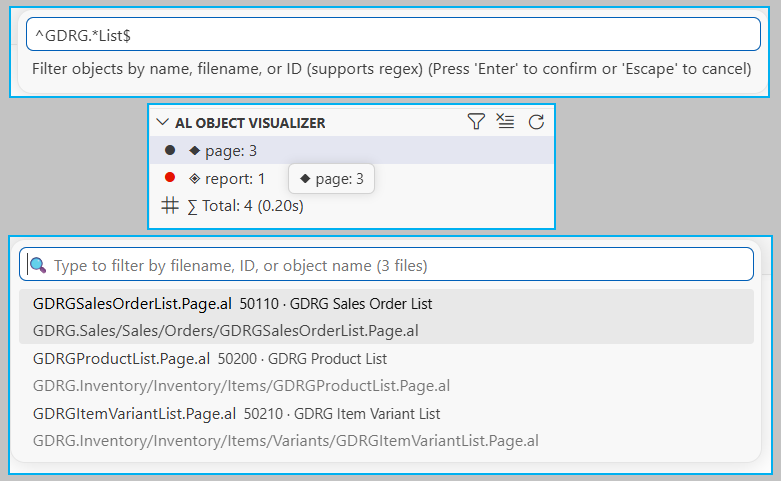
- Search by object name, filename, or object ID
- Supports regular expressions for advanced patterns
- The tree updates live as you type — counts adjust to match only the filtered objects
- After filtering, click any type row to see the filtered file list and navigate directly to the object
- Clear the filter to instantly restore the full view
Quick Start
1. Open the panel
Expand the AL Object Visualizer section inside the Explorer sidebar (the panel appears automatically when .al files are detected). You can also force a refresh with Ctrl+Shift+P → AL Object Visualizer: Refresh.
Add to your settings.json:
{
  "alObjectVisualizer.folderGroupingDepth": 1,
  "alObjectVisualizer.objectTypes": {
    "table": { "color": "#3B82F6", "badge": "■" },
    "tableextension": { "color": "#3B82F6", "badge": "□" },
    "page": { "color": "#10B981", "badge": "◆" },
    "pageextension": { "color": "#10B981", "badge": "◇" },
    "pagecustomization": { "color": "#10B981", "badge": "⬥" },
    "codeunit": { "color": "#F59E0B", "badge": "⚙" },
    "report": { "color": "#F97316", "badge": "◈" },
    "xmlport": { "color": "#8B5CF6", "badge": "⇄" },
    "query": { "color": "#0EA5E9", "badge": "◎" },
    "enum": { "color": "#EAB308", "badge": "☰" },
    "enumextension": { "color": "#EAB308", "badge": "≡" },
    "interface": { "color": "#A78BFA", "badge": "◉" },
    "controladdin": { "color": "#EC4899", "badge": "⊕" },
    "profile": { "color": "#14B8A6", "badge": "◐" },
    "permissionset": { "color": "#EF4444", "badge": "⊠" },
    "permissionsetextension": { "color": "#EF4444", "badge": "⊡" },
    "entitlement": { "color": "#DC2626", "badge": "★" }
  }
}
💡 Note: Both color and badge are optional. You can configure only one, the other, or both:
{
  "alObjectVisualizer.objectTypes": {
    "table": { "badge": "■" },                          // Only badge, no color
    "page": { "color": "#10B981" },                     // Only color, no badge
    "codeunit": { "color": "#F59E0B", "badge": "⚙" }   // Both
  }
}
3. Use the filter
Click the filter icon in the panel toolbar or run AL Object Visualizer: Filter Objects from the Command Palette. Type a name, filename, or object ID (regex supported). Click any result row to open the file.
Panel Actions
The panel toolbar provides three commands:
| Action |
How |
Description |
| Refresh |
$(refresh) button |
Rescans the workspace and refreshes the tree |
| Filter |
$(filter) button |
Opens a search input to filter objects by name, filename, or ID |
| Clear filter |
$(clear-all) button |
Removes the active filter and restores the full view |
Tip: Refresh, Filter, and Clear Filter are also available from the Command Palette (Ctrl+Shift+P → AL Object Visualizer: Refresh / AL Object Visualizer: Filter Objects / AL Object Visualizer: Clear Filter).
Navigating the tree: click any object type row to open a quick-pick list of all matching files. Select a file from the list to open it directly in the editor.
Settings
| Setting |
Type |
Default |
Description |
alObjectVisualizer.folderGroupingDepth |
number |
0 |
Folder nesting depth in the panel. 0 = flat list, 1–3 = group by folder path |
alObjectVisualizer.objectTypes |
object |
{} |
Map of AL type → { color?, badge? } configuration |
Folder Grouping Depth
| Value |
Behaviour |
0 |
Flat list: all object types at the root |
1 |
Groups by direct parent folder |
2 |
Groups by two folder levels deep |
3 |
Groups by three folder levels deep |
In multi-root workspaces, a workspace-folder node is always added as the top level regardless of depth.
Colors Available
Due to VS Code API limitations, only these theme colors are supported — any hex code you provide is automatically mapped to the nearest one:
| Color |
Theme token |
Example hex values |
| Blue |
charts.blue |
#3B82F6, #0078D4 |
| Green |
charts.green |
#10B981, #107C10 |
| Yellow |
charts.yellow |
#F59E0B, #FAA800 |
| Orange |
charts.orange |
#F97316, #F56A45 |
| Red |
charts.red |
#EF4444, #E74856 |
| Purple |
charts.purple |
#A78BFA, #8B72C8 |
Recommended Unicode Badges
Squares / Rectangles (tables, data):
■ ▪ ◼ ◾ ▣ ▦
Diamonds (pages, UI):
◆ ◇ ◈ ⬥ ⬦
Circles (queries, profiles):
● ○ ◉ ◎ ◐ ⊙
Triangles (code, processes):
▲ ▼ ◀ ▶ △ ▽
Special symbols:
⚙ Gear — codeunits · ★ ☆ Stars — permissions · ⇄ ↔ Arrows — XMLports · ☰ ≡ Menu — enums · ⊕ ⊗ Circled — addins
Explore more: W3Schools Unicode Reference
Requirements
- VS Code 1.85.0 or higher
- A Business Central AL extension project (
.al files must be present in the workspace)
Release Notes
1.0.0
Initial release of AL Object Visualizer
- File decorations with color and badge per AL object type in the Explorer
- Statistics panel with flat and folder-grouped views (depth 0–3)
- Multi-root workspace support with per-folder hierarchy
- Search and filter with regex support and direct file navigation
- Configurable colors (mapped to VS Code theme tokens) and Unicode badges
📄 License
MIT License - Gerardo Rentería
🤝 Contributions
Contributions welcome! Visit the source code on my GitHub repository.
If you buy me a coffee, I'm sure it will help me stay awake and keep contributing 🙂

⭐ Was this helpful?
Give a star to the repository!
Enjoy!

