Lacis — branching AI conversations in your editor
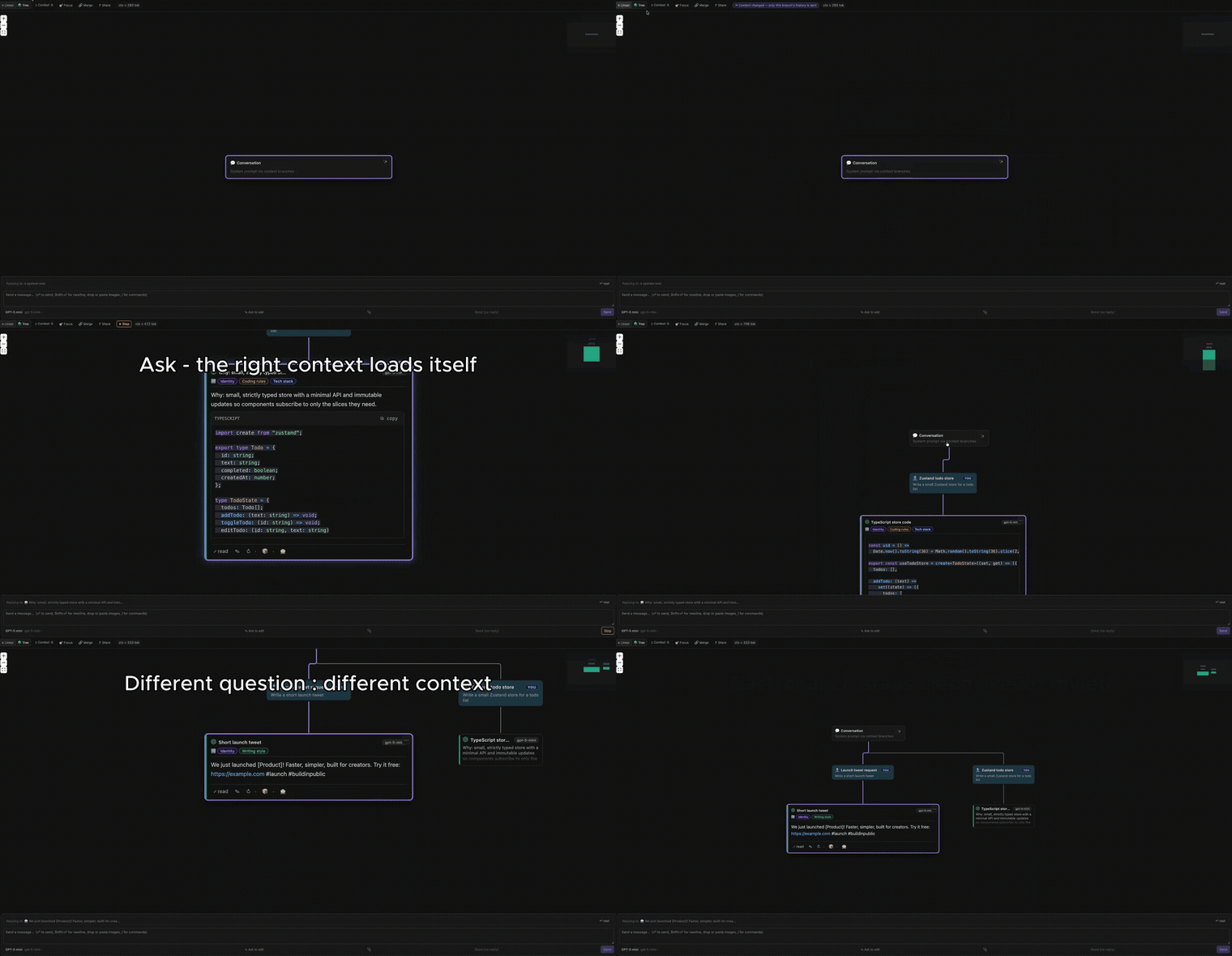
Every message is a node. Every reply can fork into N branches. The model only
ever sees the chain of ancestors of the current node — never the parallel
branches. Explore alternatives without polluting your context window.
It's git branch, but for your AI conversations — right inside VS Code, Cursor,
Windsurf, VSCodium and other compatible editors.
And a context tree that travels with you: define your identity, rules and
skills once, and Lacis injects only the relevant pieces into every reply, on
every branch.
Why a tree?
Linear chat forces every tangent into one ever-growing thread. The model
re-reads the whole history each turn, and unrelated detours bleed into each
other. Lacis lets you branch: ask a follow-up as a sibling, try three
prompts in parallel, keep a clean main line. Each branch sends only its own
ancestor chain — cheaper, sharper, and easier to navigate.
This works the same whatever model you run it on.
Context that follows you
This is the heart of Lacis. Set up a small context tree once — typed branches
for your identity, your rules, your skills — and Lacis routes them
automatically: each reply pulls in only the branches relevant to what you just
asked, on every branch of every conversation. A banner shows exactly which context
was loaded, so it's never a black box.
Your standards and who-you-are are always present, without re-pasting them into
every prompt — and without bloating the context with things that don't apply.
Bring your model
Lacis is provider-agnostic. Pick whichever path fits your editor:
- GitHub Copilot (VS Code) — if you have a Copilot subscription, Lacis uses
it through the official
vscode.lm API. No API key, no configuration.
- Your own API key (everywhere, including Cursor / Windsurf / VSCodium) —
point Lacis at OpenAI, Anthropic, or any OpenAI-compatible endpoint. Your key
is stored in the OS secret store, never sent anywhere but your provider.
On editors without Copilot (Cursor, Windsurf, VSCodium, Theia…), use the API
key path — it's first-class, not a fallback.
Features
- Context tree (auto-routed) — reusable identity / rules / skills branches,
injected into a reply only when relevant. Set your context once; it follows
every branch, and a banner shows what was loaded.
- Branch anywhere — fork from any message to try another approach, and keep
both side by side.
- Clean context per branch — the model only sees the current path, never the
sibling branches. Less noise, sharper answers.
- Editor integration — ask about the current selection, file, or
diagnostics; insert the last response at the cursor.
- Tree view, focus mode, tags, bookmarks, search — navigate large trees fast.
- Local by default — no account, no cloud. Your conversations stay on your
machine.
Getting started
- Install the extension.
- Run
Lacis: Open Tree from the Command Palette (⌘/Ctrl+Shift+P), or
press ⌘/Ctrl+Shift+T.
- Choose your model:
- Have Copilot? You're ready — Lacis picks it up automatically.
- No Copilot (or on Cursor/Windsurf)? Open Settings in the panel and add a
provider: base URL + API key + model.
- Type a message. Press
⏎ to send, Shift+⏎ for a newline. Use / for slash
commands (/note, /focus, /help).
That's it. Hit Branch on any reply to explore a second approach.
Commands
| Command |
Description |
Lacis: Open Tree |
Open / focus the conversation panel |
Lacis: New Conversation |
Start a fresh tree |
Lacis: Ask about Selection / File |
Send the current selection or file as context |
Lacis: Ask about Active File |
Send the active file as context |
Lacis: Continue Here |
Continue the conversation from a chosen node |
Lacis: Insert Last Response at Cursor |
Paste the latest reply into the editor |
Lacis: Refresh Copilot Status |
Re-check Copilot availability |
Lacis: Send Feedback |
Send an idea or bug to the Lacis team (or email contact@lacis.dev) |
Settings
| Setting |
Default |
Description |
lacis.telemetry.enabled |
true |
Opt out of anonymous Lacis telemetry, even if your editor's telemetry is on. |
Telemetry
Lacis collects anonymous, structure-only usage data (tree shape, token
counts, model/provider IDs, feature usage) to guide development. It never
collects message content, titles, tags, file paths, or keys.
Collection happens only when both your editor's global telemetry setting is
on and the lacis.telemetry.enabled toggle is on (default). Setting either
to off stops all collection immediately. The only identifier is your editor's
anonymous machineId.
👉 Full disclosure (every event, every field) and configuration instructions:
see TELEMETRY.md, bundled with this extension and in the repository under
packages/vscode/.
Privacy
The model only ever receives the ancestor chain of the current node. Your API
keys and provider URLs stay in your editor's secret store and are never
transmitted to telemetry. Conversations are stored locally in the extension's
storage.
Feedback
Got a bug, an idea, or a rough edge? Run Lacis: Send Feedback from the
Command Palette to send it in one step — or email contact@lacis.dev. Every
message is read.
Built by GengAd. Feedback welcome — contact@lacis.dev.

