Simple GTD for MarkdownManage tasks in plain Markdown lists. Installation Launch VS Code Quick Open ( Ctrl+P), paste the following command, and press enter.Copied to clipboard |

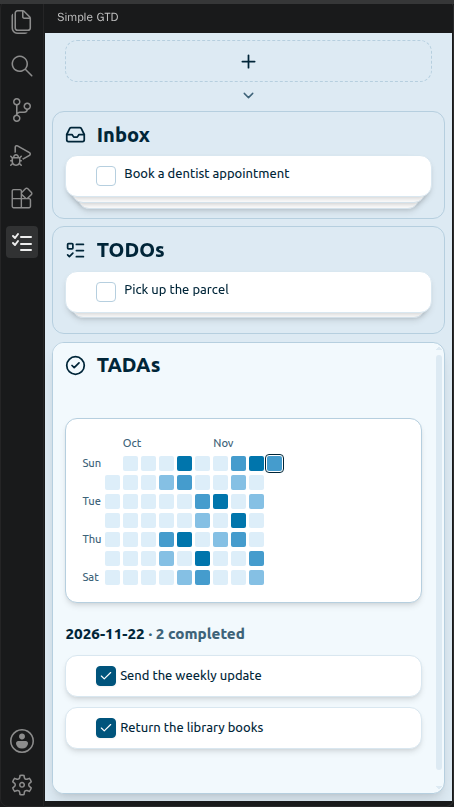
Simple GTD for MarkdownSimple GTD brings a Markdown-backed task inbox, a next-action list, and a completion calendar into the VS Code sidebar. Capture a task while you work, decide what to do with it later, and keep the records alongside the rest of your workspace.
Get started
Manage tasks in the sidebarThe sidebar keeps all three panels visible. Click a closed panel's header or preview to open it and use its controls.
Your tasks are Markdown filesThe extension stores tasks in
In a multi-root workspace, use Simple GTD: Select Workspace Folder from the Command Palette to choose where tasks are stored. Optional Project integrationSet When the command succeeds, the task moves from Inbox to the Project section of TODOs → All. Set a default in User Settings or override it in Remote Settings for a Remote SSH host. In a trusted workspace, Workspace Settings take precedence over those defaults. In a multi-root workspace, the selected folder's settings can override the workspace value. Requires VS Code Desktop 1.85 or later. |