Skip to content
| Marketplace
Sign in
Visual Studio Code>Other>Image BrowserNew to Visual Studio Code? Get it now.
Image Browser

Image Browser

Gattigaga Hayyuta Dewa

|
1 install
| (0) | Free
VSCode extension that we can use to browse and preview SVG files.
Installation
Launch VS Code Quick Open (Ctrl+P), paste the following command, and press enter.
Copied to clipboard
More Info

icon

Image Browser

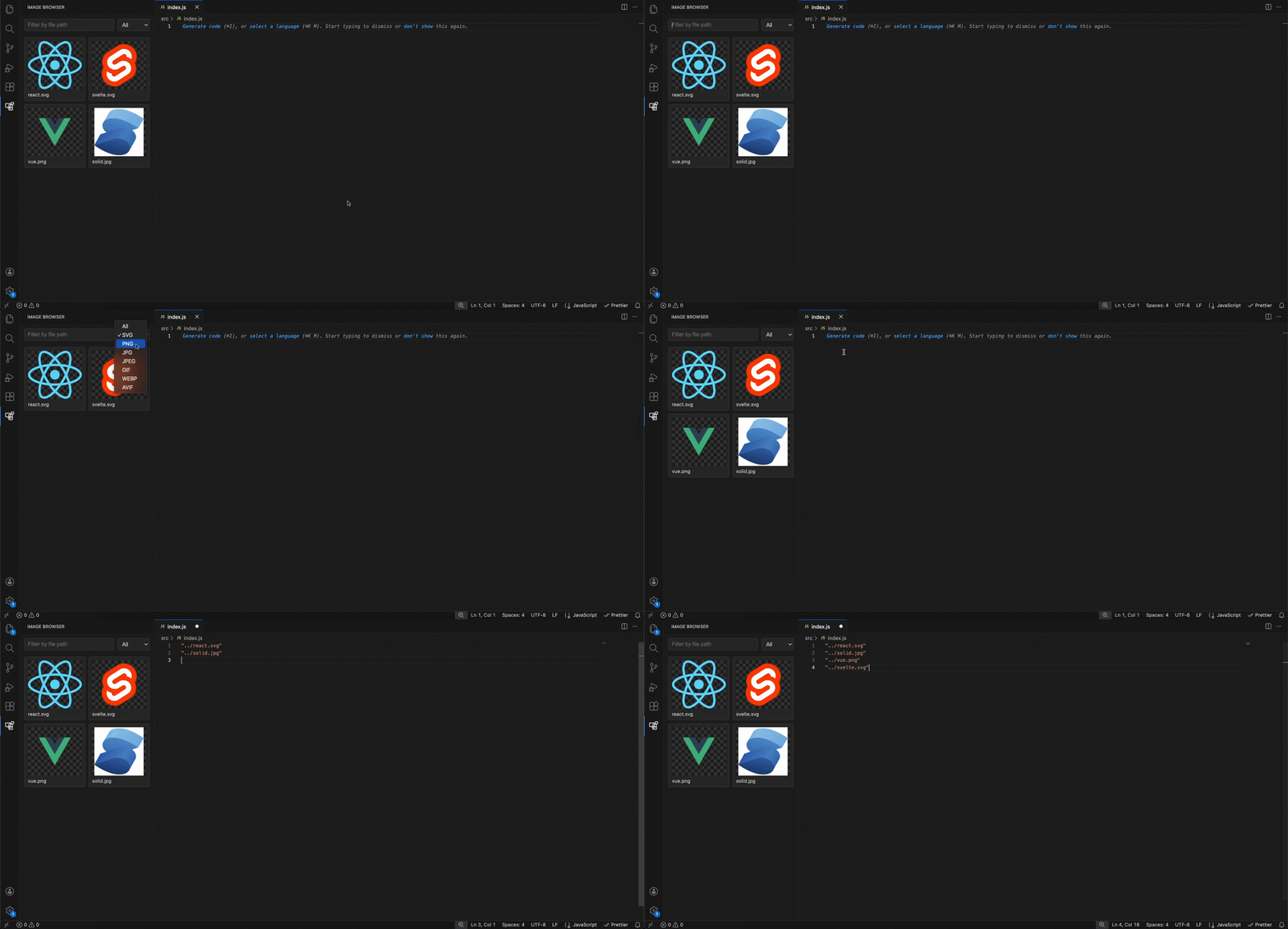
A VSCode sidebar extension that previews all images in the opened folder, with a search filter and quick open-on-click.

  • Motivation
  • Features
  • How to Use
  • Requirements
  • Release Notes
  • Demo

Demo

demo

Motivation

In many projects, especially frontend part, image assets grow quickly and become hard to manage. When I want to use an image, I often need to identify which file actually contains the image I’m looking for. Previewing images one by one in the file explorer is slow and frustrating, particularly in large codebases.

Another recurring pain point is determining the correct relative path from the currently opened file to the image asset. This is especially error-prone when importing images in JavaScript or TypeScript files.

This extension was created to solve both problems by providing a visual image browser for the workspace and enabling direct drag-and-drop integration with the editor, making asset usage faster, clearer, and less error-prone.

Features

  • 📚 Activity Bar View: Dedicated "Image Browser" sidebar view
  • 🖼️ Grid Previews: Renders common images (png, jpg/jpeg, gif, webp, avif)
  • 🔎 Search Filter: Filters the list by file path text as you type
  • 🎛️ Format Filter: Filter images by selected format (All + supported types)
  • 📂 Open on Click: Click any card to open the file in the active editor pane
  • 🧲 Drag‑and‑Drop Path: Drag a card into an editor to insert its relative path
  • 🔁 Live Updates: Automatically refreshes when images are added, changed, or removed
  • 🚫 Ignore Unwanted Folders: Honors .gitignore and excludes node_modules and .git

How to Use

  1. Click the "Image Browser" icon in the Activity Bar
  2. Type in the search box to filter by file path
  3. Choose a format from the dropdown to filter by type
  4. Click any preview to open the image in the editor
  5. Drag a card into the active editor to insert the image path (relative)

Requirements

  • VSCode version 1.104.3 or higher

Release Notes

1.0.0

  • Initial sidebar view with grid previews
  • Filter by file path
  • Filter by format for common image types
  • Click to open in active editor pane
  • Broken image fallback
  • Theme‑aware checkerboard preview background
  • Live refresh on file changes
  • .gitignore support and coarse exclude for node_modules/.git
  • Drag-and-drop path insertion
  • Contact us
  • Jobs
  • Privacy
  • Manage cookies
  • Terms of use
  • Trademarks
© 2025 Microsoft