Theme Builder
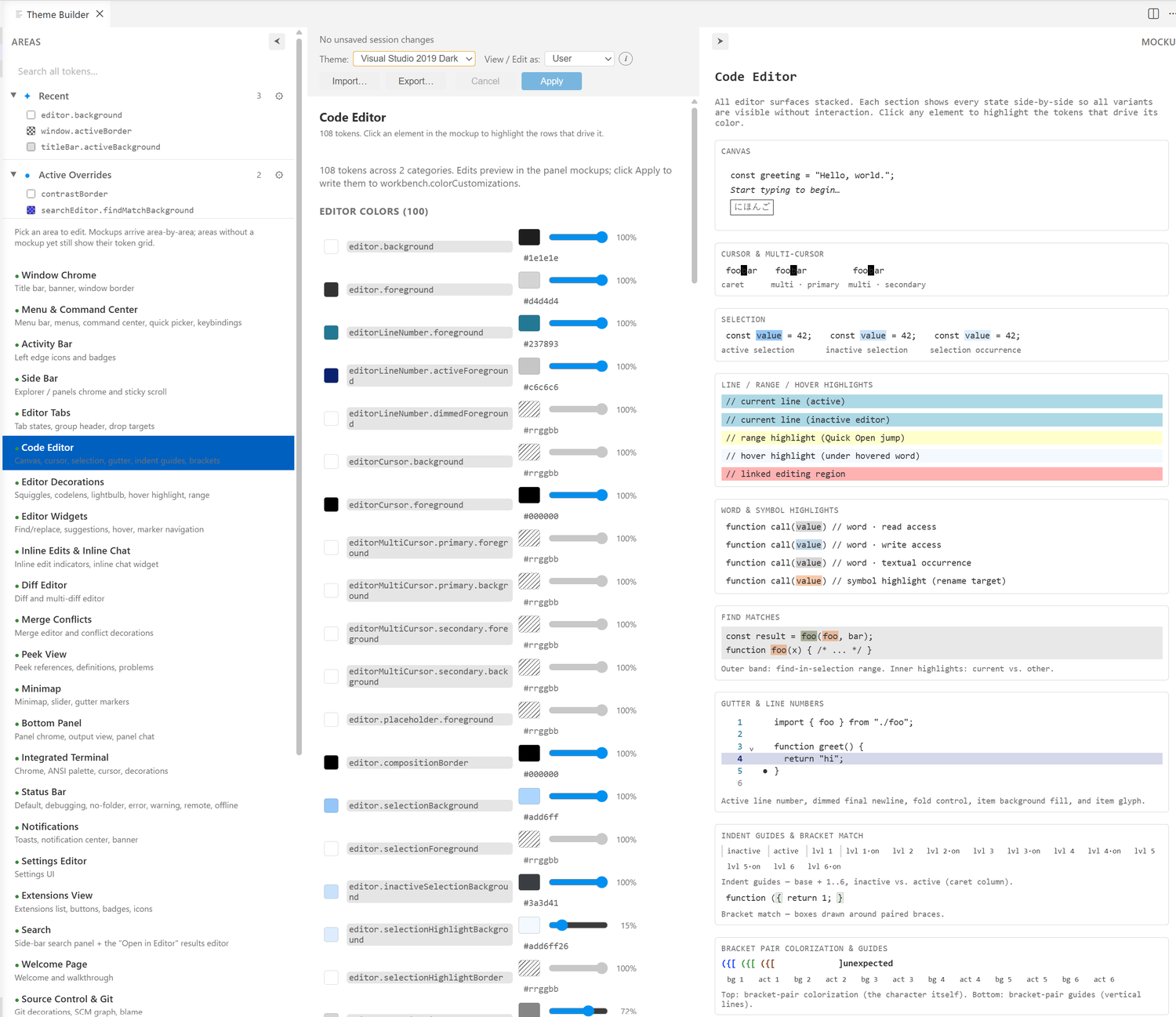
A graphical tool to build your own VSCode color theme — and to fine-tune the workbench colors of any theme you already use — with live preview in your real editor. Pick a UI area, see a labelled mockup of that surface with every state rendered side-by-side, click an element to reveal its color tokens, and edit them with a color picker, hex input, or alpha slider. Changes preview instantly; apply or discard — and when you're happy, export your colors as an installable VSCode theme (a ready-to-publish theme extension or a portable .vsix).
No more hunting through the ~900 workbench.colorCustomizations tokens by name in settings.json.
Features
- Area-driven editing. The ~900 workbench color tokens are organised into ~30 user-facing areas (Status Bar, Code Editor, Notifications, Form Controls, …). Each area shows a static mockup with all states — default, hover, active, focused, disabled, error — visible at once, so you never have to trigger a state to style it.
- Click-to-find. Click any element in a mockup to jump the inspector to the exact tokens that drive its color.
- Live preview — staged or instant. By default, edits preview in the panel and converge in the real editor on Apply (nothing touches
settings.json until you commit). Or turn on Live preview to push every edit to the real window immediately — Apply still makes changes permanent, while Cancel, switching themes, or closing the panel reverts anything unapplied.
- Per-token controls. Color-picker chip, hex input (with Escape-to-revert), an alpha slider for transparency, and a per-row Reset/Undo button.
- Scopes. Edit your User or Workspace customizations via a single View / Edit-as dropdown; inherited values are badged so you can see what comes from where.
- Theme-aware. Overrides are scoped under
[<your active theme>], so they layer cleanly on top of your theme without polluting others. Reset previews the real theme default, learned from your editor over time.
- Switch themes in-panel. Change the active color theme from a dropdown without closing the panel; your in-flight edits are saved to the right theme first.
- Create your own theme. Turn your colors into a real, installable VSCode color theme: Theme Builder scaffolds a complete theme extension plus a portable
.vsix, ready to install locally or publish to the Marketplace / Open VSX — straight from the panel.
- Import / Export. Export your customizations as a standard VSCode color-theme JSON file, or import one — with an interactive conflict-resolution step when imported values clash with what you've staged.
- Recent & Active Overrides. Pinned sidebar sections track your editing history (across themes and scopes) and every token currently overridden, each as a one-click jump-link.
- Session continuity. The panel reopens looking exactly as you left it — same area, pane widths, and expanded sections.
Getting started
- Open the Command Palette (
Ctrl/Cmd + Shift + P).
- Run Theme Builder: Open.
- Pick an area from the left sidebar, click a mockup element or an inspector row, and edit its color.
- Click Apply to write your changes, or Cancel to discard them.
Commands
| Command |
Description |
| Theme Builder: Open |
Open the editor panel. |
| Export as VSCode Extension… |
Package your current colors into an installable VSCode theme extension (source folder + .vsix). |
| Theme Builder: Export Theme JSON… |
Save your current customizations as a VSCode color-theme JSON file. |
| Theme Builder: Import Theme JSON… |
Load colors from a theme JSON file into the panel for review. |
How it works
Theme Builder writes to workbench.colorCustomizations, scoped under the [<currentThemeName>] key. Edits stay in memory and preview locally until you Apply; on Apply the extension writes only the relevant section of your User or Workspace settings.json, preserving every other key. Cancel and close-without-saving never touch your settings. The extension manages only workbench (chrome) colors — it does not edit syntax highlighting (tokenColors) or semantic colors.
Color baselines are read from VSCode's own --vscode-* CSS variables, so the panel reflects whatever theme you have installed without parsing theme files.
Requirements
Extension settings
This extension contributes no settings of its own. It edits the built-in workbench.colorCustomizations setting on your behalf.
Known limitations
- Only User and Workspace scopes are supported. Folder scope is not —
workbench.colorCustomizations is window-scoped in VSCode and cannot be written per-folder.
- Syntax/semantic token colors are out of scope; this tool covers workbench (UI chrome) colors only.
- Remote windows (WSL / SSH / Dev Containers): the Theme dropdown lists themes installed on the local/UI side (where VSCode places color-theme extensions and built-in themes), which covers the overwhelming majority of themes. A theme contributed by a code extension that runs on the remote host — or any theme you've forced there with a
remote.extensionKind override — will not appear in the dropdown, even though it works in VSCode's own Preferences: Color Theme picker. This is a consequence of VSCode's split extension hosts (a per-host extension list with no stable cross-host enumeration API); see docs/architecture.md. Workaround: install the theme as a normal (theme-only) extension, which lands on the local side and shows up.
Contributing
The codebase, architecture, and phased roadmap are documented under docs/. See docs/build-and-test.md for how to build, lint, test, and debug.
Support
License
Proprietary — © 2026 Gabbatron Pty Ltd. All rights reserved. See LICENSE.
| |

