
ctrlyoke
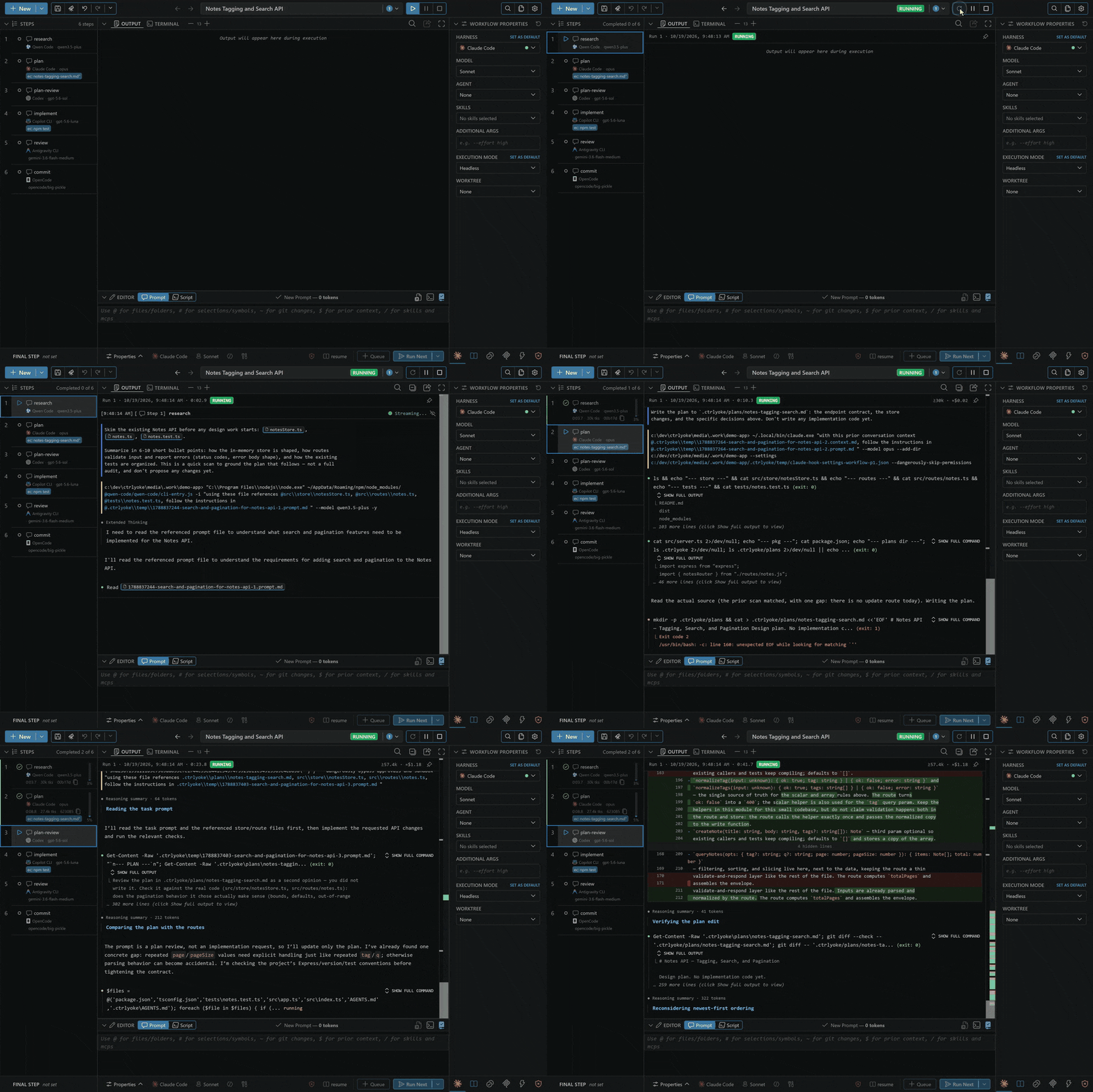
ctrlyoke is a workflow engine for CLI coding agents — Claude Code, Codex, Copilot CLI, OpenCode, Qwen Code, and Antigravity — available as a VS Code extension and as a standalone ctrlyoke CLI. The CLI runs workflows from a terminal or CI, and ctrlyoke server opens the same dashboard in a browser, no VS Code required. Each CLI coding agent you run through ctrlyoke is a harness. ctrlyoke doesn't bundle or replace any of these CLIs: it calls the ones you've installed and signed in to. Prompt, steer, automate, and revisit sessions with any supported harness: send a single prompt, or define a structured YAML/JSON/Markdown workflow that keeps working through its steps without you re-prompting each one.
What it does
- Sequential prompt execution — define prompts in a YAML or JSON workflow file; ctrlyoke sends them one at a time, waits for each to finish, and advances automatically
- Script-based validation — attach an end condition script to any prompt; by default the step passes when the script exits 0, and you can instead compare its stdout/stderr with an explicit operator. Otherwise the AI retries with a configurable retry prompt
- Harness-agnostic — switch between six AI harnesses with one setting; the workflow format, permissions, agent/skill injection, and the output dashboard stay the same
- Dynamic workflows — include
"ctrlyoke" in mcpServers to let the AI append steps to the running workflow with ctrlyoke's MCP tools
- User-defined hooks — attach shell commands to harness lifecycle events (
sessionStart, userPromptSubmit, preToolUse, postToolUse, permissionRequest, notification, stop, error) per prompt, per workflow, or globally in settings
- Universal agents and skills — define agent instruction files once; ctrlyoke discovers them from standard locations (
.github/agents/, .claude/agents/, .ctrlyoke/agents/) and injects content into prompts regardless of harness
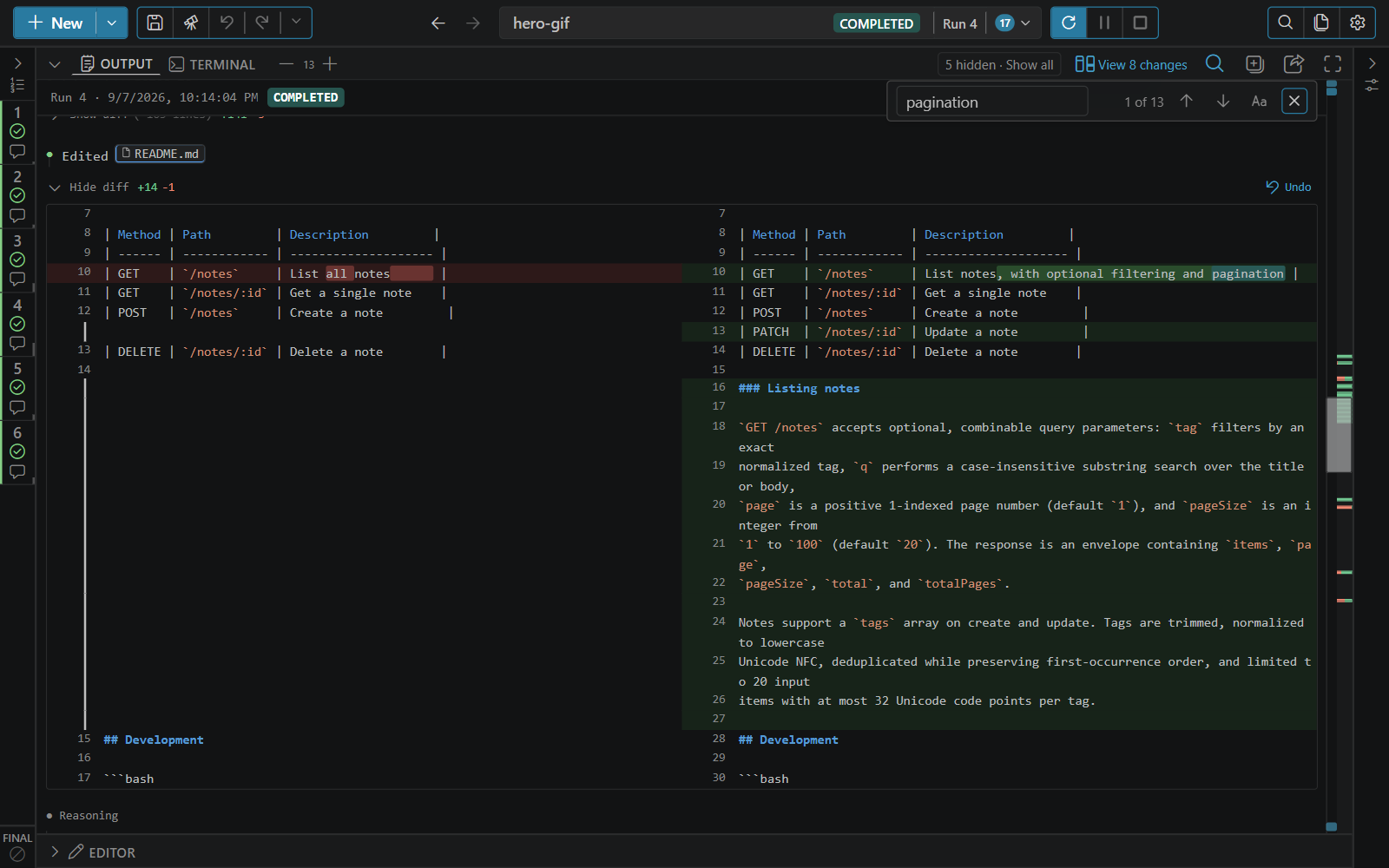
- Dashboard with embedded terminal — a secondary side bar UI with a CodeMirror prompt editor, live xterm.js terminal running the AI CLI directly, streaming output with tool-call visualization, file diff views, undo/redo for workspace changes, and per-run output history
- Parallel steps and worktrees — run independent steps concurrently with a
parallel group, and run a workflow in its own managed Git worktree so it never touches your working checkout
- Script steps and secrets — run a script as a workflow step, and grant steps managed secrets as environment variables without putting values in prompts
- Pre-conditions and mixed harnesses — gate a step with a script before it runs, and pick a different harness and model per step in the same run (for example plan with one, implement with another, review with a third)
- Searchable run history — every run is kept and searchable (prompts, responses, shell commands, file paths and diffs, tool calls); reopen a run, export it as Markdown, or re-run its workflow
- Visual workflow building — create, reorder, and edit steps in the dashboard, start from built-in or custom templates, and save the result as an ordinary YAML or JSON file
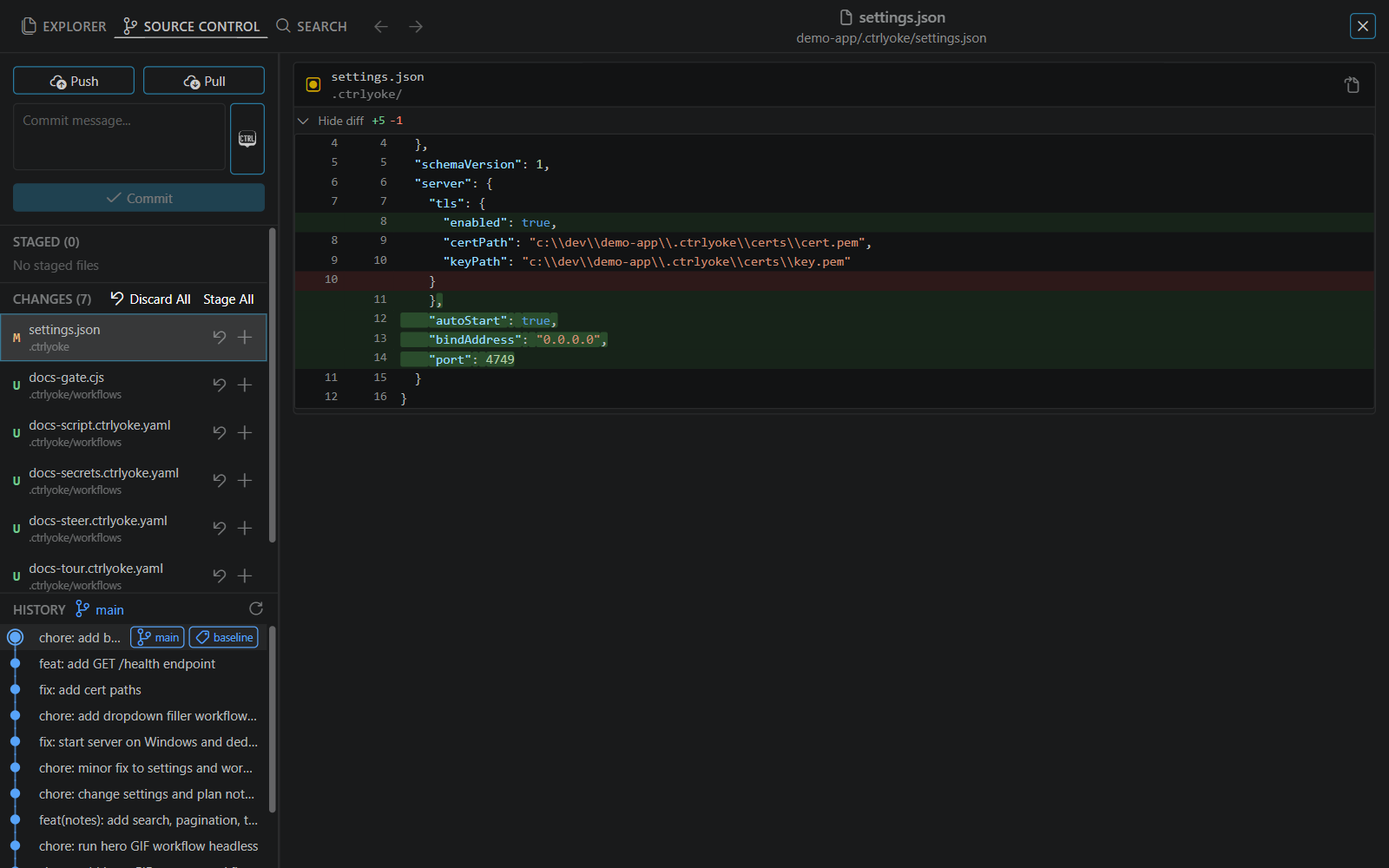
- Browser dashboard and workspace viewer — serve the dashboard to a browser tab or phone to browse and edit files, review and commit changes, answer prompts, and steer the live terminal (see Browser dashboard)
- CLI and CI — the
ctrlyoke command runs workflows from a terminal or CI, with no VS Code required
Requirements
- VS Code 1.106.0 or higher
- Node.js 22.12.0 or higher
- At least one supported harness installed and authenticated
Supported Harnesses
| Harness ID |
CLI |
Setup |
copilot-cli |
GitHub Copilot CLI |
Install |
claude-cli |
Anthropic Claude Code |
Install |
codex-cli |
OpenAI Codex CLI |
Install |
opencode-cli |
OpenCode |
Install |
qwen-cli |
Qwen Code |
Install |
antigravity-cli |
Google Antigravity |
Install |
See the harness overview for per-harness setup and the compatibility matrix for what each harness supports.
By default ctrlyoke uses the first installed harness in alphabetical order. To pick one, set it in .ctrlyoke/settings.json:
{ "defaults": { "harness": "claude-cli" } }
CLI harnesses run in interactive mode (VS Code terminal with live output) or headless mode (background process). Configure defaults.executionMode in .ctrlyoke/settings.json.
Getting Started
1. Open the panel
Command Palette → ctrlyoke: Open ctrlyoke Panel
The panel opens in the VS Code secondary side bar.
2. Create a workflow
From a template:
Panel → New Workflow from Template
Manually — create a .ctrlyoke.yaml file in your workspace.
Simple single prompt — create a .prompt.md file:
Analyze @src/auth/login.ts for security issues.
Focus on input validation and authentication logic.
3. Run
- Panel — load a workflow file and click Run
- Run with ctrlyoke — right-click any prompt file in the Explorer or editor, or
use the editor title toolbar, then choose Run with ctrlyoke
- Queue Steps with ctrlyoke / Queue Steps Next with ctrlyoke — in the same submenu,
append a file's steps to an active queue; these actions appear only once the active queue
already contains steps
- Terminal —
ctrlyoke run <file> runs a workflow from the CLI, including in CI
All three formats validate against the same JSON Schema with full IntelliSense in VS Code.
| Format |
Extension |
Best for |
| YAML |
.ctrlyoke.yaml / .ctrlyoke.yml |
Multi-step workflows, human editing |
| JSON |
.ctrlyoke.json |
Programmatic generation, CI/CD |
| Markdown |
.prompt.md |
Single prompts |
Multi-step YAML workflow
# Workflow-level defaults — overridden per prompt (three-tier: prompt > workflow > settings)
harness: claude-cli
model: claude-sonnet-4.6
endCondition:
  script: npm test
  compareSource: exitCode
  expected: 0

steps:
  - name: analyze
    prompt: |
      Analyze @src/ for security vulnerabilities.
      Focus on input validation and authentication.

  - name: implement
    prompt: |
      Fix the issues identified in the analysis.
    resumeSession: true

  - name: verify
    prompt: |
      Verify the fixes are complete and all tests pass.
    endCondition:
      script: npm test
      compareSource: exitCode
      expected: 0
      maxRetries: 3
      retryPrompt: |
        Tests still failing. The validation output was:
        $endCondition:stdout
        $endCondition:stderr
        Please fix the remaining issues.
Prompt Properties
See the generated workflow schema reference for all properties and their validation rules. Effective values can come from prompt fields, workflow fields, and .ctrlyoke/settings.json defaults.
End condition
steps:
  - prompt: "Implement and verify the requested change."
    endCondition:
      script: ./scripts/verify.js # file path or shell command
      compareSource: stdout # exitCode (default), stdout, or stderr
      operator: contains # eq (default), ne, contains, notContains, gte, gt, lte, lt, matches, isEmpty, isNotEmpty
      expected: "0 failing" # omit entirely to pass when the script exits 0
      timeoutSec: 60
      maxRetries: 3 # -1 = unlimited
      retryPrompt: |
        Validation failed: $endCondition:stderr
        Please fix the issues.
MCP servers
steps:
  # Make the workflow dynamic (AI can append steps via MCP tools).
  - prompt: "Implement the requested work."
    mcpServers: [ctrlyoke]

  # Add a user-defined server alongside the built-in one.
  - prompt: "Query the project database."
    mcpServers:
      - ctrlyoke
      - id: my-database
        command: node
        args: [/path/to/db-mcp-server.js]
        env:
          DB_URL: "postgres://localhost/mydb"
        autoApprove: true # or a list of tool name patterns

  # Disable all MCP injection for this step.
  - prompt: "Work without MCP tools."
    mcpServers: null
The "ctrlyoke" shorthand injects the built-in server. See the MCP tools reference for its complete tool set and response formats. Include it on the last prompt (or as finalStep) to allow autonomous workflow extension.
Final step
finalStep is a special prompt that runs after all queued prompts complete. If the AI appended new prompts during the final prompt loop and "ctrlyoke" is in mcpServers, the executor re-runs the queue then finalStep again until no new prompts are added.
steps:
  - prompt: "Implement the feature"

maxSteps: 30
finalStep:
  prompt: "Review the work and append follow-up tasks if needed."
  mcpServers:
    - ctrlyoke
Parallel queue items
Use a parallel item for independent prompt or script steps that should run
before a synthesis step:
steps:
  - parallel:
      - name: research-api
        prompt: Research the API implementation.
      - name: research-tests
        prompt: Research the existing test strategy.
    failFast: true

  - name: synthesize
    priorContext: [1, 2]
    prompt: Synthesize the research.
Members share one workspace and one managed or named worktree per run. The
global queue.maxParallelSteps setting bounds concurrency; 1 keeps the
group sequential. v1 has no per-member isolation or automatic merge. See
Parallel steps.
Hooks
steps:
  - prompt: "Implement the requested change."
    hooks:
      - event: stop
        command: node ./scripts/post-run-notify.js
      - event: sessionStart
        command: node ./scripts/setup.js
Supported events: sessionStart, userPromptSubmit, preToolUse, postToolUse, permissionRequest, notification, stop and error. Support varies by harness, and an unsupported event is skipped. Hooks defined here are added alongside any hooks already in the harness settings file — existing hooks are preserved. See Hooks for the full guide.
Session management
steps:
  - name: research
    prompt: "Research the problem"

  - name: implement
    prompt: "Implement the solution"
    resumeSession: true # continue conversation from the previous prompt

  - name: review
    prompt: "Review for edge cases"
    resumeSession: true
    sessionId: 1 # resume the session of step 1 (1-based)
See Session management for full details.
Context references in prompts
The prompt editor provides IntelliSense completions triggered by six characters:
| Trigger |
Purpose |
Example |
@ |
File (path attached) or directory (tree listing) |
@src/utils/auth.ts, @src/utils/ |
# |
Line range or symbol, embedded with line numbers |
#selection:src/app.ts:10-25, #sym:src/app.ts:main:10-25 |
~ |
Git diff, staged diff, stash entry, or commit |
~diff, ~staged, ~stash:0, ~3f9c2a1 |
$ |
Output of earlier steps, final-step passes, or a script |
$previous, $previous:3, $step:1,3-5, $all, $preCondition:stdout |
/ |
Attach a skill or enable a registered MCP server |
/skill:commit, /mcp:ctrlyoke |
! |
Grant the step a managed secret as an environment variable |
!API_TOKEN |
To write a token literally without expanding it, wrap it in backticks (`@src/app.ts`) or a fenced code block. See Context references for every token and its options.
Completions respect .gitignore by default. Configure ui.respectGitignoreForCompletions in .ctrlyoke/settings.json. They work inside YAML prompt: values, JSON "prompt" strings, and .prompt.md files.
Dashboard
The ctrlyoke panel opens in the VS Code secondary side bar (far right) by default and contains:
Prompts panel — draggable prompt list with numbered slots, status indicators, and a prompt counter. Select any prompt to open it in the editor.
Output panel — chronological display of CLI output as it streams in, with:
- Tool call visualization (file edits, bash commands, web search, MCP tool calls)
- Inline file diff views for edits the AI makes
- Undo/redo for workspace file changes made during a workflow run
- Per-run output history with replay; re-run any previous workflow run
- Export to markdown
Embedded terminal — the AI CLI process runs directly in an xterm.js terminal inside the panel. You watch the AI work in real time. Multiple terminal sessions (AI CLI and shell) are managed with a tab rail.
Prompt editor — CodeMirror-based editor with:
- Syntax highlighting and spell check
@ / # / ~ / $ / / / ! completions, with references shown as chips in the text- Quick pickers for harness, model, agent, skills, permissions, and session context
- Properties drawer for workflow-level and prompt-level configuration (harness, context, validation, MCP, hooks, permissions)
- Image pasting, and a Dry Run Step button to preview a step
See The prompt editor for details.
Browser dashboard
The same dashboard can be served to a web browser, from VS Code (Global Settings → Server) or without VS Code using ctrlyoke server. Alongside workflows, output, and the live terminal, it adds a workspace viewer:
- Explorer and Search — browse, search, and edit workspace files
- Source Control — view working, staged, stash, and commit diffs; stage, unstage, or discard changes; commit, pull, and push; browse history; check out branches or commits; and generate commit messages with a harness
- Touch-friendly terminal controls — Esc, Tab, arrow, Enter, and control-key buttons for steering a terminal from a phone
The dashboard on localhost is free. Connections from other devices (LAN or VPN), HTTPS, and the QR code need Pro or the one-time 14-day remote-access trial. See Browser dashboard and Workspace viewer.
Commands
See the commands reference for the current Command Palette commands and menu actions.
Settings
Configure workflow defaults and extension behavior in .ctrlyoke/settings.json. The settings reference lists the supported properties and defaults. ctrlyoke.workspaceDirectory is the VS Code setting used to locate that file.
Further Reading
The full documentation is at ctrlyoke.dev/docs.
Privacy & Telemetry
ctrlyoke collects limited usage telemetry, including redacted error reports and pseudonymous
machine, device, and per-launch session IDs. It does not collect prompt content, code, file paths,
or workspace names. Telemetry respects your VS Code telemetry.telemetryLevel setting — set it to
off to disable. See our Privacy Policy for details.
Support
License
ctrlyoke is distributed under the commercial license in LICENSE.md.
The free tier covers individuals and small teams. Organizations with $10M or more in annual revenue
or 250 or more staff need a Pro license for each user, or an Enterprise site license; see the
Pro license guide.
Third-party runtime dependency notices and attribution information are recorded in THIRD_PARTY_NOTICES.md.

