FutureX — AI Coding Agent for VS Code
Free AI coding assistant for Visual Studio Code. Chat with your codebase, explain code,
fix bugs, refactor, write unit tests, review your git changes and generate commit messages —
without leaving the editor.
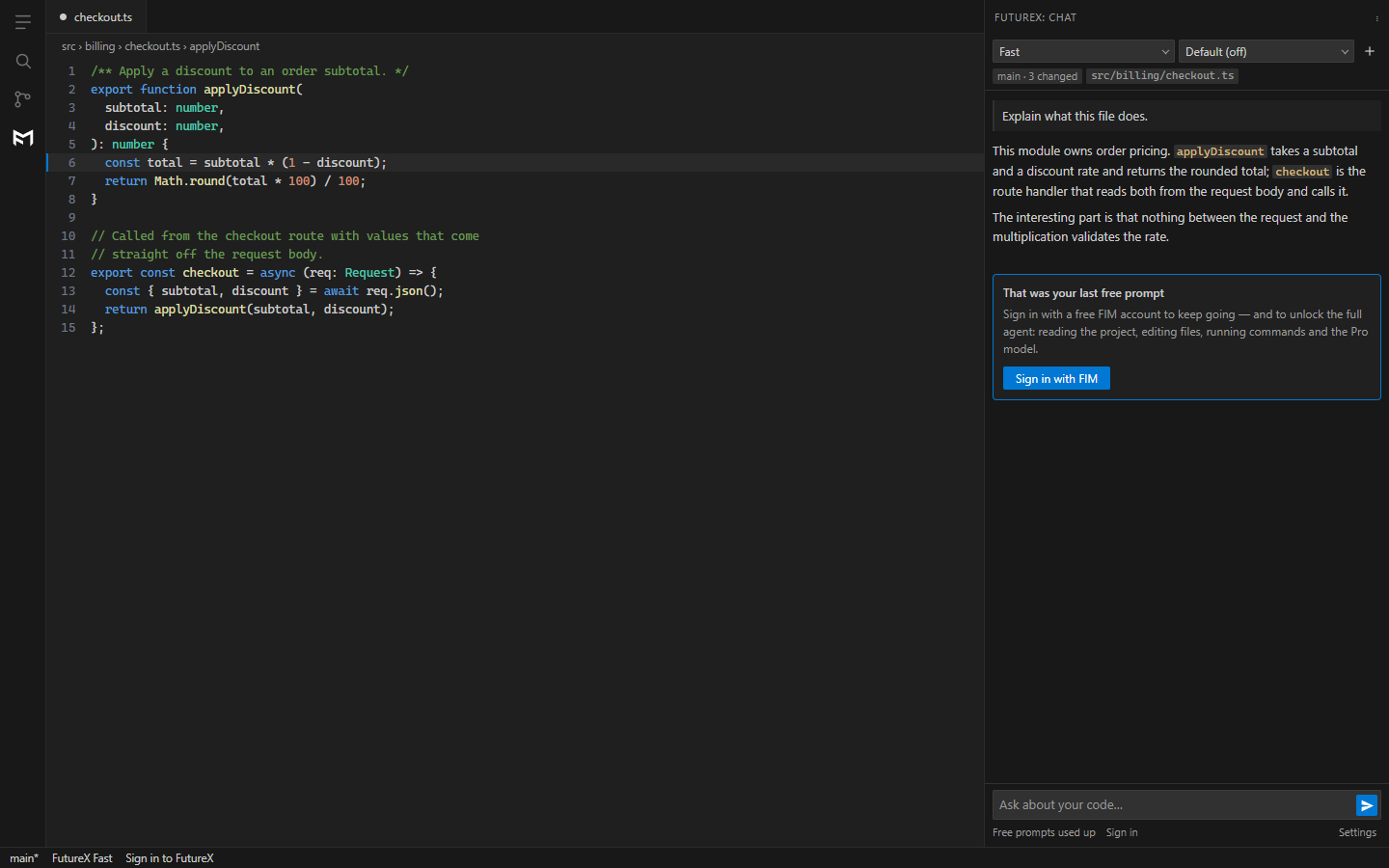
Five prompts free. No sign-up, no credit card, no waitlist. Install it, ask a question,
get an answer. When the free prompts run out, sign in with a free FIM account to keep going
and unlock the full agent.
Why FutureX
Most AI extensions answer as if your project did not exist. FutureX starts from what you
already have open:
- The file you are looking at — path, language, your selection, and the errors your
language server is already reporting on it.
- The branch you are on — FutureX detects git automatically: your branch, how far ahead
or behind its upstream you are, and exactly which files are staged, unstaged or untracked.
- The project itself — once signed in, the agent reads the repository directly: it
greps, globs, opens files, edits them and runs commands, with your approval on every change.
Try it in 30 seconds
- Install the extension.
- Click the FutureX icon in the activity bar (or press
Ctrl+Alt+X / Cmd+Alt+X).
- Ask something about the file you have open.
That is it — no account, no API key, no configuration. Your first five prompts are on us.
What it does
|
|
| Ask about your code |
Select code, right-click, and choose FutureX → Explain This Code. Or just type a question — the open file and your selection ride along automatically. |
| Fix bugs |
Fix This Code sends your selection along with the diagnostics your language server is reporting, so the model is debugging the actual error, not guessing at one. |
| Refactor |
Refactor This Code rewrites for clarity without changing behaviour, and tells you what it changed. |
| Write unit tests |
Write Tests For This Code uses the test framework your project already has — vitest, jest, pytest, playwright — instead of inventing one. |
| Document code |
Document This Code writes doc comments in the conventional style for the language. |
| Review your changes |
Review My Git Changes reads your working diff and pushes back on it like a reviewer would. |
| Generate commit messages |
One click in the Source Control title bar writes a conventional-commit message from your staged diff, straight into the commit box. |
| Run the agent |
Signed in, FutureX reads, searches, edits and runs commands to finish a task end to end — and asks before every edit, every new file, every delete and every command. |
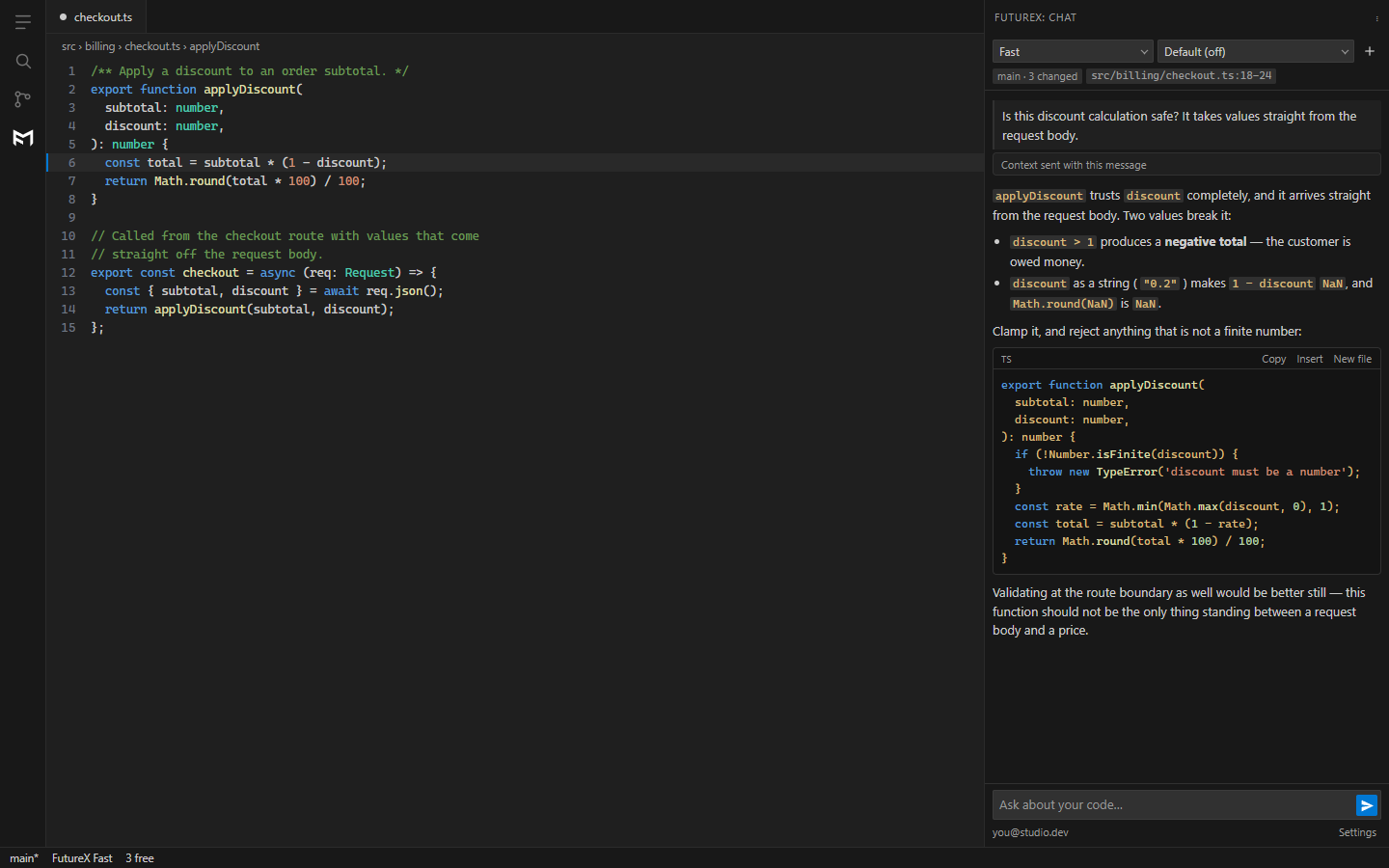
Chat that knows your project
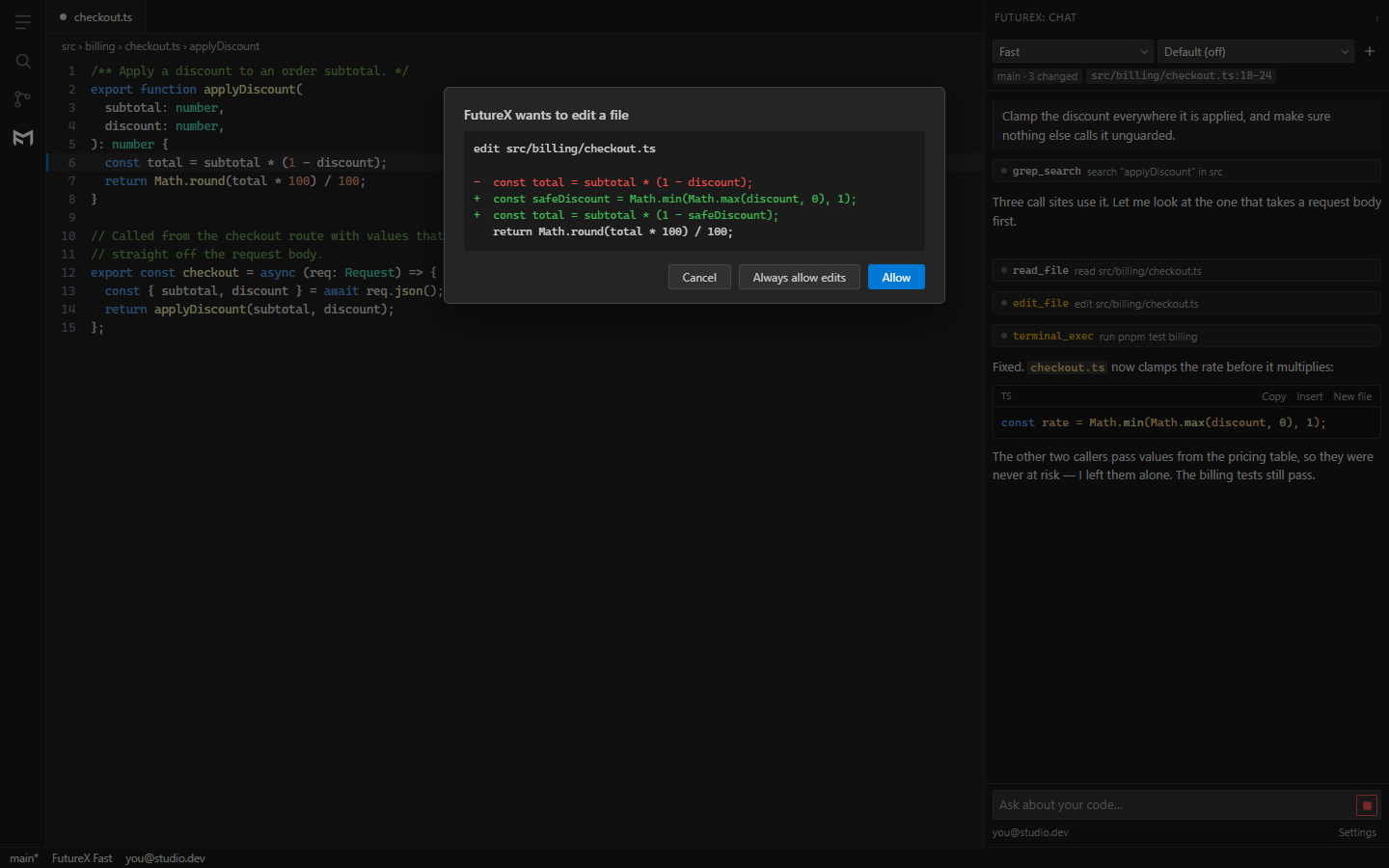
An agent you can actually watch
Every tool call is shown as it happens — what it searched, what it read, what it is about to
change. Edits arrive as a unified diff, and nothing touches your disk until you approve it.
Free before you sign up
Models and thinking effort
Pick the model and how hard it thinks from the panel header or the command palette. The picker
saves your choice globally; both settings are window-scoped, so a workspace settings.json
can override either for one project. Both are enforced server-side, so a model never runs at an
effort it does not support.
| Model |
Best for |
Thinking |
| Pro |
The hardest problems — deep reasoning, large answers |
High or Max |
| Fast |
The everyday workhorse. The default |
Off or High |
| Light |
Quick answers with light reasoning |
Off, High or Max |
| Eco |
Cost discipline — short, direct answers |
Off |
Pricing is flat: $1 per 1M tokens on every model, input and output alike. No per-model
surcharges, no seat licence, no subscription required to start.
Commands
Every command is available from the command palette under FutureX, and the code ones from
the editor's right-click menu.
| Command |
What it does |
Shortcut |
FutureX: Open Chat |
Focus the chat panel |
Ctrl+Alt+X |
FutureX: New Chat |
Start a fresh conversation |
|
FutureX: Explain This Code |
Explain the selection |
Ctrl+Alt+E |
FutureX: Fix This Code |
Debug the selection with its diagnostics |
|
FutureX: Refactor This Code |
Rewrite for clarity |
|
FutureX: Document This Code |
Write doc comments |
|
FutureX: Write Tests For This Code |
Tests in your project's framework |
|
FutureX: Review My Git Changes |
Review the working diff |
|
FutureX: Generate Commit Message |
Write the commit message from the staged diff |
|
FutureX: Add File To Chat |
Bring a file into the conversation |
|
FutureX: Select Model / Select Thinking Effort |
Switch model or effort |
|
FutureX: Sign In / Sign Out |
Manage your FIM account |
|
FutureX: Reset Permission Approvals |
Forget every remembered approval |
|
FutureX: Stop Generating |
Cancel the current answer |
Esc in the panel |
Settings
| Setting |
Default |
What it controls |
futurex.model |
fx-fast |
Which model answers |
futurex.effort |
default |
How long it thinks before answering |
futurex.approvals |
ask |
Whether an approval lasts one call, the session, or the workspace |
futurex.tools.terminal |
true |
Whether the agent may propose terminal commands |
futurex.tools.web |
true |
Whether the agent may search and read the web |
futurex.context.project |
true |
Share the project card and machine summary at session open |
futurex.context.git |
true |
Share branch and working-tree summary |
futurex.context.activeFile |
true |
Share the open file, selection and its problems |
futurex.showThinking |
true |
Show the model's reasoning above its answer |
futurex.statusBar |
true |
Show FutureX in the status bar |
futurex.trial.enabled |
true |
Offer the free, no-account prompts |
futurex.apiUrl |
https://api.futureim.org |
Point at a self-hosted FIM deployment |
Your code stays yours
- Nothing is uploaded wholesale. No indexing pass, no background scan, no vector database
of your repository on someone else's disk.
- What rides with a prompt is shown. Every prompt carries a context block — the open file,
your selection, the git summary — and that block is printed in the transcript, collapsed, so
you can read exactly what left your machine.
- What rides with a session is logged. When a signed-in agent session opens it also sends a
short project card (name, language, framework, package manager, test runner — read from your
manifests) and a machine summary (OS, shell, which tools are on your PATH). No file contents.
That happens once per session rather than once per prompt, so it cannot live in the
transcript; it is written verbatim to the FutureX output channel instead
(
FutureX: Show Logs), and futurex.context.project turns it off.
- Tools run locally. When the agent reads or edits a file, that happens in your editor
process, inside your workspace folder. Only the result goes back.
- You approve every change. Edits, new files, deletes and terminal commands each need
consent, with the diff or the command line in front of you.
- Your prompts are not logged for staff to read. See the FIM privacy policy.
- Credentials live in your OS keychain, via VS Code's secret storage — never in a
settings file, never synced.
- Restricted workspaces stay restricted. In a workspace you have not trusted, FutureX
drops to read-only tools: no edits, no commands.
Frequently asked questions
Is FutureX free?
Your first five prompts need no account at all. After that, create a free FIM account and keep
going — usage is billed at a flat $1 per 1M tokens, and new accounts start with a free daily
allowance.
Do I need an API key?
No. Sign in through your browser once and the extension holds a session in your OS keychain.
There is no key to paste and none to leak.
Does it work offline or on a self-hosted deployment?
FutureX needs the FIM gateway to answer. If you run FIM yourself, point futurex.apiUrl at
your deployment and everything else works unchanged.
Which languages does it support?
Any language you write. The agent's tools are language-agnostic — read, search, edit, run —
and the model handles TypeScript, JavaScript, Python, Go, Rust, Java, C#, PHP, Ruby, SQL,
Terraform, shell and the rest.
Will it edit my files without asking?
No. Every edit, new file, delete and command is gated behind an approval dialog showing the
exact diff or command. You choose whether that approval lasts one call, the session, or the
workspace.
How is this different from the terminal CLI?
Same agent, same models, same account — a different surface. npm i -g futurex-cli gives you
FutureX in a terminal; this gives you FutureX where you already are.
What happens when my free prompts run out?
The prompt you typed is kept, a sign-in card appears, and signing in re-sends it. Nothing is
lost, and signing in also unlocks the full agent, file edits and the Pro model.
Links
FutureX is the AI coding agent from FIM (Future Information Mastery). Keywords: ai coding
assistant, ai agent for vs code, free ai code assistant, ai pair programmer, code generation,
explain code, refactor code, fix bugs, unit test generator, commit message generator, code
review, vibe coding, ai chat in editor, developer productivity, futureim, futureistmaster.

