Copy File Relative Path
Credits to ChatGPT.
Quickly copy file names or paths relative to the currently active file in VS Code.
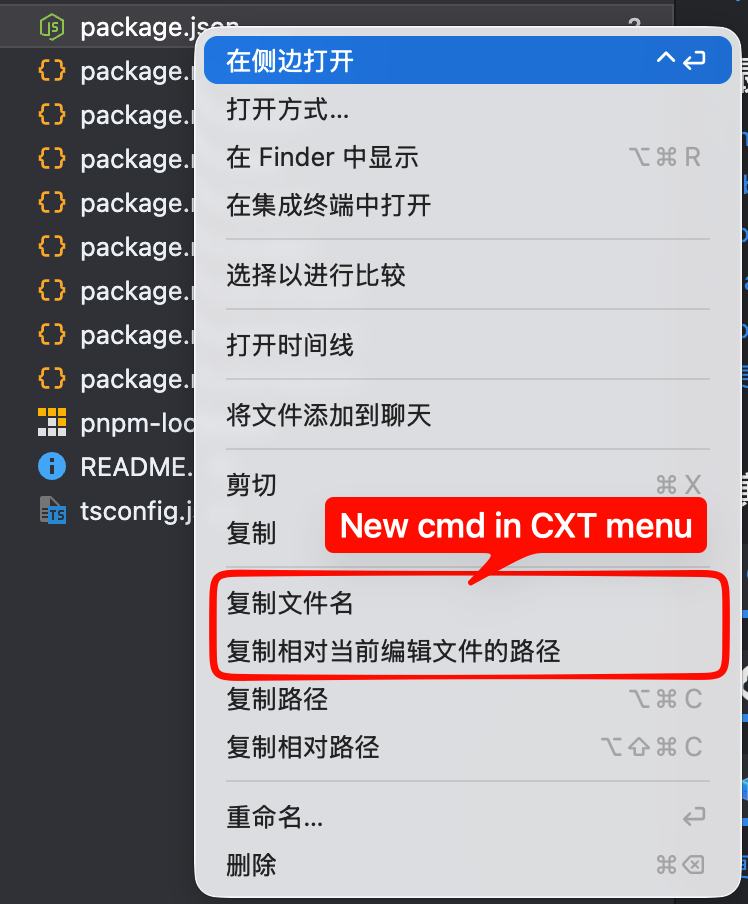
Features
- Copy File Name: Right-click on a file in the Explorer and copy its name.
- Copy Path Relative to Active File: Right-click on a file and copy its path relative to the currently active editor.
- Multi-language Support: Shows confirmation messages in your system language (English, Chinese, Japanese, Korean, French, Russian).
How to Use
- Right-click on a file in the Explorer.
- Select "Copy File Name" or "Copy Path (Relative to Active Editor)".
- A notification will appear showing the copied content.
You can also use the Command Palette (Ctrl+Shift+P / Cmd+Shift+P) and search for:
Copy File NameCopy Path (Relative to Active Editor)
Keyboard Shortcuts (Optional)
You can assign your own shortcuts in keybindings.json, for example:
{
  "key": "ctrl+k ctrl+shift+c",
  "command": "copyRelative.copyFileName",
  "when": "explorerViewletVisible"
}
But I recommend you to directly use the context menu to avoid open/preview the target file.
| |


