SF ProfilerProfile Salesforce Apex debug logs for Apex, Flow, SOQL, DML, and governor limits from VS Code. Installation Launch VS Code Quick Open ( Ctrl+P), paste the following command, and press enter.Copied to clipboard |

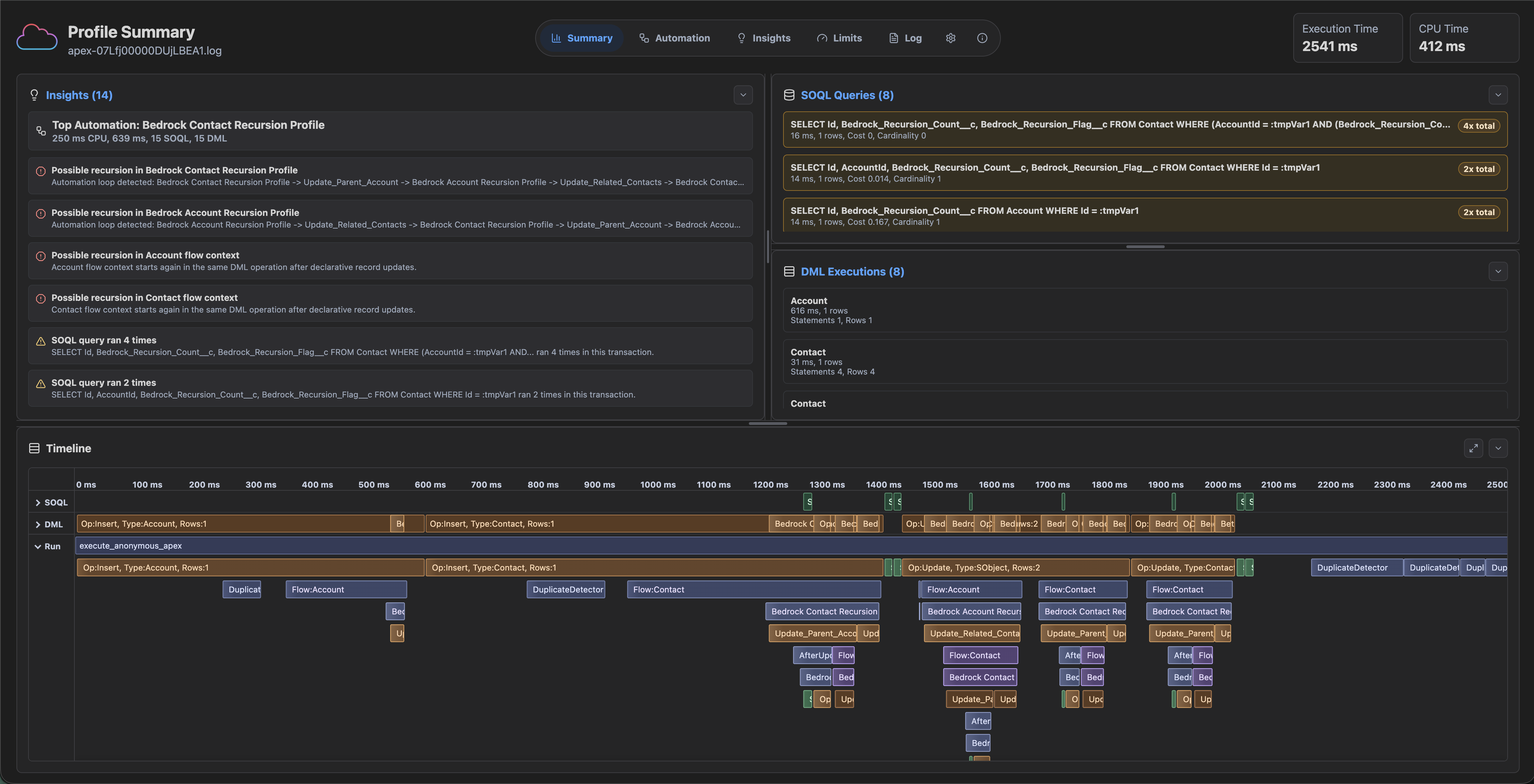
SF ProfilerProfile Salesforce Apex debug logs directly inside VS Code. Right-click a SF Profiler is built for the moments where a Salesforce debug log is technically complete but practically unreadable. It turns dense execution traces into a timeline, targeted insights, and limit views that make automation behavior much easier to explain.
Why It Helps
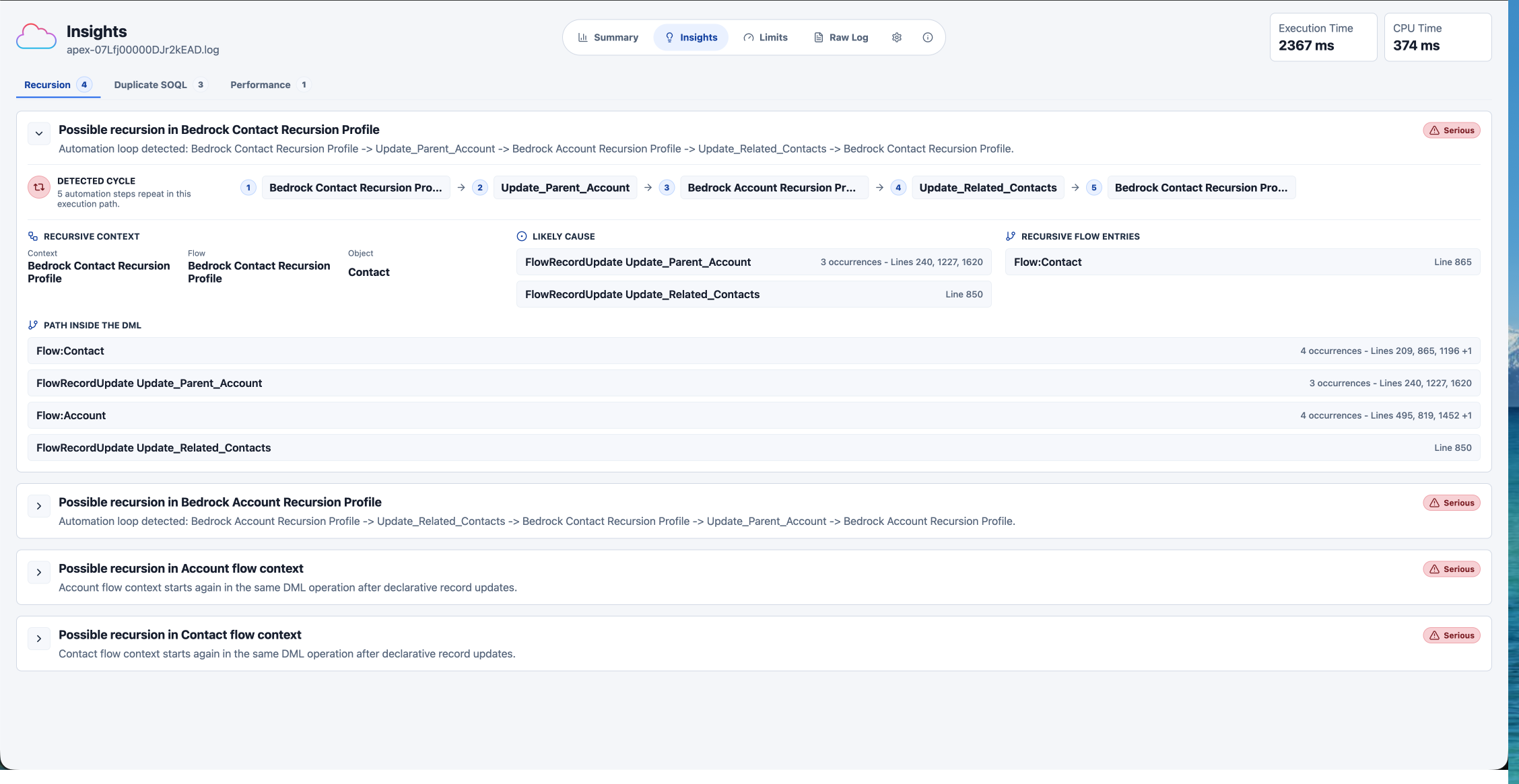
Recursion And Declarative AutomationThe Insights view is where SF Profiler starts to earn its keep. It can identify probable automation recursion, show the detected cycle, call out likely causes, and list the path through Flow and DML that produced the loop.
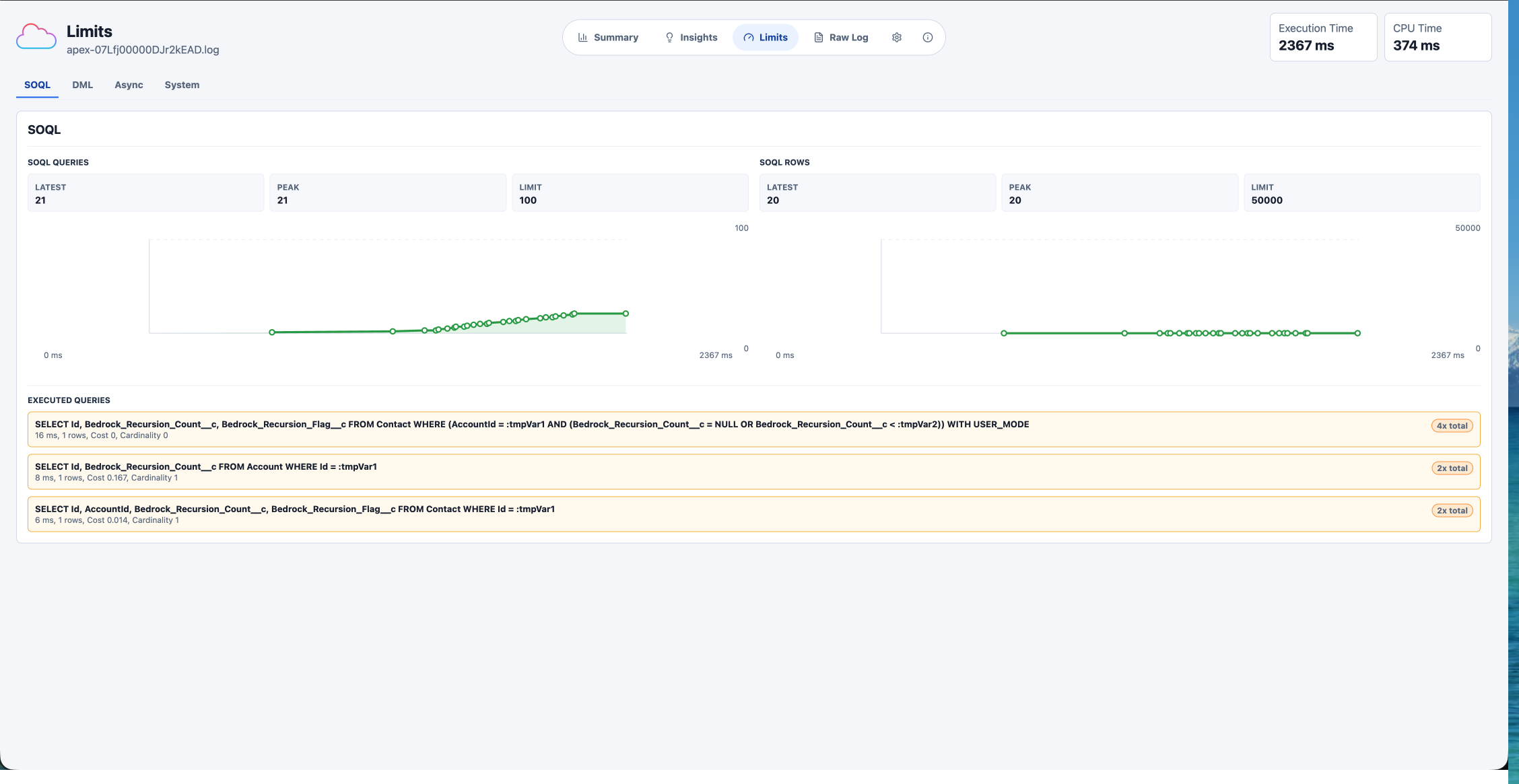
This is especially useful for record-triggered Flow, Process Builder leftovers, managed package automation, and mixed Apex/declarative transactions where the problem is not one line of code but a chain reaction. Limits Without The Scavenger HuntThe Limits view groups governor usage and related executions so you can see what actually moved the counters. Repeated queries are grouped together, row counts and timings stay visible, and you can jump from the symptoms back into the timeline.
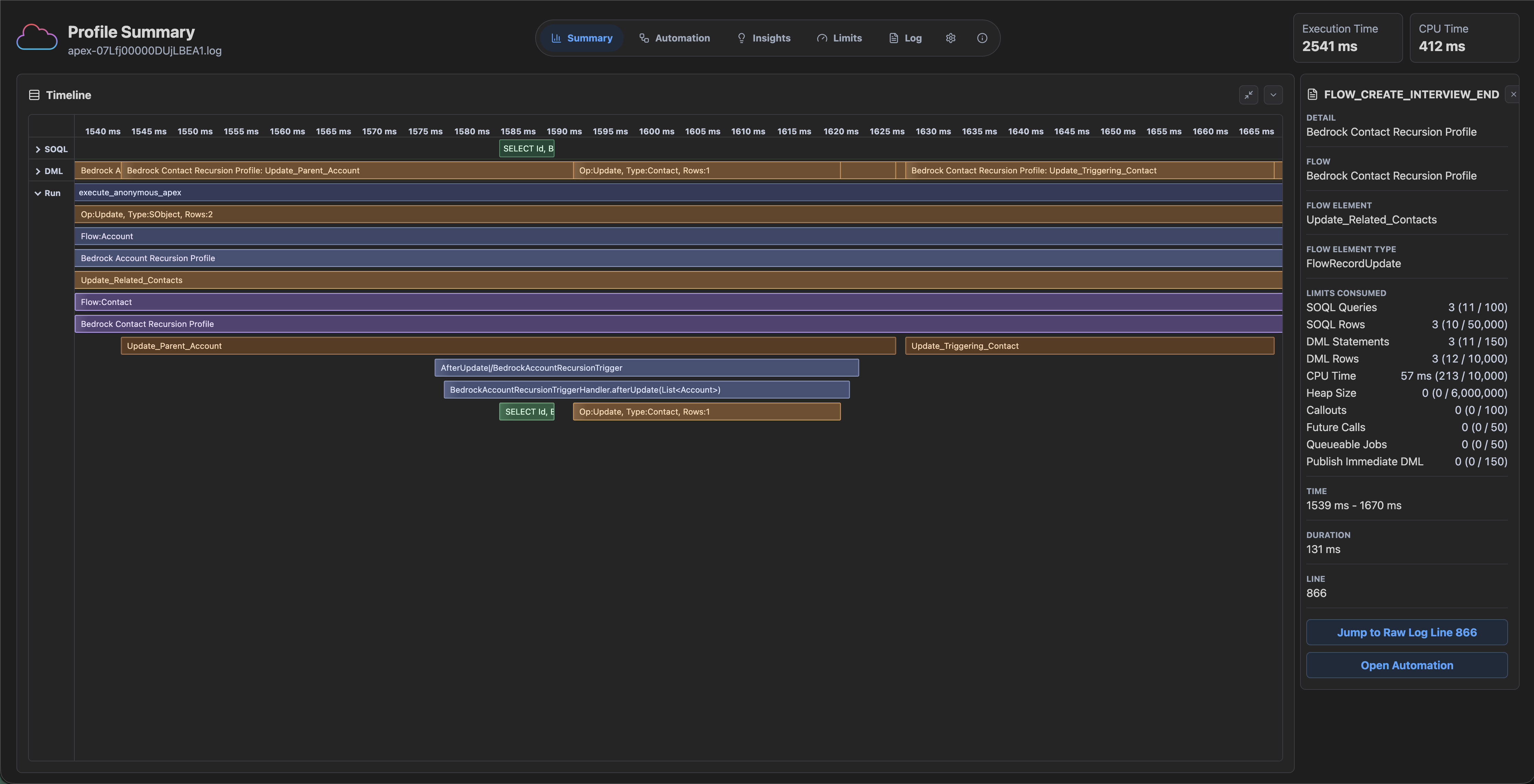
Timeline For The Whole TransactionThe timeline connects the transaction in execution order: Apex, Workflow/Flow, SOQL, DML, and other events. It is designed for the “what happened first?” and “why did this happen again?” questions that raw debug logs make painful.
SF Profiler also follows your VS Code light or dark theme when the profile tab opens. How To Use
The profile opens in a normal editor tab. LicenseSF Profiler is licensed under AGPL-3.0-or-later and includes a required attribution notice: Powered by SF Profiler. |