Flow Buddy for VS Code
Learn Vim's faster commands while you work, in VS Code with the Vim extension.
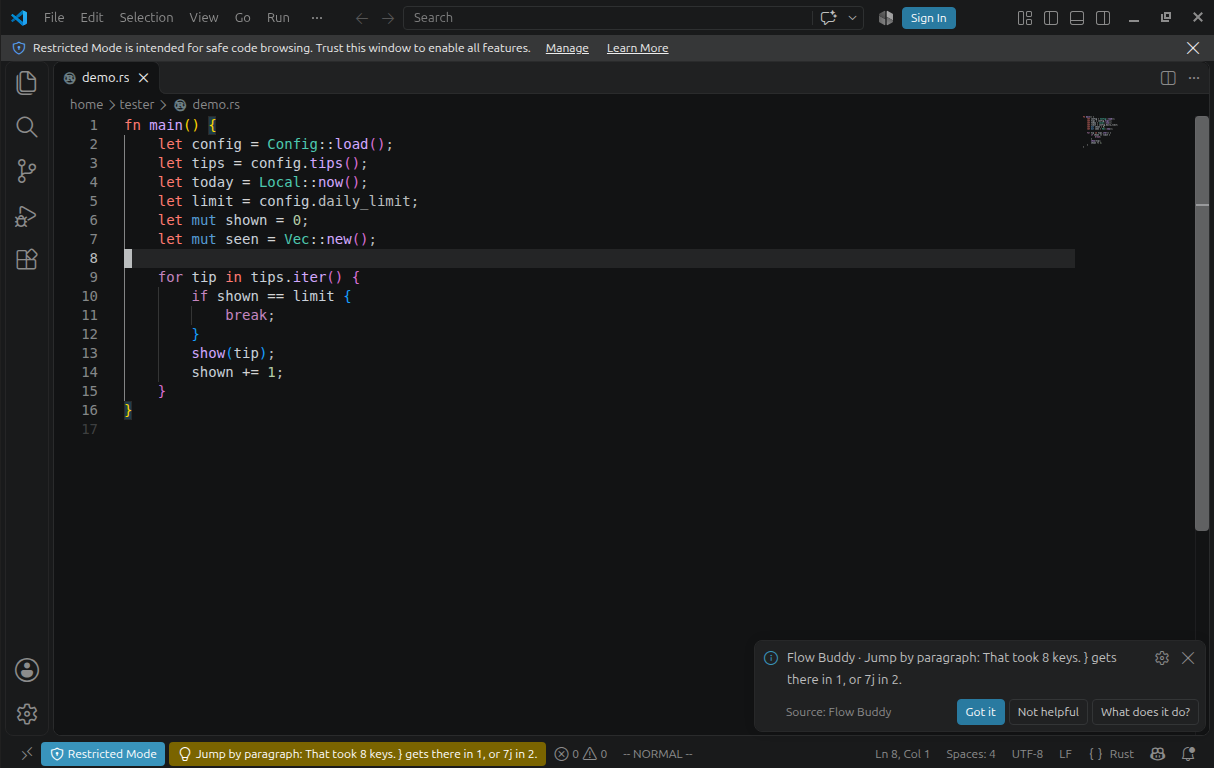
Flow Buddy notices habits like pressing j seven times to reach a blank line, and right after, shows the shorter way: } gets there in 1. It learns which commands you already use, so the tips move on as you do, and once a day it brings one new thing to try.
Getting started
- Install the Vim extension (vscodevim), if you haven't.
- Install Flow Buddy.
- Open a file and move around in Normal mode.
That's all on Linux and macOS: this extension comes with Flow Buddy's daemon and starts it when VS Code opens (it stops by itself ten minutes after the last editor closes). Nothing reads your keyboard; the extension counts your cursor's moves. On other systems it says it can't run there yet.
Answer a tip with Got it, Not helpful or What does it do?. The Command Palette has Flow Buddy: Settings…, Progress, Skill map, Practice and more, and the Get started with Flow Buddy walkthrough shows them.
Flow Buddy also coaches Vim and Neovim, and on Linux your shell's vi mode and Claude Code's Vim mode: see the project.
What it sends, and to where
Only counts and facts about cursor moves, to the Flow Buddy daemon on your own machine, over a local socket. Never text, file names or paths, and nothing over the network. The daemon keeps habits and counts in a local database. Details below and in docs/privacy.md.
How it works
The daemon only knows which window is focused, so inside VS Code it can't tell the editor from the integrated terminal or a chat panel (such as Claude Code's), and it has to guess vscodevim's mode from your keys. This extension tells it:
- whether a text editor has focus (
editor_focus),
- vscodevim's real mode (
editor_mode),
- how the cursor moved in Normal and Visual mode (
motion), with facts such as "} twice lands here".
Plain JavaScript, no build step and no dependencies. It does nothing until the daemon is running, and reconnects when the daemon restarts. With the full Linux install (scripts/install.sh), the installed daemon is used instead of this extension's copy.
With no keyboard access (this extension on its own, or scripts/install.sh --editor-only), the extension starts the daemon itself when none is running (the flowbuddy.startDaemon setting turns that off), shows tips as VS Code notifications, and reports single cursor steps (a line down, a character right) as j, k, h and l, because an extension can't see keys while vscodevim has them. Keys that don't move the cursor one step go uncounted.
Privacy
The extension sends only the fields in crates/core/src/editor.rs: flags, modes, counts and deltas. It never sends text, characters, file names, paths or absolute positions. Motion facts are computed here from the text, and only their numbers leave the extension (for example "f plus the character at the end, then ; twice", without the character). The daemon rejects any field it doesn't know, and it is on the same machine: nothing goes over the network.
Editor focus
VS Code has no API for "the editor has keyboard focus", so this is a heuristic.
Sent as true, as a heartbeat at most every 500 ms (plus one trailing beat so the last activity is never more than 500 ms older than the last beat):
- the cursor or selection moves in the active editor by keyboard, mouse or a command (vscodevim moves the cursor with commands),
- the active editor's text changes within a line of a cursor (typing),
- another editor becomes active,
- the window regains focus while the editor had it before.
Sent as false:
- the VS Code window loses focus,
- a terminal becomes active, is first typed into, or starts a command,
- the active tab becomes a terminal, webview or custom editor,
- no text editor is active, or the active one is a panel (output, comments, the commit message box, chat inputs).
Limits:
- Webview panels show nothing. Typing in Claude Code's panel, or any other webview in the sidebar or panel, fires no event at all. The editor's last heartbeat simply gets old, and the daemon treats keys that arrive without recent heartbeats as not going to the editor.
- A cursor moved by an edit (no selection-change kind) doesn't count, so an extension or tool rewriting the open file while you type in a chat doesn't look like editor activity. An edit landing next to your cursor still does.
- Another extension that opens an editor, or moves its cursor with a command, while you type elsewhere looks like activity. The heartbeat then stops, and the daemon falls back as above.
- Normal-mode keys that move nothing (
j on the last line, :) send no heartbeat.
Mode
vscodevim exports no API, but it sets the cursor style on every mode change: your vim.cursorStylePerMode.<mode> setting if there is one, otherwise a fixed style per mode (vscodevim 1.32):
| Mode |
Default cursor |
| Normal |
block |
| Insert |
editor.cursorStyle (line by default) |
| Visual, Visual Line, Visual Block |
line-thin |
| Replace |
underline |
| Command line, search, operator pending |
underline-thin |
The extension reads the active editor's cursor style and your settings, and finds the modes that use that style. Visual modes always select something (except on an empty line) and Normal never does, which separates them when they share a style. Visual, Visual Line and Visual Block are told apart by the selection's shape: several single-line selections on consecutive lines are Visual Block, one selection of whole lines is Visual Line, anything else is Visual. Whatever is still ambiguous, such as the command line versus operator pending, is sent as other, which makes the daemon fall back to its own guess. Without vscodevim, or with vim.disableExtension, the mode is other.
Limits: a charwise selection of exactly whole lines reads as Visual Line, a one-line Visual Block reads as Visual, and on an empty line the previous Visual kind is kept. vscodevim's EasyMotion mode looks like Normal, and "Vim disabled" via its toggle command looks like Insert.
UI events
For the VS Code pack (flowbuddy rules lists vscode.*), the companion reports when a file opens in a new tab, as the bare event file_opened: never which file. The daemon adds whether a click or Ctrl-P came just before, and the same for the terminal panel taking focus.
Text objects
After a delete or change in Normal or Visual mode, the companion works out which text objects (iw, aw, i(, a", ip, ap…) the removed range was exactly, and sends only their names. VS Code doesn't say what an edit removed, so while you're in Normal or Visual mode it keeps a copy of the active document's lines (documents over 20 000 lines are skipped). The copy stays in the extension and is dropped when you start typing in Insert mode. Yanks don't change the document, so they aren't seen; the Vim plugin sees them.
Motions
In Normal, Visual and Visual Line mode, a movement starts at the first cursor move and ends when the cursor has rested for a second, the mode changes or you click. Edits and switching editors drop it without sending anything, and nothing is sent in Insert mode or Visual Block.
Each movement sends its start and end time (Unix ms), the number of cursor moves seen, the mode, the line and column deltas and its facts. In Visual Line mode the column isn't known, so cols is 0 and only the vertical facts are sent.
The facts are computed in facts.js, which follows Vim's own code for w/b/e/ge/W/B, }/{, f/t with ;, % and */#, and the semantics in crates/core/src/editor.rs. A fact is left out rather than guessed: word facts next to characters outside Latin-1, % on preprocessor lines, in C comments or with unpaired quotes, and anything that would need the last search (search_hops) or the jump list (jump_back). */# honour vim.ignorecase and don't wrap around the file.
Tests
gjs vscode-extension/test/facts.test.js
gjs vscode-extension/test/tips.test.js
The tests run facts.js on small hand-written buffers. No node needed.
Tips
Tips show as a VS Code notification at the bottom right, with Got it, Not helpful and What does it do? (the explanation, and an example for lessons), and highlighted in the status bar for a few seconds (hover for all of it, click to answer). With the full install on GNOME, they show on Flow Buddy's desktop card instead. The Flow Buddy: Tips setting (flowbuddy.tips) chooses: desktop (the card when there is one, else a notification), notification, or statusBar (only the status bar). The change takes effect right away.
In the Command Palette: Flow Buddy: Settings… (the basics, then everything else and each rule), Check setup, Progress, Today, Recent tips, Skill map (every skill as a coloured tile) and Practice (a drill in Vim, in a terminal). They run the flowbuddy command: this extension's own copy, or the installed one.

