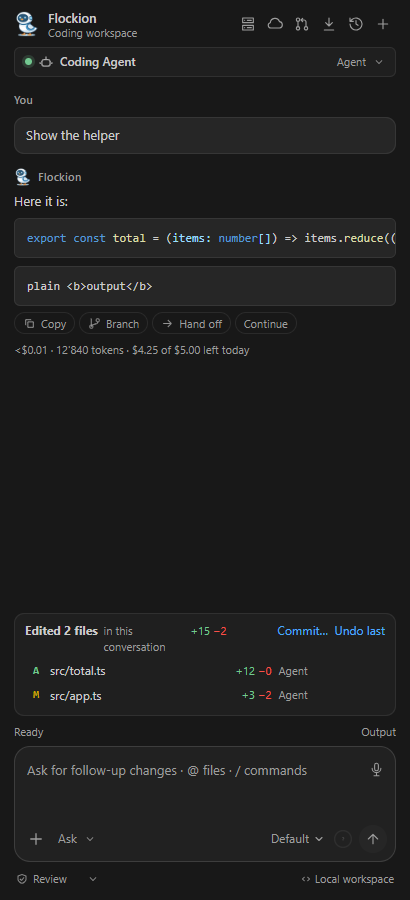
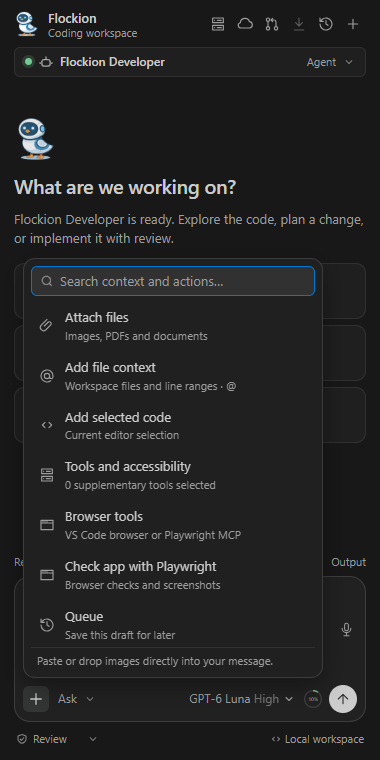
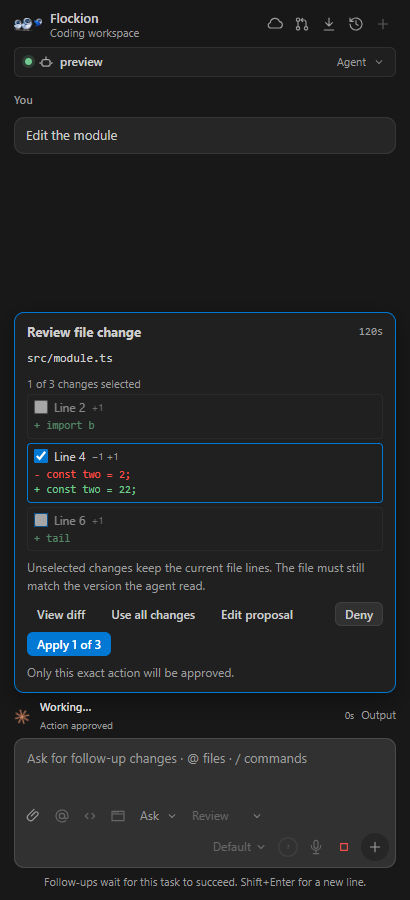
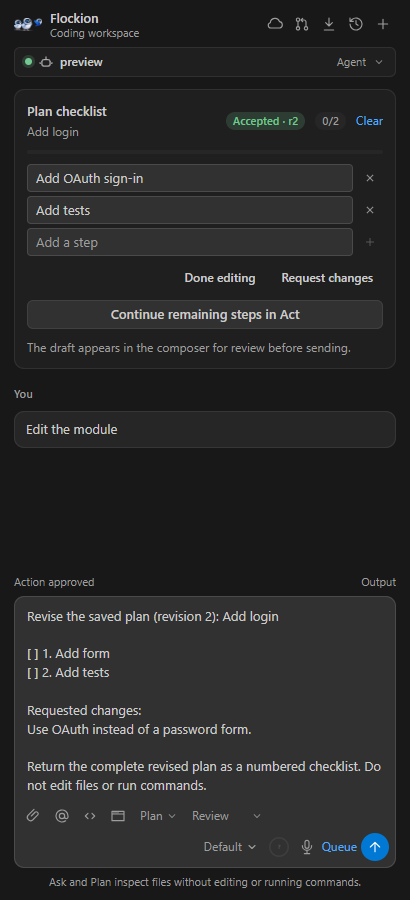
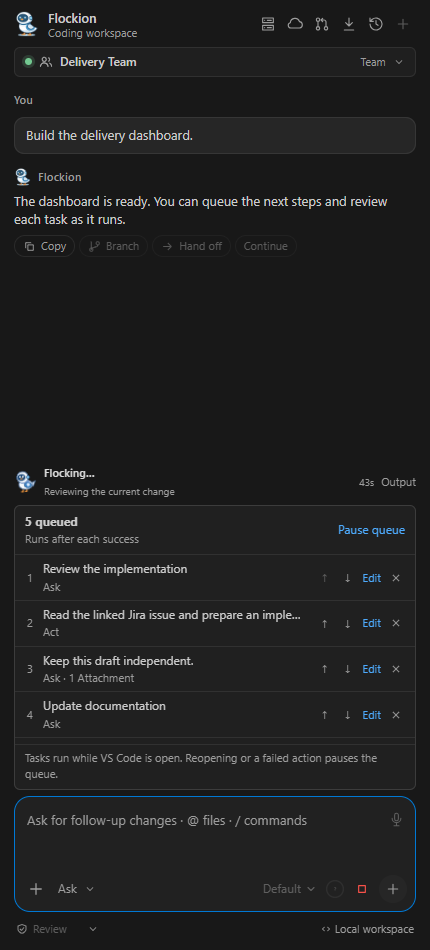
Flockion for VS Code — developer preview 0.38.9A coding workspace connected to a published Flockion agent or internal team. Ask about code, review a plan, or let the agent or team edit files and run commands. The editor tools work across programming languages; ABAP is one specialized agent and customer workflow. Explore agents, teams and the Flockion platform at flockion.com. ScreenshotsScreenshots show selected extension workflows. Example agent, workspace and task data is illustrative.
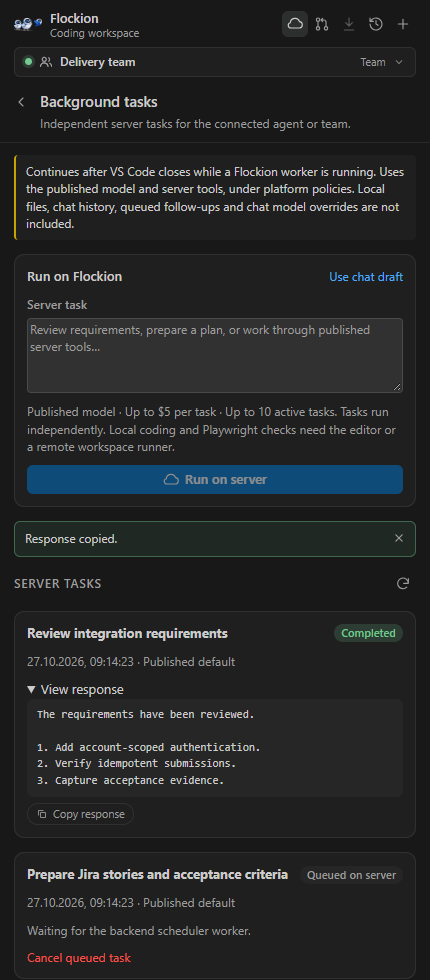
This milestone includes the local editor coding loop. In Act mode, explicitly published backend tools (including configured MCP tools) can run under existing Flockion policy and connections. A local SAP ADT virtual filesystem, SAP activation and ABAP Unit still need real-system acceptance. Direct Jira status synchronization, deployment controls and remote workspace runners remain planned. Independent server tasks can now use Flockion's persisted agent/team worker queue. Installing this extension does not provision an SAP environment or other services. Production connection and admissionFor Flockion Cloud, use Account limits apply to the API key owner even when the tester has no Flockion account. If hosted credits are exhausted, the owner must add capacity or configure the agent/team with an owned saved model-provider API key. The runtime API key is separate from the model-provider credential. With the matching backend, terminal admission failures preserve their specific reason and clear the rejected chat's pending state. Interrupted work with an uncertain outcome still requires checking request status before continuing. Background tasks on FlockionOpen the cloud icon in the header, or Flockion: Background Tasks. Write an independent task or copy your chat draft with Use chat draft, then choose Run on server. Accepted tasks persist in the backend and can execute after VS Code closes. The panel polls for status while open, shows the latest 20 tasks (active first), and provides saved responses, Copy and Cancel queued task. Results are scoped to the same connected runtime credential. This path uses the agent/team's published model and server tools. It does not inherit the local conversation, files, attachments, queue, model override or Full access setting. Every request has a hard $5 model budget and the connection allows ten active tasks. Independent tasks may run concurrently. The local five-task queue continues to run sequentially in the editor. The updated backend requires Progress, clipboard images and browser checksThe conversation shows public work updates that the agent explicitly sends with
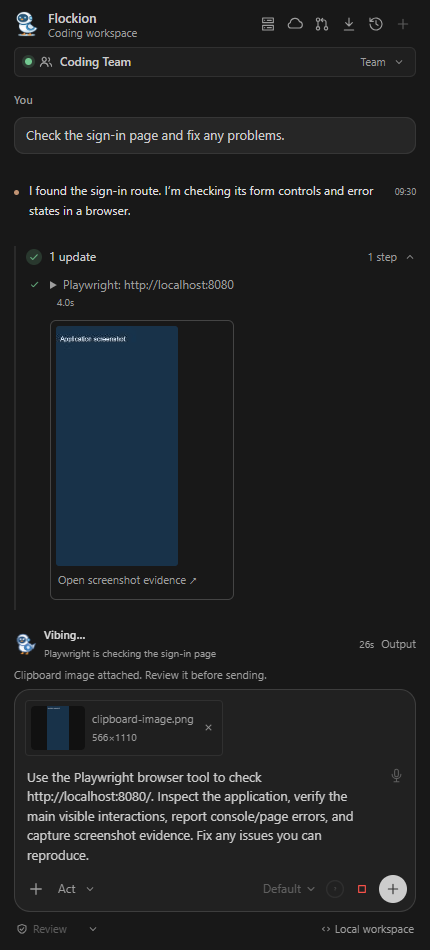
the editor Paste an image into the composer to upload it with the current scoped runtime credential. A thumbnail and dimensions appear before sending and remain in the saved conversation. PNG, JPEG, GIF and WebP images are accepted, up to four attachments and 5 MB per file. You can send an attachment without typing a prompt. Use + → Check app with Playwright in the composer to draft a standalone Playwright task,
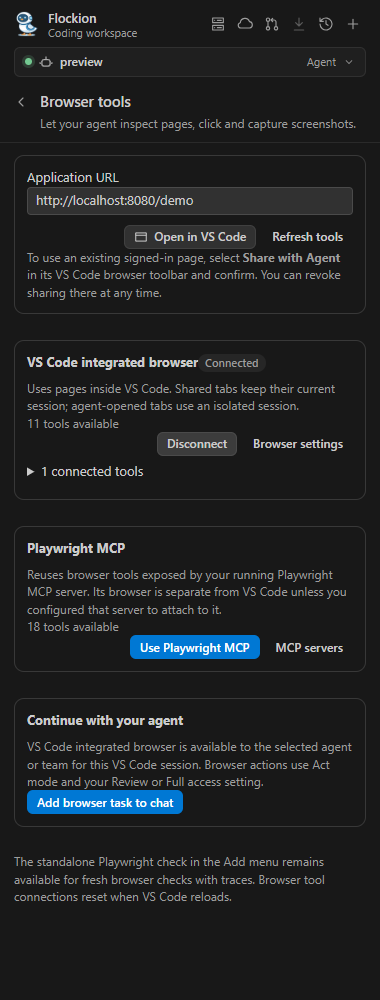
or ask the agent to check an app URL. In Act mode, Results include screenshots, per-step outcomes and console/network/page errors. Those errors fail the check for review. Screenshots are stored in workspace extension storage, open from the activity log, and are uploaded to the current Flockion attachment store so the agent can inspect the visual evidence. Failed uploads leave local screenshots available and report the upload warning. The backend must include the matching progress/browser editor tool schema. To use a visible page inside VS Code, choose + → Browser tools (or
Flockion: Browser Tools). Open the URL, share the tab with the browser's
Share with Agent button, and choose Use VS Code browser in Flockion.
The selected agent/team can inspect the page, click, type and capture screenshots
through VS Code's public tool API. Alternatively connect the browser tools exposed
by a running Playwright MCP server. The providers use their own browser sessions.
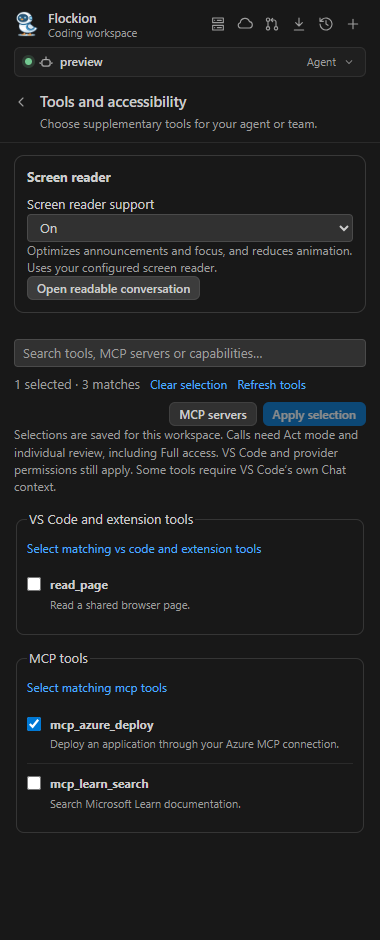
See the bundled Selected VS Code tools and screen readersOpen + ? Tools and accessibility to search and select registered VS Code,
extension and MCP tools, then Apply selection. Selections persist for this
workspace and are available to the connected agent/team. Supplementary calls need
Act mode and individual review, including Full access; native tool permissions
still apply. Some tools require VS Code's own Chat context. Deploy the matching
backend to enable Screen reader support offers Auto/On/Off. Auto follows VS Code detection. Optimized
mode provides polite response/review announcements, reduced motion and stable
reading focus. Open readable conversation opens a read-only snapshot in the
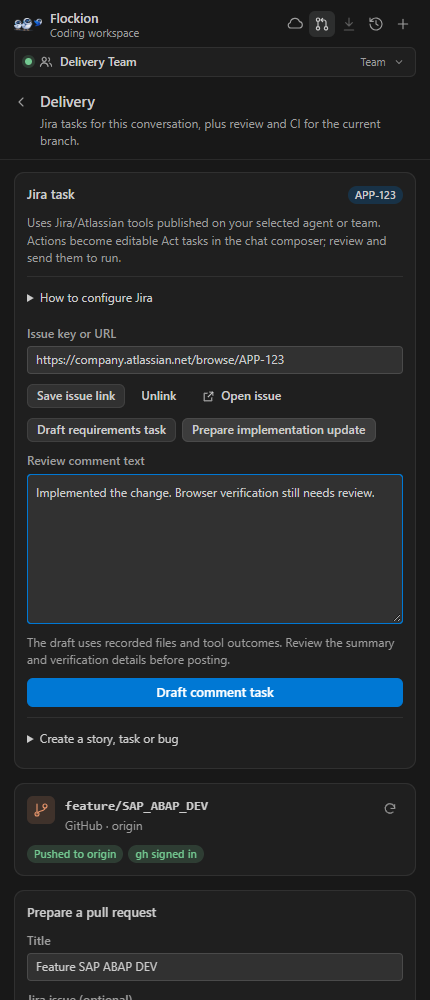
native editor. See the bundled Jira workflowFor connection setup, read the bundled Open Delivery to link a Jira key or HTTPS issue URL to the conversation. The reference persists in history, appears in exported transcripts and subsequent task context, and prefills the Jira field in code review forms. Draft a requirements task to read the issue through the selected agent/team's published Jira tools. Prepare an implementation update from recorded file changes, command/browser outcomes, screenshot count and checklist state, then edit the comment text. You can also draft a Story, Task or Bug with project, summary, description and acceptance criteria. These actions fill the composer in Act mode. Review and Send starts the existing governed runtime; preparation alone does not invoke Jira. Tool activity and the resulting response provide execution evidence. The selected agent or team needs the appropriate published Atlassian MCP tools and an authorized account connection. Missing tools, ambiguous Jira sites and platform approvals must be resolved in that runtime. The extension does not infer a remote issue status from its local link. Automatic status synchronization, transitions and screenshot attachment publishing remain planned. ABAP coding agentThe repository includes a private Flockion ABAP Coding Agent starter and the
The seed targets only that agent, skill and workspace tool and is safe to rerun.
It uses the owner's saved OpenAI API-key connection when available. You can
select one with If you updated the local Edit For a live, read-only fixture test, run: Run this from Without an SAP system, start with Install
For this local setup, use Every step happens inside the Flockion panel; no prompts open at the top of the VS Code window. The key is passed once to the extension host and stored in VS Code SecretStorage, never in repository settings or webview state. Disconnect removes the local key; revoke it in Flockion to invalidate other copies. Each conversation is separated by API key and editor session ID. Starting a new conversation creates a new session ID. If a saved chat's runtime credential changes, its transcript remains readable/exportable; branch an answer or start a new chat to continue with the new credential. Sign in and choose assetsChoose Sign in with browser in the Connections view (or run Flockion: Sign In).
The server defaults to your last account or connection; choose Change to enter
another API base URL (local development: The panel then lists your owned agents and teams with search and Agents/Teams filters. Select one to connect. Only published, unpaused assets allowed by the existing ownership and organization policy can connect; others show the reason. VS Code sets up an asset-scoped runtime key automatically; no key needs to be copied. Account and runtime credentials stay in VS Code SecretStorage and are never sent to the chat webview. This editor credential grants discovery and scoped connection setup, not general account administration. Device approval expires in ten minutes, is verifier-bound and can be redeemed once. The editor session lasts 30 days. Sign out (confirmed in the account card) revokes the editor session and its runtime connections. Manually entered runtime keys are stored separately. If the server is unreachable, the extension clears local account credentials and reports the failed remote revocation; the account keys can be revoked in Flockion's API & editor access. When the 30-day editor session expires or is revoked, the panel clears it and asks you to sign in again. Workspace participants and handoffsIn Connections, use + beside an agent or team to add it to the local workspace roster (up to twelve). Manual connections also join the roster. Select a participant under Workspace participants to start a new conversation with it. Remove a participant using its adjacent remove button; this only removes the roster entry, not the server asset. Choose Hand off beneath an answer and pick a participant or another owned agent or team in the panel to pass only its preceding user question and that answer to another agent or team. The source chat stays in History. The target gets an independent runtime session and shares the workspace's current files; enter its next task to continue. The excerpt is bounded while preserving both question and answer. Attachment contents must be attached again for the target. Agent→agent, agent→team, team→agent and team→team handoffs all use this same path. Members inside an existing team continue to use that team's published orchestration. This roster provides explicit handoffs; autonomous cross-team delegation and parallel workspaces are later work. The target shows who handed off the task and whether it is waiting for your instruction, running, pending, completed or failed. Handoff creates a new saved conversation; it does not launch work until you send the target's next prompt. File context, plans and task checkpointsType @ in the composer (or use the @ button) to search workspace files and add up to five references. After choosing a file, optionally enter one line or a range of up to 200 lines. Flockion reads the selected excerpt when you send and marks it as untrusted source context. Secret, excluded, binary, oversized and unsaved files are rejected by the workspace reader. For a response to a Plan request, choose Save checklist to keep its list items in that conversation. Check items as work completes; the checklist is saved with local conversation history and exported with the transcript. Each request records a task checkpoint for file writes made through Flockion's editor tools. In Git repositories, it also captures safe text file changes visible before and after approved commands, including tracked and untracked changes. Open a checkpoint to review its native diffs, untick files you want to keep, and restore the rest. Restore asks for confirmation and proceeds only when every file still matches the version captured by Flockion. This uses VS Code's built-in Git extension. It skips ignored files, binary or oversized files, unsaved buffers, paths outside the workspace and stage-only changes. Git staging and commit state are never restored. Review those separately in Source Control. Models and contextChoose a model inside the composer next to the microphone and Send button. Its menu opens above the button, supports search and keyboard navigation, and marks the current choice. Custom model or deployment… opens a small form in the same menu; custom IDs still use a saved provider connection. During file review, Edit proposal lets you revise the proposed contents and preview their diff before Apply. The existing file must still match the version the agent read. The agent receives the resulting hash and checkpoints record the contents actually saved. Use the model name (or Default) inside the composer to select a catalog model from the published provider connection or another saved provider connection on your account. Custom model/deployment IDs are also supported. The choice is saved with this chat and overrides the next turn without editing the published asset. For teams, it overrides the manager and internal members; external remote agents retain their own model configuration. Changes can be made between turns. Choose Default to return to the asset's settings. Provider credentials stay in Flockion; organization provider policy still applies. The circle beside the model picker shows estimated context used. Its tooltip shows used/remaining percentages and tokens; it turns red above 50%. Click it to compact older conversation history. The backend summarizes older messages using the selected model while keeping the latest four messages and preserving all original messages in history. Normal provider charges apply, with summarization usage recorded and checked against organization budgets. If summarization fails, the original context stays available. At 95% of a known model window, the backend automatically compacts saved history before the next turn or after a completed turn. Native tool loops also compact old message/tool groups at that threshold. If the newest prompt still exceeds 95%, the request is stopped with a request to reduce its context. Token counts are estimates; tool schemas and images may add tokens. Models without a known catalog context limit show token counts without a percentage or automatic threshold; manual compaction remains available. Use a backend with the editor model/context endpoints (no database migration is needed). Configure a coding teamCreate and publish an internal team in Flockion, then create a key under the
team's API & editor access. Give members distinct jobs such as requirements,
implementation, test, and review. Start with sequential handoff so each member
can inspect the previous member's result; publish Use the same setup for Python, TypeScript, Java, C#, Go, ABAP or other supported
source files. The connected repository, project instructions, configured skills
and approved tools provide the context. For a SAP pilot, bind Try the first coding task
Access starts in Review each time the extension loads. Choose Full access in the composer to authorize local Act writes and commands automatically for the current connection. Full access does not change Ask/Plan limits, key ownership, organization policy or backend tool policy. Local commands run with the VS Code extension host user's permissions and are not sandboxed. Return to Review in the composer whenever you want individual approvals again. The agent can list/read/search files, inspect diagnostics, propose version-checked writes, and run commands. Reads return hashes; writes need the expected hash or explicit null for a new file. Files with unsaved changes are unavailable. Save them yourself first. Edits are saved so subsequent tests use the changed files. The normal editor undo history remains available. There is no bulk revert button. Reviews no longer depend on a notification outside the chat. The review card shows the target file or exact command, with a countdown. An unanswered review is denied after 150 seconds. View diff reopens the proposed edit; previewing does not apply it. Closing the connection or selecting Stop cancels review. Expand Activity to inspect actual tool steps, failures and command results. Responses render Markdown and include Copy response and Copy code controls. Choose Export in the chat header to save the active conversation as Markdown, including tool activity and attachment names; file contents are not embedded. In History, choose Export on any saved conversation to export it without reopening it. Use Branch in new chat below a response to open an independent conversation with only that response and its immediately preceding user question. Earlier edits remain in the shared workspace; attachment contents need to be attached again. Changed files lists the recent 20 files written through editor tools in this conversation; click a path for its initial-to-current diff or Open for the file. Changes made by shell commands or outside the conversation are not discovered in this list. Each file can be restored to its pre-conversation contents with Undo. Flockion asks before restoring and checks that the file still matches its last edit; a later change blocks the undo. Files created in the conversation are moved to the system trash. The composer remains editable while a task runs. Queue up to five follow-up tasks with their own Ask/Plan/Act modes, attachments and file references. You can attach files or paste an image while the current task runs. Each queued task keeps its context separate from later drafts; file references are read when that task starts. The queue uses the chat's current model and access permissions. The idle Queue button builds a paused batch; Resume queue runs its tasks sequentially. While a queue exists, Enter adds to it. Run now sends your draft first while leaving a paused queue waiting. Pause waits for the current task to finish. Reorder, remove or edit individual tasks in the queue card. Editing pauses the queue and preserves attachments and references. Failures (including failed/denied tool actions), Stop, disconnect and reopening pause the remaining tasks. After an interruption, check the saved request status, then explicitly Resume; requests are not replayed. Queue removal and the new request ID are saved together before execution. History shows queued counts and keeps unfinished queued conversations during retention cleanup. Tasks run only while the VS Code extension host is open; this is not a durable server worker. Continue drafts a follow-up without overwriting an existing draft. Shift+Enter adds a new line. Scrolling up preserves your position; Jump to latest returns to new activity. The composer draft/mode survive webview recreation. Select code and run Flockion: Add Selection to Chat to explicitly attach it. Run it again for more ranges or files, or use multiple cursors to add several ranges at once (up to five selections, 30,000 characters in total). Each chip shows the file and line range that will be sent and can be removed on its own. Secret/excluded paths are blocked for file tools. Each turn has a USD 5 hard budget cap and inherits the agent's tool-call guardrail (8 tool calls by default). Use the paperclip to attach up to four local images, PDFs, DOCX/XLSX/CSV documents or supported text/source files, at 5 MB each. Uploads are tied to the connected API key and sent as attachment references on the next turn. File bytes are not stored in the webview or local conversation history. Extracted text is bounded to 4,000 characters per document and 12,000 characters overall; PDFs are read from the first 20 pages. Scanned PDFs need OCR before their text is available. The chip shows extraction warnings. Explicitly selected files may be outside the workspace, but secret and excluded paths are blocked. On Windows desktop, click the microphone to dictate one phrase using an installed Windows speech recognizer and the system microphone. Pause to finish; the result is added to the editable draft and never sent automatically. Click again to cancel. This feature uses local Windows speech recognition and stores no audio in Flockion. Microphone availability depends on a Windows speech language, device and OS privacy settings. Other platforms show the feature as unavailable in this preview. The conversation shows live tool activity and response progress. Answer text is shown after Flockion's existing output validation; raw unmoderated token deltas are not exposed. This preview is not full feature parity with other coding agents. Conversation historyUse History in the chat header, or run Flockion: Conversation History. Chats are listed newest first with automatic titles, previews, timestamps and message counts. Search titles/previews, reopen a chat to continue it, or use Rename and Delete. Starting a new conversation preserves the previous one. History is local to the VS Code workspace and filtered to the connected agent or team endpoint. Reopening uses the original runtime session ID and restores messages, tool results, the changed-file baseline and queued tasks. It does not replay commands or edits. Pending sessions display Check status and require the existing request-status lookup before another turn. Continuing backend context also depends on the original runtime API key and backend conversation retention. Drafts and composer mode are kept separately for each chat. Transcripts are stored as JSON files in VS Code's extension workspace storage, outside your repository. Its workspace state stores a small summary index. The current saved 0.2.0 chat is migrated on first use; chats already discarded by older versions cannot be reconstructed from the extension. The latest 50 chats are retained, with up to 200 message/activity items per chat and the recent 20 changed-file baselines. Unresolved requests are preserved beyond the chat limit. Each message retains up to 12,000 characters; backend runs remain authoritative. Deleting a chat removes its local transcript, summary and composer draft. It does not undo workspace changes or delete the backend conversation/run records. History is not synchronized between computers. Selecting another chat is disabled while a task runs; stop it first. If a saved workspace folder is no longer open, reopen that folder before continuing the conversation. Stop and recoverStop aborts local work, attempts to terminate running command processes and prevents further workspace dispatch. Effects that already happened are retained. The backend may need time to finish recording cancellation of an in-flight model request. Closing VS Code also disconnects local execution. After interruption/reload, use Check previous request status. The original request ID is retained and never automatically replayed. A request still marked running needs investigation in Flockion; it is not proof that local execution is still active. After a backend crash, a request can remain unresolved. Start a new conversation only after inspecting the actual workspace and prior run. The extension keeps bounded local conversation history as described above; Flockion retains the authoritative conversation and run events. Pending approvals and processes are not restored across reloads. This milestone does not include an unattended worker or cross-process action recovery. Use Delivery (pull request icon in the header) to open the Delivery view for
the current branch. It shows whether the branch is pushed to origin and whether
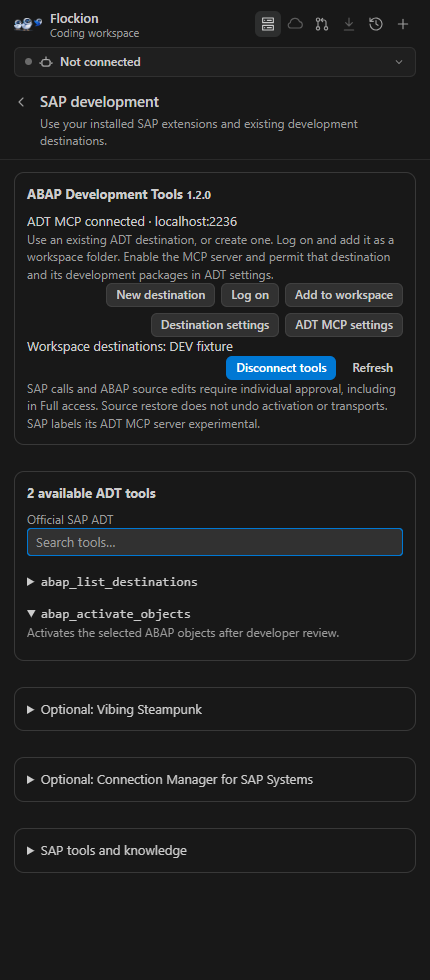
Execution boundariesFile tools operate within one selected workspace folder. They reject traversal, symlinks/junctions, secret filenames, private keys and common dependency/credential directories. Text files are limited to 200 KB, returned excerpts to 9,000 characters, and searches to 500 files. Generated edits need a pre-existing parent directory. Large files can be read in line ranges. Hidden application directories are not a general-purpose secret classifier: review what you authorize to share. Commands run on the extension host with your user permissions. They are not sandboxed and can access other files/network resources. A working-directory check is not a process isolation boundary. Use a controlled repository and review commands. Windows desktop VS Code is the validated development target; other platforms/remote hosts need their own acceptance run. Build and verifyRequires Node.js 22 or later and npm. The packager's Azure identity/UUID dependency overrides are for private offline VSIX packaging; Marketplace publishing auth is not part of this preview. The package script produces a versioned VSIX. The publisher identifier is a development manifest value; this preview has not been published to a store. The extension is private and no distribution license is assigned yet. Run For a UI-only browser preview, build then run Backend protocol tests from the repository root: For F5 debugging in this folder, create a local SAP ADT and SAP Systems integration (0.29.0)Open Flockion: SAP Development Tools, or the server icon in the chat header. The panel opens SAP's Connection Manager and ADT destination setup, then connects to ADT's local MCP server. The installed SAP extensions manage credentials. Flockion discovers the live tool schemas and lets your current agent or team use them through the editor bridge. SAP calls and source edits wait for your review, including in Full access. In Ask and Plan, the agent may request SAP reads (search, source, transport lookups) through the same review. Allow for session on a SAP review skips later reviews for that tool until SAP disconnects or VS Code reloads; the SAP panel lists these tools and can revoke them. SAP virtual workspace folders support source inspection, line references and
reviewed edits with file-version checks. Checkpoint restore covers source only;
activation and transports are separate SAP operations. This needs a real SAP
development destination and a backend restart to load the updated editor
protocol. See the bundled Optional community SAP tools (0.30.0)The SAP panel can start a separately installed Vibing Steampunk executable using
a saved system alias. Official ADT remains the default; credentials stay in the
selected provider. Read-only mode is requested by default, and every SAP call
still requires review unless you allowed that tool for the session. Compact discovery retrieves one tool schema
at a time. Structured SAP errors are recorded as failures and pause the queue.
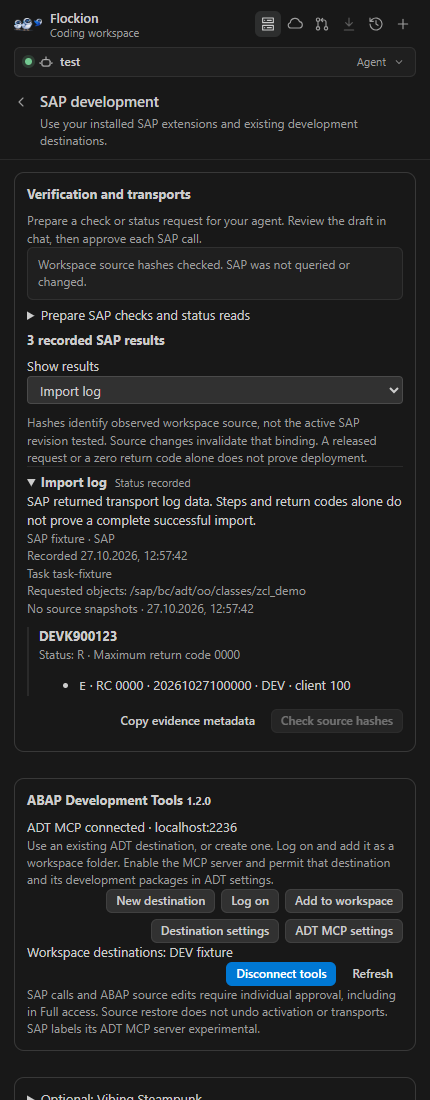
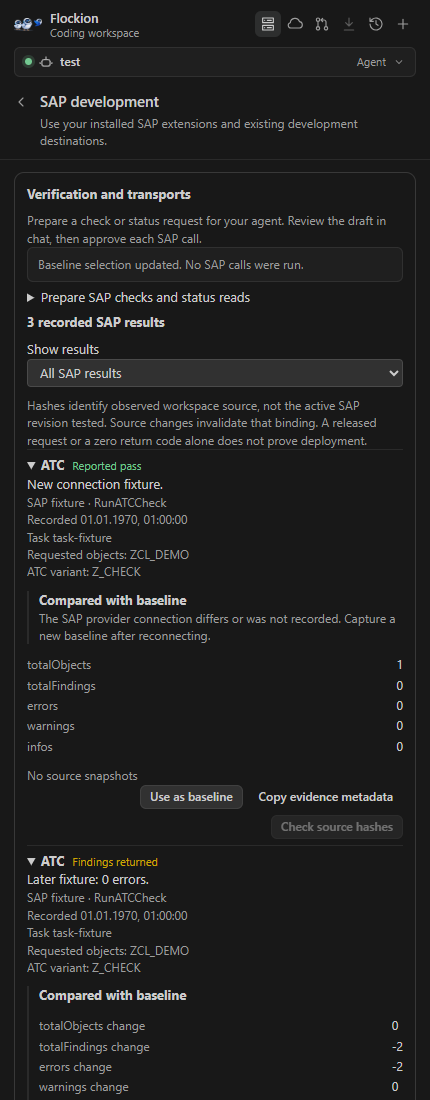
See the bundled SAP evidence and transports (0.31.0)Open the SAP panel's Verification and transports section to inspect recorded Unit/ATC counts, result IDs, source hashes and returned transport/import details. Prepare reviewed check/status drafts there, copy normalized evidence, or include a summary in the existing transcript export and Jira draft flows. Source hashes describe observed workspace files, with stale bindings marked
after edits and rechecking required after reopening. They do not prove the
active SAP revision tested or a successful transport import. Unknown response
formats remain unverified. See Before/after SAP checks (0.32.0)Choose Use as baseline on a recognized Unit/ATC record before changing code.
Later compatible records display count changes. Comparisons require the same
recorded connection, workspace and requested scope, and are refused after a
reconnect or invalidated later source binding. Counts do not prove which
findings are new. See |