Project Manager Veyra
Switch between your projects in a keystroke. Save the folders you work in as projects, find every Git repository on your disk, and jump back to recent folders, from one sidebar and one search box.
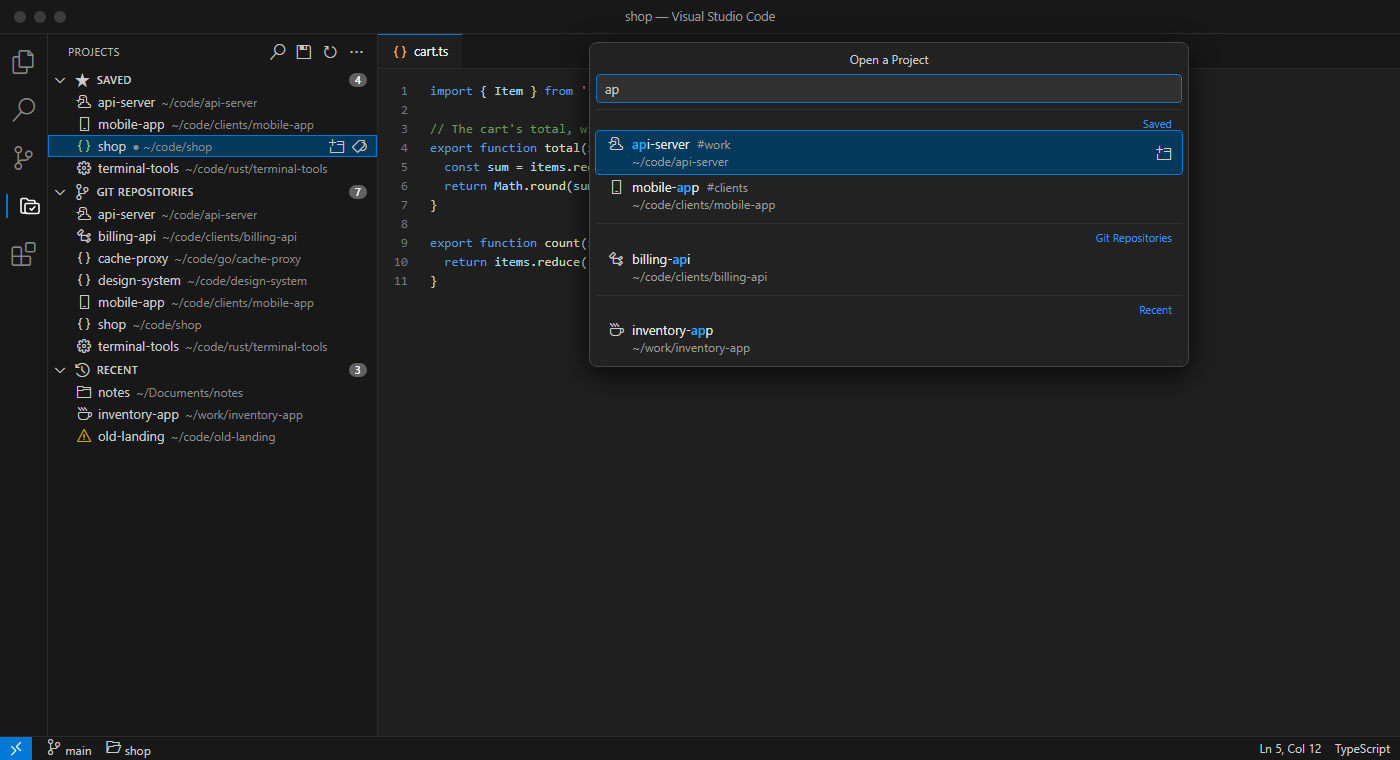
Press Shift+Alt+P, type a few letters of the project, and press Enter.
Everything in one place
- Saved projects. Click 💾 in the Projects view (or run Project Manager: Save Project) to save the open folder. Right-click any folder in the Explorer to save it too.
- Git repositories, found for you. Choose the folders you keep code in, like
~/code, and every repository inside shows up. Dependencies, build output and hidden folders are skipped.
- Recent folders. The folders VS Code opened lately, without digging through File → Open Recent.
- The kind of project at a glance. Node.js, Python, Rust, Go, Java, .NET, PHP, Ruby, Dart and C/C++ projects get their own icon.
Switch fast
- Shift+Alt+P opens a search box with all your projects: saved first, then repositories, then recent folders.
- Enter opens the project here. The window button next to it opens a new window.
- The status bar shows the project you're in. Click it to switch.
- Right-click a project to open it in a new window or a terminal, copy its path, or show it in your file manager.
Organise
- Tags. Give projects tags like
work, clients or learning, and group the sidebar by tag.
- Sort by name, by the most recently opened, or in the order you saved them.
- Edit by hand. Your projects live in a plain
projects.json. Run Edit projects.json to change it; the sidebar updates when you save.
- On every computer. Set
veyraProjects.projectsLocation to a synced folder (OneDrive, Dropbox, iCloud) to share your list.
- Folders that no longer exist are flagged, so you can tidy up.
Settings
| Setting |
|
veyraProjects.scanFolders |
Folders to look for Git repositories in |
veyraProjects.scanDepth |
How deep to look (default 4) |
veyraProjects.ignoreFolders |
More folder names to skip |
veyraProjects.openInNewWindow |
Open projects in a new window by default |
veyraProjects.sortBy |
name, recent or saved |
veyraProjects.groupByTag |
Group saved projects by tag |
veyraProjects.showRecent · recentLimit |
The Recent section |
veyraProjects.showInStatusBar |
The project name in the status bar |
veyraProjects.projectsLocation |
Where projects.json is kept |
Already using a projects.json from another project manager? Point veyraProjects.projectsLocation at its folder: the same format works.
Good to know
- Free, offline, no account. Nothing is sent anywhere.
- It never changes your folders: removing a project only removes it from the list.
Made by FlightCoders, the team behind the Veyra editor. MIT licensed.
| |

