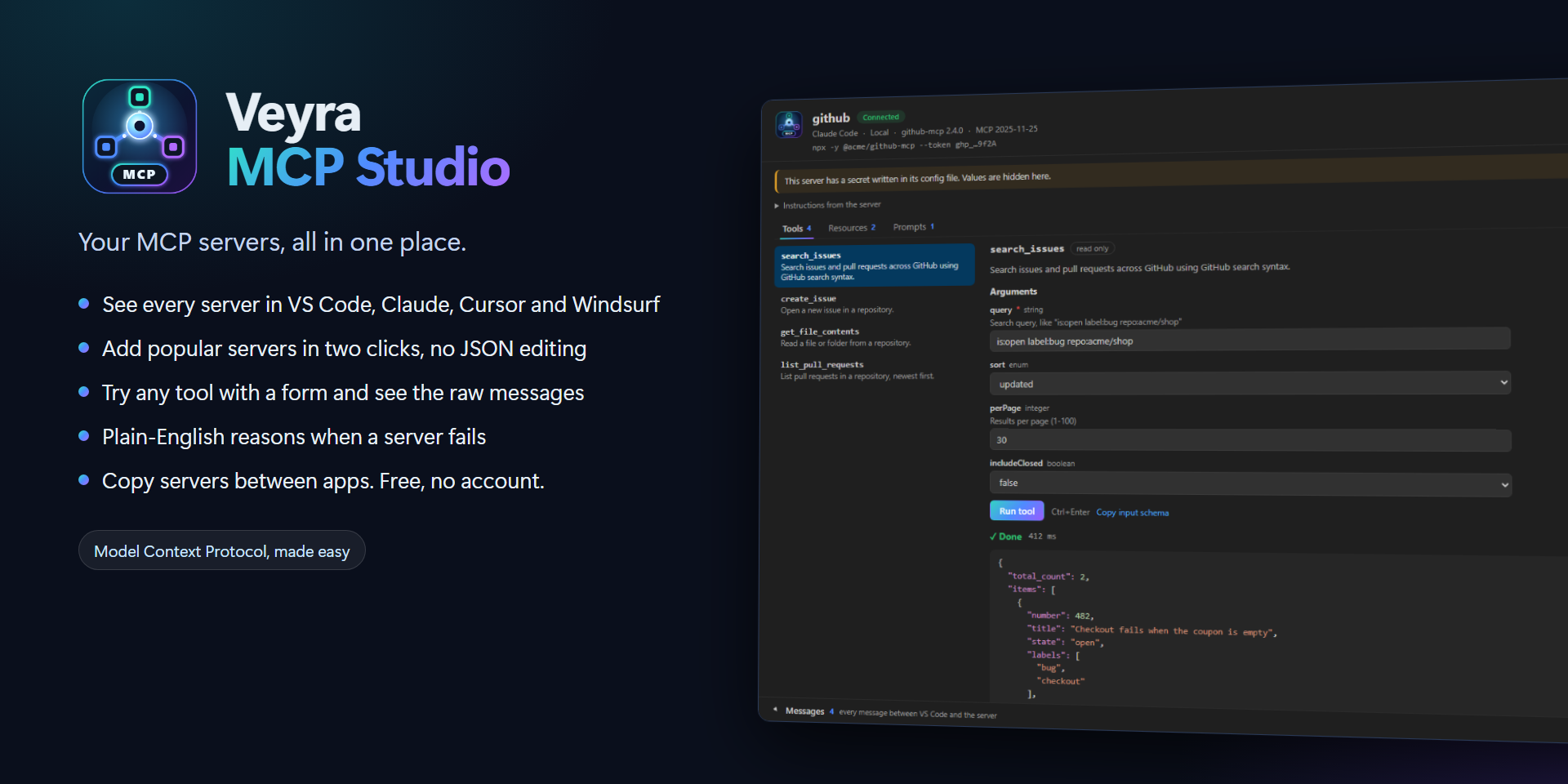
Veyra MCP Studio
Your MCP servers, all in one place.
MCP servers give AI assistants like Claude, Copilot and Cursor new abilities: reading your files, searching docs, driving a browser, opening GitHub issues. Setting them up usually means editing a different JSON file for every app, and when a server fails, the AI just says the tool is unavailable.
MCP Studio fixes that. It shows every MCP server from every AI app on your computer in one sidebar, lets you add popular ones in two clicks, test any tool with a simple form, and tells you in plain words why a server does not start. Free, no account, nothing sent anywhere. By the makers of Veyra Studio.
- 🗂️ One sidebar for every app: VS Code, Claude Code, Claude Desktop, Cursor and Windsurf.
- ➕ Add servers in two clicks from a catalog of 20 popular ones, or add your own. No JSON editing.
- 🔍 Inspector: try every tool, resource and prompt, and see every message the server sends.
- 🩺 Clear errors: "uvx was not found: install uv, then restart VS Code" instead of a stack trace.
- ⧉ Copy servers between apps: each app's format and variable syntax is converted for you.
- 🛟 Safe edits: your comments and other settings are kept, and a backup is made before every change.
Quick start
- Click the MCP Studio icon in the Activity Bar. You see each AI app installed on your computer with its servers.
- Click + (Add MCP Server), pick a server such as Filesystem or Microsoft Learn, tick the apps that should get it and click Add server.
- Click ▶ next to any server to check that it starts, or the Inspect icon to open it and try its tools.
- Restart the AI app (Claude Desktop, Cursor and so on) so it loads the new server. VS Code picks up changes by itself.
That is all. You never have to open a config file, but Open Config File is always one click away if you want to.
Every server, every app
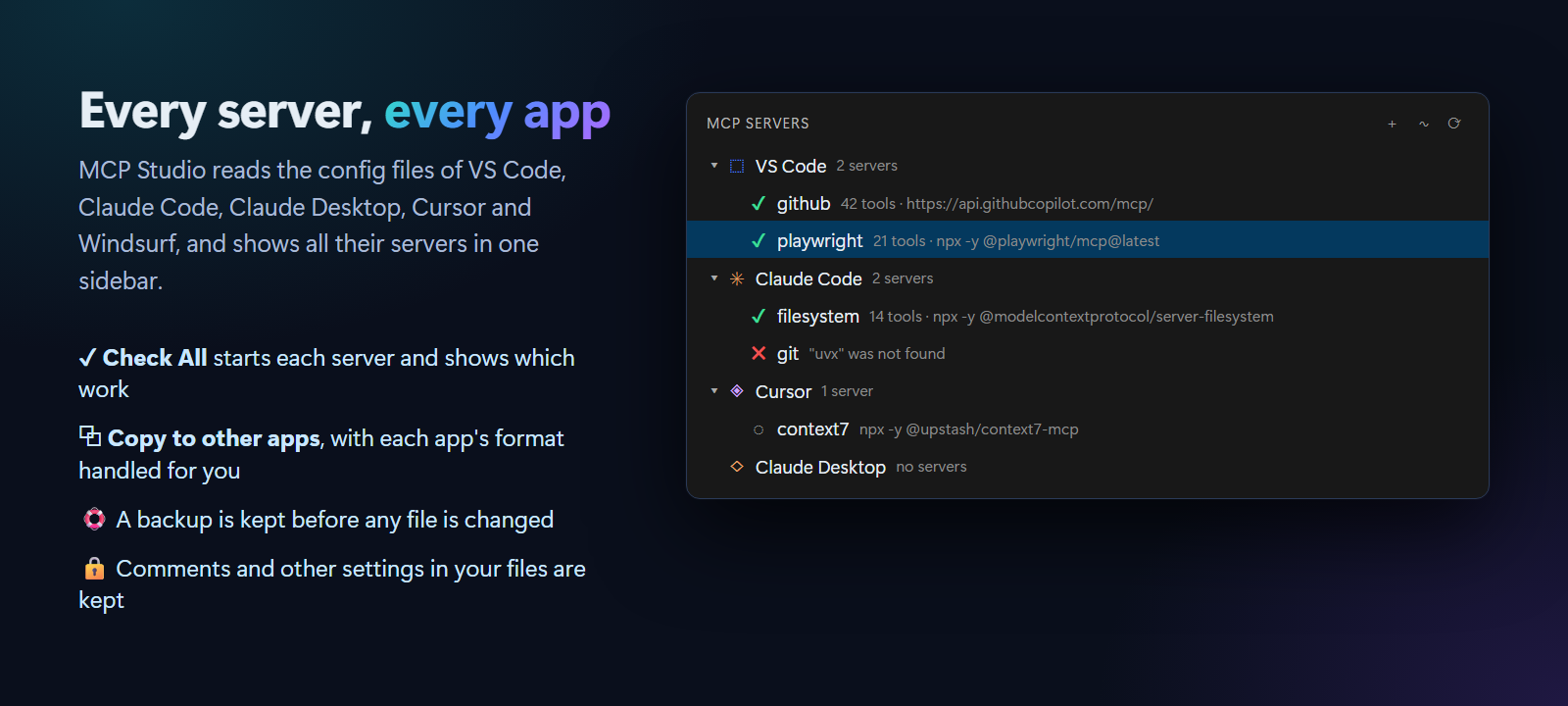
The MCP Servers view groups servers by app. Each one shows how it runs (its command or URL) and, after a check, how many tools it has or why it failed.
- Check All Servers (the pulse icon) starts every server once and marks it ✔ or ✖.
- Copy to Other Apps… copies a server to any other app. Different apps write variables differently (
${env:TOKEN} in Cursor and VS Code, ${TOKEN} in Claude Code); MCP Studio converts them and tells you about anything that cannot be converted.
- Remove… asks first and keeps a backup of the file.
- The view refreshes by itself when a config file changes, including when you edit it by hand or in another app.
- Secrets in config files (tokens, API keys) are masked everywhere in MCP Studio.
Add a server in two clicks
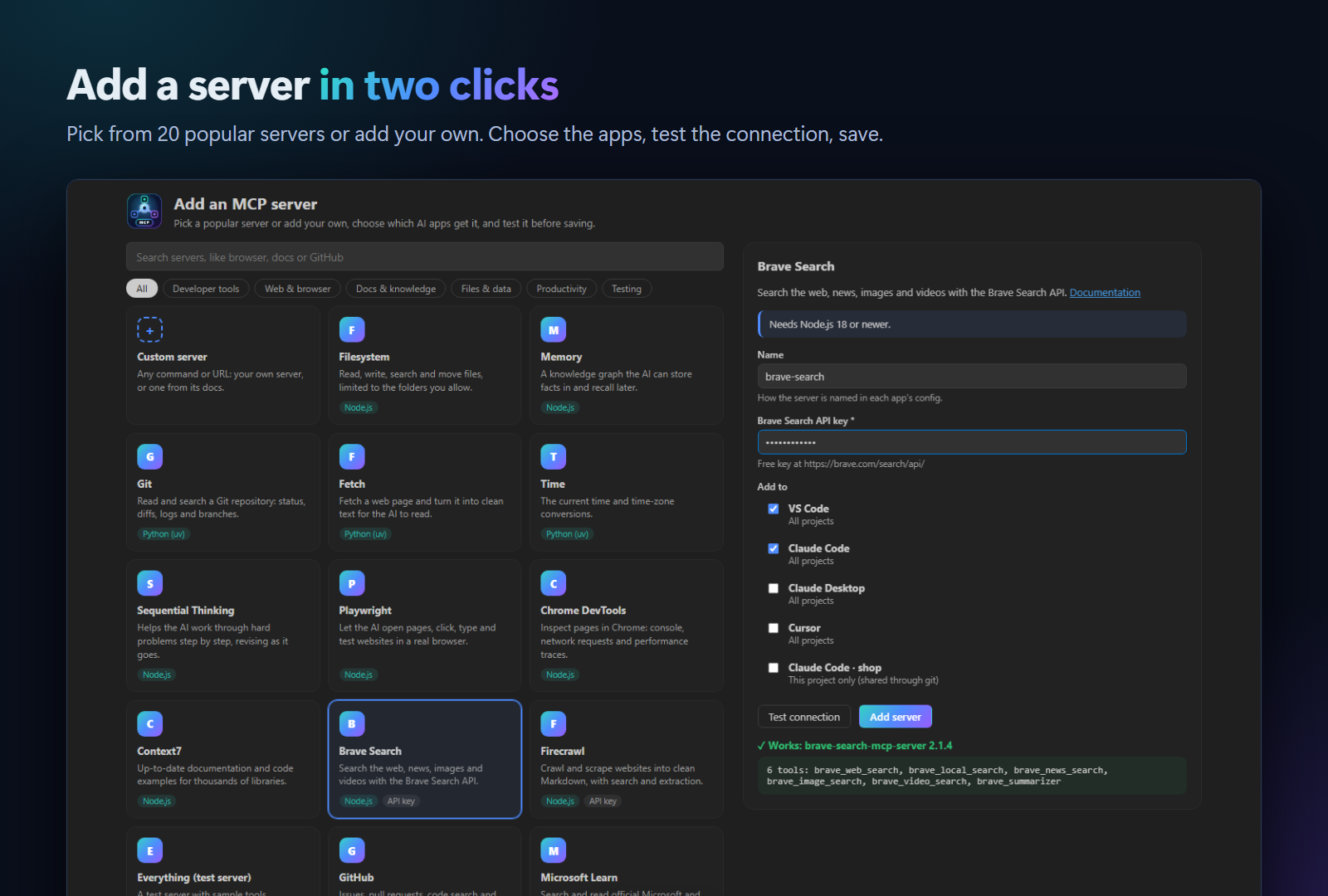
Search or filter the catalog, pick a server, fill in what it needs (a folder, an API key) and choose the apps. Click Test connection to start it before you save. The catalog includes:
|
|
| Developer tools |
GitHub, Git, Sentry, Stripe |
| Web & browser |
Playwright, Chrome DevTools, Fetch, Brave Search, Firecrawl |
| Docs & knowledge |
Microsoft Learn, Context7, DeepWiki |
| Files & data |
Filesystem, Memory, Supabase |
| Productivity |
Notion, Linear, Time, Sequential Thinking |
| Testing |
Everything (a sample server for trying the Inspector) |
Not in the list? Choose Custom server and enter a command (like node server.js --port 3000) or a URL. Arguments are split like in a terminal, so quoted paths with spaces work.
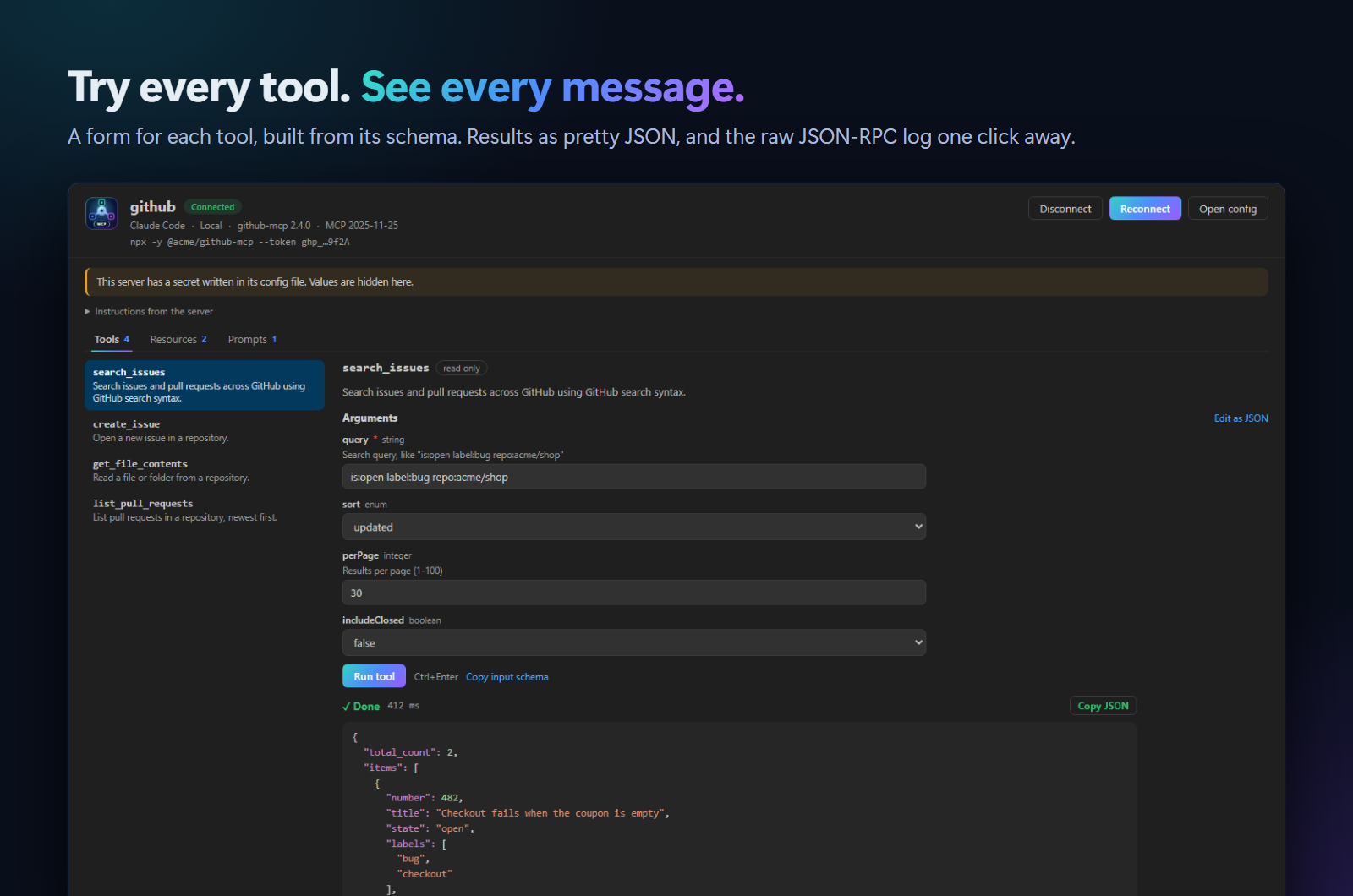
The Inspector connects to one server and shows everything it offers:
- Tools with a form built from each tool's input schema: text boxes, number fields, drop-downs for choices, true/false for booleans, and required fields marked. Prefer JSON? Click Edit as JSON. Run with Ctrl+Enter.
- Resources and resource templates, read with one click. Prompts with their arguments.
- Results as coloured JSON, with the time each call took and a Copy JSON button.
- Messages: every JSON-RPC message between VS Code and the server, plus everything the server prints to its error output. Filter them, click one to expand it, or copy them all for a bug report.
- The server's version, protocol version and its own instructions for the AI.
Know why it fails
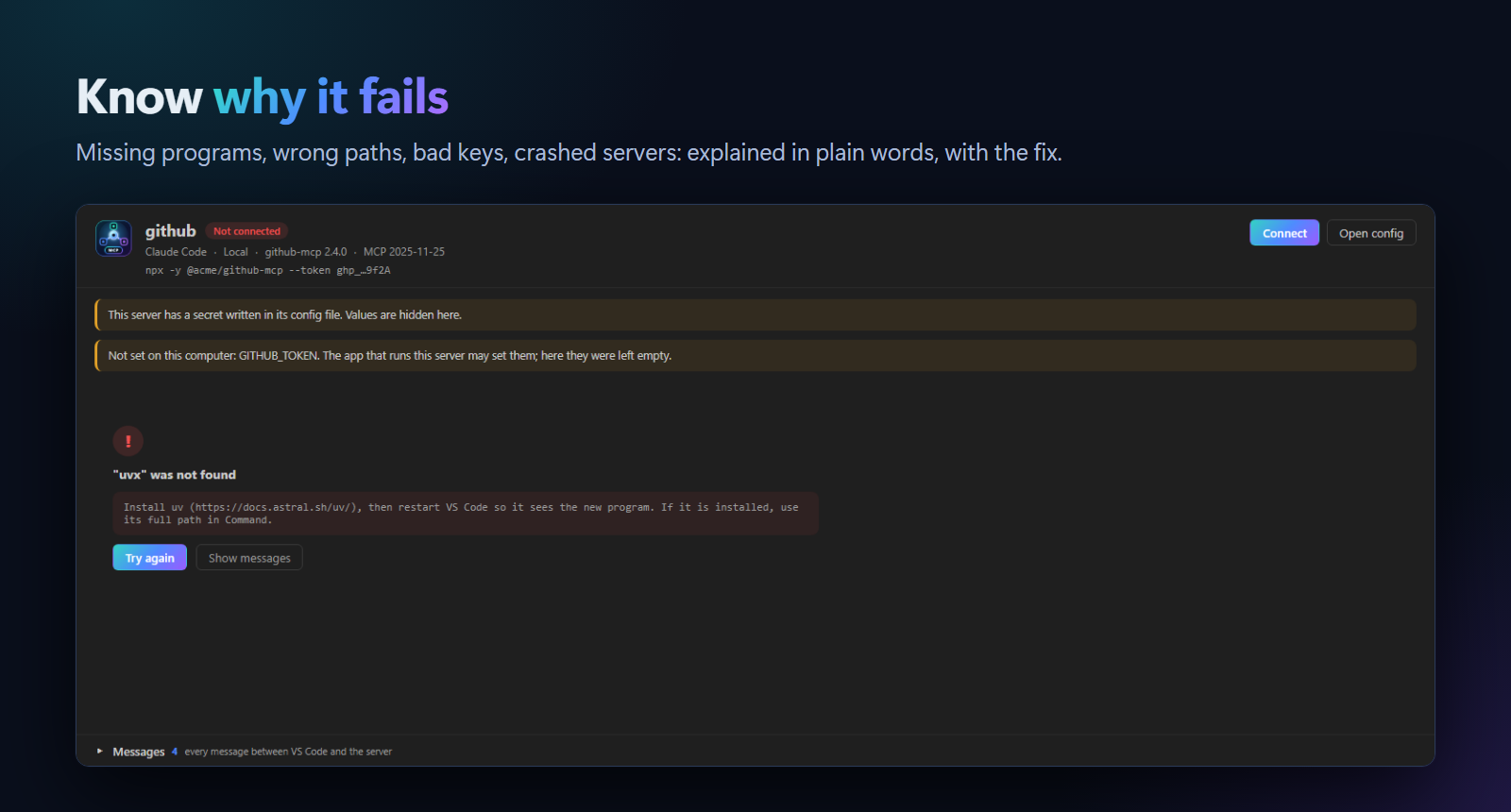
When a server does not start, MCP Studio tells you what went wrong and what to do:
| What happened |
What you see |
npx, uvx, node or docker is not installed |
Which program to install, and a reminder to restart VS Code |
| The package name is wrong |
The package was not found, with the registry's message |
| The server crashed |
The server stopped before it was ready, with what it printed |
| The first start is slow (packages downloading) |
The server did not answer in time, try again |
| A remote server needs sign-in |
This server needs you to sign in (your AI app does this the first time) |
| A wrong URL, address or token |
No MCP server at this URL, Access denied, and so on |
A variable such as ${env:GITHUB_TOKEN} is not set |
Which variables are missing |
Where your servers are stored
MCP Studio reads and writes the same files the apps use, so nothing is duplicated:
| App |
All projects |
One project |
| VS Code |
mcp.json in your VS Code user folder |
.vscode/mcp.json |
| Claude Code |
~/.claude.json |
.mcp.json |
| Claude Desktop |
claude_desktop_config.json (in %APPDATA%\Claude on Windows, ~/Library/Application Support/Claude on macOS) |
– |
| Cursor |
~/.cursor/mcp.json |
.cursor/mcp.json |
| Windsurf |
~/.codeium/windsurf/mcp_config.json |
– |
| GitHub Copilot CLI |
~/.copilot/mcp-config.json (shown, read-only) |
– |
Project files are often committed to git. If you put a secret in one, MCP Studio warns you and suggests a variable like ${env:API_KEY} instead.
Commands
| Command |
|
| MCP Studio: Add MCP Server… |
Open the catalog and add a server |
| MCP Studio: Browse Server Catalog |
The same page, ready to search |
| MCP Studio: Check All Servers |
Start every server once and show which work |
| MCP Studio: Refresh |
Read the config files again |
Right-click a server for Open Inspector, Test Server, Copy to Other Apps…, Open Config File and Remove….
Good to know
- Your data stays on your computer. MCP Studio has no account and no telemetry. It only connects to the servers you start.
- Starting a server runs its command on your computer, just like your AI app would. Only add servers you trust. In Restricted Mode (an untrusted folder), servers are listed but not started.
- Remote servers that use sign-in (OAuth), like Notion and Linear, are signed in by your AI app the first time it connects. To test them in the Inspector, add an
Authorization header with a token.
- Claude Desktop's file only holds local servers. Add remote ones in Claude Desktop under Settings → Connectors; MCP Studio tells you when this applies.
- Requires VS Code 1.85 or newer. To run
npx servers you need Node.js; for uvx servers, uv.
More from Veyra
Found a bug or have an idea? Open an issue. MIT licensed.
| |

