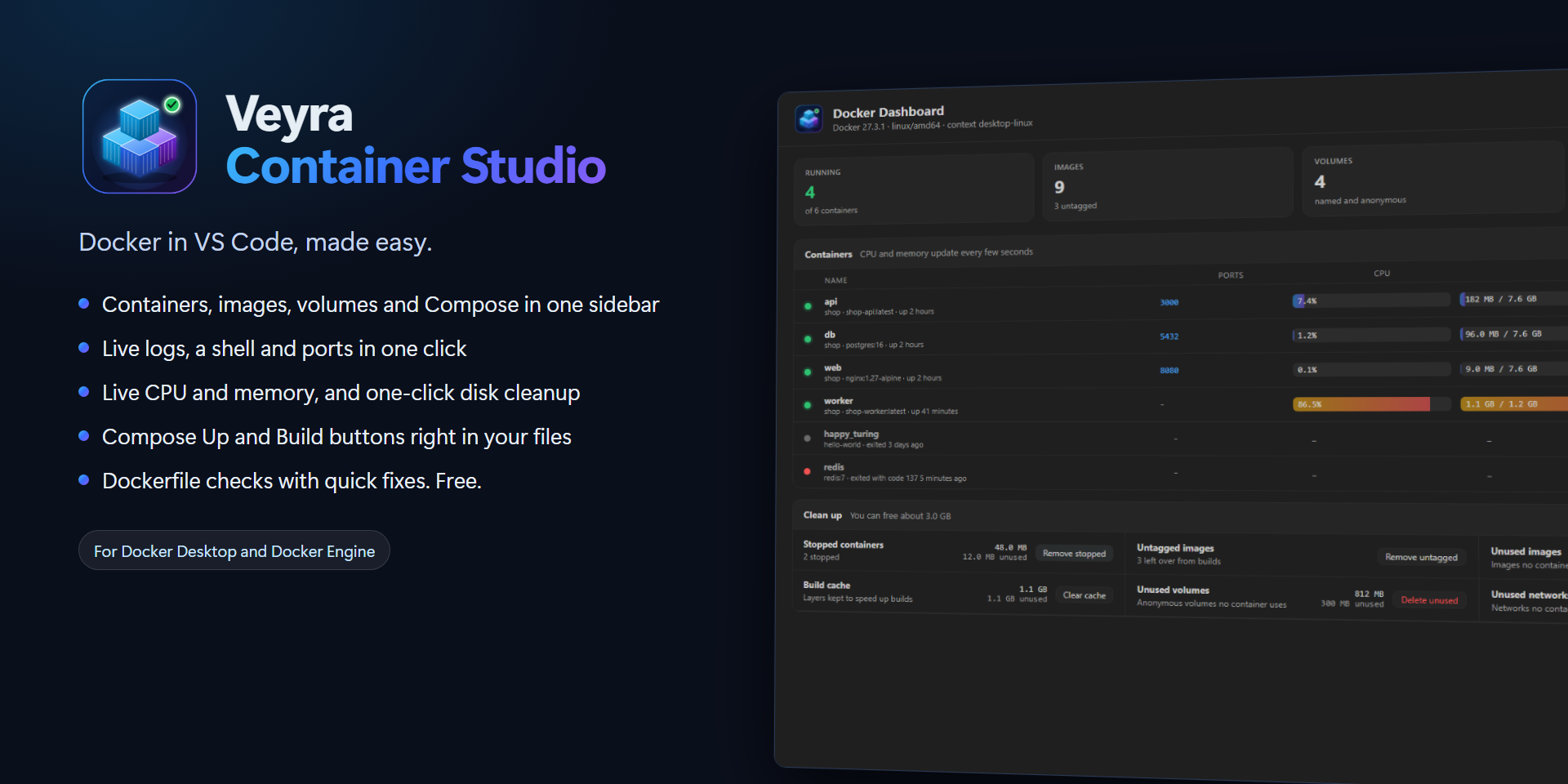
Veyra Container Studio for Docker
Docker in VS Code, made easy.
See and control your containers, images, volumes and Docker Compose projects without leaving your editor. Read live logs, open a shell, watch CPU and memory, free disk space in one click, and start your app straight from its Dockerfile or compose.yaml. When something goes wrong, it tells you why in plain words. Free, no account. By the makers of Veyra Studio.
- 🐳 One sidebar for containers, images, volumes and networks, with Compose projects grouped.
- 📜 Live logs you can filter, with colours, service names and a Problems only switch.
- 📊 Dashboard with live CPU and memory for every container, and how much disk Docker uses.
- 🧹 Clean up old images, stopped containers and build cache in one click, and see how much you'll free first.
- ▶️ Compose Up, Down and Logs buttons above
compose.yaml, and Up for each service.
- 🔨 Build and Run above every
Dockerfile.
- ✅ Dockerfile checks that catch common mistakes, with one-click fixes.
- 💬 Clear errors: "Port 8080 is already in use", "Docker is not running: start Docker Desktop".
Quick start
- Install Docker Desktop (Windows, macOS) or Docker Engine (Linux) and start it.
- Click the Docker icon in the Activity Bar. Your containers and images appear and stay up to date by themselves.
- Open a project with a
compose.yaml and click ▶ Compose Up above it, or open a Dockerfile and click ▶ Build and Run.
- Click ≡ next to a container to see its logs, or the terminal icon to open a shell inside it.
If Docker is not running, the sidebar says so, and one click starts Docker Desktop.
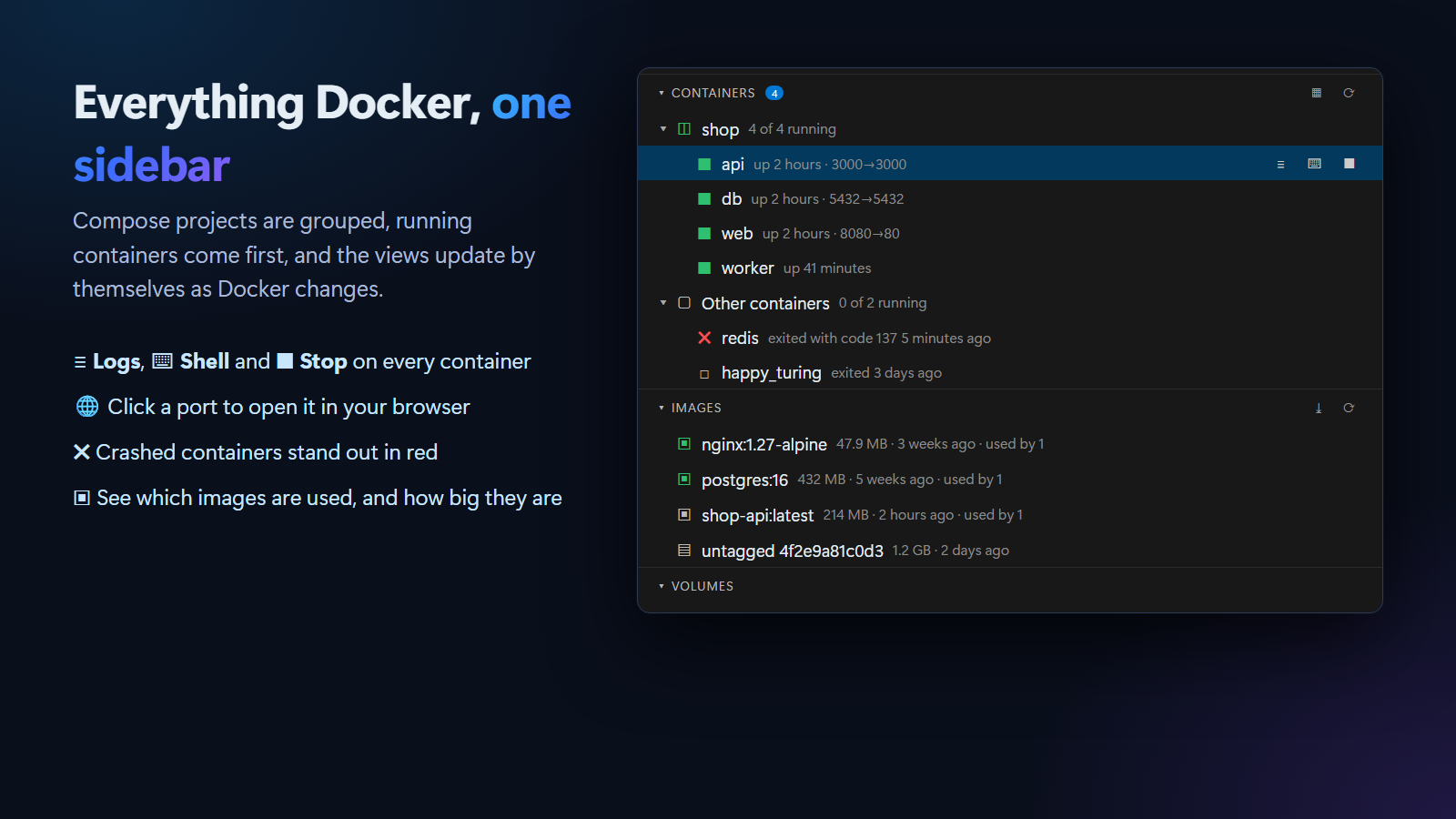
- Containers are grouped by Compose project, running ones first. Each shows its status and ports (
8080→80), and crashed ones are red.
- One click to view logs, open a shell (bash if the image has it, otherwise sh), stop, start, restart, pause or remove. Select several containers to act on all of them.
- Open in Browser opens a published port, like
http://localhost:8080.
- Images show their size, age and how many containers use them. Run an image with its ports filled in, tag it, push it, or pull a new one.
- Volumes and Networks can be inspected and removed. Built-in networks are protected.
- Inspect opens the full JSON of any container, image, volume or network.
- The views follow
docker events, so changes made in a terminal or Docker Desktop show up straight away.
Logs you can actually read
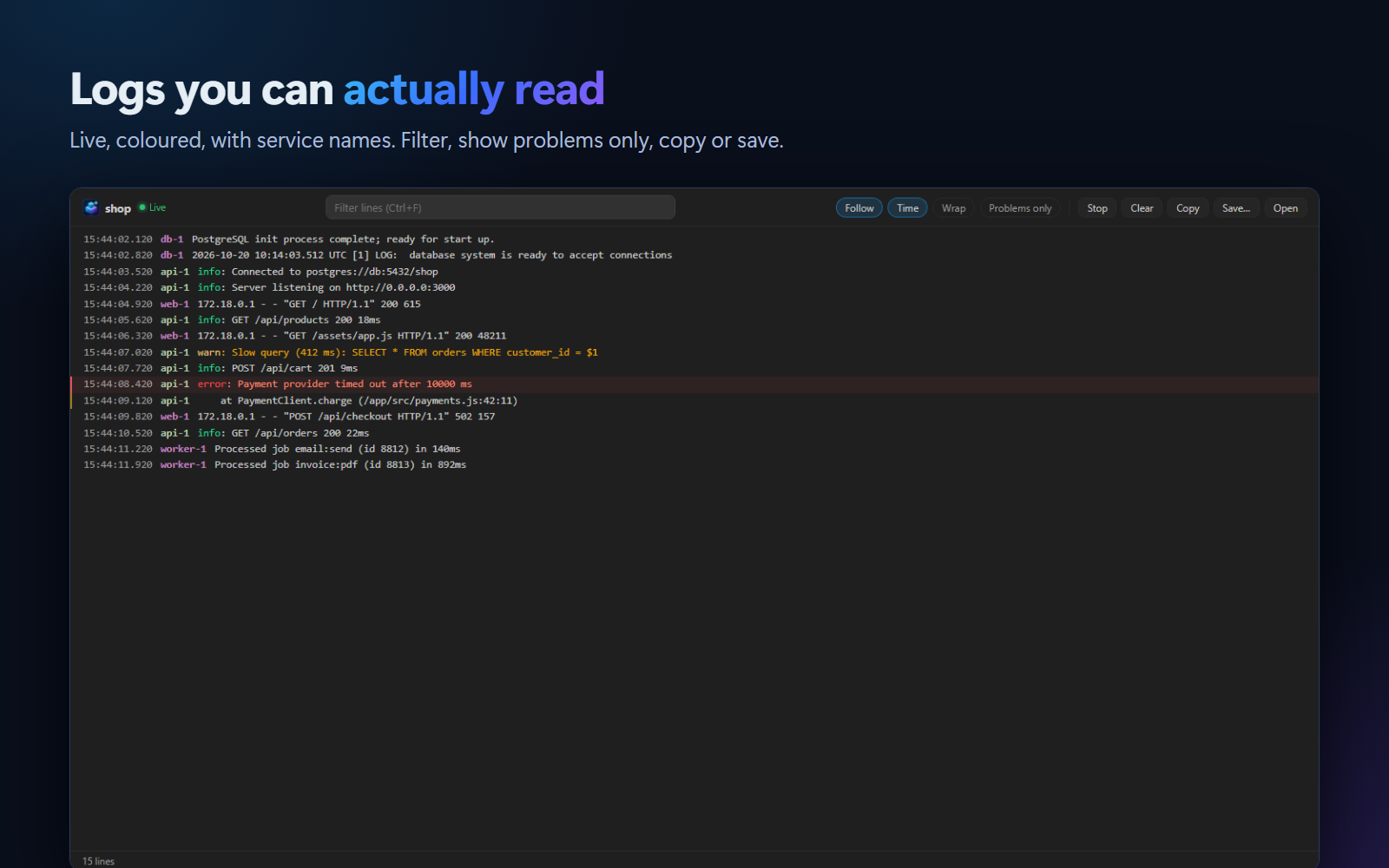
- Live logs for one container or a whole Compose project, with each service in its own colour.
- Filter as you type (Ctrl+F), Problems only for errors and stderr, timestamps and wrap on demand.
- Errors are highlighted red, warnings yellow, and lines printed to stderr are marked.
- Follow keeps the newest lines in view. Scroll up to read, and click ↓ Newest to come back.
- Copy, Save or Open the logs in an editor tab, without colour codes.
Live CPU and memory. Space back in one click.
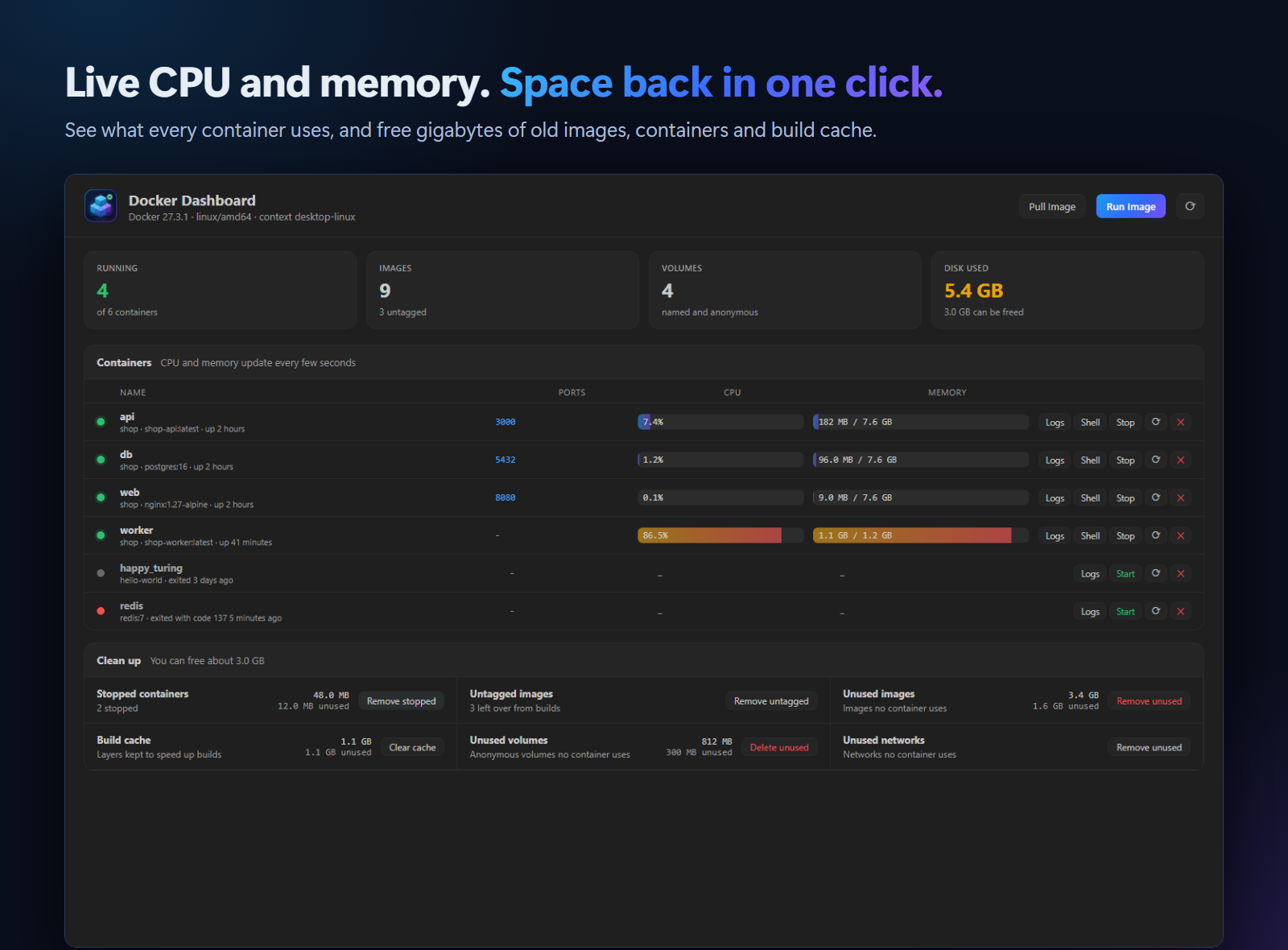
Open the Dashboard from the sidebar or the status bar.
- CPU and memory for every running container, updated every few seconds. Busy ones turn orange.
- Disk use: how much space images, containers, volumes and build cache take, and how much can be freed.
- Clean up stopped containers, untagged images, unused images, unused anonymous volumes, unused networks and the build cache. Each one asks first and tells you what is kept.
Build, run and fix, right in your files
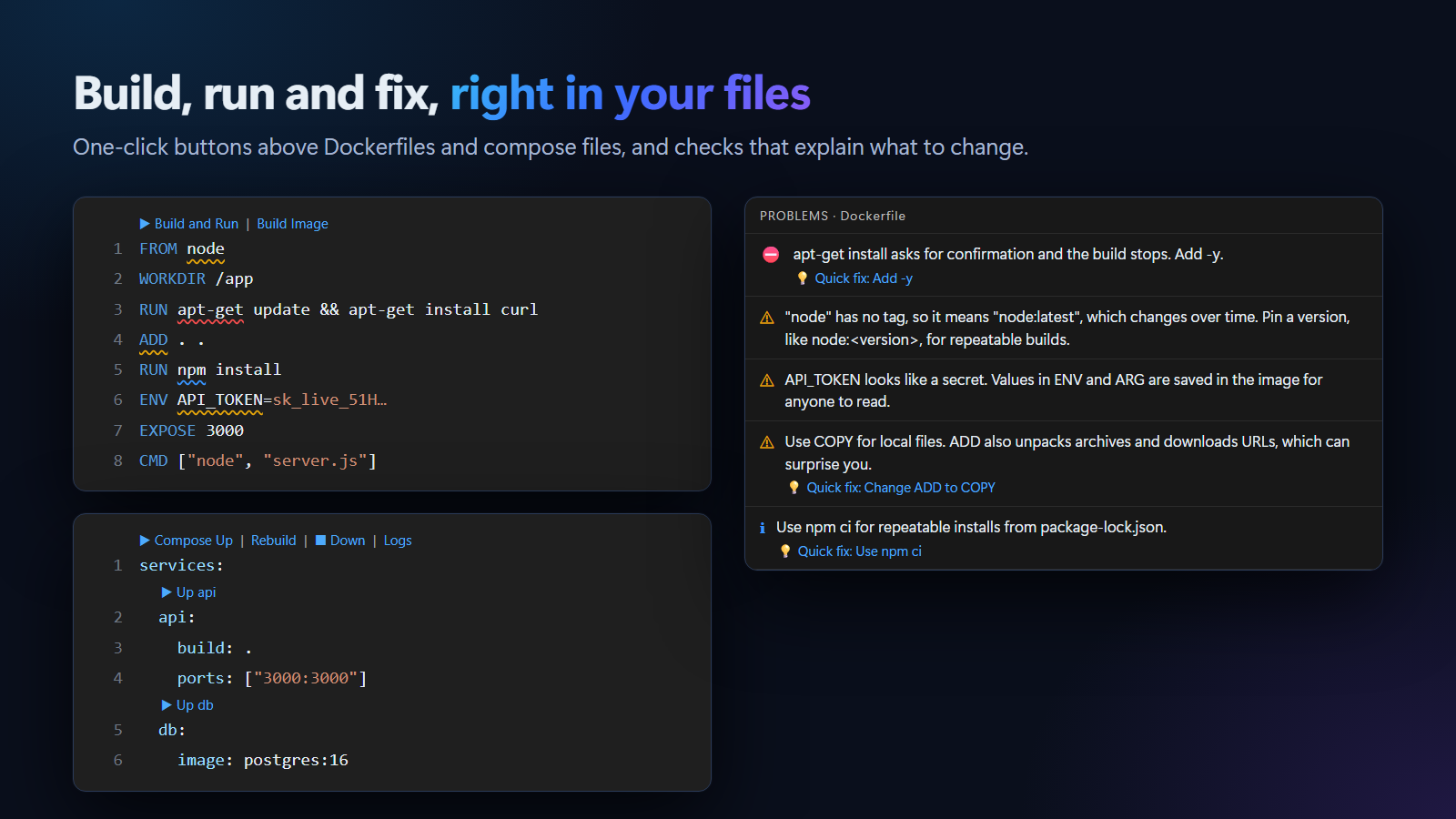
Above a compose file: ▶ Compose Up, Rebuild, ■ Down and Logs, plus ▶ Up above each service. Output shows in VS Code's terminal, and you're offered the logs when it's up.
Above a Dockerfile: Build Image and ▶ Build and Run. Build and Run publishes the ports from EXPOSE, so EXPOSE 3000 becomes -p 3000:3000.
Dockerfile checks run as you type:
| Check |
Quick fix |
FROM node or :latest: pin a version for repeatable builds |
|
apt-get install without -y stops the build |
Add -y |
| apt caches and recommended packages make images bigger |
|
ADD for local files: use COPY |
Change to COPY |
npm install: use npm ci |
Use npm ci |
pip install without --no-cache-dir, apk add without --no-cache |
Add the flag |
Secrets in ENV or ARG (tokens, passwords, keys) are saved in the image |
|
CMD node server.js: use the JSON form so the app gets stop signals |
Use the JSON form |
MAINTAINER is deprecated |
Use LABEL |
RUN cd folder has no effect |
Use WORKDIR |
COPY . without a .dockerignore copies node_modules, .git and .env |
|
| The container runs as root |
|
sudo, curl … \| sh, invalid EXPOSE ports, several CMDs |
|
Errors in plain words
| What happened |
What you see |
| Docker Desktop isn't started |
Docker is not running, with a button to start it |
| Docker isn't installed |
Docker is not installed, with a link to get it |
| A port is taken |
Port 8080 is already in use, and how to choose another |
| A wrong image name |
Image not found: check the name, or sign in if it is private |
| Docker Hub's download limit |
Docker Hub download limit reached: sign in to get a higher limit |
| The disk is full |
The disk is full, with a link to the cleanup |
| Removing an image a container uses |
The image is in use, with Remove Anyway |
| On Linux, no access to Docker |
The exact command to add yourself to the docker group |
Commands
| Command |
|
| Docker: Open Dashboard |
CPU, memory, disk use and cleanup |
| Docker: Clean Up Disk Space… |
Jump straight to cleanup |
| Docker: Run Image… |
Pick an image, set ports, run it in the background or in a terminal |
| Docker: Pull Image… |
Download an image, like postgres:16 |
| Docker: Compose Up / Down / Pull / Up with Rebuild |
For the compose file you have open, or pick one |
| Docker: Build Image / Build and Run |
For the Dockerfile you have open, or pick one |
| Docker: Sign In to a Registry… |
docker login for Docker Hub, GitHub, GitLab, Azure and others |
| Docker: Refresh |
Read everything again |
Right-click containers, images, volumes, networks and Compose projects for everything else.
Settings
| Setting |
Default |
|
veyraDocker.command |
docker |
The Docker command, or its full path if it is not on your PATH |
veyraDocker.logs.lines |
500 |
How many recent lines to show when logs open |
veyraDocker.dockerfile.checks |
true |
Check Dockerfiles as you type |
veyraDocker.codeLens |
true |
Buttons above Dockerfiles and compose files |
veyraDocker.statusBar |
true |
Running containers in the status bar |
Good to know
- Container Studio uses the
docker command on your computer, so it works with Docker Desktop, Docker Engine and your current Docker context (including remote ones).
- Your data stays on your computer. No account and no telemetry.
- In Restricted Mode (an untrusted folder), you can still manage your containers, but building images and starting Compose projects from that folder is turned off, because they run code from it.
- Removing things always asks first. Named volumes are never deleted by cleanup.
- Requires VS Code 1.85 or newer, and Docker with Compose v2 (
docker compose).
More from Veyra
Found a bug or have an idea? Open an issue. MIT licensed.
Docker is a trademark of Docker, Inc. Veyra Container Studio is an independent extension and is not made or endorsed by Docker, Inc.
| |

