Skip to content
| Marketplace
Sign in
Visual Studio Code>Other>PropertiesEditorNew to Visual Studio Code? Get it now.
PropertiesEditor

PropertiesEditor

Flamingo

|
1 install
| (0) | Free
Edit and compare .properties, .json, and .jsonc files side by side with key search, filters, and multi-file editing.
Installation
Launch VS Code Quick Open (Ctrl+P), paste the following command, and press enter.
Copied to clipboard
More Info

PropertiesEditor 🦩

Edit and compare .properties, .json, and .jsonc files side by side in Visual Studio Code.

PropertiesEditor is a multi-file editor for localization and configuration files. Review matching keys across files, find missing entries, edit values, and save your changes from one workspace.

Product website · License information · Support

Screenshots

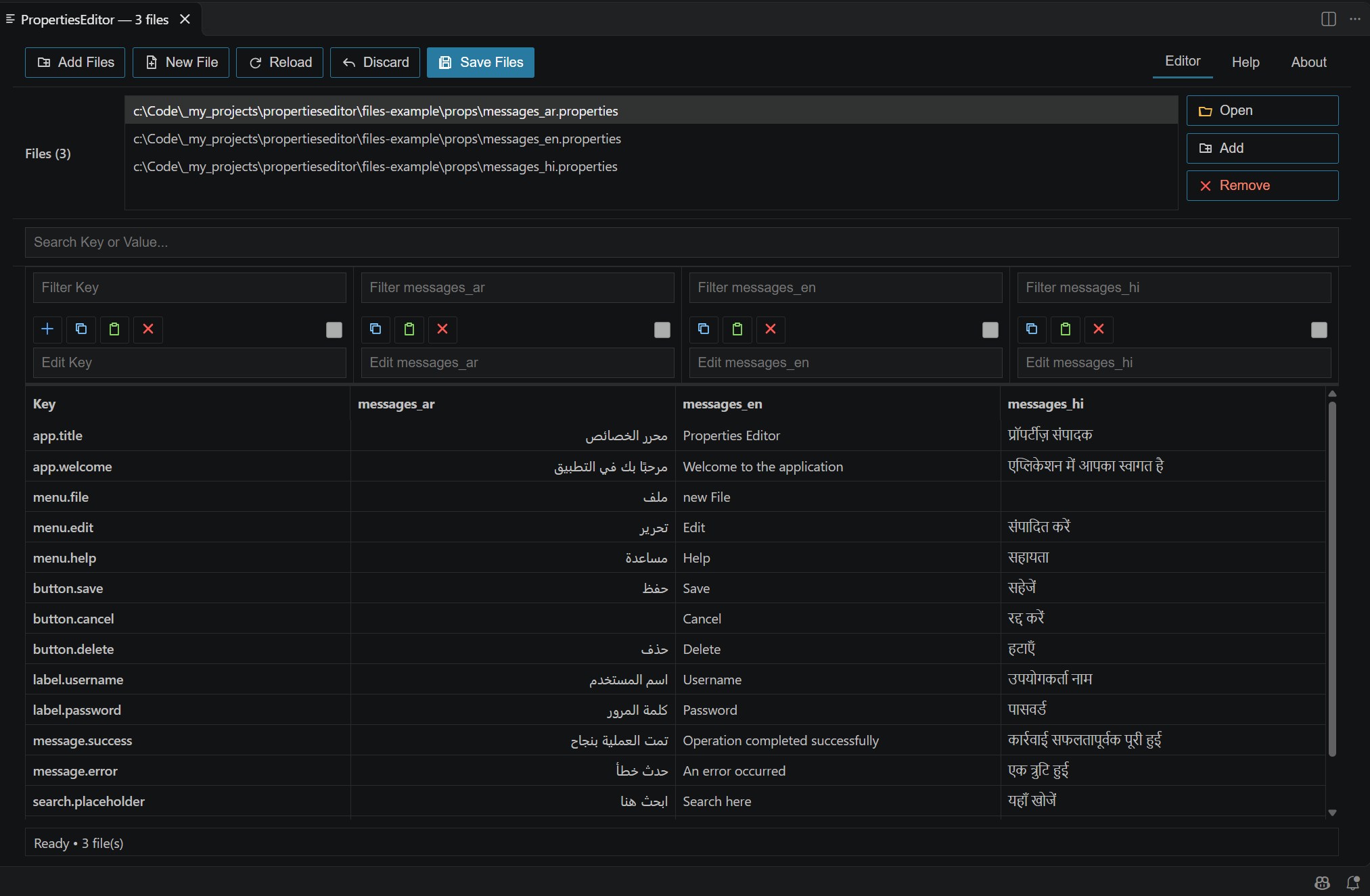
Multi-file editing and side-by-side comparison

Multi-file editing and side-by-side comparison

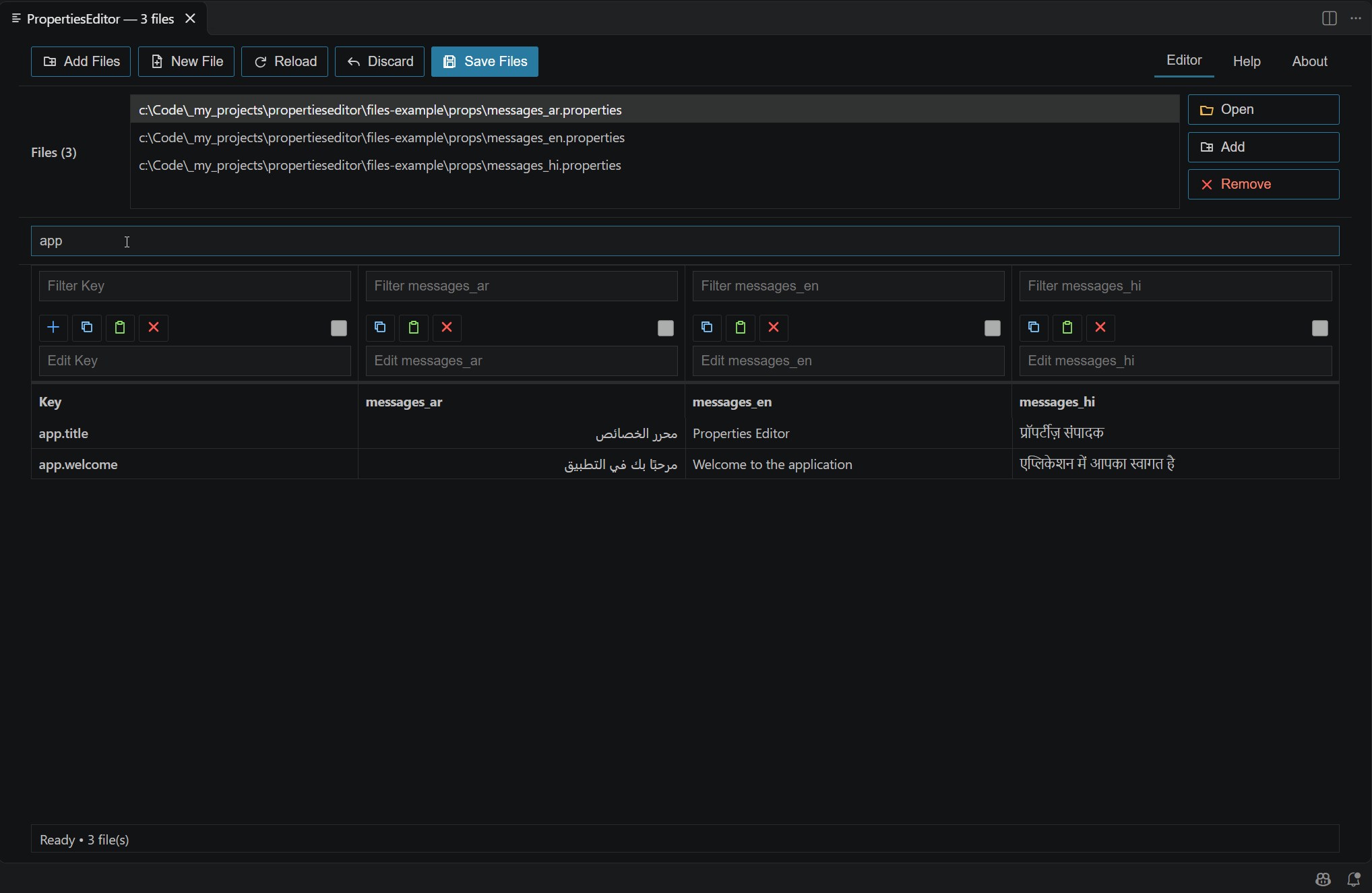
Search and filter keys

Search and filter keys

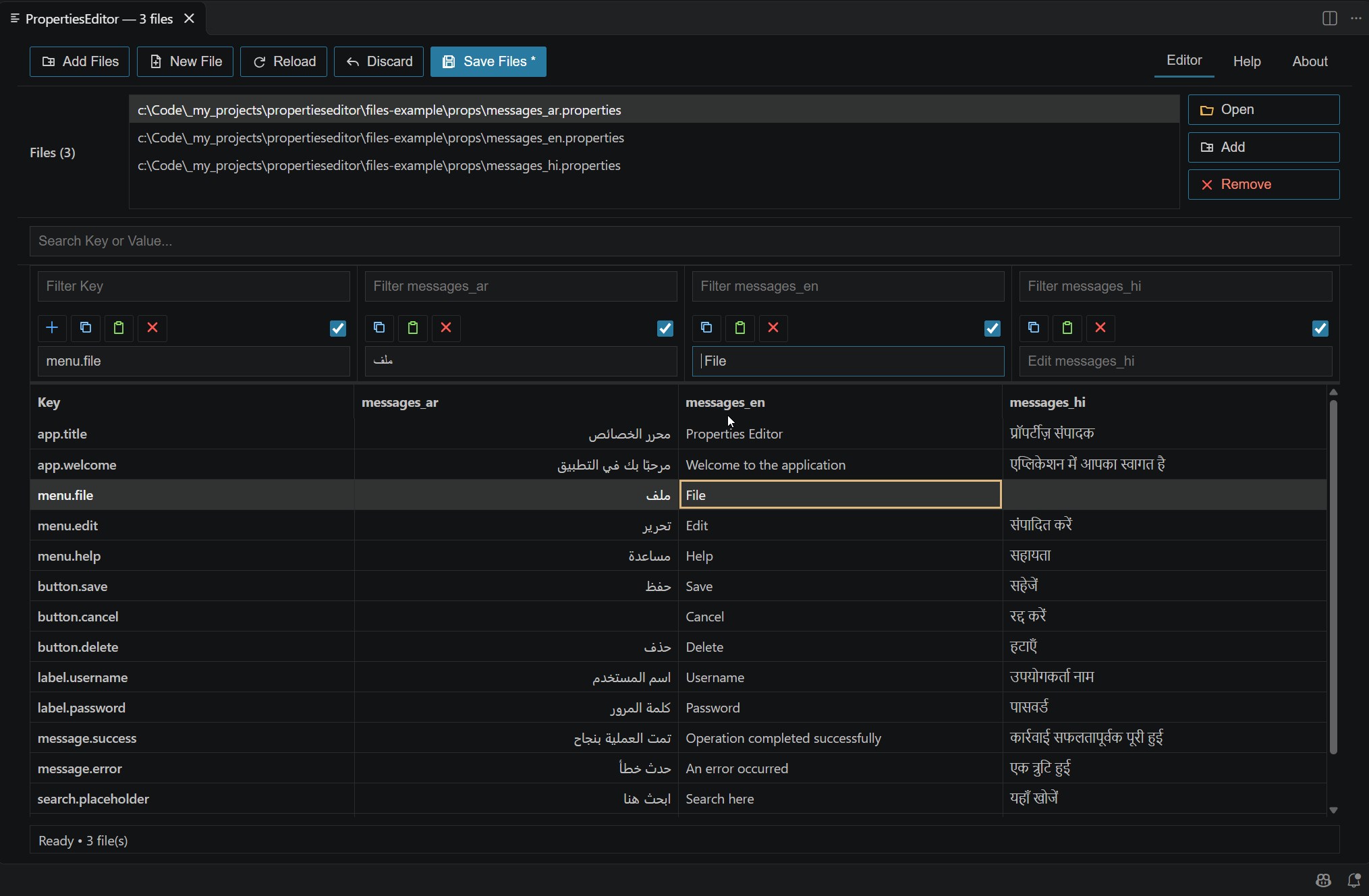
Edit values and track unsaved changes

Edit values and track unsaved changes

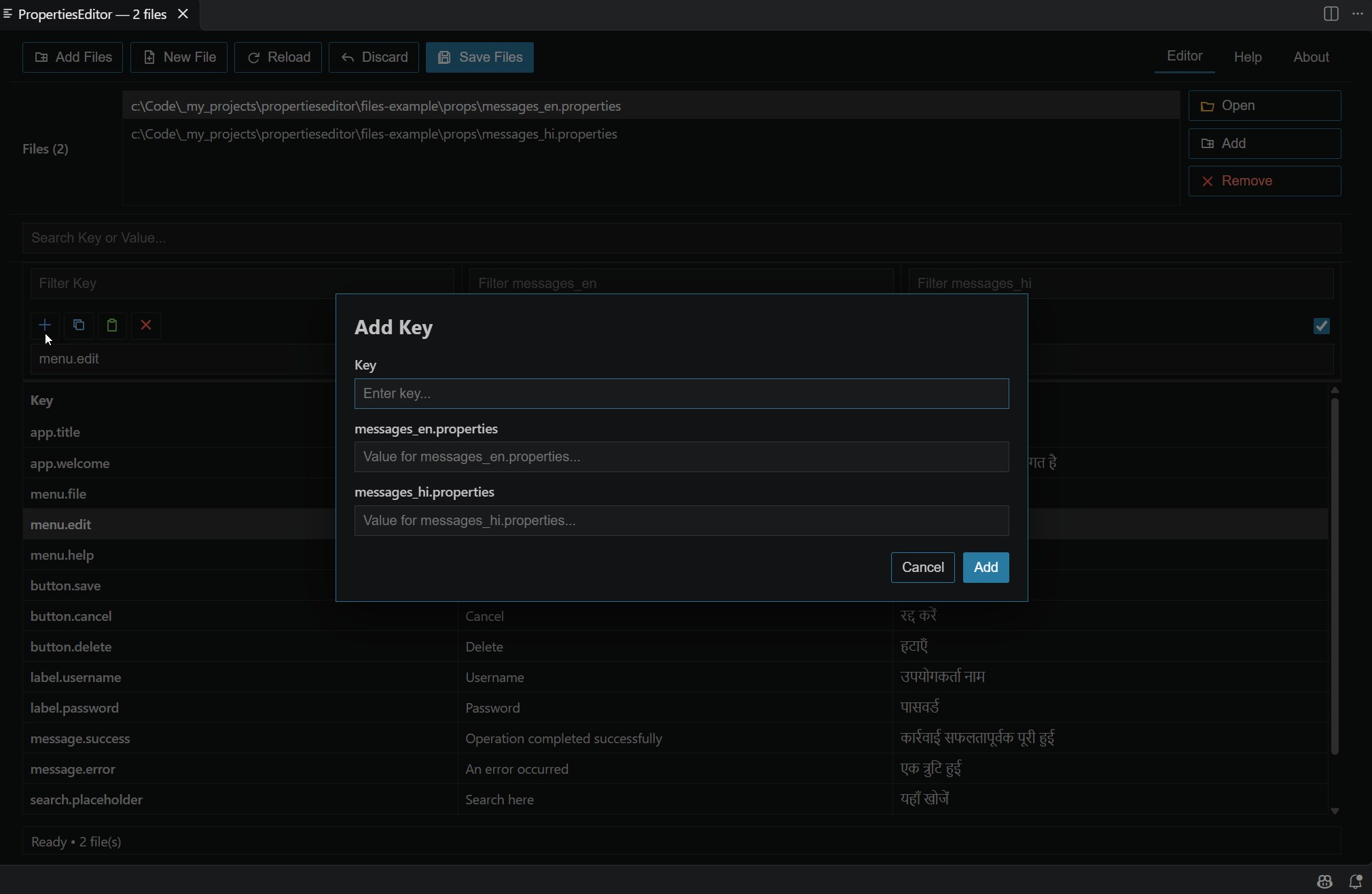
Add a key across files

Add a key across files

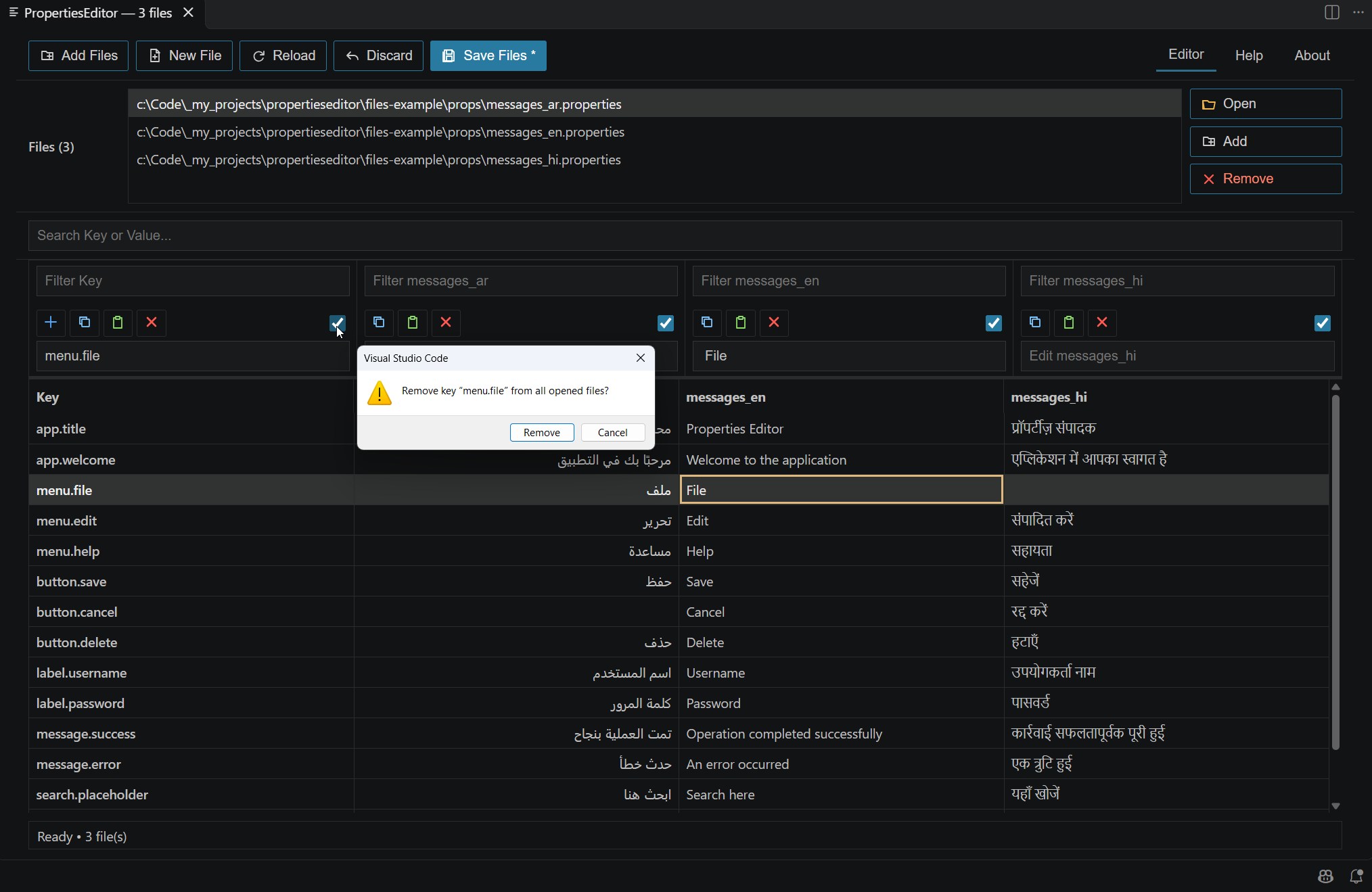
Confirm removal of a key

Confirm removal of a key

Features

  • Multi-file editing: Open multiple .properties, .json, or .jsonc files together.
  • Side-by-side comparison: Review matching keys and values across files.
  • Search and filters: Search keys or values across open files and filter each column separately.
  • Flexible editing: Edit directly in the table or use the dedicated Edit fields.
  • Key management: Add keys and use presence checkboxes to include or remove a key from individual files.
  • File management: Add, remove, and create supported files without closing PropertiesEditor.
  • Change control: Save, reload, or discard changes when needed.

Quick Start

  1. Press Ctrl+Alt+P on Windows/Linux or Cmd+Alt+P on macOS.
  2. Select one or more supported files.
  3. Edit matching keys and values side by side.
  4. Click Save Files when finished.

You can also run PropertiesEditor: Open Editor from the Command Palette or choose Open with PropertiesEditor from the context menu of a supported file.

Files and Editing

Use Open / Add to load files, Remove to remove a selected file, and New File to create a supported file. The editor stays open even after you remove the last file.

Search Key or Value searches across all open files. Each column has its own filter. Selecting a row loads its key and values into the Edit fields. You can edit in the table or in the Edit fields, where Copy, Paste, and Clear operate on their respective fields.

Add Key adds a key and values to the open files. Presence checkboxes let you add or remove the selected key for individual files.

Saving Changes

  • Save Files: Write changes to disk.
  • Reload: Reload from disk.
  • Discard: Discard unsaved changes and restore from disk.
  • Save Files *: Indicates unsaved changes.

Trial and Licensing

PropertiesEditor includes a 7-day trial. You do not need a license key during the trial.

To activate a purchased license, open the About tab, enter your license key, and click Activate License. You can also validate or deactivate an active license there.

For product and licensing details, visit OTools PropertiesEditor.

Help and Support

Open the Help tab inside PropertiesEditor for a quick usage reference.

Questions or support requests: support@lubna.me.

Versions

  • VS Code Extension: 2.4.4
  • Core: 2.2.2
  • License module: 2.2.1

Published by Flamingo 🦩 · An OTools product.

  • Contact us
  • Jobs
  • Privacy
  • Manage cookies
  • Terms of use
  • Trademarks
  • Your Privacy Choices
  • Consumer Health Privacy
© 2026 Microsoft