Markdown Obsidian Alert & Math Theorem
Support for Obsidian-style callouts in Markdown previews, including Jupyter Notebook previews.
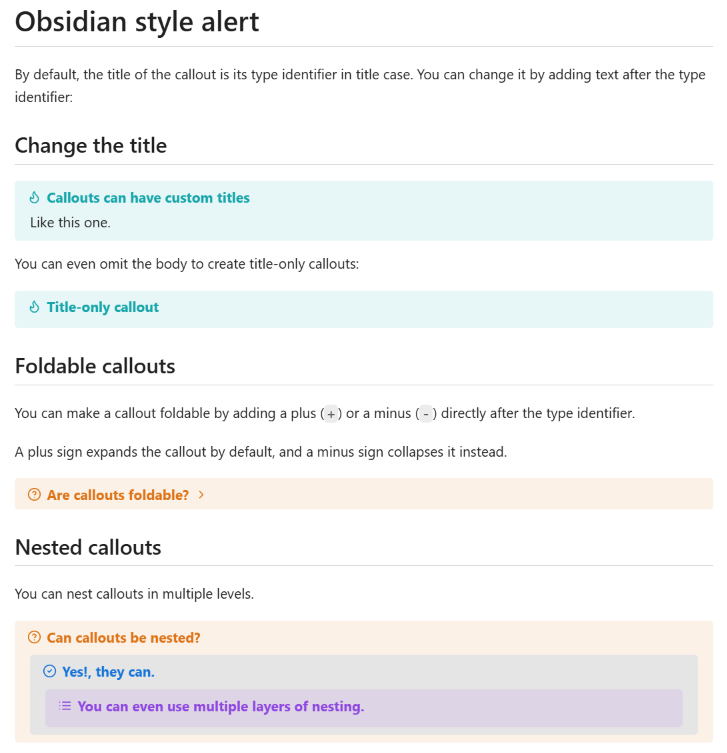
Preview Examples
Check out test.md for comprehensive examples and usage patterns.
Features
🎨 Obsidian-Style Callouts
Render beautiful Obsidian-style admonition blocks with simple syntax:
- Basic:
> [!KEYWORD]
- With custom title:
> [!KEYWORD] Your Title Here
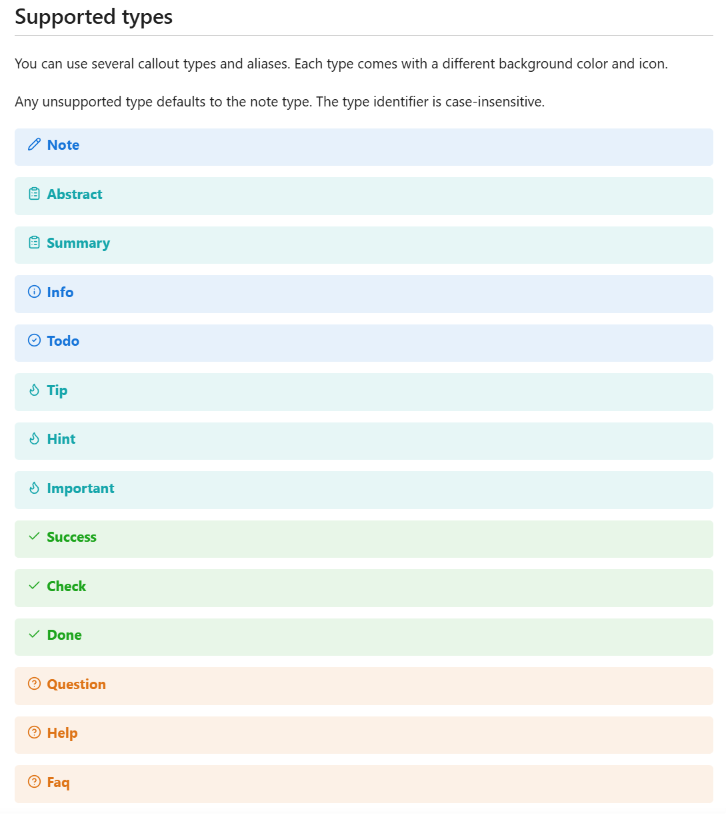
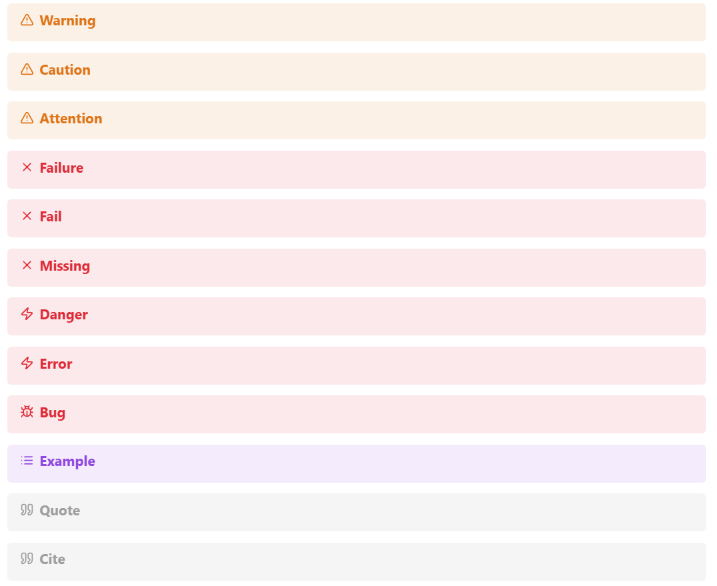
Supported keywords (case-insensitive):
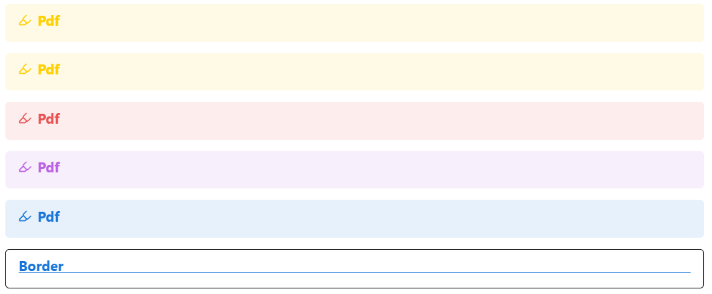
NOTE, ABSTRACT, SUMMARY, INFO, TODOTIP, HINT, IMPORTANT, SUCCESS, CHECK, DONEQUESTION, HELP, FAQ, WARNING, CAUTION, ATTENTIONFAILURE, FAIL, MISSING, DANGER, ERROR, BUGEXAMPLE, QUOTE, CITE, PDF, BORDER
Built-in layout helpers:
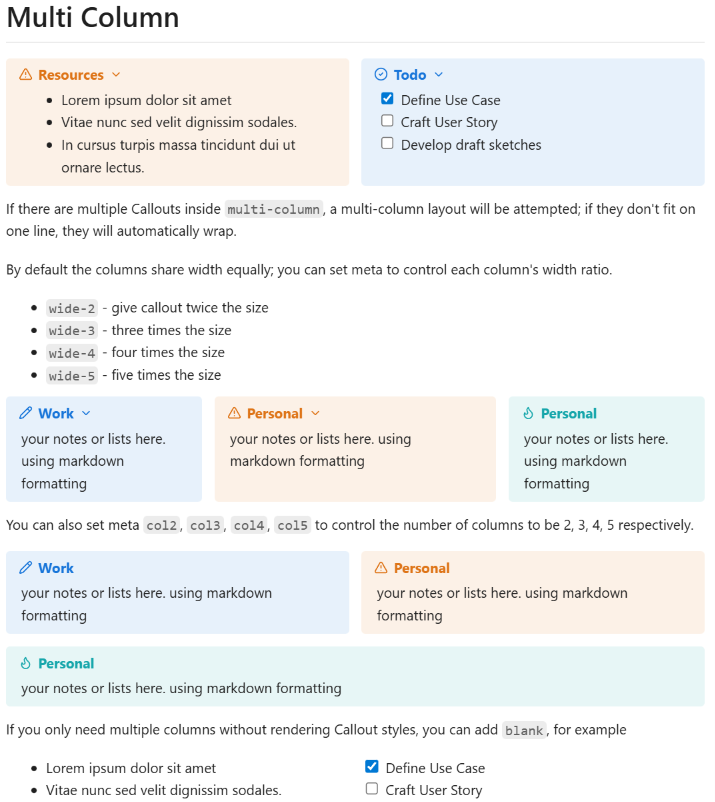
MULTI-COLUMN for callout-based column layouts*-BLANK variants such as NOTE-BLANK and WARNING-BLANK for decoration-free containers- Metadata presets such as
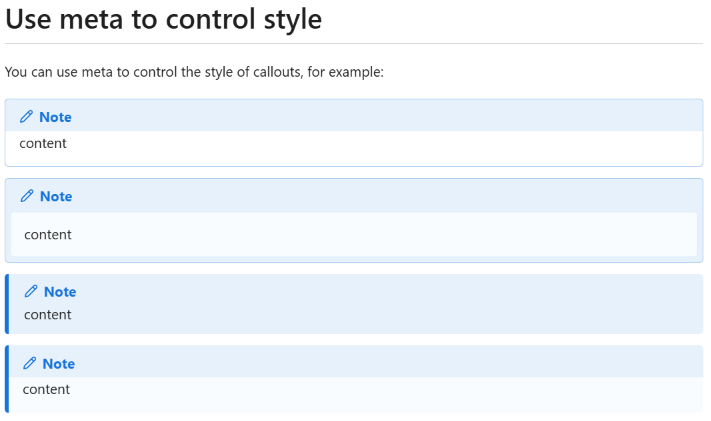
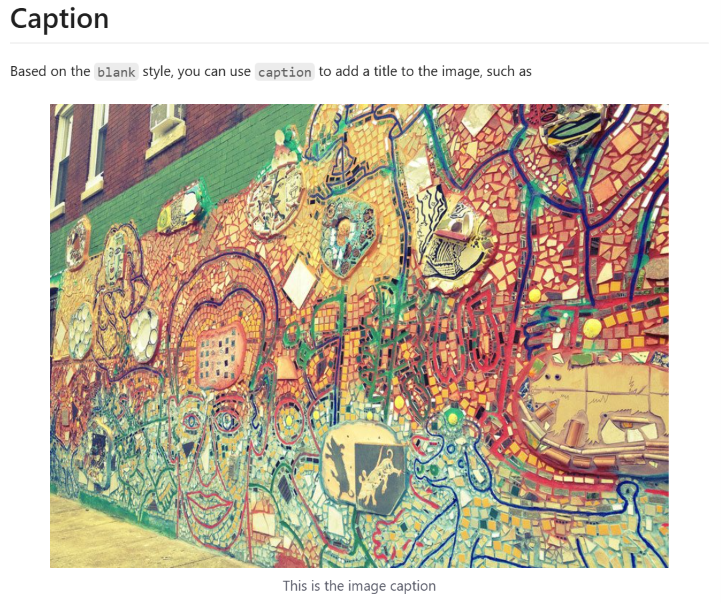
style-1 to style-4, col2 to col5, wide-2 to wide-5, and caption
🧮 Mathematical Theorem Environments
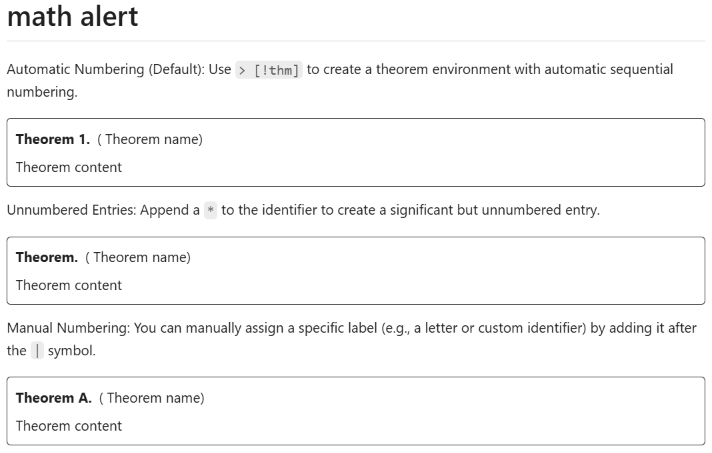
Professional typesetting for mathematical documents with automatic numbering and flexible customization:
| Environment |
Keyword |
| Theorem |
THM |
| Definition |
DEF |
| Lemma |
LEM |
| Proposition |
PRP |
| Corollary |
COR |
| Claim |
CLM |
| Assumption |
ASM |
| Example |
EXM |
| Exercise |
EXR |
| Hypothesis |
HYP |
| Remark |
RMK |
| Axiom |
AXM |
| Conjecture |
CNJ |
Theorem features:
- Automatic numbering:
> [!THM] (Theorem 1, Theorem 2, ...)
- Unnumbered:
> [!THM|*]
- Manual numbering:
> [!THM|A] (Theorem A)
🔄 Collapsible Blocks
Create interactive, collapsible callouts:
- Expandable:
> [!NOTE]+ or > [!NOTE]+ Your Title
- Collapsed:
> [!NOTE]- or > [!NOTE]- Your Title
✨ Smart Defaults
- Unsupported keywords gracefully fall back to
NOTE style
- Case-insensitive keyword recognition
- Seamless integration with existing Markdown workflows
Usage Examples
> [!NOTE]
> This is a simple note callout

> [!WARNING] Important Security Notice
> Remember to update your passwords regularly

> [!THM]
> Every finite integral domain is a field

> [!THM|*]
> Pythagorean Theorem

> [!THM|A]
> This theorem has custom numbering

> [!TIP]+ Click to expand
> This tip is hidden until you click on it
Installation
- Install from VS Code Marketplace
- Alternatively, you can also download the extension from the GitHub Releases page.
Customization
You can customize callout styles using CSS. Here are the steps:
Markdown previews and Jupyter Notebook Markdown previews now use separate CSS settings:
- Open VS Code settings (
Ctrl + ,) and search for markdown.styles;
- If you also want the same styles in
.ipynb, search for markdown-obsidian-alert.notebook.styles and add the CSS path there too;
- Add the path to your custom CSS file, for example:
{
  "markdown.styles": ["./.vscode/custom.css"],
  "markdown-obsidian-alert.notebook.styles": ["./.vscode/custom.css"]
}
- Define your callout styles in the CSS file, for example, for a border-blue style:
div[data-callout="border-blue"].callout {
  background-color: transparent;
  border: 1px solid;
  border-color: blue;
}
div[data-callout="border-blue"].callout > .callout-title {
  border-bottom: 1px solid;
}
div[data-callout="border-blue"].callout > .callout-title > .callout-icon {
  display: none;
}
This extension also ships additional default presets for style-1 to style-4, multi-column layouts, and *-blank|caption image blocks.
Theoretically, you can use Obsidian snippets to achieve more complex styles.
Transform your Markdown documents with beautiful, functional callouts and professional mathematical formatting!
Style References