Skip to content
| Marketplace
Sign in
Visual Studio Code>Formatters>XML Tag FilterNew to Visual Studio Code? Get it now.
XML Tag Filter

XML Tag Filter

farbod-coding

|
29 installs
| (0) | Free
Filter XML files
Installation
Launch VS Code Quick Open (Ctrl+P), paste the following command, and press enter.
Copied to clipboard
More Info

XML Tag Filter

XML Tag Filter is a Visual Studio Code extension designed to simplify working with large and deeply nested XML files. It allows you to filter and view only the XML paths you care about, helping you focus on relevant data without unnecessary noise.

This extension is especially useful when reviewing complex XML documents, debugging structured data, or analyzing large exports.

Features

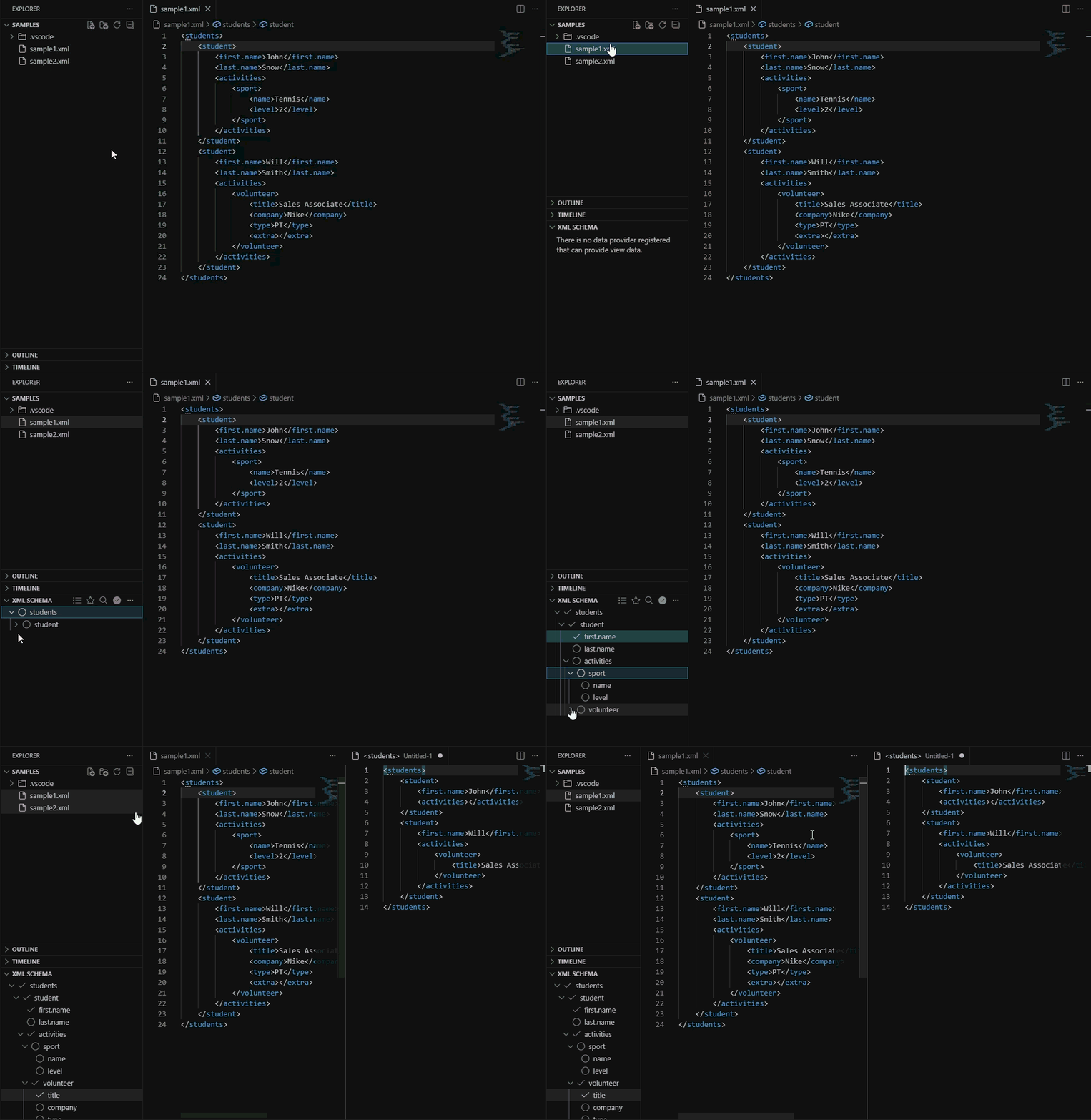
Interactive XML Structure View

  • Automatically extracts the structure of the active XML file.
  • Displays the XML hierarchy in a tree view.
  • Allows you to select specific tags or paths to include.
  • Generates a filtered XML output based on your selection.


(Filtering a sample XML file)

Save and Reuse Filters

  • Save frequently used XML tag selections as reusable filters.
  • Avoid repeatedly selecting the same XML paths.
  • Choose where to store filters:
    • Workspace-level (project specific)
    • Global-level (available across all projects)

This is ideal for recurring workflows or team-based environments.

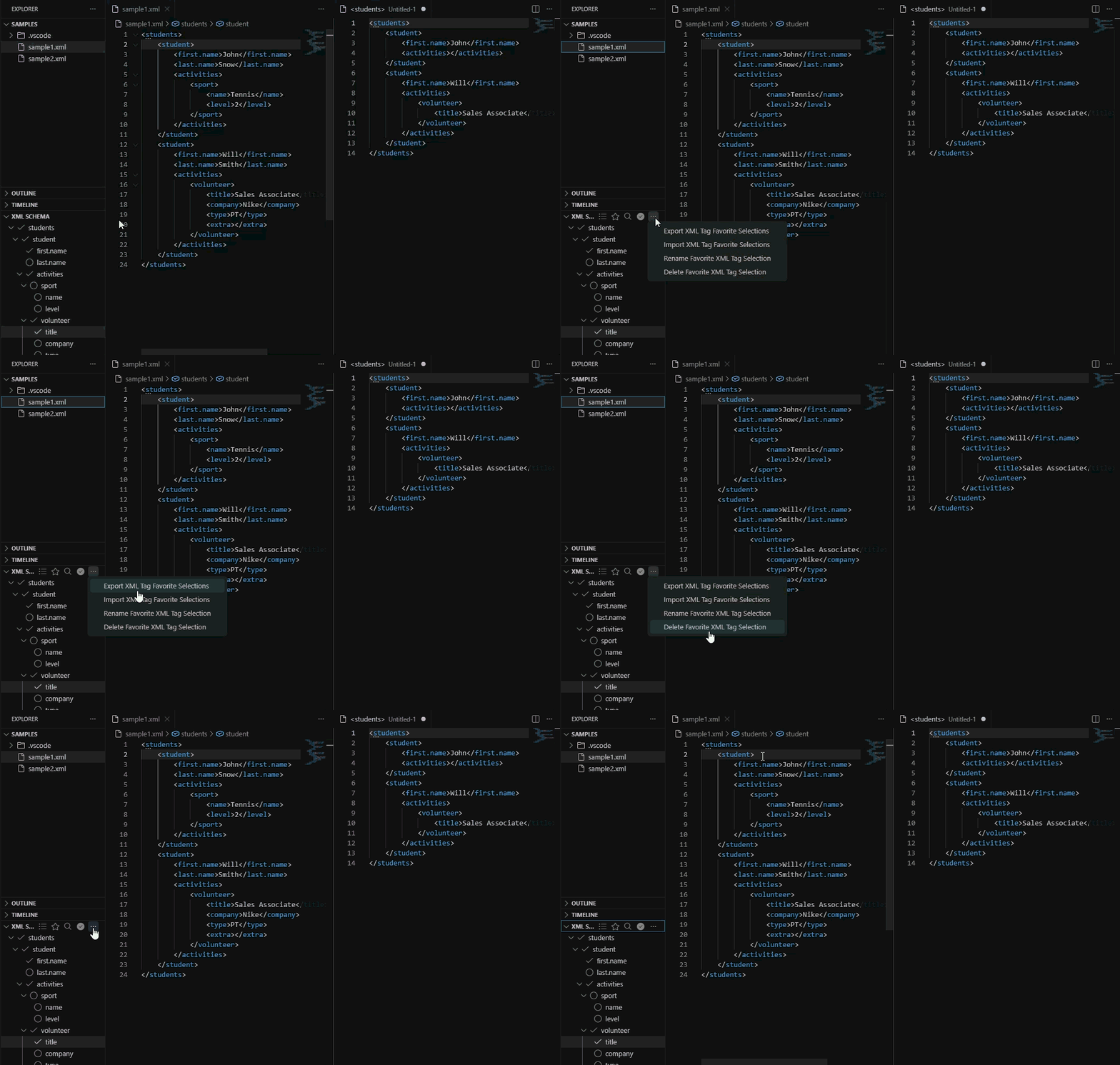
Export and Import Filters

  • Export saved filters to share with teammates.
  • Import filters created by others.
  • Maintain consistency across different environments and systems.


(Available extension options)


(Saving and loading XML tag selections)

How It Works

  1. right-click on an XML file within the workspace.
  2. click on "Show XML Schema".
  3. Select the XML paths you want to include from the tree view.
  4. click on the check icon on the top-right corner.
  5. The extension generates a filtered version of the XML file.
  6. Optionally you can save your selection for future use.

Requirements

There are no mandatory dependencies.

For best results, it is recommended to install an XML formatting extension. If available, XML Tag Filter can use it to format the filtered XML output for improved readability.

Extension Settings

The extension does not require manual configuration.

When saving filters, you will be prompted to choose whether to store them:

  • In the current workspace
  • Globally across all workspaces
  • Contact us
  • Jobs
  • Privacy
  • Manage cookies
  • Terms of use
  • Trademarks
© 2026 Microsoft